
Hot

AnyRec Screen Recorder
Record and screenshot any video on Windows and Mac.
Secure Download
Screen Record on Android: 2 Ways with Pro Tips and Fixes

Wish to capture a gaming win on your Android phone? Or maybe you create a how-to tutorial or save an important meeting. For these reasons, knowing Android screen recording is an essential skill. Luckily, since Android 11, Google offers a built-in screen recording feature for brands, but each adds their own settings. Thus, here's a breakdown of the two primary ways to screen record on Android, using built-in and an app; plus some fixes and tips for recording.
Guide List
How to Screen Record on Android 16 without App (Start from Android 11) How to Screen Record on Android [without Restrictions] Troubleshoot Android Screen Recording Not Working Tips for Better Screen Recording on Android FAQsHow to Screen Record on Android 16 without App (Start from Android 11)
Starting with Android 11, Google has a native screen recorder in the system. And by the time of Android 16, the built-in recorder had evolved very much. With this, you can record high-quality video on Android without third-party app installation.
Get to know the brand-specific steps to access the Android screen record icon and record screen on Android.
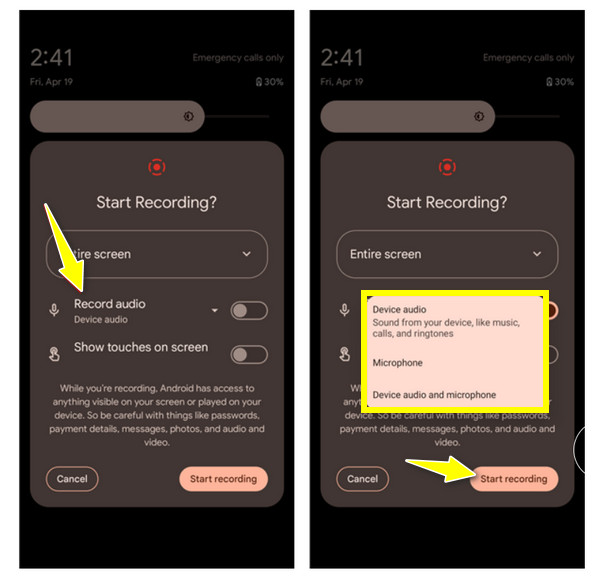
• Samsung
Swipe down from the top of your phone screen to access the Quick Panel. Tap "Screen Recorder" from there, then choose your preference for audio. Tap "Start Recording" to record screen on Samsung.
• Google Pixel
Swipe down twice to open "Settings" or swipe left, then tap "Screen Recorder". There, select "Record entire screen" or "Record a single app", and choose your audio source to begin recording Android screen.
• Xiaomi/Redmi
Pull down the "Control Center" and tap the "Screen Recorder" icon. Otherwise, you can launch the built-in "Screen Recorder" app from the drawer. Then, change the settings as needed, and tap the "Record" button.
• One Plus
Open the "Quick Settings" by swiping down on your phone screen. Now, tap the "Settings" button from the floating widget to check whether the "Record System Sound" is on. Also, ensure the "Noise Reduction" is toggled on, then tap the "Record" button.
• Oppo/Vivo
Swipe down and tap "Record Screen", swipe the "handle" on the side, and tap "Screen Recording". If prompted, allow permissions for the floating controller to record screen with audio on Android.
How to Screen Record on Android [without Restrictions]
To bypass the recording limits from restricted apps such as banking and streaming platforms, here's AnyRec Screen Recorder, a premier alternative to record screen video on Android. By mirroring your Android screen to a PC screen using the Phone Recorder function, this program lets you unlock the black screen blocks found in restrictive applications. Here, you can enjoy a stable, high-performance recording experience that prevents your device from overheating during lengthy sessions. Plus, it handles both wireless and wired connections smoothly for maximum flexibility for screen recording on Android, regardless of models.

A dedicated Phone Recorder is optimized for mobile-to-desktop mirroring.
Clean, high-quality export in your chosen format and resolution with no watermarks.
Built-in preview and editing tools to trim or cut your footage after the session ends.
Draw, highlight, or add text to your Android screen while the recording is live.
Secure Download
Secure Download
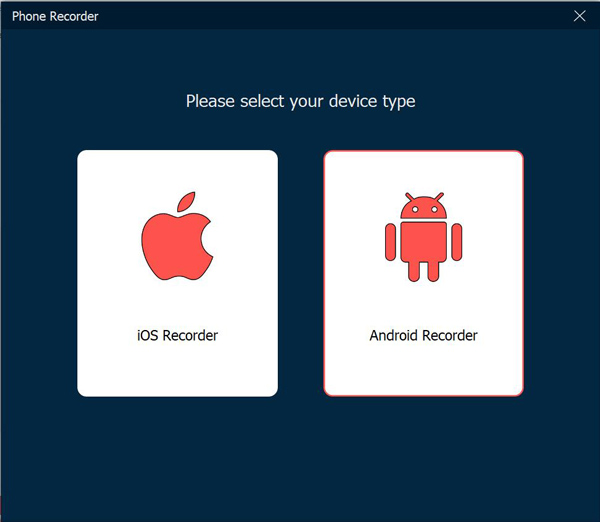
Step 1.Once AnyRec Screen Recorder is launched, select the "Phone Recorder from the main dropdown menu on the homepage. Then, a selection window will prompt you to pick your operating system; please click on "Android Recorder" to proceed.
Step 2.Connect your Android device to your computer using one of the two methods:
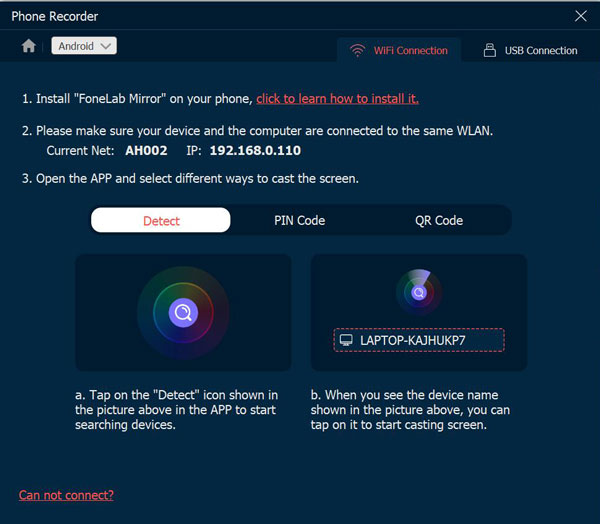
• Wi-Fi Connection: Make sure both your computer and Android phone are on the same network. Get the FoneLab Mirror installed on your phone, then pair it by clicking on "Detect", scanning a "QR Code", or entering a "PIN Code" shown on the program.
• USB Connection: For the quick recording start, pair your Android phone to your computer using a workable USB data cable.
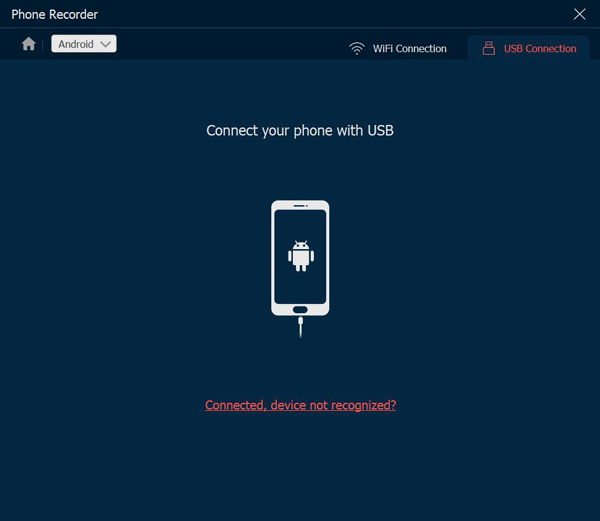
Step 3.After you have been successfully mirrored to your monitor, you're ready to go! Just click the "Record" button on the main interface to start screen recording on Android, including restricted apps and everything.
Secure Download
Secure Download
Troubleshoot Android Screen Recording Not Working
It is frustrating to finish screen video recording on Android only to realize the video is silent or has become corrupted. Most Android recording issues may come from system permissions or background conflicts, which usually have simple fixes. Here's how to fix the most common Android recording not working properly.
- • The screen recorder is missing in Quick Settings. For this recording problem, tap the "Edit" button from the notification shade. Then, look for the "Screen Record" title and drag it into your active grid.
- • Recording stops after seconds. This problem may be due to not enough storage space, so make sure you have at least 2-3 GB free, especially if you're doing high-quality video.
- • No internal audio recorded. Confirm you have selected the "Device Audio" in the menu before clicking the "Start" button. Also, check your device's volume buttons or if it is in silent mode.
- • "Screen recording not allowed" errors. This typically happens because of sensitive apps like banks or streaming platforms. You can try fixing this by turning the "Developer Options" on and looking for "Disable screen share protections" to record restricted apps on Android.
- • Black screen with audio only. Exit all other overlay apps, such as Messenger chat heads, Blue Light Filters, or Game Boosters, since Android usually allows one app to work over the screen at a time.
Watch: How to Screen Record on Android with AnyRec Screen Recorder
Watch this step-by-step video. It covers how to set up AnyRec phone recording for Android. Thus, you can record and screenshot on all Android apps.
Watch the video tour
Secure Download
Secure Download
Tips for Better Screen Recording on Android
To wrap up everything for screen recording on Android, it is important to remember that a great recording is more than just taking a video of your phone. Take a few extra moments to read these tips.
- 1. Enable Do Not Disturb Mode. Before starting to record screen video on Android, turn on DND mode to block all notifications from apps, calls, and texts. This prevents alerts from popping up in your video and ensures your recording is not interrupted.
- 2. Toggle Show Touches for Clarity. If you're doing a how-to guide, it is best to enable the Show Touches or Show Taps to place a visual cue on your Android screen wherever you press.
- 3. Optimize Resolution and Frame Rate. For social media content and tutorials, 1080p at 30fps is the perfect spot for quality and file size. But, for gaming, you can switch to 60fps for fluid movement.
- 4. Manage Your Storage and Battery. High-definition screen recordings on Android can easily eat 100MB per minute. Thus, always check that you have at least a few gigabytes of free storage space and at least enough battery remaining. If not, Android may automatically kill the recording session.
- 5. Prioritize Audio Quality. If you are about to narrate, it's best to use a pair of wired or Bluetooth earbuds with a built-in microphone rather than the phone's speaker. Doing so can reduce background noise and prevent your hands from messing with the mic while you hold the device.
- 6. Lock Screen Orientation. Decide whether your video will be Portrait or Landscape before you capture videos on Android. Locking the orientation will prevent the video from awkwardly changing mid-way through.
FAQs
-
Where are my screen recordings on Android saved?
After tapping the Stop button, your phone processes and saves the video to the Gallery app. There, you can look for a folder "Screen recordings" or "Movies".
-
Why is my screen recording on Android showing a black screen?
When you're seeing a black screen on your screen recording, it is usually a security feature for streaming apps like Netflix, as well as banking apps, password managers, and more sensitive data.
-
Can I record my screen and voice on Android at the same time?
Yes, absolutely. Since Android 11, the built-in recorder can record both screen and voice at once. After tapping on the Screen Record tile, make sure the Record Audio is toggled on, then choose the right audio source.
-
Does screen recording on Android drain the battery quickly?
Yes. Recording, especially high-definition video, is a heavy task for your device's processor. If your battery is below 25%, your Android recording may lag.
Conclusion
With the native features found in Android 11 to Android 16, you have everything to record video on Android, creating high-quality content. The Android no audio recording issues and unexpected glitches can be fixed. And while the Android screen recorder is ideal for quick recording, it comes with app restrictions that make using AnyRec Screen Recorder the perfect solution. You can bypass recording blocks by mirroring your Android screen to your computer for unrestricted recording. It guarantees a stable, watermark-free, and high-quality experience every time.
Secure Download
Secure Download
Related Article
About Our Author




