
Techniques to Blur Face in Videos on All Devices with Steps

When filming videos in public spaces, passersby may inadvertently appear in the frame. To protect others' privacy and help viewers focus on the video content, you need to blur faces in the videos. This article introduces five software solutions for different devices that provide blurring effects, enabling you to obscure the faces of strangers in your videos.
Guide List
Easy and Best Tool to Blur Face in Videos How to Blur Face in Videos with Adobe Premiere Pro How to Blur Face in Videos Online for All Devices Apps to Blur Face in Videos for iPhone and AndroidEasy and Best Tool to Blur Face in Videos
AnyRec Video Converter is a feature-rich toolbox and a practical solution for blurring faces in videos, integrating editing and conversion capabilities into one. After downloading, you can use multiple editing tools to easily blur faces in videos on any computer. You can manually locate faces to blur, customize the blurred area, or add fun stickers to cover them on your device.

Use images or text to cover specific parts of the video.
Precisely adjust watermarks within videos to completely obscure faces.
Supports face blurring for multiple video formats, such as MOV, MKV, and more.
Equipped with integrated editing tools, including trimming, merging, and other functions.
Secure Download
Secure Download
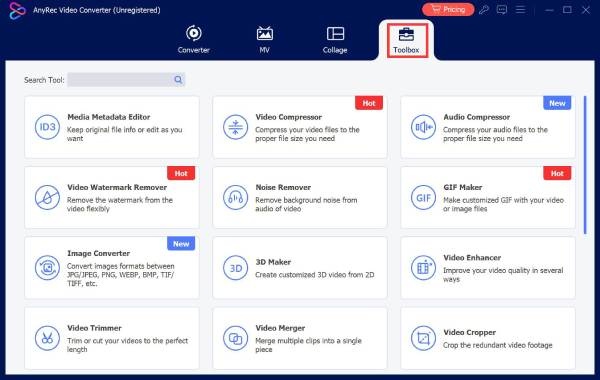
Step 1.Install and launch it on your device. Then, on the main interface, tap the "Toolbox" button to view all tools. Tap the "Video Watermark" button to continue.
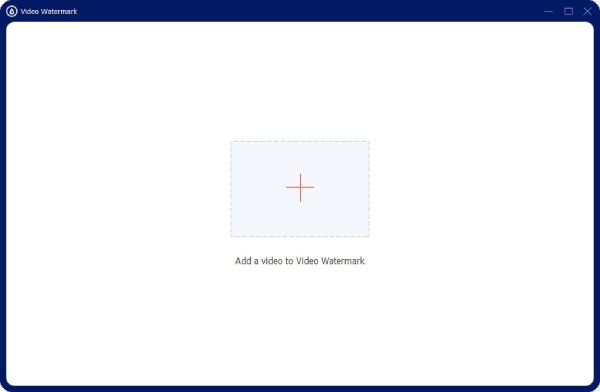
Step 2.In the pop-up window, tap the "Add" button to import the video where you want to blur faces. Then tap the "Add Image Watermark" button to import the prepared blurred image.
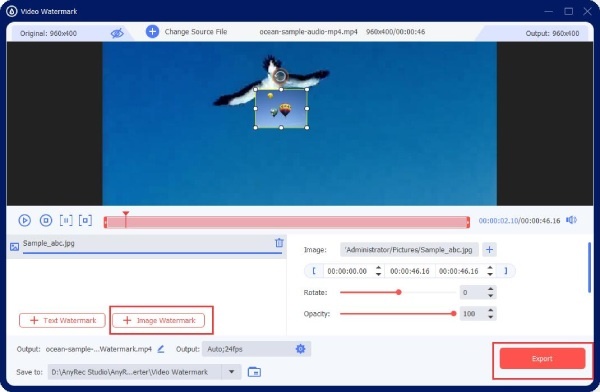
Step 3.Adjust the image position and opacity to ensure all faces in the video are covered. Finally, tap the "Export" button to save it to your device.
How to Blur Face in Videos with Adobe Premiere Pro
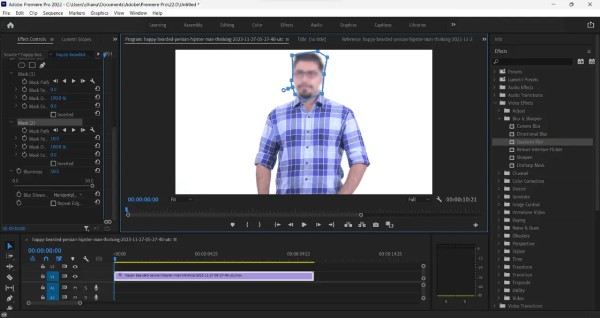
This powerful video editing software, Adobe Premiere Pro, is compatible with both Windows and macOS systems. Premiere Pro offers a suite of robust tools. Using masking and tracking features, you can draw elliptical, rectangular, or pen masks within the Effects Controls panel to cover facial areas. Once the built-in mask tracking function is enabled, the software automatically follows subject movement frame-by-frame based on motion analysis, reducing the need for manual keyframe adjustments.
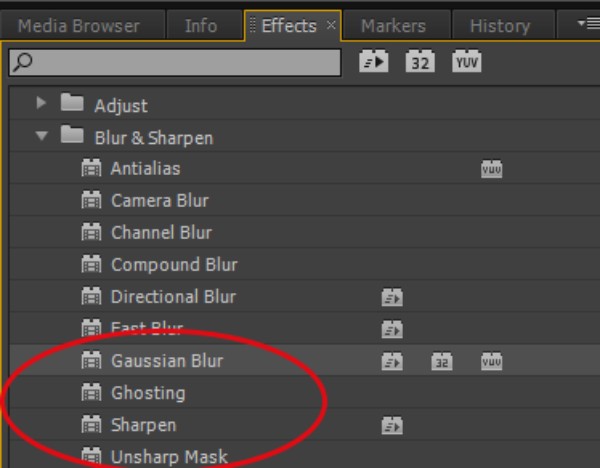
Step 1.Import the video where you want to blur faces, then click "Effects," "Video Effects," and select "Blur and Sharpen."
Step 2.Locate the "Gaussian Blur" effect and drag it onto your footage.
Step 3.In the Effects panel, use the "Mask" tool to outline the area you want to blur. Adjust the mask path over time to track the object's movement and animate it.
How to Blur Face in Videos Online for All Devices
As an online tool, Flixier's greatest advantage is that it requires no software installation and can be used across multiple devices. It supports adjusting the video masking's position, size, and duration, and allows you to use keyframes to make the blur/mosaic mask follow the subject's movement, making it easy to handle dynamic scenes. At the same time, this feature is beginner-friendly, requiring no complex operations or professional editing skills.
Step 1.Import the video clip and place it on the timeline. From the Library menu, select Shapes, then apply the "Square Mask" to the clip.
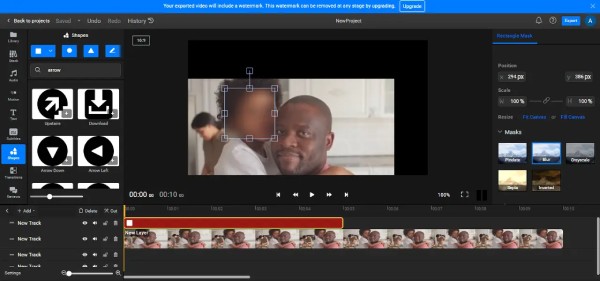
Step 2.Customize the mask in the Properties menu by applying effects like blur or pixelate, and preview the results on the canvas.
Apps to Blur Face in Videos for iPhone and Android
For iPhone:
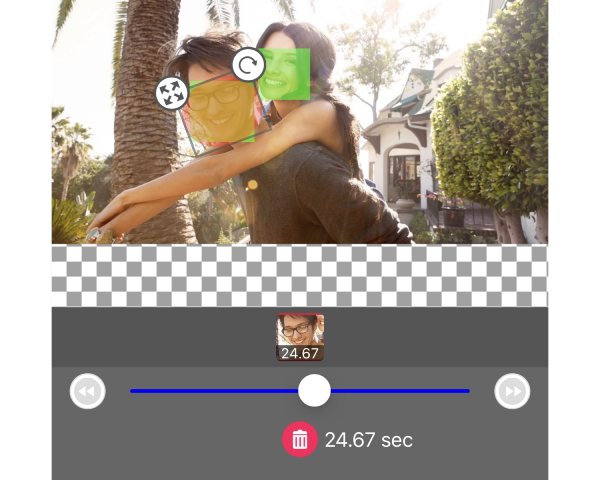
MovStash is a video editing app that can blur faces. It specializes in mosaic and blur effects, deeply optimized for iOS devices to deliver smooth performance and intuitive operation. Its clean, straightforward interface allows users to quickly import videos and apply blur effects without requiring advanced editing skills. Designed for efficiency and ease of use, it caters to users requiring quick solutions for privacy protection or obscuring sensitive information.
- Pros
- The interface is clean and intuitive, with a well-organized layout that's beginner-friendly.
- Multiple blurring modes are available, including automatic face-tracking blur.
- It runs smoothly without relying on complex export/transcoding processes.
- Cons
- Lack advanced editing features like precise mask editing.
- Face-tracking blur accuracy is low in occluded or low-light scenes.
For Android:
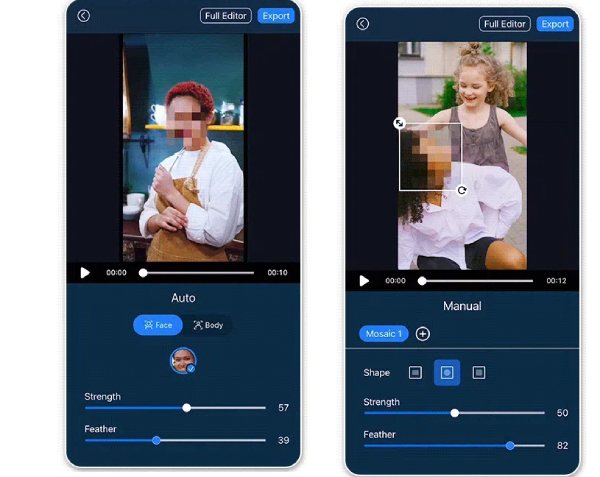
CyberLink PowerDirector's blurred face feature primarily offers intelligent auto-detection and customizable dynamic masking. Users can adjust the intensity and mask shape, and settings allow the mask to dynamically update as subjects move. This functionality is ideal for quickly processing privacy-sensitive facial masking while also supporting manual overlay settings to cover other sensitive areas.
- Pros
- Built-in AI detection automatically locates faces and tracks movement.
- Support customizable blur intensity, mosaic grain size, and mask shape.
- Cons
- Automatic tracking may exhibit significant inaccuracies in complex scenes.
- The interface and terminology are extensive, requiring a learning curve.
Conclusion
In short, with this comprehensive guide, you can blur strangers' faces in videos across various devices without having to search for relevant steps elsewhere. After downloading AnyRec Video Converter, you can more easily cover or mask unexpected faces in vlogs on your computer, achieving higher-quality video results.
Secure Download
Secure Download
Related Article
About Our Author




