
Hot

AnyRec Video Converter
120× faster video conversion and editing. No waiting.
Secure Download
Top 5 Options of Video Speed Controllers for Every User

Controlling the playback speed of videos is an efficient skill for video editing. Whether it's slowing down the playback speed for key moments or speeding up the playback speed for tutorials or social media videos, adjusting the playback rate can significantly alter the presentation effect of the content. This guide explores essential selection techniques and trustworthy video speed controllers to help you find the correct solution for creative editing and daily video adjustments.
Guide List
What Is a Video Speed Controller and Why Does it Matter Things to Consider When Choosing a Video Speed Controller The Most Powerful Video Speed Controller for Creative Editing Top 5 Options of Video Speed Controllers for Every UserWhat Is a Video Speed Controller and Why Does it Matter
If you want to achieve the operation of controlling the video speed, then you first need to understand what a video speed controller is. It is a tool specifically designed to adjust the playback speed of the video without altering its core content.
It is usually used to highlight details, save viewing time, or add creative effects such as slow motion and time-lapse photography. Whether for editing, learning, or entertainment, controlling the playback speed plays a crucial role in enhancing appeal and overall viewing experience.
Things to Consider When Choosing a Video Speed Controller
With this basic information, it becomes clear how to select an appropriate video speed controller: The ideal situation is to be able to change the video speed while keeping the video quality at the same level to ensure the output quality. In addition, the capabilities of the tool in terms of format compatibility, processing speed, etc., cannot be ignored. Understanding these key points in advance can help avoid problems such as audio distortion, frame loss, or limited editing flexibility in actual use.
Based on these points, you need to clearly identify the key features that you are most concerned about. When choosing a video speed controller, it is even more important to assess whether the tool meets your actual usage requirements.
For example, if you are more concerned about processing capabilities, then speed range is the primary factor to consider. You should be aware that it supports both slow motion and fast playback, rather than being limited to just a few preset speed options.
Format compatibility is another crucial factor. Some tools only support standard formats, while others support a wider range of video and audio encoding formats. It can be vital if you care about compatibility.
The Most Powerful Video Speed Controller for Creative Editing
If you don't want to think too much and just want to achieve the best results while controlling the video speed, then choosing AnyRec Video Converter is definitely the right choice. With its powerful features, it is an ideal option for creative video editing. During the process, you can easily adjust the video speed, making it in line with your intention.
Unlike standard tools, AnyRec Video Converter is capable of maintaining audio sync and clear image quality even after significant speed changes. At the same time, this software supports multiple video formats, making it suitable for materials from different cameras and platforms. Users can preview the effect of speed adjustment in real time, precisely adjust the playback speed, and export videos in high-quality formats without any unnecessary compression.

Control the video speed according to your request.
The video quality will not be affected during the process.
Preview to view the playback effect of the video.
Export the video file in the format you prefer.
Secure Download
Secure Download
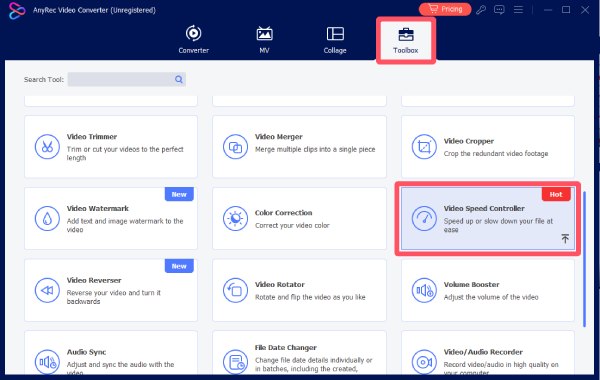
Step 1. Launch AnyRec Video Converter on your computer. Under the "Toolbox" tab, click the "Video Enhancer" button.
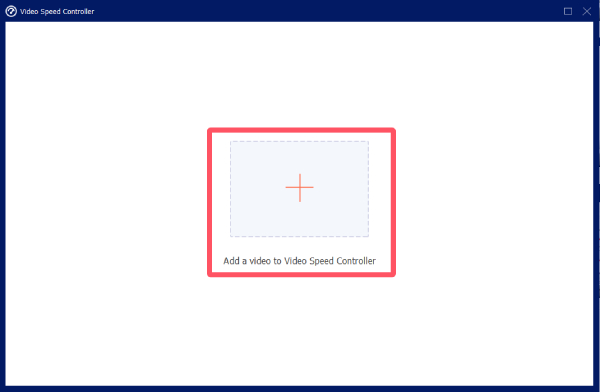
Step 2. A window will pop up, asking you to upload the video file. Click the "Add Files" button to upload your video.
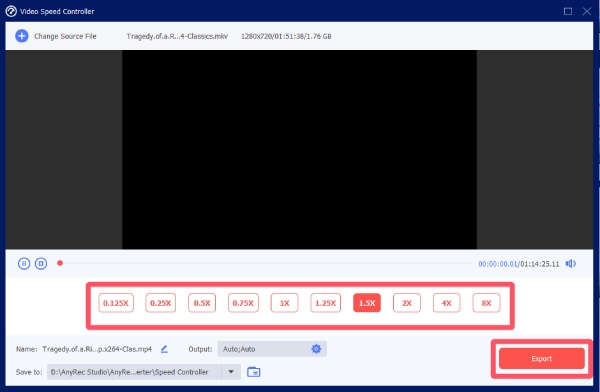
Step 3. You can click to select the desired speed for your video to control the video speed. Finally, click the "Export" button.
Top 5 Options of Video Speed Controllers for Every User
Although there are so many tools available, a truly qualified video speed controller is actually not in abundance. Many tools that claim to have robust performance fail to meet expectations after actual testing. Meanwhile, different users have different preferences for other needs. Fortunately, this section has tested most of the available video speed controllers for you and selected several truly reliable options. Here are five reliable video speed controllers; each has its unique advantages and limitations. You can choose the one that suits you best.
Adobe Premiere Pro
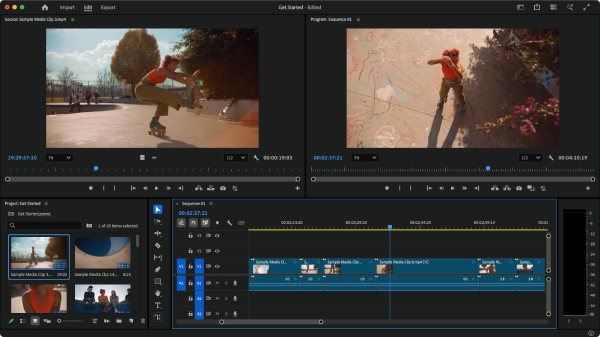
Considered as one of the best tools for professional video editing, Adobe Premiere Pro has been popular for years among video editors. And speed control is included in its abundant features. These tools allow editors to create seamless slow motion and dynamic speed transitions. Premiere Pro integrates deeply with other Adobe apps, which is helpful for complex projects, but it also demands more learning for beginners.
- Pros
- Professional-level speed effects and control
- Excellent integration with Creative Cloud
- Support other rich editing options
- Cons
- Steep learning curve
- Subscription-based pricing
- High requirements for hardware
iMovie
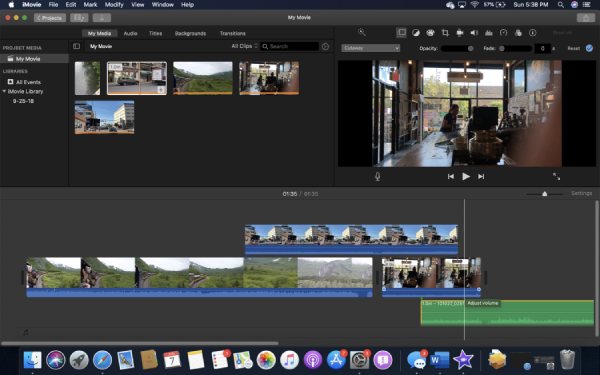
For users of Apple devices, the built-in iMovie can help you achieve the task of controlling video speed. This user-friendly software, specifically designed for Mac and iOS users, enables you to easily adjust the speed of videos without the need for complex settings. You just need to move the slider to speed up or slow down video clips in iMovie. iMovie is suitable for quick editing, but compared to professional editors, it lacks more precise control functions.
- Pros
- Easy to use with straightforward controls
- Free for macOS and iOS users
- Work with one file at a time
- Cons
- Limited advanced speed features
- Basic interface for simple editing only
- Can not control the speed precisely
VLC Media Player
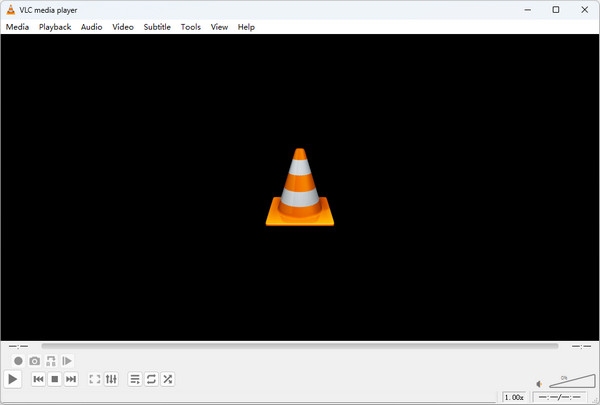
The VLC audio and video player is highly praised worldwide because of its extensive adjustment capabilities for playback. In fact, the VLC audio video player enables you to quickly adjust the playback speed of the video by pressing buttons while watching. Its only drawback is that although it helps with previewing at different speeds, it does not have the function of exporting after applying speed modifications.
- Pros
- Completely free and widely available
- Work on multiple platforms
- Compatible with almost all formats
- Cons
- Cannot export edited speed adjustments
- Limited editing features
- Subtitles may not sync when the speed changes
Kapwing
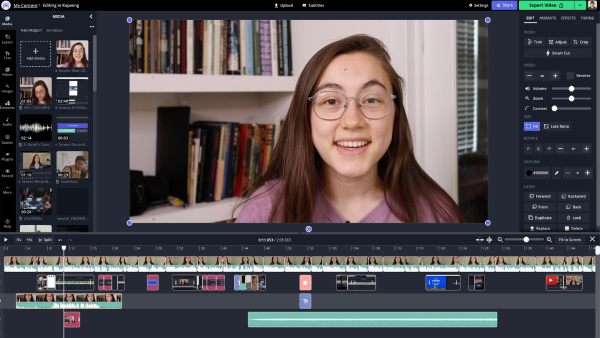
For users who are looking for an online video speed controller, Kapwing can be regarded as one of the best options with the most comprehensive features. It not only has basic editing functions but also comes with a speed adjustment tool. You can upload videos, adjust the playback speed, and preview before saving the file. Kapwing's browser-based workflow is convenient for speeding up videos online, but there may be file size limitations and usage restrictions for the free plan.
- Pros
- No installation required, browser-based
- Work with simple editing tools
- Support many editing options
- Cons
- Upload limits on the free tier
- Dependent on the internet connection
- Can be slow when dealing with large files
DaVinci Resolve
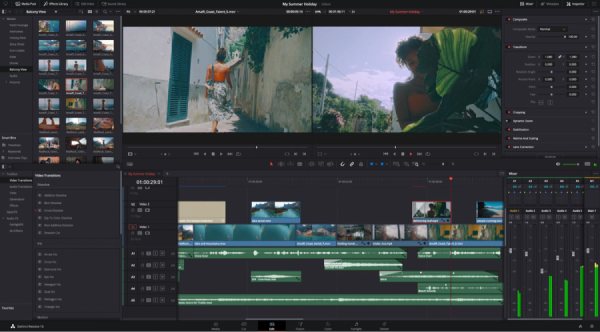
DaVinci Resolve is more suitable for users who place greater emphasis on video quality. Compared to robust video speed control, DaVinci Resolve focuses more on whether the video can maintain good quality after speed changes. Therefore, its powerful color correction comes in handy. At the same time, in terms of speed adjustment, it also supports flexible speed gradients, re-timing curves, and frame interpolation functions, enabling smooth slow-motion or rapid scene effects. Although it can provide high-quality output and advanced control functions, for beginners, its interface may seem rather complex.
- Pros
- Professional speed controls with advanced effects
- Excellent for high-quality motion editing
- Image quality remains high after changing the speed
- Cons
- Steep learning curve for new users
- Hardware demands can be high for large projects
- Not very precise with speed control
Conclusion
Choosing the right video speed controller depends mainly on how often you edit videos and how much control you need over playback timing. There have already been loads of ways to do the task. In short, if you want to change playback speed with the best effect, AnyRec Video Converter is the most effective way to enhance storytelling, clarity, and viewer engagement.
Secure Download
Secure Download
Related Articles:
About Our Author




