
[Pros & Cons] Most Recommended Video Compressors for Discord

Compressing videos for Discord is a useful skill, whether you are sending gameplay clips, tutorials, or short videos. That's where video compressors come in. In this guide, you will learn about Discord's file size limits and explore some of the most reliable video compressors to help you reduce file size while maintaining good quality.
Guide List
Discord File Size Limit You Should Know for Compression The Most Powerful Video Compressor for Discord Other Options for Discord Video CompressorsDiscord File Size Limit You Should Know for Compression
Before choosing a Discord video compressor, it is essential to understand Discord's file size limitations. For free users, the maximum upload size is typically 8MB per file, which is quite restrictive for most video content. Even short clips recorded in high resolution can easily exceed this limit.
Discord has indeed launched some plans to serve users who need to upload videos of larger file sizes. If you subscribe to Discord Nitro, the limit increases to 50MB or even 500MB, depending on the plan.
Given that not all users have the need for a subscription plan, compressing videos becomes an alternative to consider. This often involves adjusting resolution, bitrate, or format to achieve a smaller file size. Choosing the right compression tool can help you balance quality and size effectively, ensuring your videos can be uploaded smoothly to Discord without unnecessary loss of detail.
The Most Powerful Video Compressor for Discord
If you are looking for a reliable and efficient way to compress videos for Discord, AnyRec Video Converter is a strong choice. It provides an all-in-one solution for compressing videos while maintaining high quality. With customizable settings such as resolution, bitrate, and file size, you can easily adjust your video to meet Discord's requirements.
Compress any type of video file for Discord to less than 8 MB.
Crop unwanted parts to compress video to 8MB for Discord.
Trim video length to shrink file size for Discord sharing.
Convert large videos to Discord formats for easy sharing.
Secure Download
Secure Download
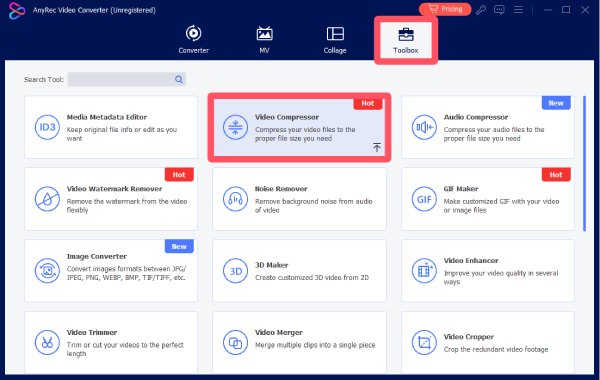
Step 1.Launch AnyRec Video Converter and click the "Video Compressor" button under the "Toolbox" tab.
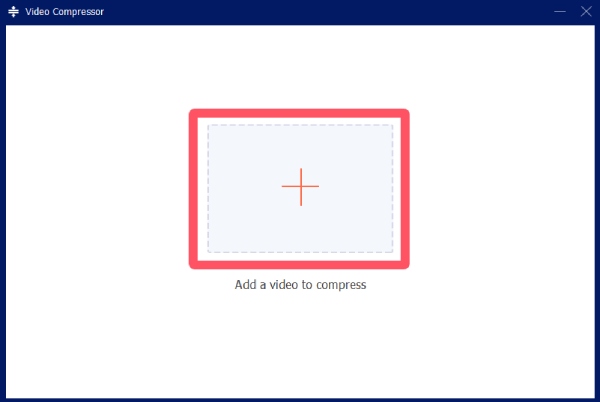
Step 2.In the pop-up window, click the "Add" button to import your video for Discord compression.
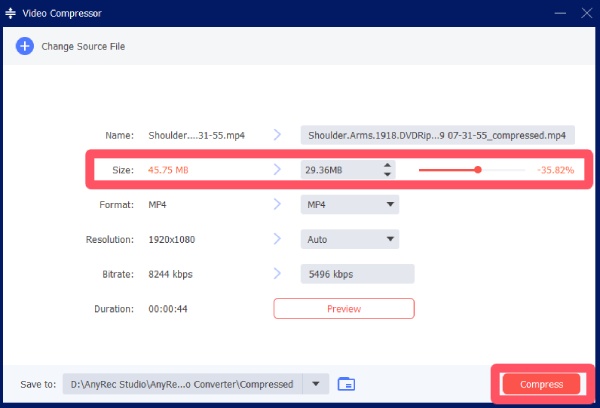
Step 3.Click the "Size" button to compress your video. Finally, click the "Compress" button to start the process.
Other Options for Discord Video Compressors
If you want to explore more tools, there are plenty of alternative video compressors available. Each option offers different features, levels of control, and ease of use. Below are nine reliable video compressors you can consider.
1. HandBrake
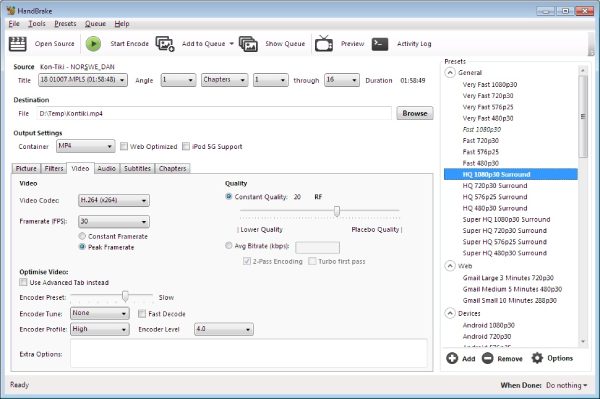
Using Handbrake to compress videos has long been a popular choice. As a free video transcoder, Handbrake allows users to adjust detailed parameters to have precise control over the compression. While the process may involve some specialized skills, Handbrake can be quite useful once you get the knack of its operation.
- Pros
- Free and open-source for Discord video compression
- Advanced compression settings
- Support multiple platforms
- Cons
- Complex interface for beginners
- Limited format presets
- Require manual configuration
2. VLC Media Player
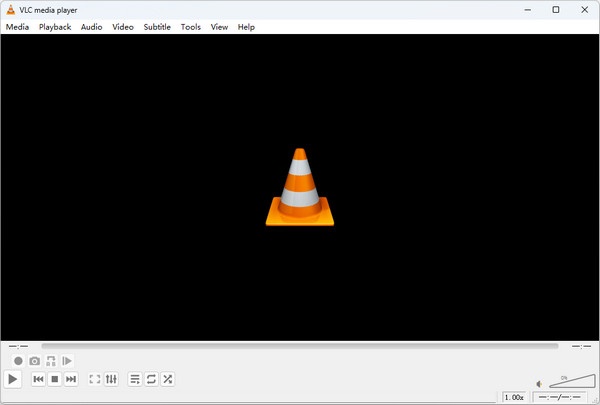
VLC is not only a media player but also a basic video compressor. It allows users to convert and compress videos by adjusting format and bitrate settings. It is a convenient option for quick compression without installing additional tools. You can preview the output right after compressing the video for Discord.
- Pros
- Free and widely available
- Simple compression process
- Support conversions from VLC to MP4
- Cons
- Limited advanced features
- Not designed specifically for compression
- Slower processing speed
3. Clipchamp
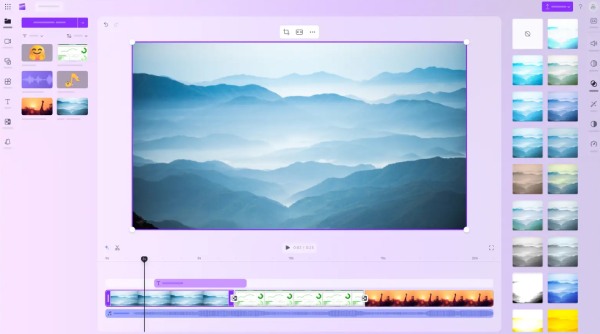
Clipchamp is an online video editor and compressor owned by Microsoft. It provides an easy way to compress videos directly in a browser. It is ideal for beginners who prefer a simple interface and quick results of compressed videos for Discord.
- Pros
- Easy to use
- Work online without installation
- Includes editing features
- Cons
- Require an internet connection
- Limited free features
- Export restrictions in the free version
4. FreeConvert
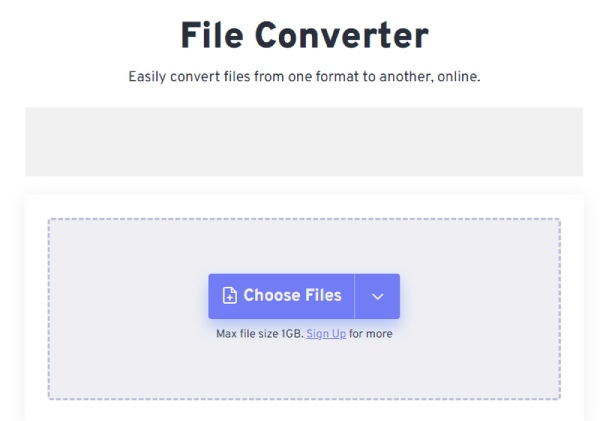
FreeConvert is a web-based file conversion and compression tool. It allows users to upload videos and adjust compression settings such as file size and quality. This Discord video compressor is suitable for quick, occasional use.
- Pros
- No installation required
- Support many formats
- Custom compression settings
- Cons
- File size limits
- Upload speed depends on the internet
- Privacy concerns for uploads
5. VEED.IO
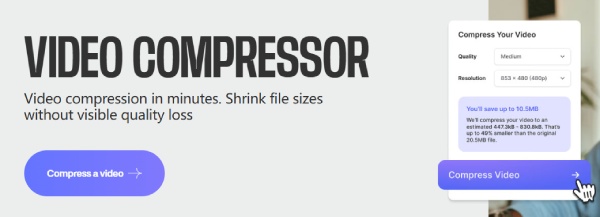
VEED.IO is an online video editing platform that also offers compression features. It provides a user-friendly interface and supports quick video resizing and optimization for platforms like Discord. With the presettings prepared, you can compress videos for Discord without effort.
- Pros
- Beginner-friendly interface with detailed guide
- Work online within your browser
- Several editing tools are provided
- Cons
- The free version has limitations
- Work relies highly on the internet condition
- Watermarks on free exports
6. Movavi Video Converter
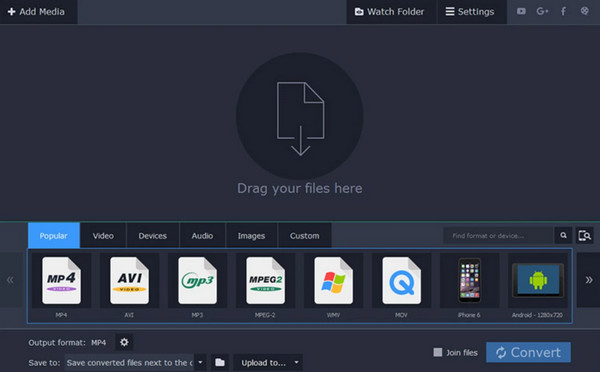
Movavi Video Converter is known for its fast processing and simple interface. This Discord file compressor allows users to compress videos efficiently while maintaining good quality, making it suitable for quick conversions.
- Pros
- Fast conversion speed
- Easy to use
- Good quality output
- Cons
- Paid software
- Limited free version
- Fewer advanced settings
7. CloudConvert
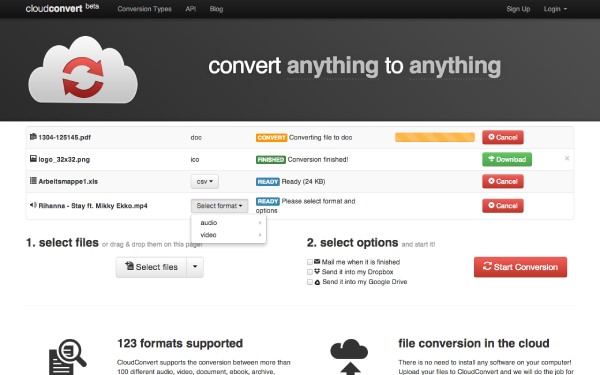
CloudConvert is an online file conversion tool that supports video compression. It integrates with cloud storage services and offers flexible output settings. You can compress videos for Discord on your browser easily.
- Pros
- Cloud integration with several platforms
- CloudConvert is safe to protect privacy
- Custom settings for advanced requirements
- Cons
- Limited free usage
- Internet-dependent
- Slower for large files
8. Zamzar
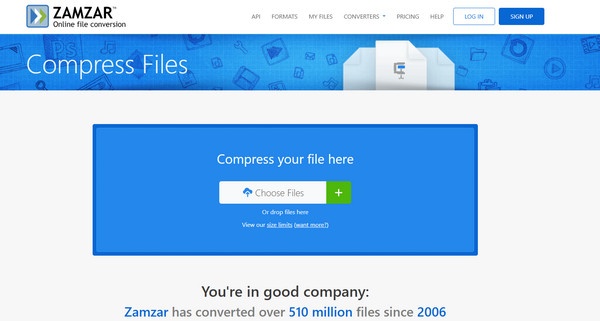
For those users who value both ease of use and convenience, Zamzar is an extremely suitable choice. It can help you achieve the goal of compressing videos for Discord in no time, even if you are a beginner. Thanks to its clear interface, Zamzar makes the process quick and easy for basic file conversion.
- Pros
- Easy to use
- No installation required
- Support multiple formats
- Cons
- File size limits for quick conversion
- The process can be slow
- Limited customization without editing tools
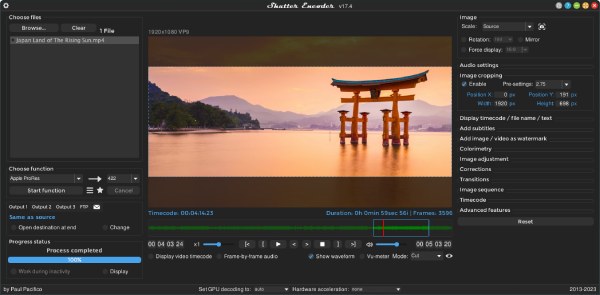
9. Shutter Encoder
If you know something about coding, Shutter Encoder can be powerful in your hands. This Discord file compressor is built on FFmpeg. Since it's totally open-source, many professionals choose this tool as their assistant. Advanced features like color correction and batch processing are also supported, just like other professional video tools.
- Pros
- Free and open-source with professional-level features
- Support advanced codecs like H.264 and H.265
- Offers batch processing and detailed compression control
- Cons
- The interface may feel complex for beginners
- Require some technical knowledge for best results
- Overkill for simple, quick compression tasks
Conclusion
This post has introduced several Discord video compressors that you can trust. You can select one that best fits your requirements. If you are looking for both ease of use and powerful functionality, then you will find that AnyRec Video Converter is an extremely good option.
Secure Download
Secure Download
About Our Author




