How to Unblur an Image: 7 Practical Editors You Should Try

Looking for a way to unblur an image? It is indeed disappointing when a moment feels so special, you decide to capture it, and the output is blurry, ruining the moment. Well, it happens, but you can still save it. You can still unblur it through the use of the right editing tools. Now, to make things easier for you, this post already features the right tools that can help you remove photo blur. So, without further ado, start exploring each one of them below.
Guide List
Practical Online Methods to Unblur Images 5 Quick Online Methods for Unblurring Images How to Unblur Images Using Photoshop on Desktop Settings Tips for Unblurring ImagesPractical Online Methods to Unblur Images
If you prefer to use a practical tool solution to deblur an image, then the AnyRec AI Image Upscaler is a solid choice. This one is a web-based tool that can help you unblur and improve low-quality images in just a few clicks. It uses AI to sharpen details, reduce pixelation, and increase image resolution up to 8×, making blurry photos look clearer and more detailed. Aside from that, it works for portraits, old photos, product images, anime pictures, and even screenshots with text, so whatever the image you have there, this tool supports it!
- • Supports batch processing, meaning it can unblur multiple images at once.
- • Upscale images up to 8× without lowering the quality.
- • Lets you preview the before-and-after results before downloading the image.
- • Offers a simple interface that is beginner-friendly and easy to use.
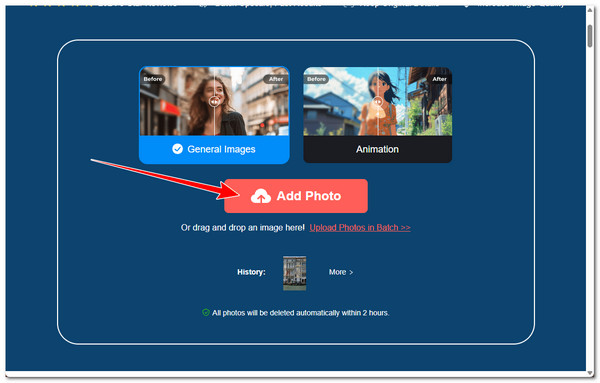
Step 1.Visit AnyRec AI Image Upscaler's official website on your desktop browser. After that, click the "Add Photo" button to import the image you wish to unblur.
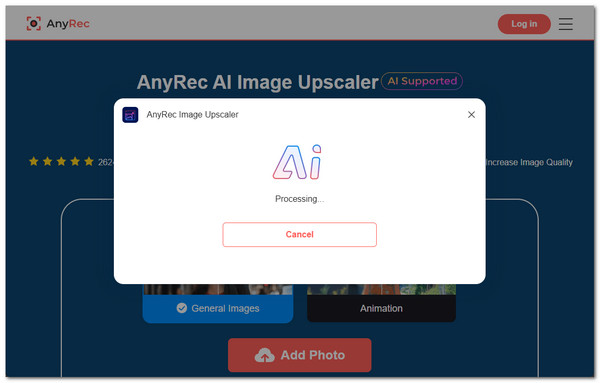
Step 2.Once imported, the tool will automatically initiate the image upscaling process with AI. Wait until it finishes unblurring your image.
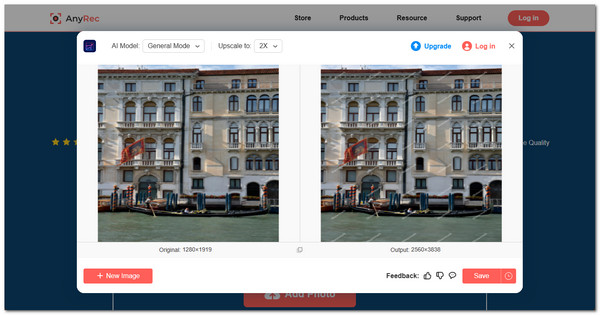
Step 3.Once done, the tool will preview the blurry and unblurred versions side-by-side for you to check the output. If you are satisfied with it, click "Save" to download the unblurred version.
5 Quick Online Methods for Unblurring Images
Aside from the first featured solution, here are the other ones that you can also use to fix blurry images online.
1. Picsart
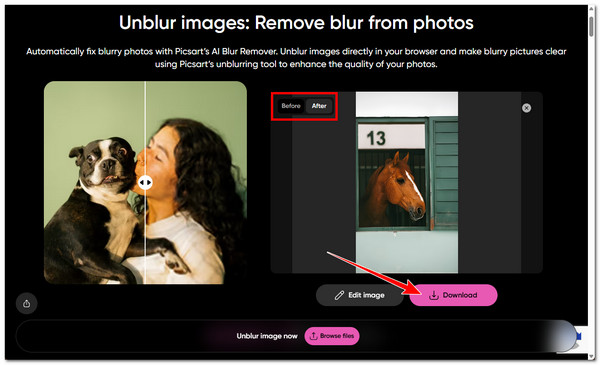
If you want a fast image unblurring process, Picsart is a great option you can use to unblur an image for free . This tool supports a web-based unblur image feature that can also automatically improve the clarity of images using artificial intelligence. Unlike other tool solutions, this one offers a pretty straightforward process and also provides an option to further edit the image, which is expected since it is a media editor. However, you can only save a low-resolution version of the unblurred image for free.
Step 1.Go to the Picsart Unblur Image - Photo Blur Remover webpage and import the image you wish to unblur by clicking the "Browse files" button.
Step 2.Next, the tool will automatically start the image unblurring process with the use of its AI.
Step 3.Once done, you can check the "Before" and "After" versions of the image. If you are satisfied with it, click "Download", and select "Low-res image".
2. PicWish
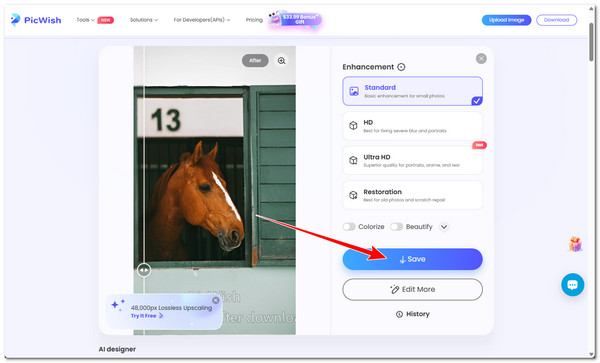
Another web-based solution you can use to make blurry pictures clear is PicWish. The same goes for the previous ones; this tool is also an AI-powered tool that can unblur images by sharpening and restoring lost details in blurry or low-quality photos. It works especially well for portraits, enhancing facial features and improving overall clarity in just one click. It also offers extra options to enhance your images. However, it is not free, and you need to sign up for an account to use its other features.
Step 1.Visit the PicWish Unblur Image & Sharpen Image Online webpage on your browser. Then, click "Upload Image" to import your blurry image.
Step 2.After that, the tool will automatically unblur your blurry image. Wait until it finishes processing.
Step 3.If it finishes, click the "Save" button to download the Standard unblurred version of your image. And that's it!
3. Fotor
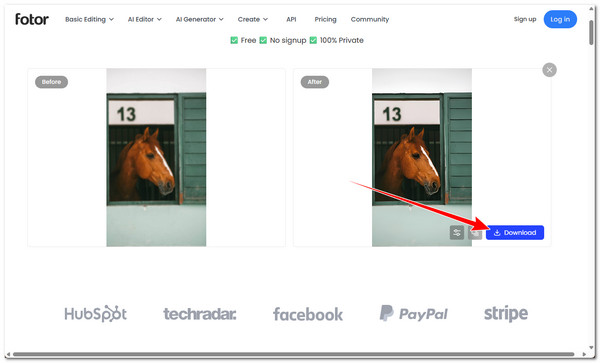
If you are looking for an online tool that doesn't require you to sign up, Fotor is one option. It uses AI to unblur and enhance images by improving sharpness and restoring missing details from low-quality or blurry photos. Like Picsart, it also lets you edit your image beyond just unblurring it. However, it only allows you to download a low-resolution version of the unblurred image. Here's how to remove blur and sharpen an image on a website (Fotor).
Step 1.On your browser, search for Fotor Free Online AI Photo Blur Remover, and access it. After that, click "Upload Image" to bring your blurred image to the tool's interface.
Step 2.Next, wait until the tool is finished unblurring the image. Once it is done, you can preview its output.
Step 3.If you are satisfied with the output, click "Download", and select "Low-res image" to save the unblurred version of your image.
4. Pixelcut
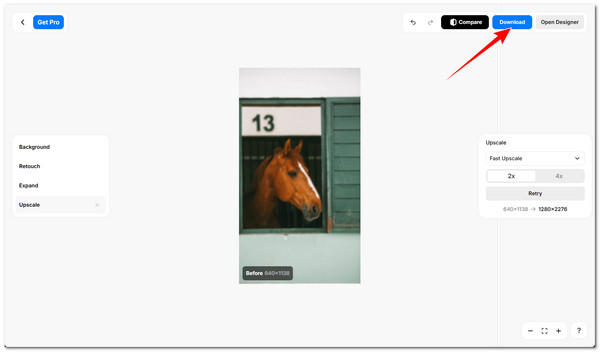
You should also consider trying Pixelcut to unblur an image, for it is also a great solution option. This web-based tool is also capable of automatically unblurring images quickly. What makes it quite different is that it offers different upscaling capabilities (Fast, Creative, Topaz, and SeedVR2), most of which are not free. It also offers other features to edit your image, such as tweaking your image's background, retouching, and expanding it.
Step 1.Access Pixelcut's Unblur Image Free Online website on your browser and click "Unblur Image" to upload your blurred image into it.
Step 2.Next, wait for the tool to finish the unblurring process, which will only take a few seconds.
Step 3.Once done, the online tool will automatically preview the unblurred version of the image (After). If you're satisfied with it, click "Download" to save it to your computer.
5. Artguru
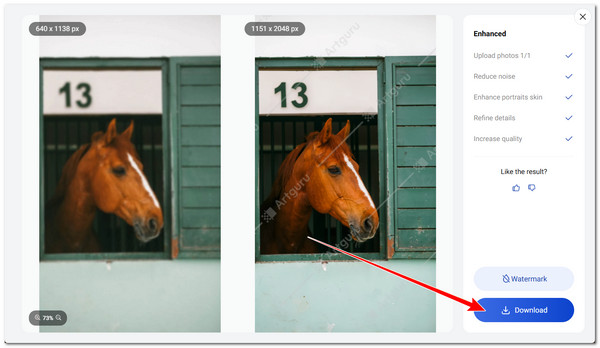
Last but definitely not least is Artguru. It doesn't come with many differences from the other solutions featured earlier, but it does offer a feature that lets you see what it processes to unblur your image. This tool unblurs your image by reducing noise, enhancing skin, refining details, and increasing image quality. However, compared to most of the featured tools earlier, this one embeds a watermark in the output.
Step 1.Go to the Artguru Unblur Image Online website on your browser. Then, click "Select images" to import the blurred image that you wish to fix.
Step 2.Next, select your preferred subscription and click "Start" to proceed. After that, wait for the tool to finish unblurring the image.
Step 3.Once done, click "Download" to save the unblurred version of your image to your device.
How to Unblur Images Using Photoshop on Desktop
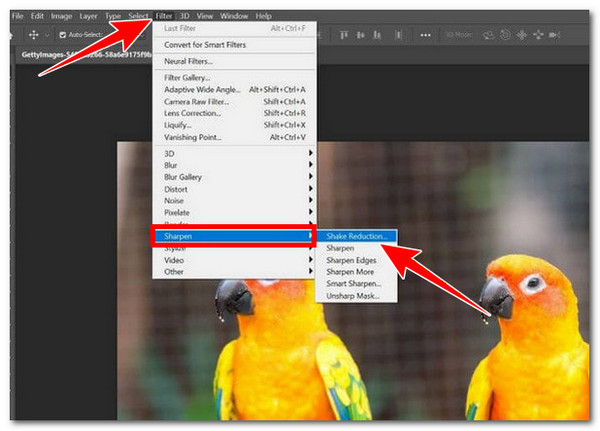
If you prefer to use a desktop-based tool to unblur an image, one of the best tools out there is the professional Adobe Photoshop. This one provides tools and filters that can fix motion blur, improve focus, reduce noise, and make images look clearer and more detailed. Aside from unblurring images, it also includes other editing features for enhancing and customizing photos. However, this one is quite intimidating and confusing to use, especially for beginners. But if you are still interested in trying it, here are the steps to unblur images and sharpen photos in Photoshop:
Step 1.Download Adobe Photoshop on your desktop and launch it afterward. Next, import the blurred image you wish to unblur into it. Then, click "Filter" at the top to access the dropdown list.
Step 2.Next, click "Sharpen" and click the "Shake Reduction" button from the dropdown list. Next, wait until Photoshop automatically analyzes the image's blurry parts and applies corrections to them.
Step 3.Once done, click "File" and select the "Save" option. Feel free to do experiments with the "Advanced" panel for the "Shake Reduction" option.
Settings Tips for Unblurring Images
Now that you have the right tools that you can use to remove photo blur, this post also wishes to provide some necessary settings tips for unblurring images. When unblurring an image, the goal is to improve clarity without making the photo look unnatural or overly edited. Most editing tools let you fine-tune different settings, and knowing how to adjust them properly can greatly improve the final result. Here are simple settings tips you can use in most tools:
- • Increase sharpness to make edges and outlines more defined.
- • Adjust clarity to improve the visibility of midtone details.
- • Use noise reduction to smooth out grain that can appear after sharpening.
- • Try texture or detail enhancement to bring out fine surface details.
- • Apply changes gradually to avoid making the image look unnatural or over-processed.
Conclusion
That's it! Those are the right tools you can use to make a blurry image clear. Through them, it will be easier for you to fix every blurry image you have and restore those special moments in good quality, and make those disappointments of yours disappear. Now, if you can't decide which of those tools featured here you are going to use, this post highly recommends using the professional AnyRec AI Image Upscaler tool! With this image upscaler and enhancer, you can easily unblur images with 8X AI upscaling. Try this tool today.
Related Articles
About Our Author