
Hot

AnyRec Video Converter
120× faster video conversion and editing. No waiting.
Secure Download
How to Sync Audio and Video? 11 Fixes That Just Work

Audio and video out of sync can turn your good recording into a frustrating watching experience. How to sync audio and video? The sound may come too early, or it lags, maybe slowly drifts away from your video; the problem happens for several reasons, and it happens to many. Fortunately, you don't have to live with it. From quick adjustments to automatic fixes, the following 11 solutions can help you sync audio with video once again.
Guide List
Why Are Audio and Video Out of Sync How to Sync Audio and Video Automatically How to Sync Audio and Video Manually How to Fix Audio That Gradually Falls Out of Sync Troubleshoot Common Audio and Video Synchronization ProblemsWhy Are Audio and Video Out of Sync
Out-of-sync audio and video can be frustrating, especially when you just found out after recording or exporting your video. This mismatch usually comes from common technical issues that can be fixed right away. See below!
Separate Recording Devices
When your audio and video come from different devices, there’s a chance they may not stay aligned. A small timing difference can become obvious in your longer videos.
Export Errors
Sometimes everything looks smooth while editing, but after you export it, issues arise. This may be due to incorrect export settings, problematic conversions, or unsupported codecs.
Frame Rate Mismatches
Using footage with different frame rates can shift the timing between your video and audio. Like mixing 30 FPS and 60 FPS clips may cause synchronization issues.
Variable Frame Rate (VFR) Problems
If your videos are recorded on smartphones or cameras, they may have been recorded at variable frame rates to save space.
Playback and Streaming Issues
Export looks wrong during playback? The out-of-sync audio and video issue may be because of your media player or internet connection.
How to Sync Audio and Video Automatically
Don't feel like spending time dragging audio tracks back and forth just to sync audio to video? Making everything easier for you, here’s AnyRec Video Converter to fix timing issues! It does more than just convert by offering a toolbox with the Audio Sync tool, allowing you to adjust sound timing and handle synchronization issues without complicated manual adjustments. It also supports many video and audio formats, so you won't have any problems with videos recorded on different devices.
Audio Sync to adjust the audio to better match your video.
Wide-format support for both video and audio while maintaining high quality.
Can trim, rotate, merge, and make other quick adjustments.
Allows you to adjust the volume to be too low or too high smartly.
Secure Download
Secure Download
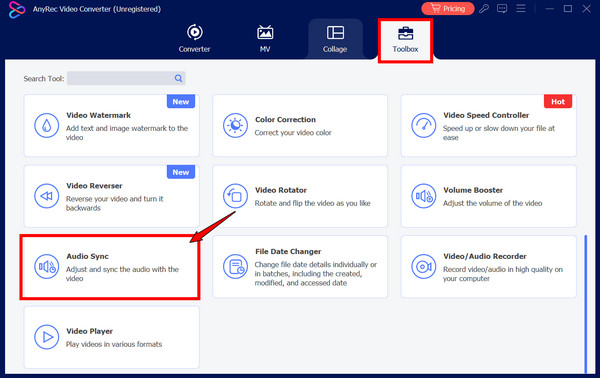
Step 1.Kick things off by launching AnyRec Video Converter. From the main screen, head to the “Toolbox” widget and scroll down to find the “Audio Sync” tool, then click it.
Step 2.Add the video you want to sync with audio. Using the available “Delay” slider control, move it forward or backward until it matches the video. You can adjust the volume if you want to.
You can customize the video and audio settings as well by clicking the “Settings” button in the Output field.
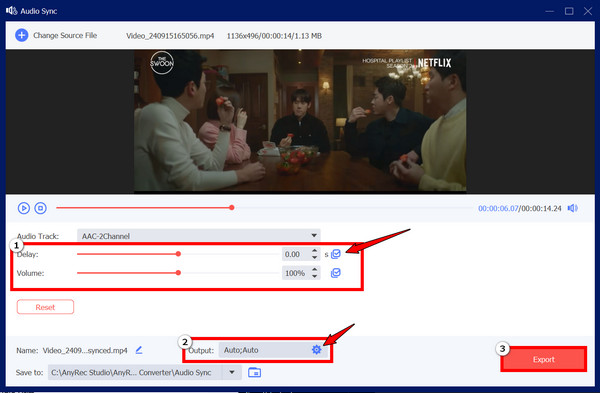
Step 3.After everything, play your video and see if the audio is synced with the visuals. If so, click the “Export” button to save your synchronized audio and video.
How to Sync Audio and Video Manually
While the previous syncing sound with video method is convenient, manually adjusting it can give you more control. The key is to find the clear point and use it to align the two tracks. Here’s what you can follow to synchronize audio and video manually:
Step 1.Import your video and audio into the video editor. Place both tracks on their respective timelines and align them at the exact same point.
Step 2.Find a clear sync point, such as a word or sound. Move the track slightly forward or backward as needed until it matches your video. You can then play it at the beginning, middle, or end to see if the audio stays in sync.
Step 3.Watch the entire video and make final adjustments. Export it once everything lines up and suits your expectations perfectly.
How to Fix Audio That Gradually Falls Out of Sync
How about when the audio slowly drifts away from your video? The issue may be due to a simple delay. The following checks can help you determine what’s happening and synchronize sound and video without having to redo it completely.
Constant Delay vs. Audio Drift
A constant delay means your audio is off roughly the same amount throughout the video. On the other hand, audio drift worsens as the video plays, which may be due to frame-rate or timing differences.
How to Identify the Problem
Play your video at different parts to see how the sync changes.
- The beginning. If the audio is out of sync here, it may be a constant delay.
- The middle. Try comparing the timing. If the delay worsens, you may have audio drift.
- The end. A growing gap usually points to timing issues.
Fix Variable Frame Rate Issues
VFR footage can cause out-of-sync audio and video issues since the number of frames changes throughout the recording. Convert your video to a constant frame rate before getting it into our editor, and check the synchronization gain.
Adjust Audio Speed
If the audio plays before the video, try changing its speed a little. Make small changes and check both the start and end of the video before saving it.
Troubleshoot Common Audio and Video Synchronization Problems
Not all of your out-of-sync audio and video problems have the same cause. Some are simply delayed, while others appear only after exporting. Here are some common problems and what you can try.
Audio Plays Before the Video
If the audio track is ahead of your video, move the track backward on the timeline until all voices, sound effects, and actions sync correctly.
Video Plays Before the Audio
Meanwhile, if the audio is delayed, move the track forward or lessen the playback delay in your editing or player software to sync audio and video once again.
Synchronization Changes After Exporting
If the audio and video become misaligned in the exported file, your export settings may be the cause. Check the frame rate, resolution, and audio settings. Then export again and re-open the new file in another media player.
Lip Sync Still Looks Wrong
This happens when the original recording has a timing issue or when the audio was added. Zoom in on the time and make sure the sound is aligned with the speaker’s mouth movement.
Bluetooth Playback Causes Delays
Wireless audio can sometimes lag behind the video. Try wired headphones to see if the audio lines up better. You can also check your Bluetooth device and app settings for ways to reduce the video and audio delay.
Conclusion
Out-of-sync audio and video can be annoying, but it is simple to fix! The right adjustment can quickly bring everything back together, whether it is because of a simple delay, frame-rate mismatch, export settings, etc. But to skip all those fixes, handle all your video and audio tasks with AnyRec Video Converter. Its built-in tools make it easier to adjust the timing, edit video, and manage your different media files in just one place. Download it to get your audio and video back in sync.
Secure Download
Secure Download
About Our Author




