
How to Repair Damaged MKV Files without Quality Loss

MKV is a popular multimedia container format, but issues with encoding, indexing, or the file structure can cause MKV files to fail to play properly or become corrupted. This article will explain the causes of MKV corruption and provide five methods to repair damaged MKV files due to various issues. First, let’s look at the common causes, then choose the appropriate method.
Guide List
Related Causes of MKV File Damaged Check Whether the MKV File Itself is Corrupted Repair MKV Files and Keep Quality with a Professional Tool Check the Index and Use Multiplexing to Repair the MKV File FFmpeg Skips Damaged Frames to Repair MKV FilesRelated Causes of MKV File Damaged
Index Corruption (Most Common)
Symptoms: The video plays, but the progress bar cannot be dragged, behaves abnormally, and sometimes displays an inaccurate duration.
Cause: Recording interruption or incomplete download. This typically occurs when a video is forcibly stopped during recording or writing.
Container Structure Corruption
Symptoms: The player cannot open the file or displays a file format error.
Cause: Corrupted file header. MKV files rely on the file header to describe the encoding format, track information, and overall structure.
Corrupted Encoded Stream
Symptoms: Distorted video, stuttering, audio-video desynchronization, or partial black screens.
Cause: The video data itself is corrupted. The encoded stream is the core data resulting from video compression; if certain frame data is corrupted, the decoder will encounter errors when reconstructing the image.
Incomplete File
Symptoms: Playback interruption, immediate error, or inability to play to the end.
Cause: Download or copy was not completed. When only part of the file has been downloaded or copied, the latter portion of the data does not actually exist.
Check Whether the MKV File Itself is Corrupted
Sometimes MKV files won’t play, but this doesn’t necessarily mean the file itself is corrupted—it could simply be due to an issue with your system environment or the file path. So you might want to first check whether the problem is caused by "external factors," and then decide whether you actually need to repair the MKV file itself.
Test with Different Players: Open the same MKV file in multiple players to see if it plays.
Check the Encoding with MediaInfo: Verify whether the player supports the audio and video codecs. If the player does not support them, the issue is with the encoding.
Test on a Different Device or Operating System: Test on another computer, smartphone, or a different operating system.
Recopy or Redownload: Redownload the file to rule out corruption during file transfer.
Check the storage device: Copy the file to a different hard drive or USB drive. Check if the original storage device has bad sectors or read/write errors.
Repair MKV Files and Keep Quality with a Professional Tool
If troubleshooting the cause is too much of a hassle, simply use AnyRec Video Repair to restore your damaged MKV video files to a playable state! It can handle video corruption across various formats, such as MKV, MOV, AVI, and 3GP from storage devices and major camera brands. The repair process preserves video quality and other content. Plus, there are no file size limits for MKV videos.

Easily repair corrupted MKV and other video formats without losing quality.
Restore MKV files from various sources, including cameras, computers, etc.
Remove video data after saving locally to ensure your privacy.
Customize output format, resolution, and other settings based on your needs.
Secure Download
Secure Download
Step 1.Open the AnyRec Video Repair, click the left "Add" button for uploading your corrupted MKV video, then the right "Add" button for the quality sample video.
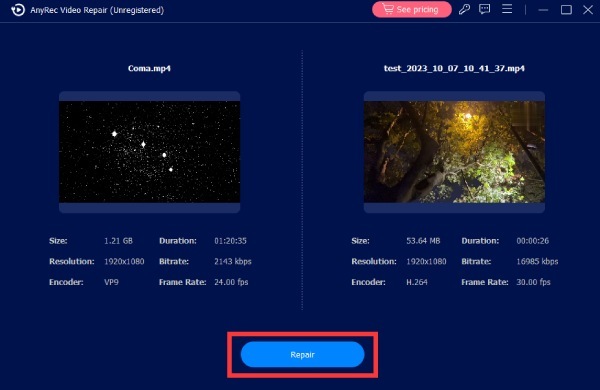
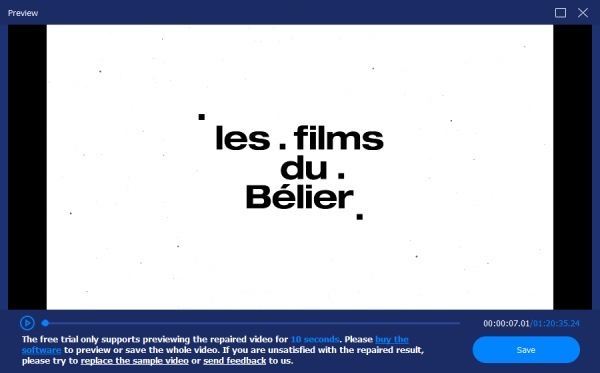
Step 2.Click the "Repair" button and waiting fixing process. After it is completed, click the "Preview" button to see if your MKV file is well-fixed.
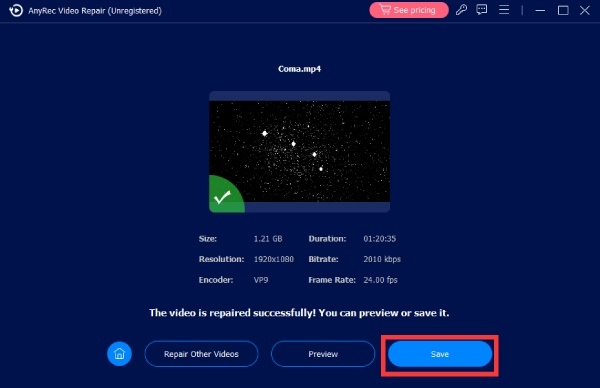
Step 3.Finally, confirm and adjust the parameters like bitrate, duration, encoder, resolution, etc., are okay for you. If so, click the "Save" button to save the new MKV file.
Check the Index and Use Multiplexing to Repair the MKV File
Check the Index with Meteorite
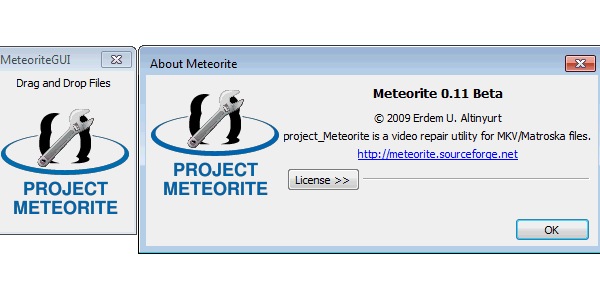
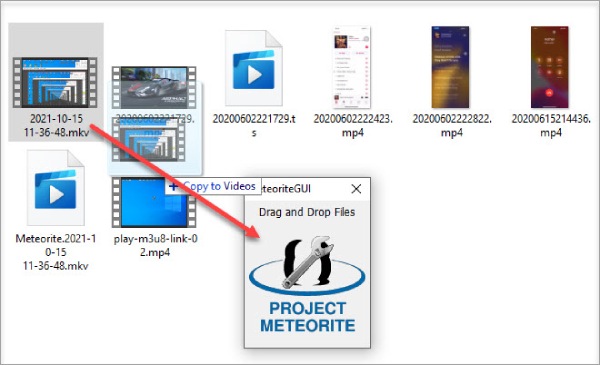
If you suspect that an issue with the index is preventing the MKV file from playing, Meteorite can scan the data blocks within the MKV file to detect the problem and regenerate the CUE index, thereby restoring the progress bar and skip functionality. It does not re-encode the video content but instead repairs the container structure based on the existing data, making the process fast and ensuring no loss of video quality.
Step 1.Open Meteorite and drag the MKV file you want to repair into the program. Click the "Repair" button to start scanning and rebuilding the index.
Step 2.Wait for the process to complete; the repaired video will be located in the same folder as the original MKV file.
Multiplexing MKV Files
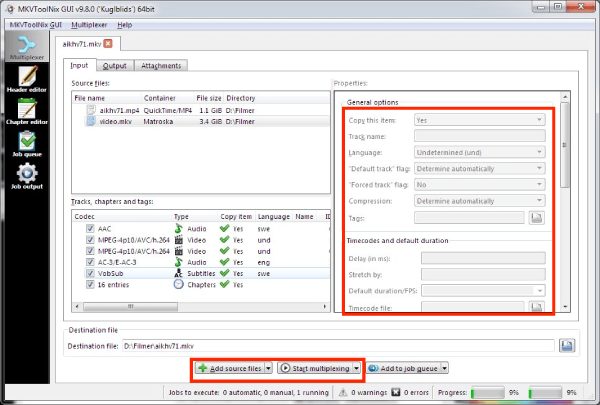
MKVToolNix fixes issues by multiplexing MKV files; essentially, it rewrites the original audio and video streams into a new Matroska container while rebuilding the timestamps and index structure. This process does not alter the encoded data and is suitable for cases involving index errors, timeline anomalies, or partial container corruption. For example, if Plex MKV is not showing up, you can resolve the issue by multiplexing them.
Step 1.Open the MKVToolNix GUI and click "Add source files" to import the corrupted MKV file.
Step 2.In the "Tracks" section, select the audio and video tracks you want to keep, then click "Start multiplexing" to begin remuxing. Once the process is complete, locate the new MKV file and save it.
FFmpeg Skips Damaged Frames to Repair MKV Files
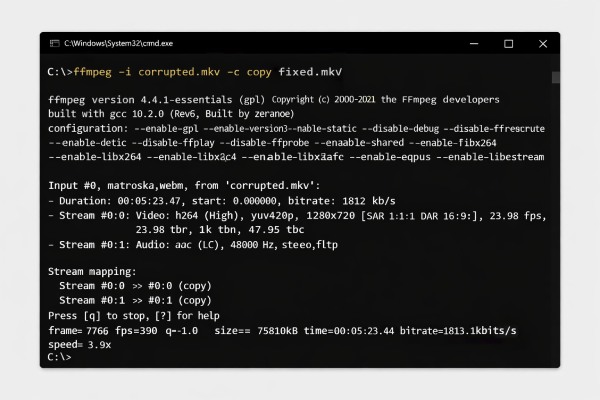
FFmpeg repairs MKV files by re-encapsulating the video stream to skip corrupted frames or incomplete indexes, thereby generating a playable file. It can fix index errors, timeline anomalies, or minor data corruption, and supports batch processing of damaged MKV files. You can also use it to fix MP4 files with no sound.
Step 1.Open the FFmpeg command-line tool, enter the command like "ffmpeg -i input.mkv -c copy fixed.mkv", and select the MKV file you want to repair.
Step 2.Set the output file path and name, and make sure to use the -c copy parameter to preserve the original container without loss.
Step 3.Run the command and wait for the process to complete, which will generate a new, playable MKV file. Open the generated file to test playback.
Conclusion
In short, you can use these five ways to repair MKV files. By following the steps carefully, your MKV should play smoothly without problems. If you want a fast and dependable option, consider using AnyRec Video Repair immediately. It is a robust repair tool that can fix damaged videos of any size from a wide range of devices, while keeping the video quality intact. Give it a try and restore your videos to their original state!
Secure Download
Secure Download
About Our Author




