
Hot

AnyRec Screen Recorder
Capture every moment. Record like a pro.
Secure Download
4 Ways to Record Phone Calls on iPhone [Up to iOS 26]

Recording phone conversations on iPhone is always a challenge due to Apple's privacy policies. You may want to save an important interview or a conversation, and knowing how to record a phone call on iPhone is essential. Fortunately, you can get four ways about iPhone call recording. Each has its ideal use case. Just read and follow steps below to record iPhone calls with/without notification.
Guide List
Can iOS 26 record iPhone Calls Directly? How to Record a Phone Call on an iPhone with Built-in Tool High Quality Phone Call Recording for iPhone on PC Third-Party Call Recording Apps for iPhone Precautions Before Recording iPhone CallsCan iOS 26 record iPhone Calls Directly?
With every new update, Apple introduces new features for convenience. So, is the built-in call recording feature included in the newest iOS 26 update?
The answer is yes, iOS 26 lets users record calls directly on the iPhone. Because of strict privacy and legal concerns across different countries, Apple continues to block system-level call recording in some regions. Once a call is recorded with the built-in feature, the summary is saved in the Notes app.
However, if you don't have the built-in recording feature where you are, this means that if you wish to record a phone call on iPhone, you will still need to rely on third-party call recording apps. Proceed to the following parts to see what safe ways you can use to record iPhone calls via the built-in and other tools.
How to Record a Phone Call on an iPhone with Built-in Tool
Before checking some third-party options, the iPhone, fortunately, has a built-in feature for phone calls for those users running iOS version 18.1 or later. See the steps to record a phone call on iPhone using this native option:
Step 1.Start the phone call or answer one as you would. During the call, look for the "Record" icon at the top-left corner, then tap on it.
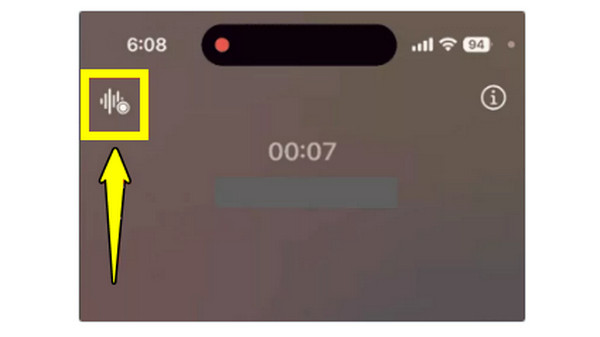
Step 2.During the recording, both participants will be notified that the call is being recorded. Later, you can stop it by tapping the "Stop" button or ending the call.
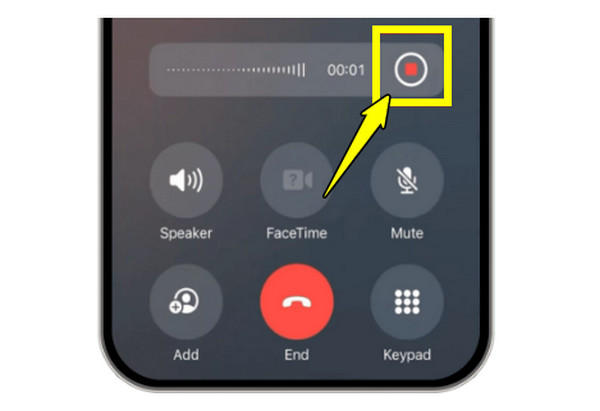
Step 3.The audio file is stored in the Notes app under the "Call Recordings" folder. From there, you can play back the recorded phone call, read the transcript, or share as needed.
High Quality Phone Call Recording for iPhone on PC
What if the built-in recording feature is not available on your device? A powerful desktop like AnyRec Screen Recorder can help record iPhone video and audio calls with excellent clarity. It works with its Phone Recorder, mirroring your iPhone onto your computer screen and starts capturing system audio and mic input, ensuring your call is recorded and other phone activity. Plus, it provides adjustable formats and noise enhancement features to keep your recordings sounding professional. Thus, for reliable, studio-level phone call recordings, this recording software is one of the best options available.

Can record iPhone calls in high-quality with both system and mic sound.
Offers noise cancellation and audio enhancement for clearer call recordings.
Allows customizable output formats like MP3, WAV, M4A, and more.
Provides a built-in editor to trim and enhance call recordings before saving.
Secure Download
Secure Download
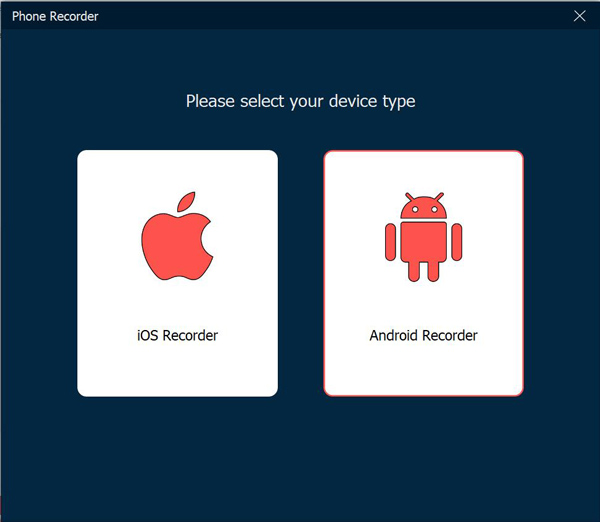
Step 1.Open AnyRec Screen Recorder on your computer and navigate to the "Phone Recorder" button. Follow the on-screen prompt. Click the "iOS Recorder" button to connect your iPhone for call recording.
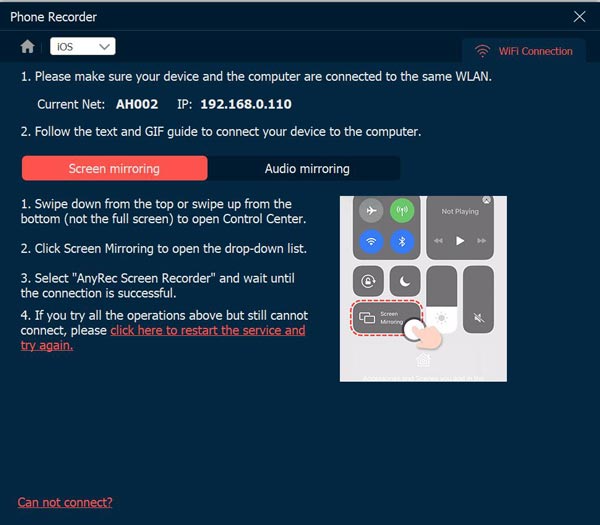
Step 2.Swipe down or up to access "Control Center" on your iPhone. Then tap the "Screen Mirroring" option. From the available devices list, select "AnyRec Screen Recorder" to mirror iPhone video and audio to your computer.
Step 3.Later, pick the audio source you want to record. Click the "REC" button to start iPhone call recording. You can click the "Stop" button to finish it. You can now preview the captured call, make edits, and save your high-quality phone call recording to your computer.
Secure Download
Secure Download
Third-Party Call Recording Apps for iPhone
Besides using software to record a phone call on iPhone, there are also third-party apps for the iPhone. See below the two widely used options for iPhone users who want reliable call recording tools.
1. Rev Call Recorder
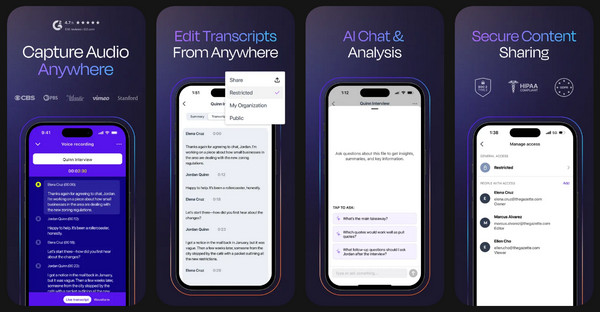
Rev Call Recorder produces decent quality call recordings, offering unlimited free call recording, both incoming and outgoing, without annoying ads. In this phone call recorder app, you will also get professional transcription with an extra cost, if ever you need text versions of your phone call audio.
2. TapeACall
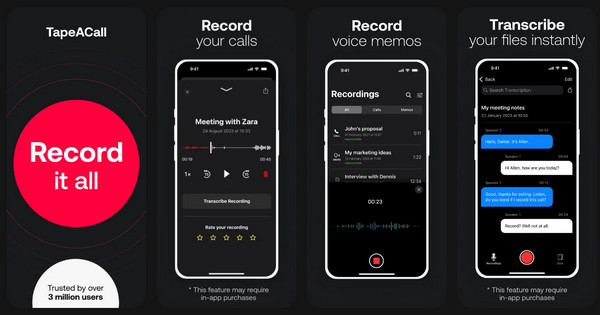
TapeACall is your ideal phone call recorder app that works via a merge-call approach. It records both incoming and outgoing iPhone calls without announcements. You can save phone conversations to iPhone directly. Moreover, you can share or upload the call recording files to cloud services.
Precautions Before Recording iPhone Calls
You had better know the privacy, legal, and technical considerations involved before recording any iPhone call.
- • Check local laws. Some regions need consent from all parties. So check local laws before recording iPhone calls to avoid legal issues.
- • Inform the other person in the call. To show respect, notify the other person that the call is being recorded. This works when you record Skype calls, FaceTime calls, and more.
- • Secure your recordings. Store all call recordings in a secure location. Don't share sensitive conversations to others.
- • Test everything before important calls. Do a short test to confirm the quality of the mic, proper device connection, and audio source selection.
- • Mind storage limits. High-quality recordings can eat up vast amounts of space, so ensure your device storage is enough before taking long conversations.
- • Avoid background noise. Make an important call recording in a quiet environment to reduce background noise while recording.
Conclusion
Recording iPhone calls has never been easier, thanks to the wide range of methods available today. From the iOS built-in call recorder to reliable third-party tools, there's a solution to fit every need. While each option offers unique benefits like high-quality capture and transcription features, it's always nice to consider legal precautions to ensure a smooth recording. For those seeking the highest audio quality and complete control, AnyRec Screen Recorder is the standout choice. This tool offers professional-grade recording, mic enhancement features, and simple editing tools, making every phone call crystal clear.
Secure Download
Secure Download
Related Article
About Our Author




