
Mirror, Mirror: 4 Simple Ways to Flip a Video on iPhone

Have you ever realized too late that the text in your iPhone video was read backward? Luckily, flipping a video on an iPhone is so easy. Aside from the built-in Photo app, this guide explores additional methods to flip videos on iPhone, ensuring you can fix the orientation of your footage in any situation. From quick mobile edits to high-end desktop processing, achieve the perfect perspective today with just a few taps.
Guide List
Flip iPhone Videos Using Photos Flip iPhone Videos Losslessly on a Computer How to Flip iPhone Videos with Canva How to Flip iPhone Videos Online Using ClideoFlip iPhone Videos Using Photos
The Photos app is a powerful built-in editor for quick adjustments, helping you flip a video on iPhone. Here, you can mirror your footage without extra software from the App Store. Since the Photos app is integrated into iOS, the steps are fast and maintain the high-quality of your original video recording.
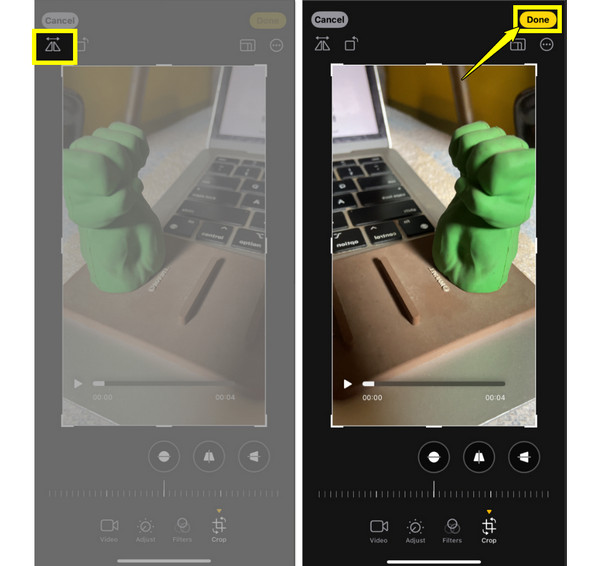
Follow these simple steps to flip a video on iPhone horizontally or vertically using Photos app:
Step 1.Launch the Photos app, and there find and tap the video you want to flip.
Step 2.Tap the "Edit" button in the top-right corner of your screen.
Step 3.Then, tap on the "Crop/Rotate" button from the bottom toolbar, and tap the "Flip" icon to mirror the video horizontally.
Step 4.Lastly, tap the "Done" button to save the changes.
Flip iPhone Videos Losslessly on a Computer
No doubt, mobile editing is convenient, but moving your iPhone videos to a computer gives you more room for edits. So, AnyRec Video Converter is highly recommended as a desktop solution for flipping iPhone videos, ensuring your video remains lossless throughout the process. This robust software is designed to handle 4K and high-definition footage with ease. It also provides a clean, intuitive screen that adds to its simplicity for editing complex tasks. With this tool, you can never lose the fine details of your iPhone's recordings.
Maintains the original resolution and bitrate of your iPhone videos.
Supports more than 1000 formats, including MOV, MP4, AVI, and more.
Preview your flipped iPhone video in real-time before exporting.
Adjust output settings according to your desired results.
Secure Download
Secure Download
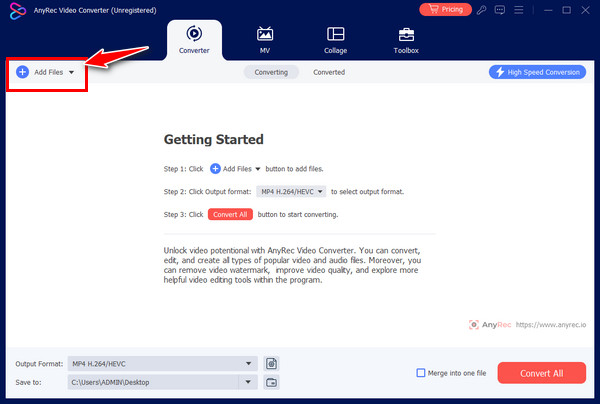
Step 1.Kick things off by launching AnyRec Video Converter on your desktop. Locate and click the "Add Files" button to import the iPhone video you want to flip.
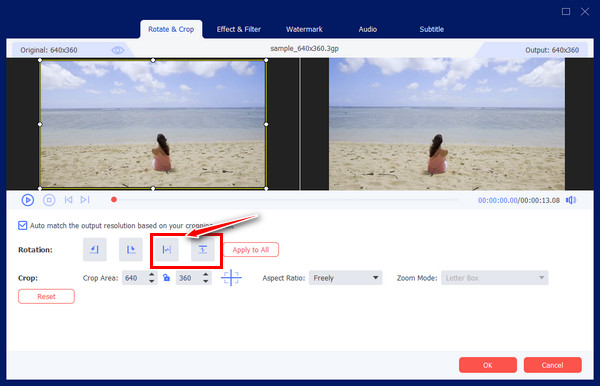
Step 2.Once your video is loaded, click the "Edit" button to open the editing window. Head to the "Rotate & Crop" section and select your desired mirroring direction from the "Rotation" options.
Preview the video rotation in the right-hand panel; if it's okay with you, click the "OK" button to confirm.
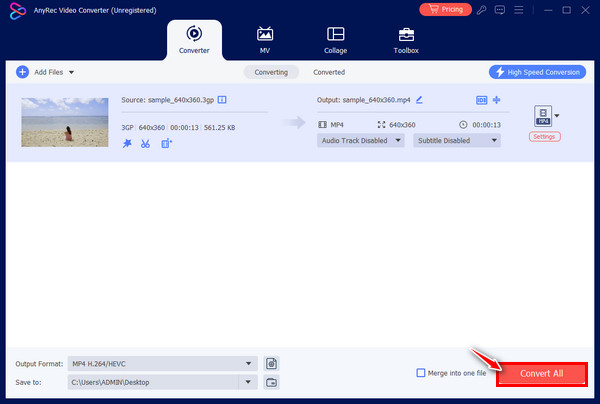
Step 3.Back on the main interface, rename your file and select a destination folder. You can also adjust the output format before clicking the "Convert All" button to save your flipped video.
Secure Download
Secure Download
How to Flip iPhone Videos with Canva
On the other side, Canva offers a unique approach by letting you flip a video on iPhone within a creative layout. This platform is ideal if you love to add text to your video after flipping it, as well as overlays and music. It features a drag-and-drop system that makes it very accessible for anyone who may not have that technical editing experience. For social media managers out there, Canva is a versatile choice to flip and rotate a video on iPhone for platforms like TikTok.
Do this in just a few steps here:
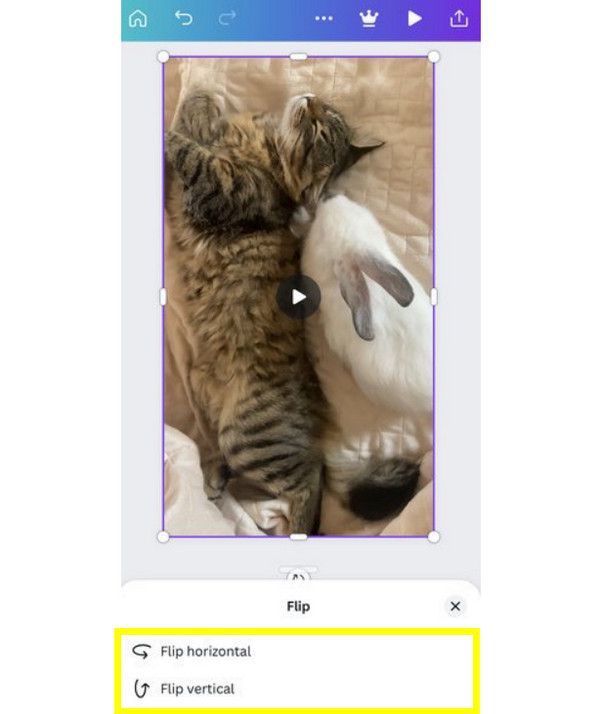
Step 1.Once you have logged in to Canva, tap on "Create a design" to choose a video-friendly format. Upload your iPhone video from the "Uploads" tab.
Step 2.After that, tap on the video element so the editing toolbar will open.
Step 3.Tap the "Flip" button and select either "Flip horizontal" or "Flip vertical".
Step 4.Later, tap the "Share" button, then "Download" to get your flipped iPhone video saved as MP4.
How to Flip iPhone Videos Online Using Clideo
If you prefer not to use a heavy platform such as Canva on your device, here's Clideo for you. This online video flipper provides a streamlined way to flip a video on an iPhone, perfect for quick adjustments. Also, it covers a wide variety of formats and lets you process files directly from your browser, working across different devices.
Dive into the steps now to flip an iPhone video in your browser directly:
Step 1.Head to the Clideo Flip Video tool in your browser.
Step 2.Once in there, click the "Choose file" button to upload your video from your iPhone.
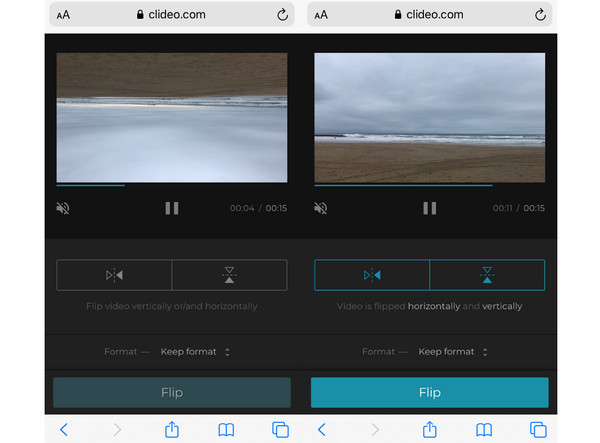
Step 3.Then, use the two "Flip" buttons on the right side. Choose your output format, e.g., MP4 or MOV, from the bottom-left dropdown menu.
Step 4.Tap on "Export" and wait for it to finish.
Conclusion
You can enjoy the convenience of the built-in Photos app, the creativity of Canva, or the quick access to Clideo; learning how to flip multiple videos on iPhone is easier than ever! With the best method, you can get the exact content you want. Among the listed methods, to maintain the highest possible quality of your 4K iPhone footage when flipping on your computer, it's best to use AnyRec Video Converter. This video flipper software not only lets you mirror your video losslessly but also offers more editing features for creators who demand perfection when handling their library on a larger screen.
Secure Download
Secure Download
About Our Author




