
Hot

AnyRec Video Converter
120× faster video conversion and editing. No waiting.
Secure Download
4 Ways to Add Audio to Video on PC/Mac/Online/iPhone/Android

There are many reasons that people add audio to video, such as hiding bad sound, adding background music, syncing voiceovers, fixing silent clips, and more. No matter whether you want to insert or mix audio into a video, you need to be careful about those factors, including compatible audio formats (MP3 first) and proper audio length. Now, let's follow the steps to add audio to a video without replacing the original sound.
Guide List
How to Add Audio to Video on Windows and Mac How to Put Audio on Video Online for Free How to Insert Audio in Video on iPhone and iPad How to Add Audio to Video on Android FAQsHow to Add Audio to Video on Windows and Mac
AnyRec Video Converter provides multiple choices for users to add background music, narration, voiceover, and other kinds of audio tracks into a video on computers. Moreover, you can remove audio noise, delay audio, increase volume, sync audio, and compress audio by using tools in the Toolbox. It is your one-stop audio-to-video editor and converter software.

Add background music or audio tracks to the video.
Reduce audio noise, increase/decrease volume, or add audio delay effects.
Keep or mute the original audio tracks.
Sync audio with video seamlessly.
Secure Download
Secure Download
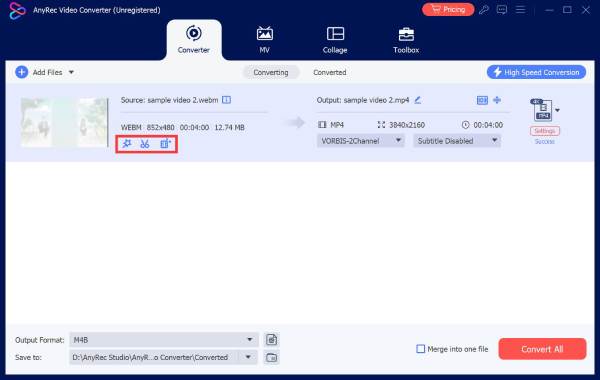
1. Open AnyRec Video Converter. Click the "Add Files" button to add a video. Click the "Edit" button under your video.
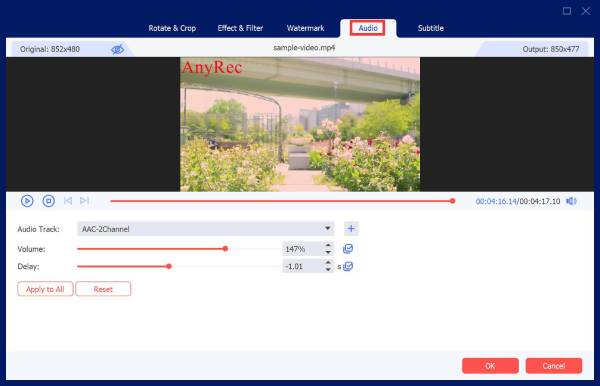
2. Go to the "Audio" section. Click the "Add" button with the "+" icon to insert your audio. You can adjust volume and audio delay effects using sliders. Click the "OK" button to confirm and add music to the video.
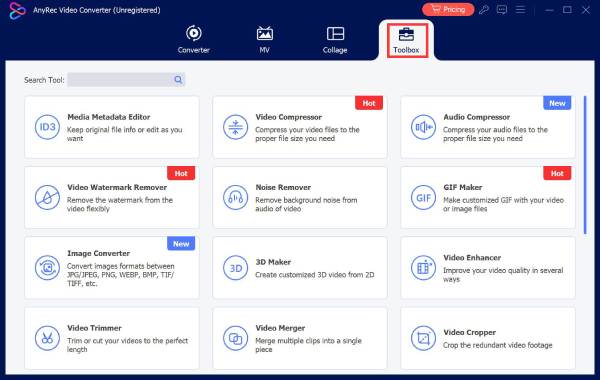
3. Moreover, you can go to the "Toolbox" section to get many innotative video and audio editors. Here you can choose from "Audio Compressor", "Volume Booster", "Audio Sync", and more.
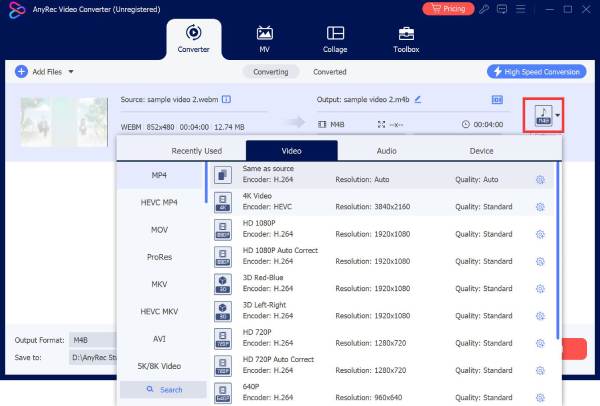
4. After editing, set the path folder and output format. Click the "Format" button to access all available formats. You can click the "Settings" button to adjust video and audio settings if necessary. At last, click the "Convert All" button to export your video.
Secure Download
Secure Download
How to Put Audio on Video Online for Free
If you just want to add audio to video online without extra functions, you can choose from the following tools. Just upload your video and audio track. Later, you can mix audio with video in a few clicks.
| Online Tool | Easy to Use | My Experience | Best for |
| Clideo – Add Audio to Video | 4.5/5 | Its simplicity and broad format support are good. But there are occasional rendering delays and upload limits on the free version. | Add simple audio overlay with basic audio trimming and looping. |
| Online-Video-Cutter – Audio Audio to Video | 4.5/5 | Combine audio and video online using timeline. You can add GIFs, stickers, emoji, animated texts, and images into this video. | Embed audio tracks to videos quickly. |
| Adobe Express – Add Music to Video | 4.5/5 | Add sound effects, audio tracks, songs, and music into your video online quickly. | Get massive library of royalty-free soundtracks and seamless social media integration. |
| Canva – Add Music to Video | 4/5 | Canva is good at adding soundtracks to videos. But audio glitches, loading issues, and editing bugs may happen after recent updates. | Sync audio to video automatically. You can adjust volume or fade effects too. |
| OnlineConverter.com – Add Audio to Video | 4/5 | A simple webpage that can add audio to video for free. Your video should be smaller than 200MB. | Replace, keep, add, and mix audio to any video. |
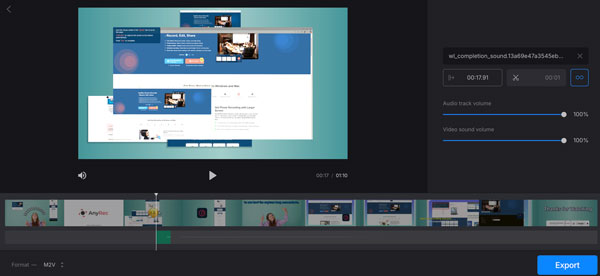
The winner is Clideo - Add Audio to Video. You can trim audio, adjust volume, and add audio to video for free in the browser. It also integrates other online editing tools for further adjustments. Here are the steps:
- 1. Open https://clideo.com/add-audio-to-video on your browser.
- 2. Click the "Choose file" button to add your video from storage, Google Drive, or Dropbox.
- 3. Click the "Add audio" button to import your audio track.
- 4. Adjust the audio track in custom start and stop time. If the audio track is too long, you can use the audio trimmer to shorten it.
- 5. Move the sliders of "Audio track volume" and "Video sound volume" options.
- 6. Click the "Format" button on the lower left corner to adjust output video format.
- 7. Click the "Export" button to merge audio to video online.
How to Insert Audio in Video on iPhone and iPad
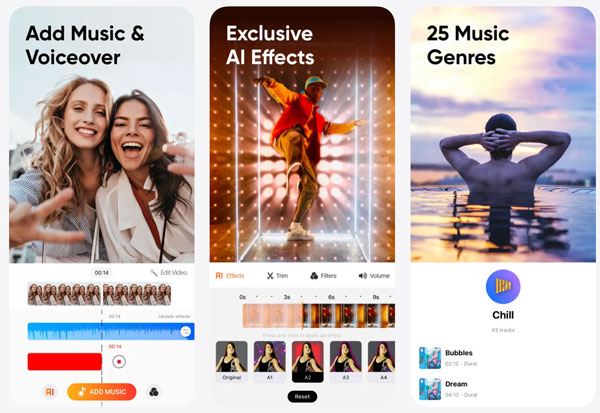
The Add Music to Video Editor app can overlay multiple music tracks to any video. It is also supported to record your voice over the audio and then add it. The add audio to video app can trim the track automatically to match the video length. Or you can adjust the video and audio length manually.
- 1. Open the Add Music to Video Editor app.
- 2. Confirm access to your Photos and music library.
- 3. Choose which video you want to insert audio into.
- 4. Import your audio track from the phone storage.
- 5. Preview it. You can trim or adjust the audio track if needed,
- 6. Save your finished video or share it on TikTok, Instagram, and other social apps.
How to Add Audio to Video on Android
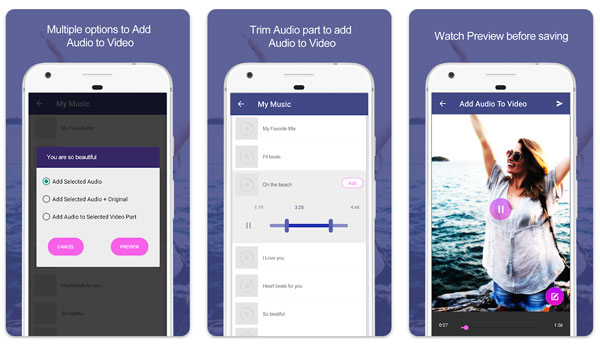
AndroTechMania Add Audio to Video & Trim provides 3 different options, which are "Add Selected Audio", "Add Selected Audio + Original", and "Add Audio to Selected Video Part". You can change the background music or mix audio with video on Android within simple steps. The core music-to-video merging function works reliably.
- 1. Open the Add Audio to Video & Trim app.
- 2. Grant storage permission first. Later, upload a video from the gallery.
- 3. Tap the "Add Audio" button. Pick a song or audio clip to import.
- 4. Keep or replace the original audio track.
- 5. Adjust volume levels.
- 6. Preview and then save the video to your Android phone.
FAQs
-
Why is there no sound after I add audio to a video?
The audio track may be muted, unsupported, or removed during export. You can check export settings to make sure audio is enabled.
-
Why is the audio out of sync with the video?
The most likely reason is that your audio clip is longer than the video. Trim the audio or align it manually on the timeline.
-
How to fix my video losing sound after uploading to social media?
Your video may have copyrighted audio. This platform detects and mutes it. You can replace it with royalty-free music or lower the music volume.
Conclusion
No matter what your skill level is, putting a new soundtrack into a video should feel simple. You can use the above desktop, online, and mobile solutions to add background music for social clips, add voiceovers for tutorials, insert new soundtracks for travel videos, and more. For the most reliable experience with excellent control over audio files, AnyRec Video Converter is highly recommended. It makes adding audio to video easy, intuitive, and professional. Click the Free Download button below to add music, narration, and audio tracks to your video now!
Secure Download
Secure Download
Related Article
About Our Author




