
[Beginner-Friendly] How to Convert MP4 to 3GP in No Time

Converting videos from MP4 to 3GP is practical for older devices with limited storage. You can save storage space, ensure smooth video playback on older devices, or sharing videos with friends who still use legacy phones. This guide will walk you through what 3GP is, 3GP format compatible devices, and easy MP4 to 3GP video conversion methods.
Guide List
What’s the 3GP File Format for MP4 Conversion? Devices That Are Compatible with 3GP in 2026 How to Convert MP4 to 3GP on Windows and Mac in No Time 2 Ways to Convert MP4 to 3GP OnlineWhat’s the 3GP File Format for MP4 Conversion?
Converting MP4 videos to 3GP has never been easier, even for beginners. Using dedicated software, you can quickly adjust the output format, resolution, and file size to suit older devices. Even if your phone has some lag when using current streaming platforms, you can enjoy your favorite video content without any hassle on older devices.
Devices That Are Compatible with 3GP in 2026
Even in 2026, the 3GP format remains useful for older phones and devices with limited storage capacity. Many legacy Android models, early-generation Nokia and Sony Ericsson phones, and some BlackBerry devices still rely on 3GP for smooth video playback.
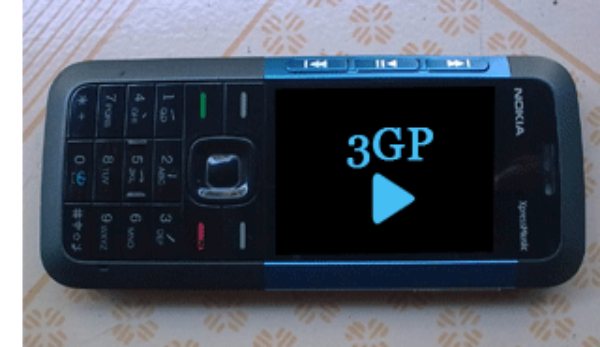
Besides phones, 3GP is supported by portable media players, older tablets, and specific in-car entertainment systems. Turning MP4 videos to 3GP ensures compatibility and efficient storage across these devices (for example, 3GP videos cannot be played on iPhone natively).
How to Convert MP4 to 3GP on Windows and Mac in No Time
Converting MP4 videos to 3GP is quick and easy with AnyRec Video Converter. This powerful tool has powerful compatibility and can help you output various formats, including 3GP. Whether converting videos from 3GP to MP4 or vice versa, you can customize the video resolution and compression settings according to the characteristics of your own device.
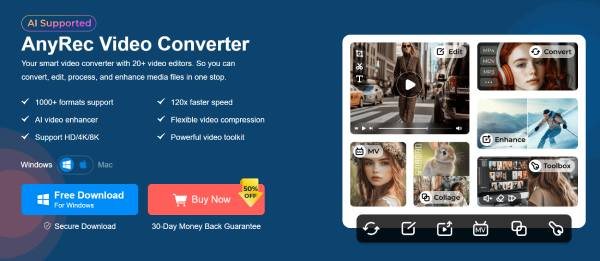
AnyRec Video Converter ensures high-quality output while keeping file sizes small, making it ideal for legacy phones. You can convert your MP4 videos to 3GP efficiently, ensuring smooth playback on devices with limited storage or processing power.

Convert MP4 to 3GP with advanced CPU acceleration technology.
The original quality won’t be reduced when reducing the size.
Convert MP4 files to 3GP format in batches to save your precious time.
Export the 3GP file converted from MP4 without any watermark for free.
Secure Download
Secure Download
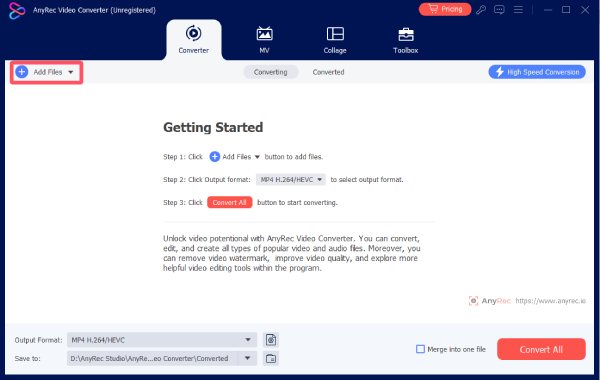
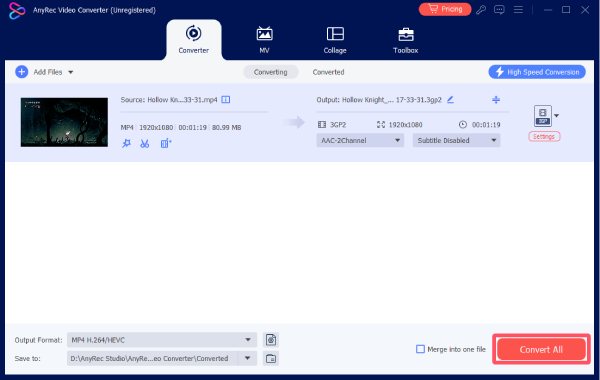
Step 1.Open AnyRec Video Converter. Click the "Add Files" button. Add your MP4 video.
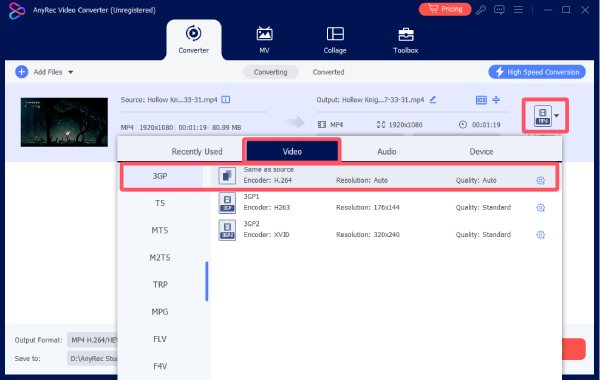
Step 2.Click the "Format" button. Click the "3GP" button under the "Video" tab and select the desired quality.
Step 3.Once finished, click the "Export All" button to save MP4 to 3GP format.
2 Ways to Convert MP4 to 3GP Online
If you only need a one-time conversion task, then an online tool might be a better choice. You don't need to install any software to complete the task of converting MP4 to 3GP. They can run directly in your browser and are very suitable for quick and lightweight conversions for shrinking video file size.
FreeConvert
FreeConvert is a user-friendly online platform that enables quick conversion from MP4 to 3GP. However, it comes with file size limits and relies on a stable internet connection. You need to pay to convert large MP4 videos. And the video conversion speed depends on your Internet connection heavily.

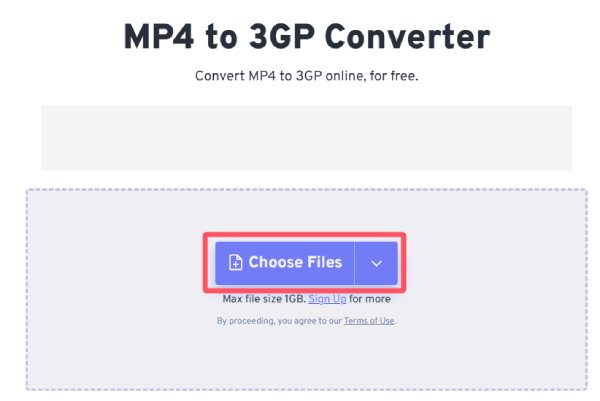
Step 1.Navigate to the official website of FreeConvert and click the "Choose Files" button to import your MP4 file.
Step 2.Click the "Output" button and click the "3GP" button to select the output format.
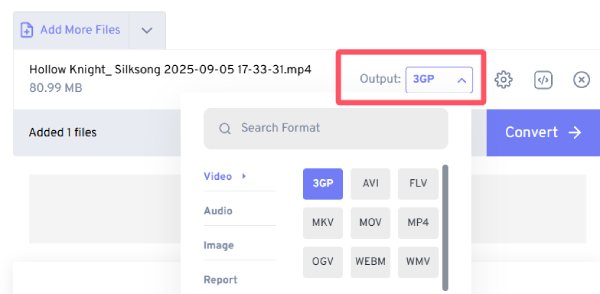
Step 3.Finally, click the "Convert" button to export MP4 to 3GP online.

Zamzar
For another reliable online converter for transforming MP4 to 3GP, Zarmar is trustworthy. In the Zamzar free version. You can convert up to 5 video files per day. Each video should be smaller than 20MB. So, if you want to convert an MP4 video under 20MB to the 3GP format, you can use Zamzar to do it.

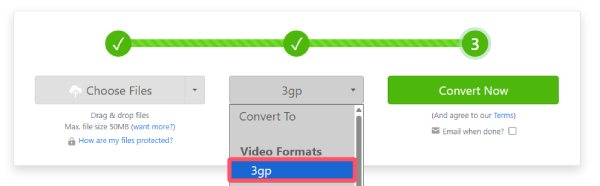
Step 1.Navigate to the official website of Zamzar and click the "Choose Files" button to import the MP4 video.
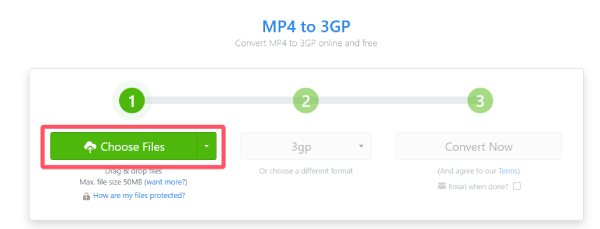
Step 2.Under the "Video Formats" tab, click the "3gp" button to determine the output format.
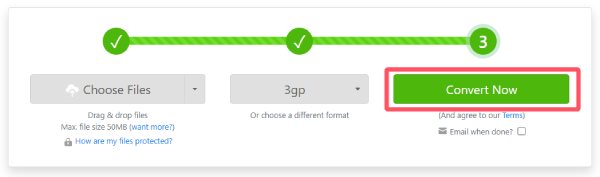
Step 3.Click the "Convert Now" button to convert MP4 to 3GP for free.
Conclusion
That's all to convert MP4 to 3GP videos. Though 3GP format is not popular as MP4, it is still workable on older devices. Choose AnyRec Video Converter to ensure high-quality video while keeping the file size small. Follow these instructions to convert MP4 to 3GP format and enjoy your videos easily and efficiently on your old devices.
Secure Download
Secure Download



