Hot

AnyRec Video Converter
120× faster video conversion and editing. No waiting.
Secure Download
4 Ways to Split Audio from Videos, Recordings, and More

There are several ways to split audio files, whether you want it to be divided into shorter clips, extracted from a video, or maybe separate your vocals from other tracks. Doing so does not require any advanced editing skills; with the right tools, you can give your audio a quick makeover and get the result you want. To get started, continue to the following parts, which give you the four easy ways to split audio into multiple parts. Find the perfect method for you and fix issues along the way.
Guide List
How to Split an Audio File into Multiple Parts How to Split Audio from a Video File How to Separate Vocals and Instrumental Tracks How to Split Different Speakers into Separate Audio Tracks Fix Common Problems When Splitting AudioHow to Split an Audio File into Multiple Parts
Splitting an audio file into multiple parts will reduce its size. For this, use Clideo to split audio directly from your browser. With this online audio splitter, you don’t need to install anything; just upload your file, choose where to divide it, and download the separate files.
Step 1.Once the Clideo Audio Cutter website is open, click the "Choose file" button to upload your file.
Step 2.After it uploads, drag the yellow handles to choose the section you want to keep. Next, select "Extract Selected" to keep the highlighted parts, or "Delete Selected" to remove them.
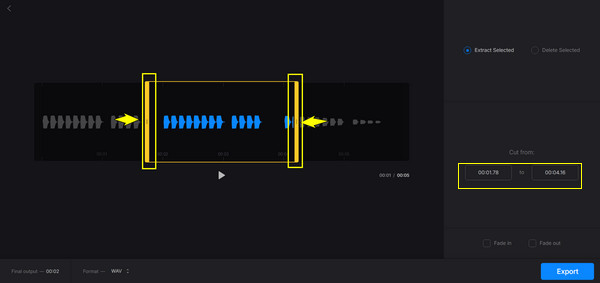
Step 3.When done, choose your desired format, then click the "Export" button to save the selected audio. Preview the result and download the file.
How to Split Audio from a Video File
Sometimes, you only need the sound from a video. It could be background music or your favorite line. AnyRec Video Converter will simplify the process by allowing you to import your videos and convert them into separate audio files. You can then get your separate audio into formats you like, such as MP3, WAV, AAC, FLAC, and more, without needing a separate program. It is a handy choice for splitting audio, and you wish to adjust basic output settings or process multiple files in one place.
Audio extraction to convert files to audio formats such as MP3, WAV, and more.
Adjust audio parameters, such as quality and bitrate, before exporting.
Split audio from your video file and process multiple files to save time.
Preview the audio file in real time to check whether it fits what you want.
Secure Download
Secure Download
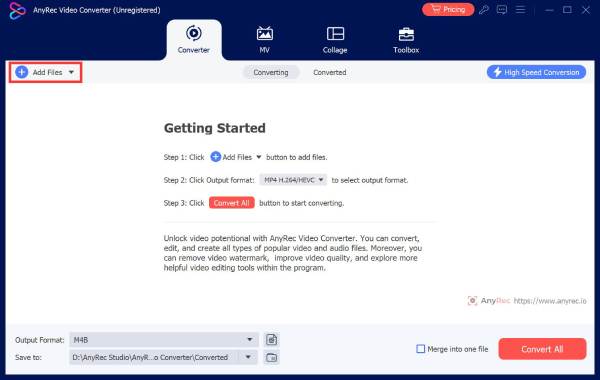
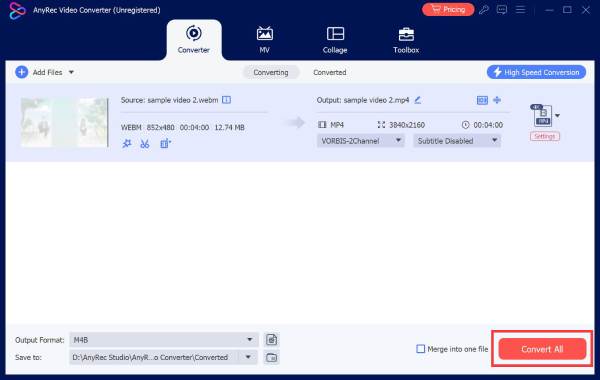
Step 1.Start AnyRec Video Converter on your computer. Click the "Add Files" button and select the video, including the audio you want to extract.
Step 2.Go to the "Output format" menu, open the "Audio" category, and choose a format like MP3 or anything you like from the various audio format options.
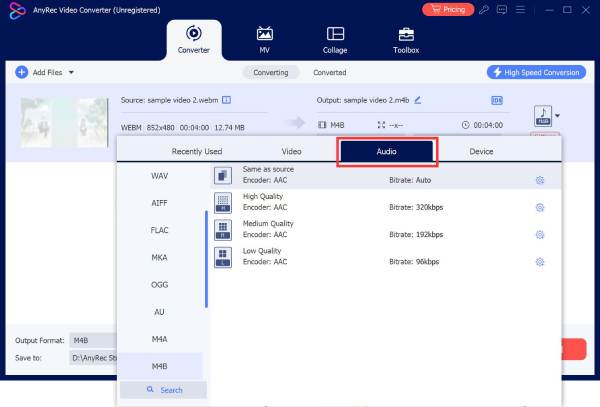
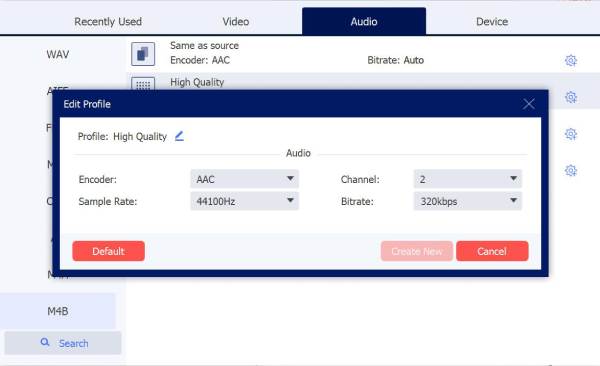
You can adjust the output settings if needed via the "Custom Profile" button. Here, you can select your desired encoder, sample rate, bitrate, and more.
Step 3.Next, choose where you wish to save your extracted audio, and finally click the "Convert All" button and wait for it to finish.
How to Separate Vocals and Instrumental Tracks
Want to create a karaoke version of your favorite song? If so, Audacity is a free, open-source audio editor that can help you split audio from vocals and other tracks. With its AI-powered features, you can split your song into individual tracks and export just the part you want to use.
Step 1.Launch Audacity and get the OpenVINO AI plugin. Now, import your song by clicking the "File" menu, then "Import" to "Audio".
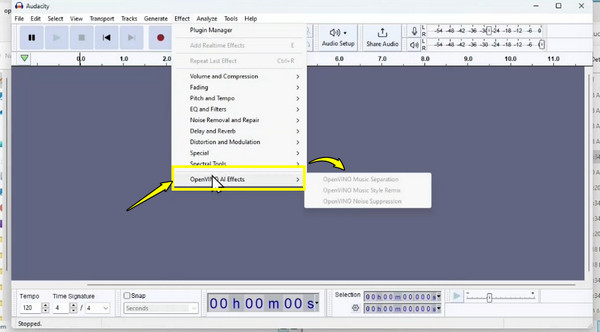
Step 2.Select the audio track and head to "Effects", then select "OpenVINO AI Effects", and then Music Separation.
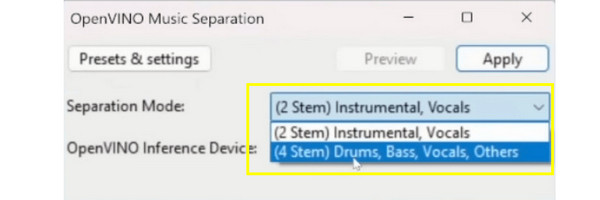
Step 3.Choose "2-Stem Instrumental, Vocals" to create vocal and instrumental tracks; you can also choose 4, if available, to separate instruments. Once done, click the "Apply" button.
Step 4.Before exporting, listen to both tracks and make sure the separation sounds good. Use "File", then click "Export Audio" to save your audio file as MP3 or WAV.
How to Split Different Speakers into Separate Audio Tracks
When ending a podcast or a discussion, you may want each voice in a separate audio file. How to extract audio tracks in this case? A useful option is, once again, Audacity. You can use its waveform to locate each person’s dialogue, then copy each and adjust for smoother playback.
Step 1.Open Audacity, click "File", then "Import", then "Audio", and load your recording. Listen to your audio and use the waveform to locate each person.
Step 2.Highlight the section with your selected speaker, then copy it (Ctrl + C). Then, go to "Tracks" click on "Add New", and choose either mono or stereo to match your recording.
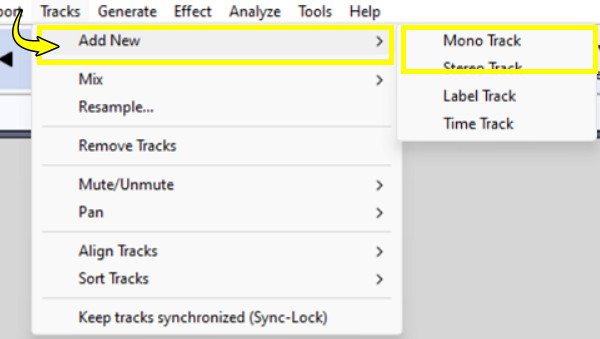
Step 3.Next, place the cursor at the start and paste the audio (Ctrl + V). Create a new track for each speaker by doing the same actions.
Step 4.When everything sounds right, export the tracks by clicking "File" then "Export Audio" and choose whether to export multiple files or just the selected audio.
Fix Common Problems When Splitting Audio
Even when you finally get the tools to split audio, doing so can lead to a few frustrating issues. Fortunately, most of these problems are easy to fix with some simple adjustments.
- Audio Quality Drops After Exporting. To maintain sound quality, select a high-quality export setting or use a lossless format like WAV if possible.
- Blank Spaces Appear Between Tracks. Zoom in to inspect the edges of every clip, remove any space, and ensure the adjacent tracks are aligned correctly before finalizing.
- Exported Files Are Too Large. If file size matters to you, export the split audio as MP3 or AAC and adjust the bitrate and other settings to balance quality with your storage needs. Or you can use other online audio compressors to reduce audio file size effectively.
- Split Points Are Inaccurate. Try zooming in on the waveform and listen to the section before making the cut. Also, use a precise selection tool so you don't cut off any important audio.
Conclusion
A beautifully split audio file can turn your lengthy recording into a more editable, shareable, and enjoyable one. You saw here ways to trim your favorite sound, pull sound from your video, and even separate voices and other tracks. The key is to choose an audio splitting method that suits your goal. If extracting is part of your workflow, AnyRec Video Converter is worth your time. Download it today and convert video files into audio formats with customizable editing features, all in one place.
Secure Download
Secure Download
Related Article
About Our Author