
Record Google Voice Calls in 4 Workable Ways [All Devices]

Sometimes you want to record Google Voice calls to create an audio file copy of an important meeting, suspicious calls, or memorable ones. Google Voice lets you do that with its built-in call recording feature for incoming calls. However, it is limited to incoming calls only. Now, if you're looking for a way to capture both incoming and outgoing calls, continue reading this post, as it features four ways and a workaround to record a call on Google Voice. Dive in now.
Guide List
Secret Way to Record Incoming and Outgoing Google Voice Calls on Windows and Mac How to Record an Incoming Call with Google Voice on Computer Directly How to Record an Incoming Call with Google Voice on iPhone and Android Directly FAQsSecret Way to Record Incoming and Outgoing Google Voice Calls on Windows and Mac
As mentioned, Google Voice's call recording only captures incoming calls. To also record the outgoing voice calls, you need a workaround, such as the professional AnyRec Screen Recorder. This desktop call recorder software provides an audio recorder that captures both your voice and the other party's voice, either separately or simultaneously. It can record Google Voice calls from the web version in high quality and save them in various file formats, such as AAC, MP3, or WAV. This solution is an excellent option if you want to record a Google Voice call without triggering a notification that the call is being recorded. Now, want to record incoming and outgoing calls on Google Voice and incoming calls, using this tool? Dive in below!

Capable of removing noise and reducing echo from a Google Voice call.
Trim, merge, and convert Google Voice call recordings to AAC, AC3, and more.
Allows you to check the sound of the Google Voice call recording and adjust its quality.
Supports preserving the original audio quality of the recording.
Secure Download
Secure Download
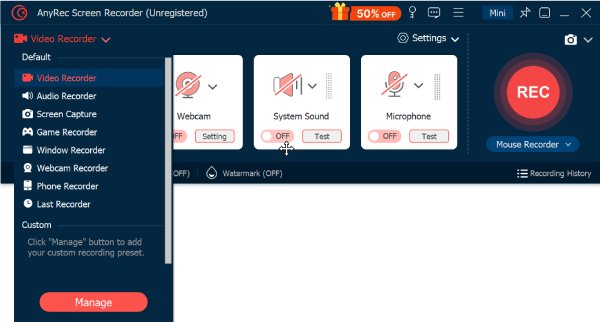
Step 1. Download and install the AnyRec Screen Recorder on your Mac or Windows PC. After that, launch the tool, click the recording mode dropdown menu, and select "Audio Recorder".
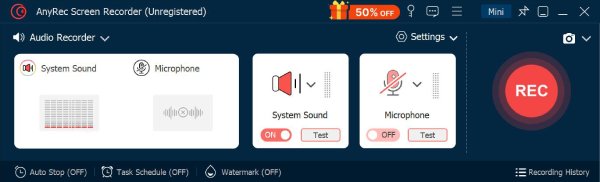
Step 2. Next, toggle on the "System Sound" and "Microphone" options to capture both your voice and the other party's voice during the Google Voice call. You can also adjust the volume as you like.
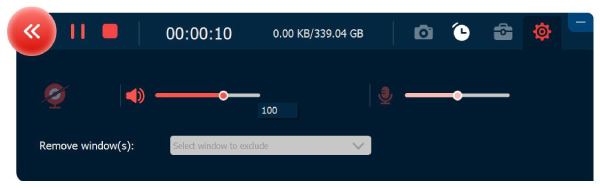
Step 3. Once done, click "REC" to start recording. Then, go to the Google Voice call, and you can adjust the volume while recording. When finished, click "Stop" and save the Google Voice call recording.
How to Record an Incoming Call with Google Voice on Computer Directly
Aside from the first featured solution, as you already know, you can also record Google Voice calls directly using the platform's built-in call recording feature. Or you can search for Chrome audio recorders and extensions as alternatives. You don't need any third-party software; just access Google Voice through your browser and use the keypad command during the call. However, this feature only records incoming calls, and both parties will hear an automatic announcement when recording starts. If that's okay with you, follow the steps below to record incoming calls on Google Voice:
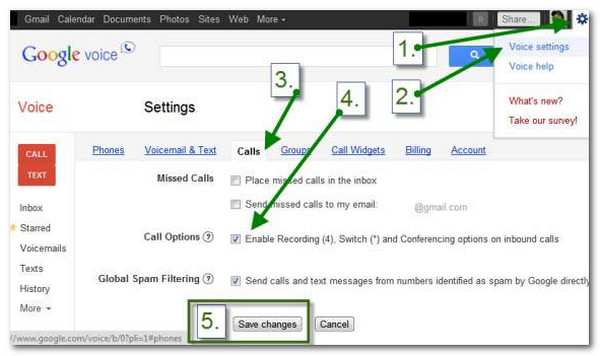
Step 1. Access the Google Voice platform on your Windows or Mac browser and sign in. After that, click "Settings" with the "Gear" icon at the upper right corner.
Step 2. Next, select the "Voice settings" option, click the "Calls" button, and check the "Enable Recording" box under "Call Options". Then click "Save changes" to apply the setups.
Step 3. After that, when someone calls you, answer the call and press "4" on your keyboard to start recording the Google Voice call.
Step 4. Once you are done, just press "4" again.
How to Record an Incoming Call with Google Voice on iPhone and Android Directly
If you are using your mobile phone to make or receive a Google Voice call and want to record it, you can use the platform's built-in recording feature to capture your call. However, as with the web version, recording notifications are sent to everyone on the call. Follow the steps provided for each device to record calls on Google Voice using your Android or iPhone. Or you can use other audio recorder apps to capture online calls.
Record a Google Voice Incoming Call on Android
Step 1. Launch the Google Voice application on your Android. After that, tap the "three-line or three-dotted" icon at the top left corner.
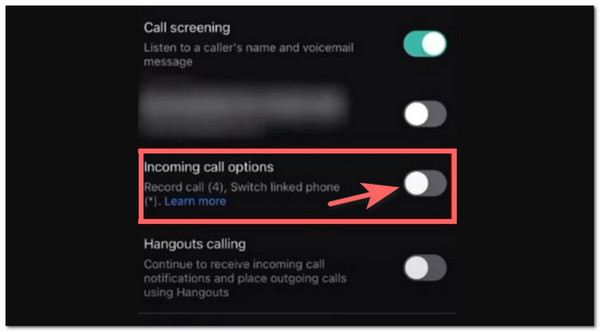
Step 2. Next, select the "Settings" option, go to the "Calls" section, and toggle on the "Incoming calls" option.
Step 3. After that, once you receive an incoming call, answer the call, and access your Android phone's keyboard.
Step 4. Then, press "4" to start recording your call conversation. Once done, tap "4" once again to stop and save the recording. There you go!
Record a Google Voice Call on an iPhone
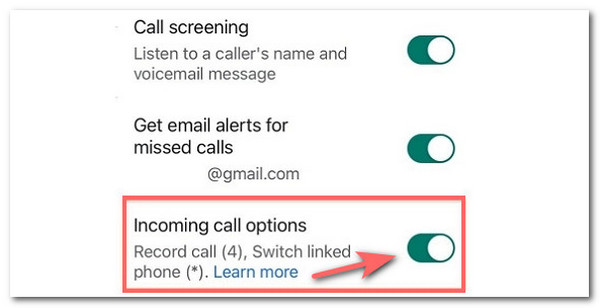
Step 1. Run the Google Voice app on your iPhone, go to the "Settings" section, and select "Calls" from the list of options.
Step 2. After that, scroll down the list of options until you find "Incoming calls". Toggle on its switch beside it to enable the voice call recording.
Step 3. Once done, when you receive an incoming call, press the "4" on your iPhone's keyboard to start recording.
Step 4. Press the same key (4) again to stop recording. You can then find the recorded call in the Voicemail recordings on your Google Voice email.
FAQs
-
1. Where can I find the recorded incoming calls on Google Voice?
You can find your recorded incoming calls in the Google Voice app or website. Open Google Voice, go to the Calls or Voicemail section, and look for the call you recorded. You can listen to it there or download the audio file if you want.
-
2. How to record Google Voice calls outgoing on iPhone/Android?
Google Voice does not let you record outgoing calls on iPhone or Android using its built-in feature. To record outgoing calls, you need to use a third-party call recording app or your device's built-in screen/audio recorder while the call is happening.
-
3. How long can I record a Google Voice call?
Google Voice doesn't set a strict time limit for recording incoming calls. You can record the call for as long as it lasts, but very long calls may be limited by your device's storage or app performance.
Conclusion
That's it! Those are the four best ways to record calls on Google Voice on Windows, Mac, Android, and iPhone. Through these methods, you can easily create an audio file copy of an important meeting, suspicious calls, or memorable ones to share with your family or friends. Keep in mind that although Google Voice has a built-in call recording feature, it is limited to incoming calls. Also, if you want to record secretly, the built-in feature is not ideal, as it automatically notifies the other party. In that case, AnyRec Screen Recorder is your best alternative. Try it today!
Secure Download
Secure Download
About Our Author




