
5 Best Online Video Compressors for Large Files over 1GB

When you try to send a video, it says "file too large" or similar notifications. This usually happens on Discord, Gmail, WhatsApp, and almost every platform. The maximum video file size is always too low. While your video is too big to upload. During this time, you need an online video compressor to reduce the file size. However, many online compressors are not good enough. Some tools make the video look blurry. Some video compressors take forever to upload. Instead of wasting time on testing, you can read and see what video file compressor to look for.
Guide List
What People Actually Complain about Online Video Compressors Top 5 Best Free Online Video Compressors Want to Compress Large Videos? Use AnyRec Video ConverterWhat People Actually Complain about Online Video Compressors
Online free video compressors look simple with similar interfaces. You just need to upload, compress, and then download the video. But the real experience is usually messier. Here are common complaints people run into before finding an online video compressor that actually works.
- • File size limit. Many free video compressors have the file size limit of 500MB or even less.
- • Slow upload speed. Your file goes to their servers first. If you are on a slow connection, it takes longer time on video uploading than compressing.
- • Privacy concerns. It is not safe to upload your work footage or personal content to the online video compressors' servers.
- • No output quality controls. Most of them provides automatic compression with no settings. So, the compressed video can be blurry or blocky on screen.
- • Watermarks on the free exports. You need to subscribe or pay to remove logo from this video.
- • The compressed video is not small enough. Mpst already-compressed video footage gives you maybe 5% to 20% reduction. It is not worth the wait.
- • Incompaitble formats. The downloaded video can play on the browser preview. But you can't open them on your phone or TV due to the wrong codec.
Top 5 Best Free Online Video Compressors
See this comparison table to get quick information first. Later, you can move on to the certain online video resizer.
| FreeConvert | VideoCompress.ai | Clideo | OnlineConverter | VEED | |
| Free file limit | 1 GB | 5 GB | 500 MB | Small files only | 1 GB |
| Watermark (free) | No | No | Yes | No | Yes |
| Output control | Full (bitrate, resolution, codec, target size) | Basic | Basic (3 levels) | Minimal (target size only) | Slider + resolution picker |
| Codec support | H.264, H.265, AV1 | H.264 | H.264 | H.264 | H.264 |
| Speed (large files) | Slow on 100 MB+ | Fast | Fast | Slow | Moderate |
| Extra tools | Converter, audio, image, GIF | Compressor only | Full editor suite | Converter | Full editor suite |
| Best for | Advanced users who need full control | Quick, simple, no-watermark compression | Beginners who want an all-in-one editor | Absolute simplest compression possible | Content creators and social media teams |
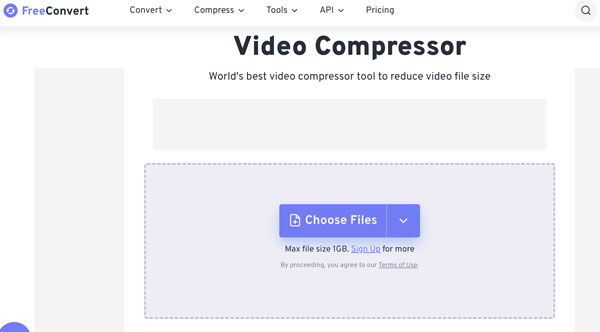
1. FreeConvert Video Compressor
Best for: Control the video compression output by codec, resolution, bitrate, and target file size.
If you want to shrink a video under exactly 10MB or 25MB, you can use FreeConvert Video Compressor to enter the desired file size. It offers 20 converison minutes per day. Thus, you can compress 4 to 5 videos for free without paying.
- Pros
- The maximum file size limit on the free plan is 1GB per file.
- Support H.265 and AV1 codecs.
- No watermark in your output video.
- Cons
- It takes longer time than competitors to compress videos online.
- Not good for the batch video processing due to the daily comversion limit.
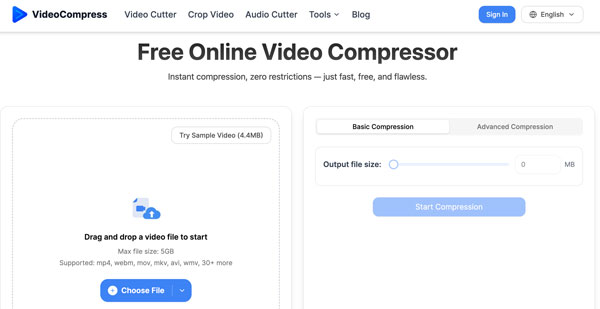
2. VideoCompress Free Online Video Compressor
Best for: Compress videos fast with no watermark, no account, and no settings.
VideoCompress Free Online Video Compressor supports more than 30 formats and accepts files up to 5GB. In most scenarios, you can make videos smaller easily through flexible compression settings. Its advacend compression allows users to adjust video codec, resolution, bitrate, quality, and compression speed.
- Pros
- Compress videos uploaded from your device, Google Drive, Dropbox, and URL.
- Accept Google Drive, Dropbox, and URL imports.
- One click to make the video compatible with old devices.
- Cons
- No batch video compression support.
- Lack independent user reviews on Trustpilot, G2, or Reddit.
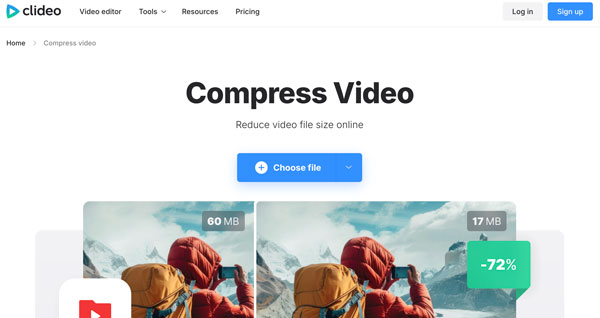
3. Clideo Video Compressor
Best for: Get a clean and simple video compressor. And don't mind to pay for the video watermark removal.
The maximum file size limit of Clideo Video Compressor is 500MB, which is smaller than FreeConvert and VideoCompress.ai. But you can choose from a wider suite of video editing tools, including a video trimmer, video merger, audio extractor, and more.
- Pros
- Work on all mobile and desktop browsers.
- Trim, merge, add subtitle, convert and edit videos after compressions.
- Have over 10,000 reviews of 5-star Trustpilot rating.
- Cons
- Contain watermarks on all free exports.
- Only have three video compression levels.
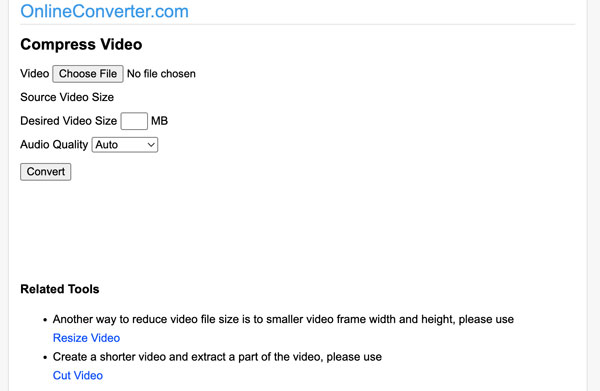
4. OnlineConverter Video Compressor
Best for: An easy free video compressor. Upload one video, enter a target size, then compress it.
There is no paid plan for OnlineConverter Video Compressor. It is a totally free online video shrinker with no watermark. However, the slow processing time of large files is a trade-off that you should consider.
- Pros
- Enter the desired video size to get a smaller video.
- Good for non-technical users who just need a smaller video file.
- Adjust the audio quality from 32 kbps to 128 kbps.
- Cons
- The processing speed is slow on large or high-resolution videos.
- MP4 is the only output format.
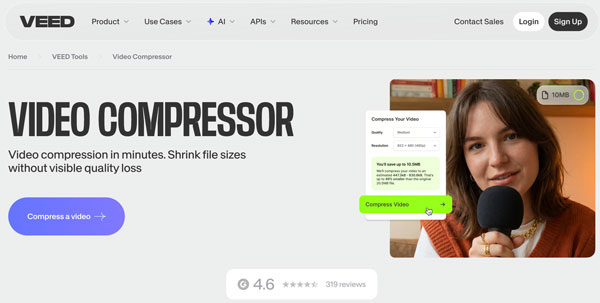
5. Veed Video Compressor
Best for: Content creators and social media teams can compress and video videos with a large workflow.
VEED is a full browser-based video editor that include a compression tool. You can use VEED to compress and edit videos inside the same tool. There will be a watermark on your free export. As a standalone video compressor, it might not be a best choice for everyone.
- Pros
- Show the estimate output file size before compressing videos online.
- Get a full editing suite to compress, trim, subtitle, transcribe, and edit videos in one place.
- Accept 1GB video files on the free plan.
- Cons
- Watermark on all free exports.
- The VEED free plan export videos up to 720p resolution.
Want to Compress Large Videos? Use AnyRec Video Converter
Online video compressors are conveients. But they have limits. If you want to bypass the file size limit and privacy concerns, you can use AnyRec Video Converter to compress large video files in bulk. With the built-in video compressor, you can compress a video by percentage, enter the target file size, or adjust output settings. Moreover, there are many other tools that can help you make the video as smaller as possible.
Compress a video by up to 95% percentage of its original size.
Trim, crop, reduce resolution, and edit videos to shrink the file size.
No file size limit. You can compress a video over 10GB.
No cloud servers. Keep all your personal videos on your computer.
Secure Download
Secure Download
Conclusion
Most free online video compressors work. Until they don't. The overlarge file size, attached watermark, foreover uploading and these or those problems stop users. For a quick one-off video clip, an online video size reducer is fine. But for anything larger or more important, you need something more reliable. AnyRec Video Converter can handle video files of any size. Nothing gets uploaded to an outside server. Your video footage stays on your device. Moreover, you can preview and adjust the video quality before saving. That one stap saves a lot of frustration. If you compress large videos more than once a day, it is worth hacing on your computer.
Secure Download
Secure Download
Related Articles:
About Our Author




