
[2026 Updated] Reliable MP4 Compressors That You Can Choose

MP4 compressors can be helpful when you are dealing with large MP4 files, which can be difficult to store, share, or upload. By compressing MP4 files, you can effectively reduce their file size while maintaining acceptable quality. With a wide range of compressors available, various tools these days offer different levels of performance and features. Thus, selecting a suitable option is challenging. This guide highlights reliable MP4 file compressors and provides practical insights to help achieve a balance between quality and efficiency.
Guide List
Best MP4 Compressor for Balance Between Quality and Efficiency 8 Top-Notch MP4 Compressors You Can Trust for Everyday Use Bonus: Tips for Selecting a Proper MP4 Compressor for YourselfBest MP4 Compressor for Balance Between Quality and Efficiency
A good MP4 compressor should balance quality and efficiency. Designed to handle all video-related tasks, AnyRec Video Converter can help you compress MP4 files with precision. During the process, it enables you to significantly reduce file size with detailed parameter input while preserving visual clarity, making it suitable for both casual and professional use.

Compress video smaller than 25MB for Gmail, Dropbox, and other email services.
Send a long video and reduce the file size to 16MB for WhatsApp sharing.
Compress video online for Discord, TikTok, Facebook, and other social media.
Compress video by percentage from 10% to 99% to shrink file size flexibly.
Secure Download
Secure Download
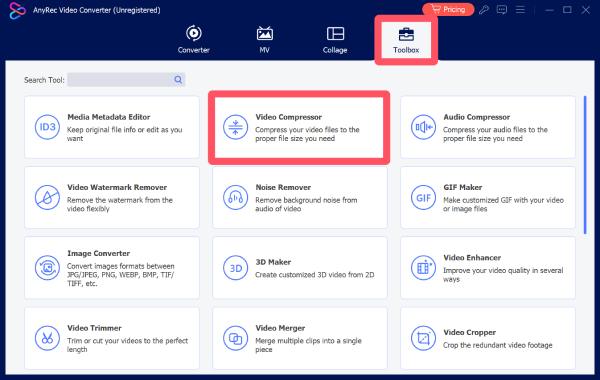
Step 1.Launch AnyRec Video Converter on your device and click the "Video Compressor" button under the "Toolbox" tab.
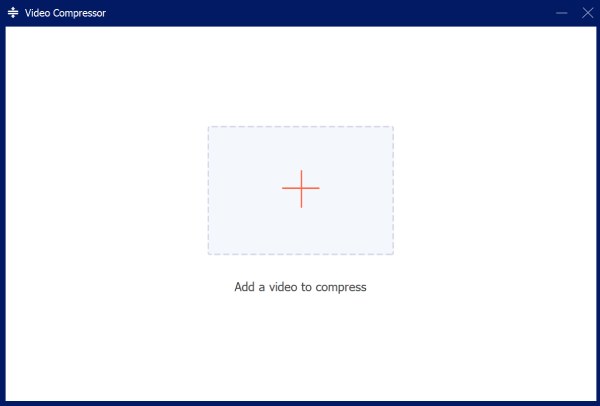
Step 2.In the pop-up window, click the "Add Files" button to import your video files to this MP4 compressor.
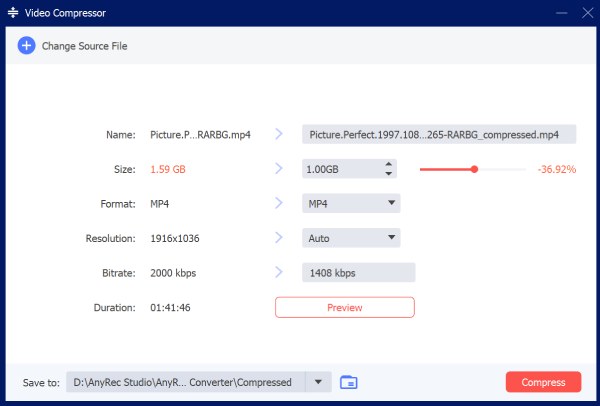
Step 3.In the control panel, click to adjust the file size that you want to compress to. Finally, click the "Compress" button to start the process.
8 Top-Notch MP4 Compressors You Can Trust for Everyday Use
Beyond AnyRec Video Converter, there are multiple MP4 compressors available to meet different needs. Each option provides its own pros and cons. You can select the proper one based on your requirements. Read the following content to explore a range of trusted tools.
| Tool Name | Ease of Use | Compression Efficiency | Processing Speed | Platform Type |
| HandBrake | Moderate | High | Medium | Desktop |
| VLC Media Player | Easy | Medium | Medium | Desktop |
| FFmpeg | Difficult | Very High | High | Desktop (CLI) |
| Freemake Video Converter | Easy | Medium | Medium | Desktop |
| Movavi Video Converter | Very Easy | High | High | Desktop |
| Clideo | Very Easy | Medium | Low–Medium | Online |
| VEED.IO | Very Easy | Medium | Low–Medium | Online |
| Shotcut | Moderate | Medium–High | Medium | Desktop |
1. HandBrake
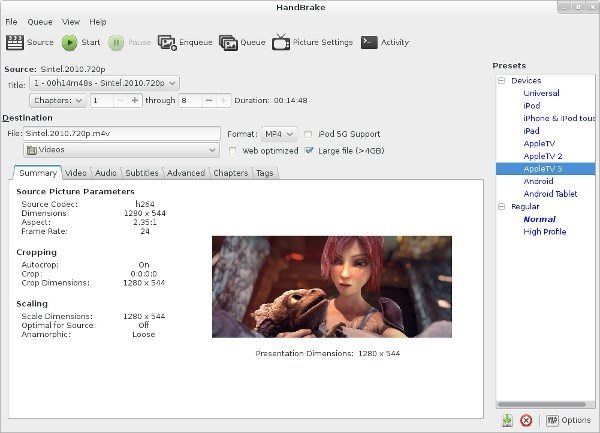
As an open-source video transcoder, HandBrake is known for its powerful processing ability. When working as an MP4 compressor, it supports a broad range of input formats. With detailed parameter input allowed, HandBrake simplifies the compression process while still offering detailed control for experienced users. Although its interface is somewhat complex for beginners, once you get the hang of it, HandBrake MP4 compressor will become very efficient.
- Pros
- Open-source transcoder for free use
- Advanced compression controls
- Support multiple formats for compression
- Cons
- Steep learning curve for beginners
- Slow processing without hardware acceleration
- The parameters can be challenging to adjust manually
2. VLC Media Player
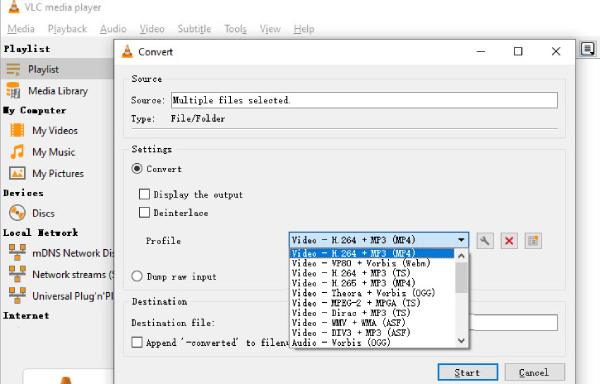
Although it is better known as a video player, VLC media player also supports basic video compression. This means you can use the video as an MP4 compressor when watching it. Of course, as a tool primarily designed for video playback, its video compression is not particularly strong, but it is at least sufficient to meet ordinary compression requirements.
- Pros
- Free and widely available
- A powerful MP4 player
- No additional installation needed
- Cons
- Limited features for advanced compression
- Slow compression due to its processing capability
- Less precise output control without parameters
3. FFmpeg
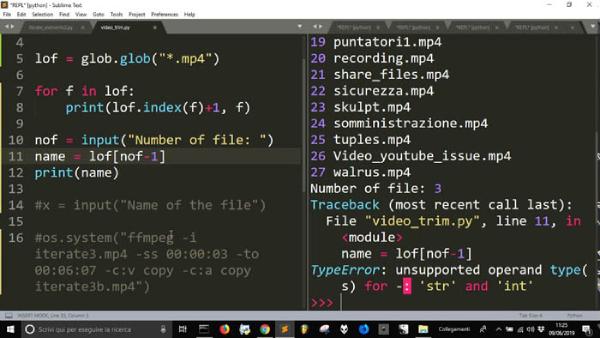
If you have some coding knowledge, you will surely be familiar with FFmpeg. In this environment, you can accomplish seemingly complex tasks with just simple commands. Therefore, many people use FFmpeg as a free MP4 compressor. Of course, if you are not familiar with coding, the operation of it may be complicated for you.
- Pros
- Extremely powerful and flexible
- Support batch processing
- High efficiency
- Cons
- Require technical knowledge
- No graphical interface
- Complex commands
4. Freemake Video Converter
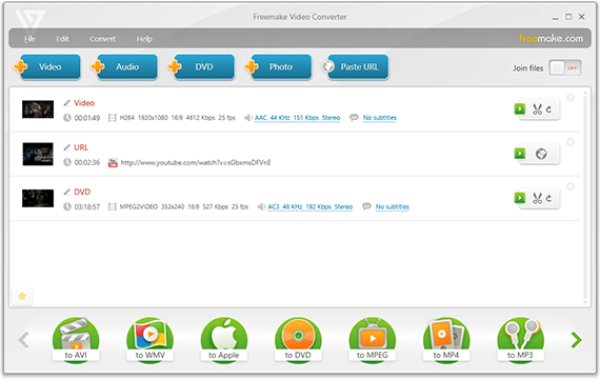
Some professional MP4 file compressors can also assist you in efficiently completing video compression tasks without requiring extensive professional knowledge. Freemake Video Converter is such a tool that can help beginners quickly get accustomed to video processing tasks. Its interface is simple and intuitive, and it comes with very clear instructions, enabling everyone to complete video compression without difficulty.
- Pros
- Easy-to-use interface
- Support many formats
- Device presets available
- Cons
- Watermark attached in the free version
- Limited advanced features for precise compression
- Slower processing speed when dealing with large videos
5. Movavi Video Converter
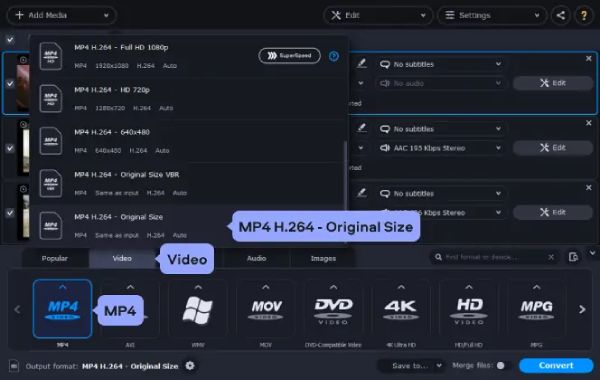
As a professional video processing tool, Movavi Video Converter is a reliable MP4 compressor that meets various needs. Whether you are compressing videos for daily use or for professional purposes, Movavi offers the appropriate processing methods, allowing you to perform compression with the right balance between preset parameters and manual input. Although it is highly functional, its relatively high price may deter many people who only need it for a few uses.
- Pros
- Fast processing speed, even for large files
- User-friendly interface with clear guides
- Support almost all normal video formats
- Cons
- The price for a license can be high
- Limited features in the trial
- Fewer advanced controls than professional tools
6. Clideo (Online Tool)
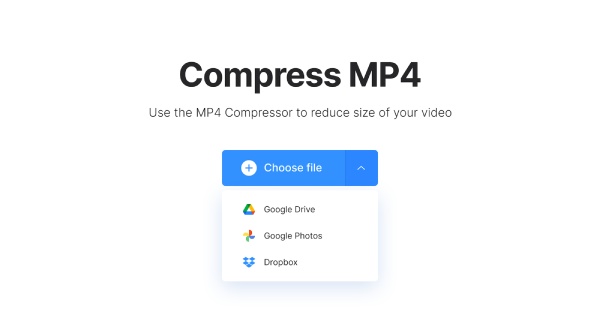
If you are looking for a quick, convenient way to compress MP4 files, an online MP4 compressor is a better option. Clideo is a tool that runs directly in your browser and allows you to compress MP4 online. With its assistance, you can quickly complete MP4 compression without downloading any software. Due to its online nature, its processing capabilities are naturally affected, both in terms of file size and compression speed.
- Pros
- No installation required
- Simple interface
- Accessible on any device
- Cons
- File size limitations
- Slower with large files
- Require internet connection
7. VEED.IO (Online Tool)
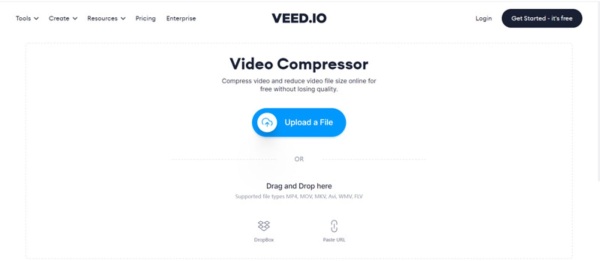
As a reliable online MP4 compressor, VEED.IO is a popular choice among many users. Unlike other tools dedicated solely to video compression, VEED.IO enables you to perform various editing operations on the video during processing, ensuring the final output visually better meets your requirements.
- Pros
- Beginner-friendly
- Include editing features
- Work in browser
- Cons
- Watermark in the free version
- Limited export quality
- Require a stable internet
8. Shotcut
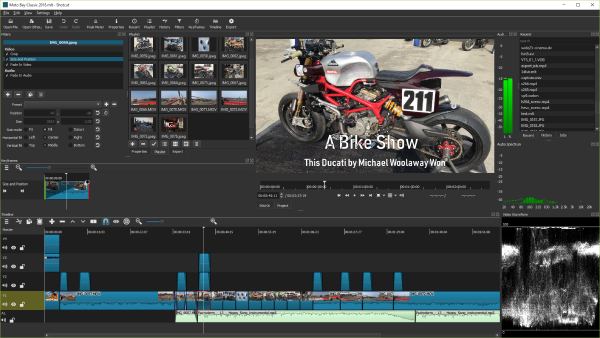
Shotcut is a free, open-source video editor that also supports video compression through export settings. It offers a customizable workflow and supports a wide range of formats and codecs. Users can adjust bitrate and resolution to control output size. While powerful, its interface may feel less intuitive than that of dedicated MP4 compressors, especially for new users.
- Pros
- Free and open-source
- Flexible export setting
- Support many formats
- Cons
- Interface can be confusing
- Slower learning curve
- Not focused solely on compression
Bonus: Tips for Selecting a Proper MP4 Compressor for Yourself
As you can see, there are now many MP4 compressors available for you to choose from. Whether they are online or desktop tools, you will have to deal with numerous options and choose from them. To assist you in making a more appropriate choice, read the following tips to clarify your requirements.
Consider Output Quality Control
The two most important aspects of compressing videos are quality and size. You surely don't want the video to become blurry after being compressed. Before choosing an MP4 compressor, consider how other users have evaluated its processing capabilities to ensure the small-sized MP4 can still clearly convey your video content.
Evaluate Compression Speed and Performance
Generally speaking, if you are in a situation where you need to quickly complete the MP4 compression task, for example, when you have several files to process at hand, then desktop tools always have the advantage over online MP4 compressors. Professional desktop tools not only handle batches but also offer faster processing speeds.
Check Format Compatibility and Features
Also, don't forget to check whether the MP4 compressor you plan to use supports wide format. This is because, although you are dealing with MP4 files this time, if you need to handle other video formats, such as MKV, AVI, etc., in the future, format compatibility becomes extremely important.
Conclusion
There are various MP4 file compressors for you to choose from; you can select the one that best meets your requirements. In short, the best option concerns both quality and efficiency. For this kind of balance, users can find options in AnyRec Video Converter and compress any video files easily.
Secure Download
Secure Download
Related Articles:
About Our Author




