Hot

AnyRec Video Repair
Repair drone, GoPro, and camera videos fast.
Secure Download
How to Solve Error Code 232404 with Stuck on Video Playing

When you’re all set to watch your favorite movie or video, with good food and company, but only meet the message, "This video file cannot be played, error code: 232404" on your screen. It’s a major frustration. But don’t fret; whether this error appears on your browser, not once but twice, solutions are at hand. This complete guide to Error Code 232404 discusses the seven effortless fixes to remove this from your screen. Without any delay, get into it now!
Guide List
What is Error Code 232404? Why Do You Face This Error? 9 Workable Ways to Fix Error Code 232404 of Unplayable Videos Best Way to Fix Damaged Videos with Error Code 232404 FAQs about Video Error Code 232404What is Error Code 232404? Why Do You Face This Error?
Error code 232404 indicates that the video player cannot establish a stable connection to the media source, or that the data packets received are corrupted or incomplete. This frequently occurs when the browser's request for a media fragment timed out or was blocked by a third-party extension.
This is specifically tied to the JW Player framework, which is a web-based video player used by many streaming sites, news publishers, and educational platforms. Unlike server-side errors, 232404 is generally a client-side failure, meaning the solution resides within the user's local environment rather than on the server.
Why did Error Code 232404 happen, though? Here are possible reasons explaining why videos not playing and showing 232404 code.
- With a weak or damaged Internet connection, you most likely encounter an error message.
- The streaming service doesn’t cover your location, which is restricted in your area.
- There might be browser issues like a cache inside it or some faulty extensions.
- The streaming platform you’re using is having some server issues as well.
- A corrupt or damaged video file will result in the error 232404.
- An ad-blocker extension is installed on your web browser.
9 Workable Ways to Fix Error Code 232404 of Unplayable Videos
Moving forward, now you can explore 9 efficient solutions to fix Error Code 232404. Each solution targets the specific cause of the said video playback issue. See what fix works for you.
Fix 1. Check Internet Connection
To start with, restart Router. This can fix the majority of temporary connection issues. Later, you can check the stability of your network.
Step 1.Head to the "Start" menu. Type "cmd" in the search box. Next, right-click on "Command Prompt" and then choose "Run as Administrator".
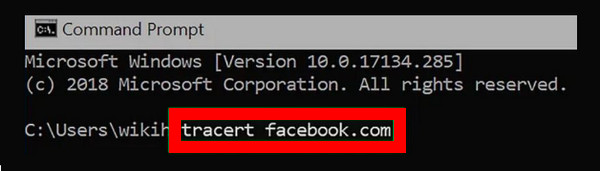
Step 2.In the prompt window, enter "tracert" followed by the streaming service’s URL. It will look like this: tracert facebook.com. This command will tell you the response times of a website, identifying whether the connection is running slow and fixing the error code 232404.
Fix 2. Remove All Browser’s Cache and Cookies
Browsers store data like the cache in the folders, preventing it from performing well. So, the extensive data can trigger the error 232404. For a smoother experience, clearing your browser’s cache and history will help.
Step 1.On your Chrome browser, navigate to the "More" button at the top, which will open more options, and select "More Tools" from there. Click the "Clear Browsing data" in the side menu.
Step 2.In the newly opened window, click the appropriate checkbox to be removed, such as "Browsing history", "Cookies and other site data", and "Cached images and files".
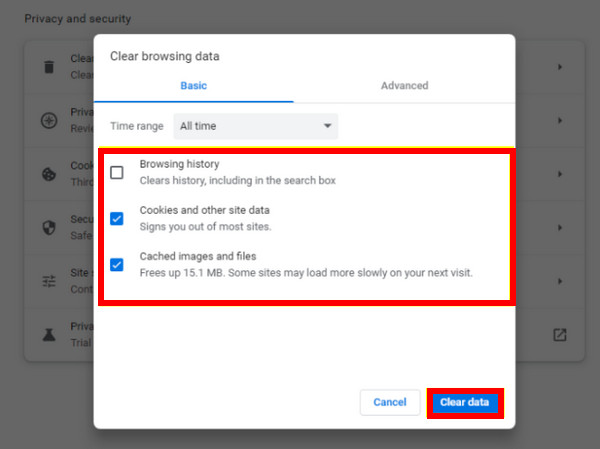
Step 3.Once done, click the "Clear Data" option and restart your browser to check if you can watch the video peacefully without the error code 232404.
Fix 3. Look Into the Streaming Service’s Server
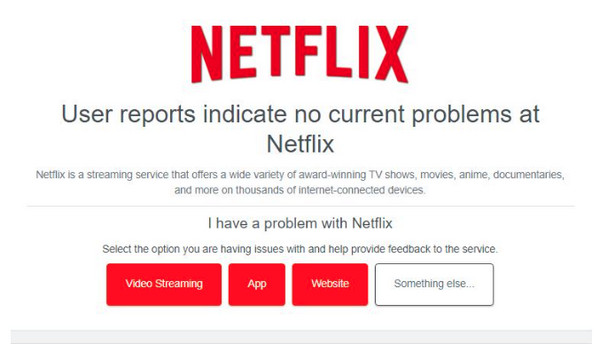
It’s nice to verify the server status to check if the error 232404 is not caused by the streaming platform you’re using. For example, if you used Netflix and found out its server is temporarily down, consider using another service. Here’s how:
Step 1.Go to the "Down Detector" official website or other server checker. Enter the streaming service name, like Netflix, YouTube, Viu, and more.
Step 2.The result will then display the server’s status; check if any issues like error code 232404 or outages are happening.
Fix 4. Disable All Extensions
The error code 232404 may be caused by browser extensions, mainly those for online security. If several extensions exist on your browser, you can temporarily disable them individually to find the specific extension causing the error.
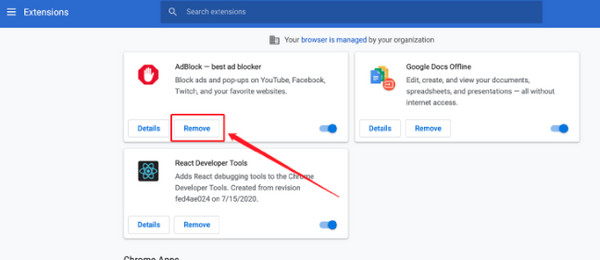
Step 1.Go to the "More" button on the Chrome main screen and select "More Tools". From the side menu, click "Extensions".
Step 2.Pick one extension you think is causing the problem; turn it off by clicking the toggle button. Or click the "Remove" option for each extension. Then, you can check if there is still error code 232404.
Fix 5. Update Your Video Driver
An outdated driver also contributes to the video playback error code 232404 since it affects your system. So, improve the performance of your computer and possibly solve the issues by updating the driver.
Step 1.Navigate to the "Start" menu or the "Windows" button; right-click on it. Then, select "Device Manager" from the show options.
Step 2.Under the "Display adapters", choose your graphics card, right-click, and "Update driver". After that, click the "Search automatically for updated driver software", and Windows will do the action.
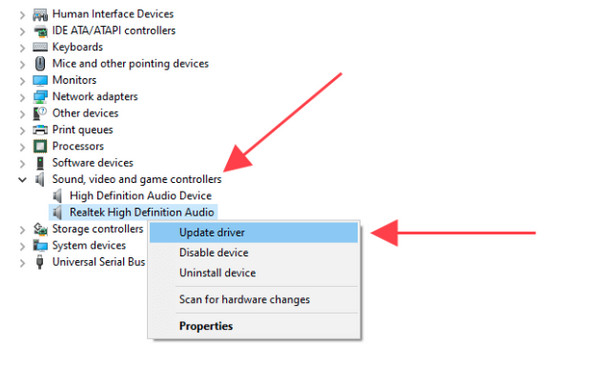
Step 3.Complete the update process by following the on-screen instructions. Finally, restart your computer and see if the video is playable without the error code 232404.
Fix 6. Update Your Web Browser
Similar to having an outdated driver, using an outdated browser can result in compatibility issues, such as error code 232404, error code 232011, and more. So, keeping your browser up to date is vital! See below how to update your Chrome browser.
Step 1.Enter your Chrome browser; click the "More" button above to access options. Select "Help" and click "About Google Chrome".
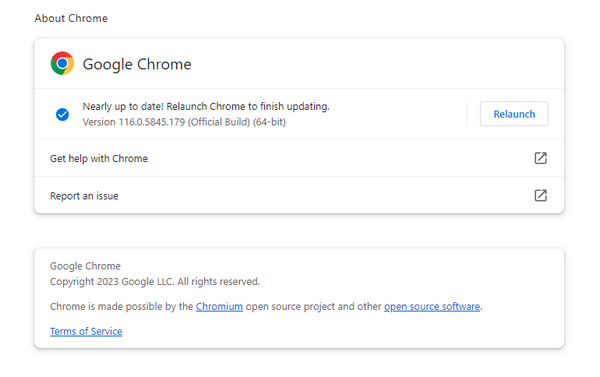
Step 2.If an update is available, Chrome will automatically start updating, then click "Relaunch." Afterward, revisit the website to check if the error 232404 is solved.
Fix 7. Use a Different Browser or Player
If none of those appear to solve the error code 232404, consider another streaming platform or a player for smooth playback. To address it effectively, ensure a compatible player with seamless playback for all formats and codecs, like H.264. Furthermore, use Microsoft Edge or others that handle the video playback well for online videos.
Fix 8: Disable Hardware Acceleration
When it causes conflicts with the video player, disabling hardware acceleration often resolves the 232404 error. After disabling, reload the page and try the video again.
How to disable in Chrome:
- 1. Click the three-dot menu. Click the "Settings" button.
- 2. Scroll to "System".
- 3. Toggle off "Use graphics acceleration when available".
- 4. Click the "Relaunch" button.
How to disable in Firefox:
- 1. Open Menu. Click the "Settings" and "General" button.
- 2. Scroll to "Performance".
- 3. Uncheck "Use recommended performance settings".
- 4. Uncheck "Use hardware acceleration when available".
- 5. Restart Firefox.
How to disable in Edge:
- 1. Open Settings. Click the "System and performance" button.
- 2. Toggle off "Use graphics acceleration when available" button.
- 3. Restart Edge.
Fix 9: Use Incognito/Private Mode
Find and click the three-dot button to get the browser's menu. Here you can click the "New Incognito Window" or similar options to open an incognito window. So, you can stop local history and cookies. This method also works to troubleshoot the 232404 error code on Windows 11/10 and Mac.
Best Way to Fix Damaged Videos with Error Code 232404
If 232404 only happens with one downloaded/local video while other videos play normally, the file itself may be damaged. That's when AnyRec Video Repair is worth trying. What’s more, this tool can recover high-definition videos that are shot from phones, computers, cameras, and more others. By simply uploading the broken video file and quality sample video, the program will start doing its magical fixing process.

Solve error code 232404 and fix damaged videos for smooth playback.
Guarantee strong security for all the fixing of corrupted video procedures.
Preserve the video's frame rate, resolution, and bitrate with error code 232404.
Make use of the most advanced technology applied to the repaired videos.
Secure Download
Secure Download
Step 1.Coming after launching the AnyRec Video Repair, add your unplayable video and a sample video file by clicking the "Add" buttons.

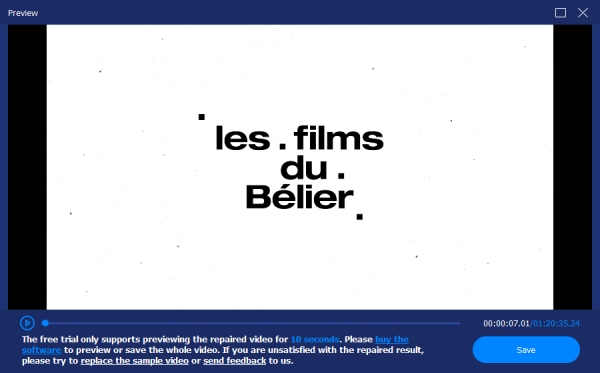
Step 2.To start the fix process, click "Repair" in the middle, then wait for the fix to finish. When it is done, click "Preview" to have a look if the repaired video satisfies your requirements.
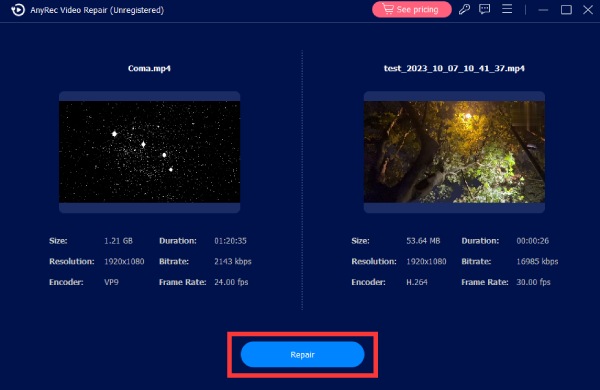
Step 3.If it turns out how you would like it to, still check the parameters like resolution, frame rate, etc. At last, click "Save" to get your repaired video immediately.
Further Reading
 How to Fix Missing Codec 0xc00d5212 Error While Playing Videos
FAQs about Video Error Code 232404
-
Why does the video say it cannot be played?
You’re facing the error 232404 on videos you are trying to watch. It might be because the video is corrupted or the browser is not working correctly because of some issues. Another huge cause is network issues, ad blockers, outdated drivers, etc.
-
What media players are available to address the issue?
Several players are out there, such as the VLC Media Player, known for its compatibility with most video and audio formats, such as MP4, MOV, WMV, and more.
-
What is the easiest fix to the error code 232404?
Make sure you have a strong Internet connection, then update your Chrome browser or whatever browser you use to play the videos. If there’s still an error, consider using a different player or streaming service.
Conclusion
The appearance of the error is annoying during your comfortable watching experience. But, what do you think of all the solutions discussed to solve error code: 232404? Hopefully, you find one of them helpful. But of course, it’s excellent to determine first what causes the issue before doing any complex repairs. You don’t have to worry since it is a common issue for anyone. Enjoy watching now!
Secure Download
Secure Download
Related Articles:
About Our Author