10 DVD Burning Software for You: How to Pick the Right One?

It might feel like a vintage choice in today's streaming services, but physical media collections are best when saving your memories and sharing home videos with family. But doing so is not as simple as dragging your files. Pick the right DVD burning software and start converting your files. Therefore, the following breaks down the top 10 best DVD burners, key features to look for, and shares troubleshooting tips to ensure your burning process runs smoothly.
Guide List
What Should You Look for in DVD Burning Software Types of DVD Burning Software Top 10 DVD Burning Software Troubleshoot Common DVD Burning ProblemsWhat Should You Look for in DVD Burning Software
Not all DVD creating software is built the same; some are for copying raw data, while others serve as complete movie studios. For best results, check out these essential features:
- • Support for Video DVD Creation. Look for software that handles authoring video DVDs and converting formats like MP4 into a standard, player-recognizable structure.
- • DVD Menu Creation. For your project to feel like a Hollywood release, the best tool should let you customize backgrounds, chapter select buttons, and background music.
- • Video Editing Before Burning. Your software should let you trim clips, adjust color, add subtitles, or stitch chapters together before you finalize the burn.
- • Disc Compatibility. Hardware matters, and your software should be compatible with it. Make sure your program supports the specific physical media type you use.
Types of DVD Burning Software
Besides the features you should look for, each DVD-burning program has different tasks in mind. So, choosing the right category will save you time and ensure your final disc plays exactly where and how you want it to.
1. Simple Data DVD Burners. These programs will treat your DVD like a large flash drive. They will copy your files and folders, such as photos, documents, and video files, onto your disc without converting them.
Best for: Storing personal photos and documents and backups or transferring large files between computers.
2. DVD Burning Software. Unlike basic burners, DVD authoring tools will take your video files and convert them into standard DVD-Video layout folders. It handles interactive menus, chapters, audio tracks, and subtitles.
Best for: Home movies, video projects, indie films, and any media for a standout home DVD player attached to a television.
3. ISO Burning Tools. ISO burning software will take the complete image from your ISO file and write it onto your disc precisely as intended.
Best for: Burning operating system installer discs, restoring exact backups.
Top 10 DVD Burning Software
After considering all the factors, here is a breakdown of the top 10 DVD-burning options today, from straightforward tools to powerful multimedia suites.
1. AnyRec DVD Creator
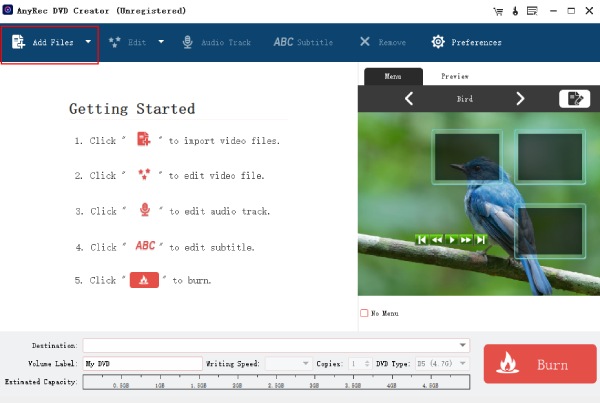
Take the complex steps out of your home movies with AnyRec DVD Creator. This is designed specifically to convert your digital videos into optical discs, DVD folders, or ISO files without needing technical skills. You can ensure a smooth workflow with features here in this DVD burning software, allowing you to import your footage, crop or adjust your clips, and choose customized menu templates on a single screen.
Best for: Casual users and home video enthusiasts who want an easy process to transform clips into home DVDs with interactive menus.
- Pros
- Clean interface that makes it much easier for all skill levels, built-in editing features, generous pre-made DVD menu templates.
- Cons
- No advanced visual effects.
Secure Download
Secure Download
2. BurnAware
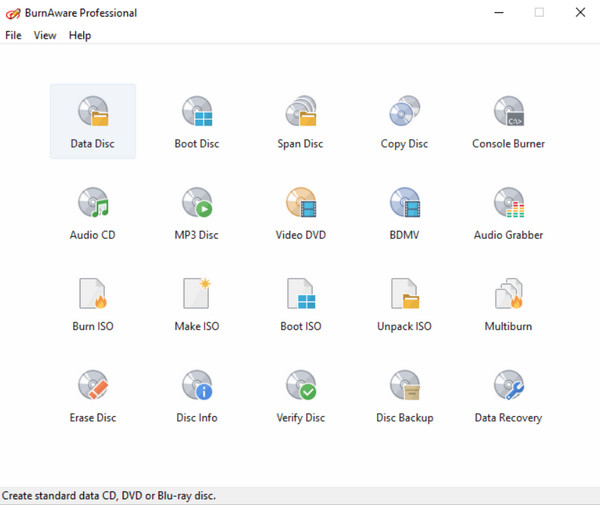
BurnAware is a simple DVD burning program that doesn't demand much from your computer. Its main screen keeps tasks like data discs, audio CDs, and other burning tools organized in separate sections.
Best for: Clean, low-resource for daily data backups and burning needs.
- Pros
- Well-organized dashboard, supports CDs, DVDs, and Blu-rays.
- Cons
- Minimal options for creative menus.
3. Ashampoo Burning Studio
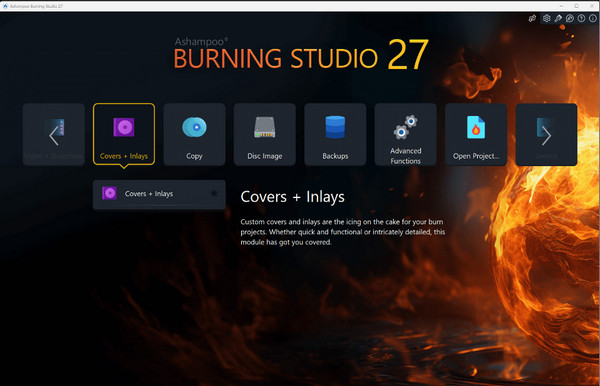
Ashampoo Burning Studio takes usability to the next step with its full-featured multimedia suite. This DVD burning software handles everything from your backups to automated disc cover creation.
Best for: Make data discs, music CDs, and other disc projects on Windows.
- Pros
- The tools are arranged by task, and the cover maker helps with labeling finished discs.
- Cons
- Some features cost extra, and the installer may offer programs that aren't needed.
4. WinX DVD Author
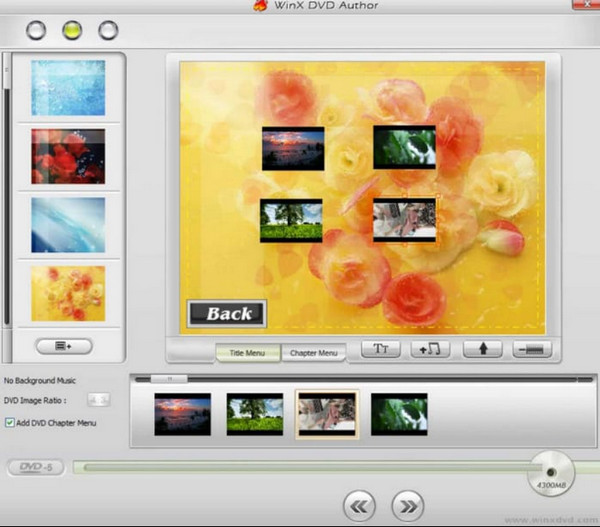
For users who want simple DVD burning software, WinX DVD Author delivers! It cuts away complex menus in favor of your direct video-to-DVD workflow.
Best for: Casual users who need a fast, free solution to convert their movie files.
- Pros
- No watermark to deal with, support for both major TV formats, and online video downloads are available in the same program.
- Cons
- Limited editing tools; its screen feels behind the times.
5. ImgBurn
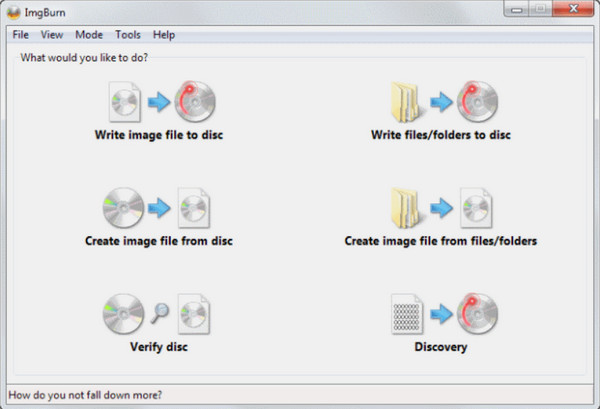
Next for DVD burning software is ImgBurn. It is the gold standard for handling disk image files. While its screen may be complex, it offers precise control over physical disc writing.
Best for: Advanced users who often create ISO files or burn different types of discs.
- Pros
- A wide range of disc formats is supported, with plenty of options for adjusting how files are written.
- Cons
- Video editing isn't included, and the number of settings can be confusing at first.
6. DVDStyler
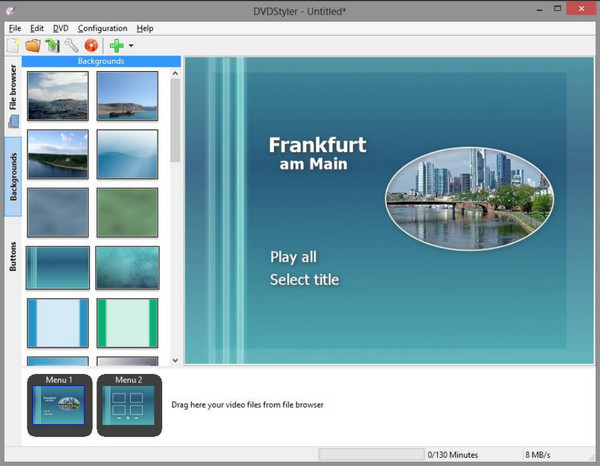
While utility tools focus on raw disc images, DVDStyler focuses more on open-source freedom. It is one of the few free DVD burning software programs that let you customize interactive menus.
Best for: Open-source editors looking to create fully custom menus.
- Pros
- High-level menu design; free and open-source software and supports drag and drop.
- Cons
- Its interface is slightly clunky, and speed can be slower.
7. DVDFab DVD Creator
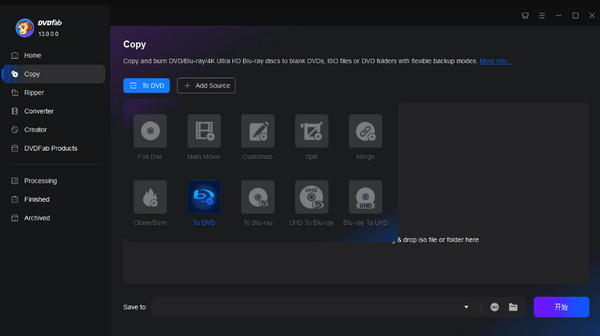
Go to commercial-grade DVD burning software, DVDFab is built for high-speed performance. It can handle your large libraries quickly with its hardware acceleration features.
Best for: Users wanting high-speed processing and HD output.
- Pros
- GPU hardware acceleration; results in studio-quality output with stylish menu templates.
- Cons
- It comes at a higher cost, and learning where everything is may take a while.
8. Cisdem DVD Burner
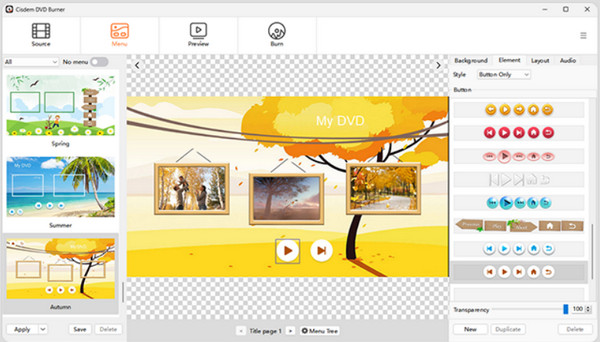
Cisdem DVD Burner targets macOS users. This free DVD burner provides a tailored experience for those who want to author home discs.
Best for: Open-source editors looking to create fully custom menus.
- Pros
- High-level menu design; free and open-source software and supports drag and drop.
- Cons
- Its interface is slightly clunky, and speed can be slower.
9. True Bruner
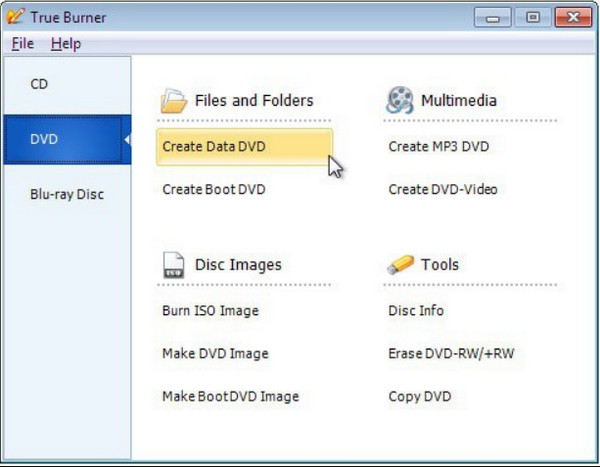
In contrast to heavy rivals, True Burner here is a lightweight DVD burning software option that doesn't have any unnecessary extras for disc writing.
Best for: Burn files and audio CDs without dealing with a lot of extra features.
- Pros
- Easy to navigate; reliable data verification and light on resources.
- Cons
- No video menu authoring; very basic visual design.
10. CDBurnerXP
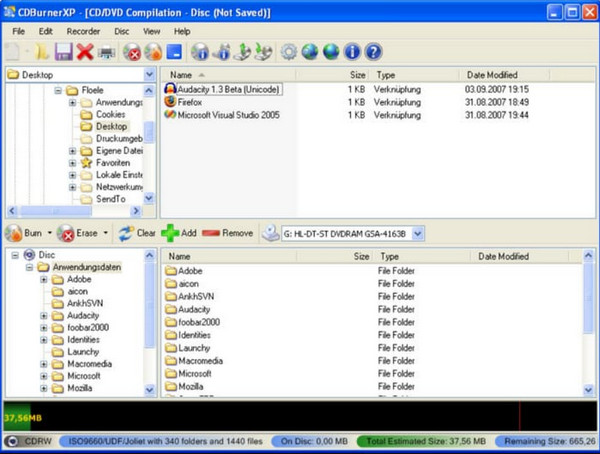
Ending today's list with CDBurnerXP. Using this DVD burning software, despite its name, it has complete support for DVDs, Blu-rays, and ISO image files at no cost.
Best for: Anyone looking for multi-purpose free classic disc creation.
- Pros
- Multi-language interface; simple ISO creation and burning workflow.
- Cons
- Microsoft .NET Framework; no support for authoring menus.
Troubleshoot Common DVD Burning Problems
Still, burning DVDs can occasionally run into problems. Here are the most common you might face and how to quickly resolve them:
- • DVD Does Not Play on a TV DVD Player. Use dedicated software to convert your video into a standard format before burning.
- • The Burning Process Fails or Drops Mid-Burn. Lower your burn speed instead of setting it to Mac, and ensure your system has enough space to build the disc cache.
- • Video Playback is Choppy or Black and White. Set the output video standard to match your target region.
- • The disc is Not Recognized by the Optical Drive. Confirm supported formats of your DVD burner hardware first. Also, switching to high-quality blank media can also improve the success rate.
- • Audio and Video Are Out of Sync. Try to convert your source file to a Constant Frame Rate MP4 using a video converter before importing it into your DVD authoring tool.
Conclusion
Saving digital video files or customized home movies will be so easy with the DVD-burning software. With all those choices and the details about data burning and video authoring, you can produce high-quality discs that play smoothly across players and computers. And don't forget AnyRec DVD Creator for a no-headache process for handling your disc creation from start to finish. Get to know it more by downloading it today!
Secure Download
Secure Download
Related Articles:
About Our Author