 Burn video to disc, folder, or ISO. Your choice.
Burn MP4 to DVD: What You Need and 2 No Hassle Ways

Have some MP4 videos you'd like to save or play on a DVD? If so, before you start burning, there's an important thing you need to know. Burning MP4 to DVD takes a little more than copying your file to a blank disc. Thankfully, the steps are easier than they sound. Below, the following parts show you two ways to burn MP4 to DVD, from a simple software method to a more hands-on approach, plus what you'll need and more.
Guide List
What You Need Before Burning MP4 to DVD Why MP4 Can't Just Be Burned Directly How to Burn MP4 to DVD with AnyRec DVD Creator Complicated Way to Convert MP4 to DVDWhat You Need Before Burning MP4 to DVD
Before you can even start create a DVD from an MP4 file, prepare a few essentials to avoid interruptions during the process. Having everything ready will make things much easier for you.
- DVD Drive. Make sure your computer has a DVD drive that reads and writes discs. You might need an external USB DVD drive if your computer does not have one.
- Blank DVD Disc. Use a blank disc with enough storage space for your video.
- DVD Burner. A writable DVD drive is a must to transfer your video onto your disc.
- DVD Authoring Software. This software converts and organizes your video into a DVD-compatible format and creates the needed structure.
Why MP4 Can't Just Be Burned Directly
While, as you know, MP4 is one of the most common formats, you cannot simply put it onto a DVD and expect it to play in your DVD player. A standard video DVD has a specific format and structure that's different from the MP4 container.
- Video codec: MPEG-2, and not H.264, HEVC, or H.265, which are commonly used for MP4 videos.
- Audio codec: AC3 (Dolby Digital) or PCM for DVD-compatible audio.
- Container: VIDEO_TS folder containing .VOB, .IFO, and .BUP files
- Resolution: 720 × 480 (NTSC) or 720 × 576 (PAL), depending on the standard used in your region.
How to Burn MP4 to DVD with AnyRec DVD Creator
Best for: Beginners and anyone who wants a quick, convenient way to convert MP4 files to playable DVDs without manually dealing with file structures.
To make burning MP4 videos to DVD very simple, handle the conversion, authoring, and burning process with AnyRec DVD Creator. Instead of manually converting your MP4 video and creating DVD folders, the software takes care of the needed DVD format for you. Plus, it lets you customize menus, subtitles, chapters, audio tracks, and other settings before burning. With everything handled in one place, you can burn MP4 to DVD with fewer steps.
Can burn MP4 and other popular formats to DVD effortlessly.
Enjoy creating customized DVD menus and chapters.
Adjust video quality, aspect ratio, and other output settings.
Preview the DVD before finalizing the MP4 for DVD burning.
Secure Download
Secure Download
Step 1.Launch AnyRec DVD Creator on your computer and choose "DVD Disc". Insert your blank DVD into the computer's DVD drive to begin, then add the MP4 video you want to burn onto it.
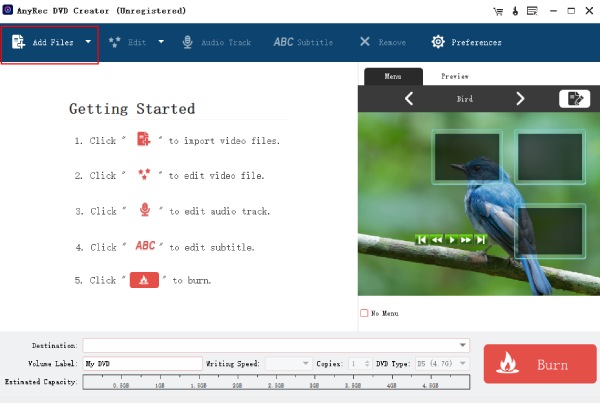
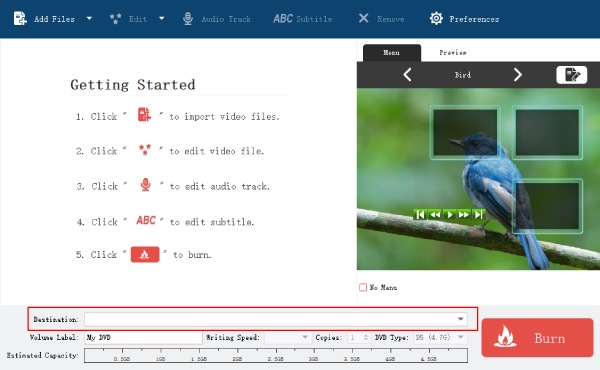
Step 2.Click "Destination" to choose your DVD drive or location. Before burning, you can select "Edit" to trim or adjust the video if needed, and you can also customize options such as volume label, writing speed, and number of copies.
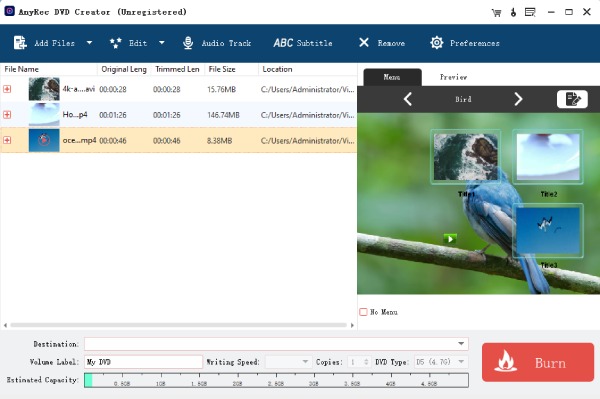
Step 3.If you want additional audio, click "Audio Track" to add it to your project. Check the DVD preview to ensure everything looks right, adjust other burning settings, then click the "Burn" button to create an MP4-to-DVD.
Complicated Way to Convert MP4 to DVD
Best for: Advanced users who are at ease working with various video formats, DVD structures, and burning settings.
Do you prefer more control over the conversion and your DVD structure? You can also complete the MP4-to-DVD burning process manually. Although it takes more time and involves separate steps, it is useful when you want more freedom over your menus, chapters, and output settings.
Step 1.Convert MP4 to DVD-compatible video
First, convert your MP4 file from codecs such as H.264 or H.265 to MPEG-2 video with AC-3 or PCM audio. The resulting files need to have the same resolution, aspect ratio, bitrate, and other requirements of the DVD standard.
Step 2.Author the DVD
After that, use a DVD authoring program to prepare the VIDEO_TS folder. This creates the IFO, VOB, and BUP files that are needed for a DVD. Moreover, you can also add menus, subtitles, chapters, and navigation controls.
Step 3.Burn the DVD
Finally, burn the completed VIDEO_TS folder to a blank DVD using a DVD-burning program such as DVDStyler. This handles the authoring and burning process, especially great if you want to create custom menus and chapters rather than simply putting files onto your disc. Ensure your disc is written using a UDF/ISO 9660 filesystem.
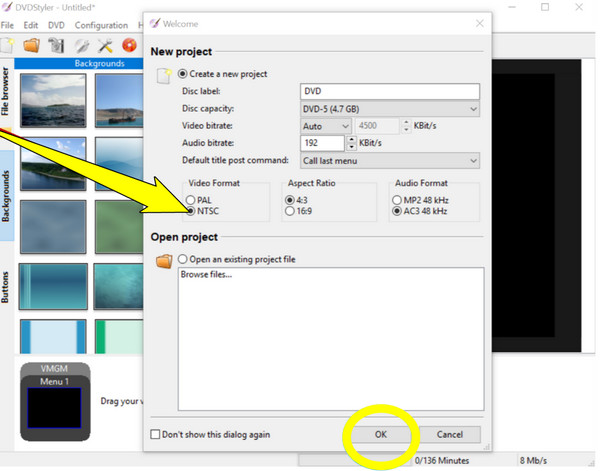
- 1. Start DVDStyler on your computer and create your new DVD project. Select the right video format, such as NTSC or PAL, depending on your region.
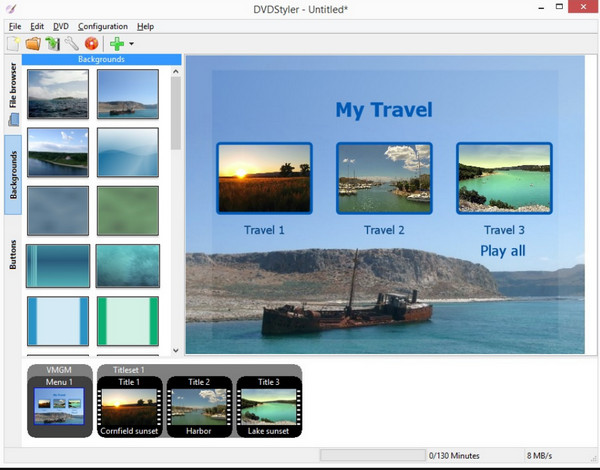
- 2. Import the MP4 file into the project by dragging it into the window. Once you have prepared your video, choose a menu template or create your own by adding a background, buttons, and text.
- 3. Check your project to make sure the video and menus work as expected. Now, insert your blank DVD into the drive, then select "Burn DVD" from the menu. Pick your drive and start the burning process.
Conclusion
Once you know that a standard DVD needs more than copying an MP4 onto your disc, you can convert MP4 to DVD with no hassle! Both approaches mentioned today, whether a quick solution or a hands-on method, can get your videos playable and ready for the big screen. Want the simplest experience? Handle everything with AnyRec DVD Creator. Turn your MP4 videos and other file formats into playable DVDs in just one place. Download and get started today!
Secure Download
Secure Download
Related Articles:
About Our Author