
4 Easy Ways to Convert iMovie to MP4 for All Devices

Offering a simple way to create polished videos with ease, iMovie is among the most popular editing tools for Mac and iPhone users. However, when exporting your projects, the MOV format is not always the most convenient. So, the need to convert iMovie to MP4 arises. How? In this guide, you'll explore four effective ways to export iMovie to MP4, whether you're using a Mac, iPhone, or Windows PC. Ensure your videos are always ready to play and share today!
Guide List
How to Export an iMovie Video as MP4 on Mac How to Convert iMovie Video to MP4 on Mac and Windows How to Change iMovie Video to MP4 on iPhone How to Save an iMovie Video to MP4 OnlineHow to Export an iMovie Video as MP4 on Mac
Once you finish editing an iMovie project, the next step is to get it saved in a shareable format. While it saves video as MOV by default, this format sometimes causes issues with specific platforms. Thus, to make things easier to share and play, it's best to create an .mp4 file in iMovie.
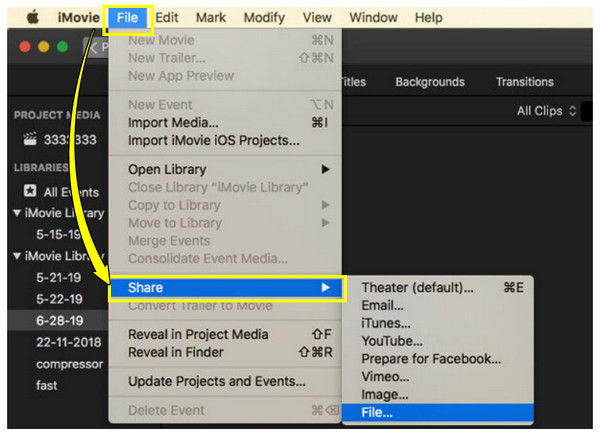
Step 1.Launch iMovie and ensure your project is ready. There, head to the top menu and click on "File" then "Share" button to access the dialog box for export settings.
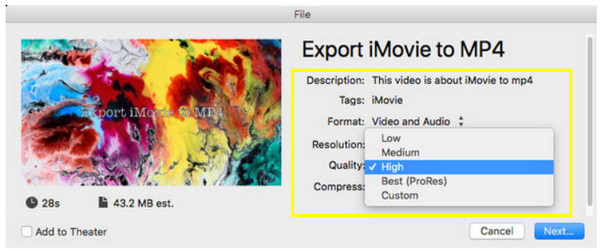
Step 2.Adjust the resolution depending on how high-quality you want the project to be. Next, you can choose the quality and file type. For MP4, you have to select either "Standard" or "High Efficiency". Click the "Next" button to proceed.
Step 3.Here, determine a file name and destination folder for your MP4 video. Once all is settled, click the "Save" button (or Export) and please wait. Later, you can access the MP4 file in the selected location.
How to Convert iMovie Video to MP4 on Mac and Windows
Since iMovie saves the video as MOV files, another method to convert iMovie to MP4 is using a reliable tool like AnyRec Video Converter. While MOV is a high-quality format, to play your videos on different devices, upload them online, and share them quickly, MP4 must be used. It can not only export MP4 from iMovie but also maintains the quality of your videos. With its advanced GPU acceleration, the process is much faster compared to other converters. Whether your project is for YouTube, viewing only, or presentations, this trustworthy solution can get your iMovie views into a compatible MP4 format.

Convert to iMovie MP4 format and more others on Windows and Mac.
Offers GPU acceleration for faster processing; no longer waiting time.
Let you batch convert iMovie videos at once without quality loss.
Has built-in editing tools like trimming, merging, cropping, and more.
Secure Download
Secure Download
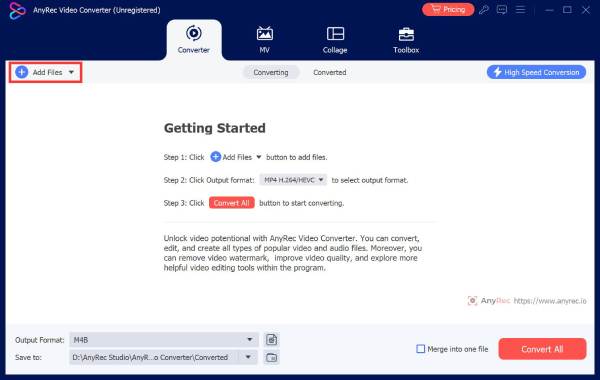
Step 1.After opening AnyRec Video Converter, click the "Add Files" button. Upload your iMovie MOV file to begin the conversion process.
Step 2.On the right side of your uploaded file, click the "Format" dropdown menu. From the "Video" tab, select "MP4" as your output format.
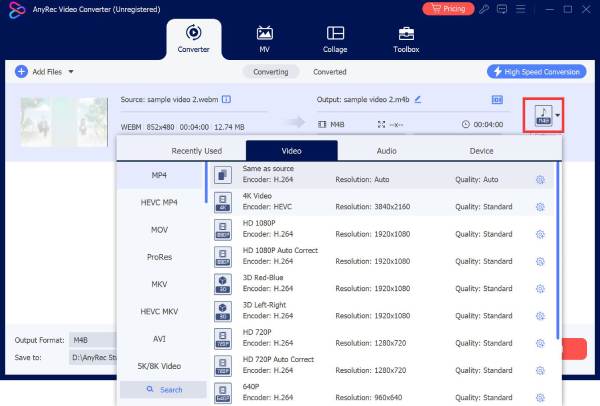
Step 3.If needed, customize your settings by clicking the "Custom Profile" button to adjust resolution, frame rate, bitrate, and more.
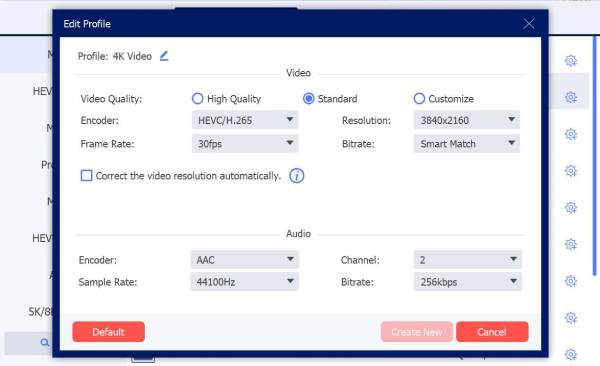
Step 4.Back on the main screen, choose a destination folder and set a file name for the converted video. Lastly, click the "Convert All" button to begin the iMovie MP4 format conversion.

Secure Download
Secure Download
How to Change iMovie Video to MP4 on iPhone
For those who are using iMovie on iPhone, you can easily export an iMovie project to MP4 format instead of just sharing MOV by default. See below the steps to export your iMovie project as an MP4 directly from your iPhone.
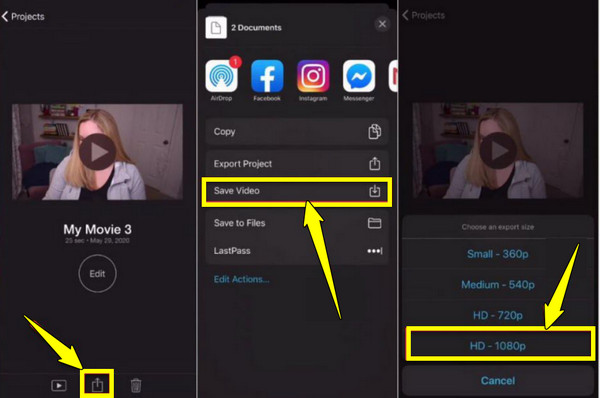
Step 1.Launch the iMovie app on your iPhone, and start a new project or open an existing one from your library. Once all edits are complete, tap the "Done" button.
Step 2.Next, tap on the video you wish to share, then tap on the "Share" button.
Step 3.There, select "Save Video" then proceed to pick an export size, resolution, and more.
How to Save an iMovie Video to MP4 Online
For no installation of extra software, an online video converter is a convenient way to save iMovie as MP4. It also works for Windows users. Because there is no official iMovie for Windows version yet. Here are the top three most reliable online iMovie to MP4 converters you can try.
| Tool | Free | Other Supported Formats | HD/4K | Best For |
| AnyRec Free Online Video Converter | Free | Supports many video and audio formats like AVI, WMV, MP3, etc. | HD, 4K | Users who want a fast, no-hassle, and free conversion. |
| CloudConvert | Free with 25 conversions per day | 200+ formats for video, audio, images, documents, etc. | HD, 4K | Users who want customizable output and cloud integration. |
| Zamzar | Free, but with file size limits | 1,200+ formats for video, audio, images, documents, etc. | HD | Users who prefer to get videos by emails. |
1. AnyRec Free Video Converter
AnyRec Free Online Video Converter can convert iMovie to MP4 online for free without file size limit. This online iMovie converter enables you to quickly convert MOV files into MP4 and other popular output formats, making it versatile if you want to transform other file types in the future. Furthermore, it offers no hidden charges and ensures that your output will be of high quality across all different web browsers.
Step 1.On your browser, search for the AnyRec Free Online Video Converter.
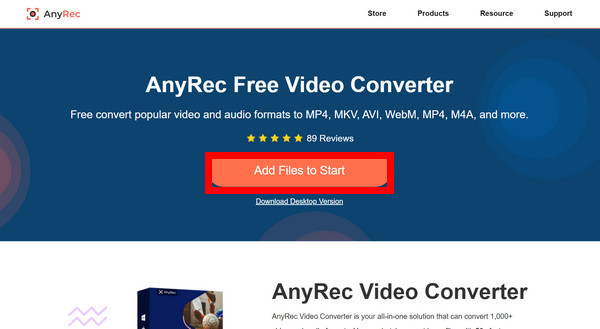
Step 2.Start with the "Add Files to Start" button and upload your exported iMovie MOV file. You'll need to get the launcher first for first-time users.
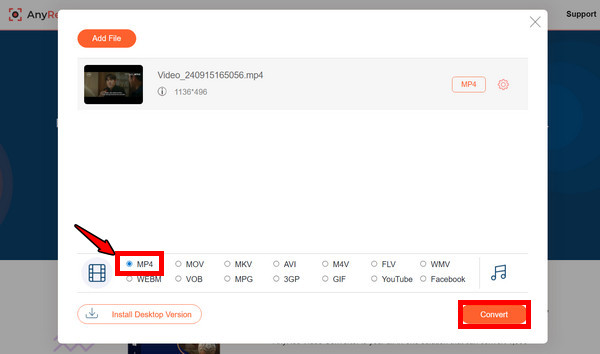
Step 3.From the options, select "MP4" as your output format. Then, adjust settings like resolution, quality, and more as needed. Then, click the "Convert" button to change MOV to MP4 for free.
2. CloudConvert
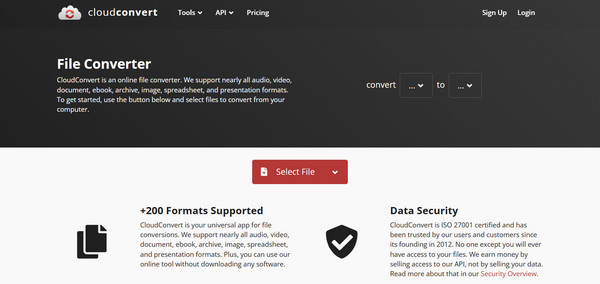
Moving on to CloudConvert, it is another excellent online conversion tool that supports over a hundred file formats, including iMovie MOV to MP4. One of its strengths is that it can fine-tune output settings like resolution, codec, and bitrate, ensuring your videos will result the way you want. It also allows integration with services like Google Drive and Dropbox.
3. Zamzar
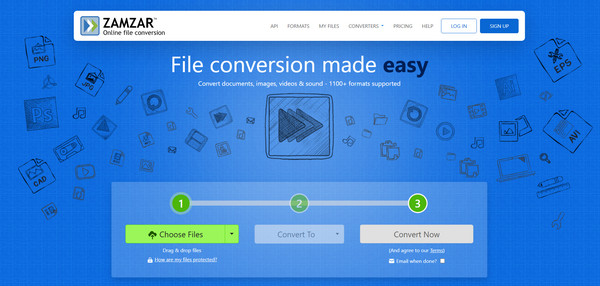
Finally, Zamzar is a long-standing name in the online file conversion category. It has a simple process where you can upload your MOV file, select MP4, and receive the output within minutes. Though it has file size limits, it offers fast and reliable results. If you want to convert MOV to MP4 in small file sizes without extra costs, Zamzar is worth considering as your free iMovie to MP4 converter.
Conclusion
Among all iMovie to MP4 conversions, AnyRec Video Converter stands out as a powerful all-in-one iMovie video converter and editor. Not only does it export iMovie as MP4 seamlessly, but it also maintains HD and 4K quality, supports batch processing, and offers more features for fine-tuning your projects. Start converting your iMovie videos and more with ease!
Secure Download
Secure Download



