
Hot

AnyRec Video Converter
120× faster video conversion and editing. No waiting.
Secure Download
Step-by-Step Guide for Online MP4 Compression Easily

Knowing how to compress MP4 files online is a very practical skill, especially when your storage space is limited or when you need to upload or share videos. Large MP4 files can become very troublesome in these situations. But don't worry, this guide will provide necessary preparation tips, reliable online MP4 compression tools, and a more stable alternative to help you efficiently reduce the file size while maintaining an acceptable video quality.
Guide List
Things You Should Know Before Compressing MP4 Online 5 Tools You Can Trust for Online MP4 Compression A More Stable Way to Compress MP4 Than Online SolutionsThings You Should Know Before Compressing MP4 Online
Before choosing an online MP4 compression tool, it is necessary to understand the essential information about compression first. For most online tools, parameters such as reducing the bit rate, resolution, or frame rate are used to decrease the file size.
These measures are certainly quite efficient, but during this process, visual clarity will be affected accordingly. Moreover, for different tools, there are specific differences in upload limits, network speed, privacy risks, and output control. Understanding these factors in advance helps to avoid repeated uploads, unexpected quality loss, or failure of the compression task.
5 Tools You Can Trust for Online MP4 Compression
Before choosing an online MP4 compression tool, it is necessary to first understand the essential information about compression. For most online tools, parameters such as reducing the bit rate, resolution, or frame rate are used to decrease the file size. These measures are certainly quite efficient, but during this process, visual clarity will be affected accordingly. Moreover, for different tools, there are specific differences in upload limits, network speed, privacy risks, and output control. Understanding these factors in advance helps to avoid repeated uploads, unexpected quality loss, or failure of the compression task.
1. Clideo MP4 Compressor
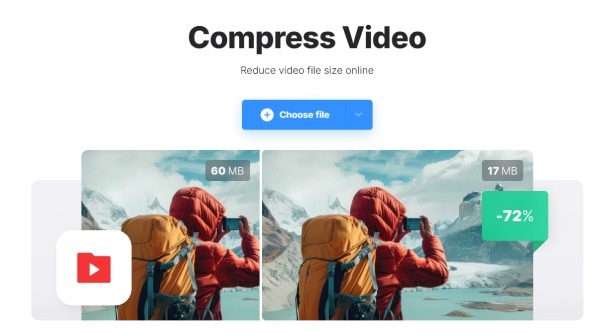
For those who are looking for a simple online MP4 compression tool, Clideo is a very reliable option. Its interface is quite simple. You can easily complete the compression task within just a few clicks. It automatically selects optimal compression settings based on the uploaded video, making it friendly for beginners.
- Pros
- Simple interface with automatic compression
- Support cloud storage uploads
- The steps are intuitive and simple.
- Cons
- Select among various functions for compression
- Watermark added in the free version
- Limited control over compression parameters
2. VEED.IO Video Compressor
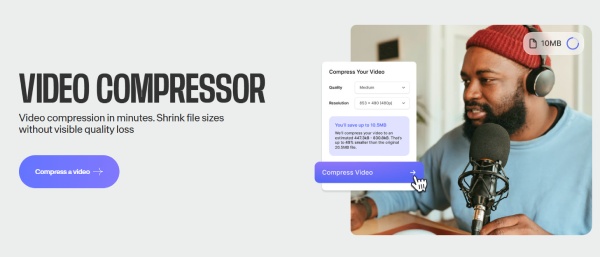
VEED.IO combines video compression with basic editing features, allowing users to resize and optimize MP4 files before exporting. It is well-suited for social media content, allowing you to resize videos for Instagram and alike. Compression speed is stable for small to medium-sized files.
- Pros
- Social media–friendly presets
- Include basic editing tools
- Work stably during the process
- Cons
- Upload size limits on the free plan
- Require an account for extended features
- May encounter lag when dealing with large files
3. FreeConvert MP4 Compressor
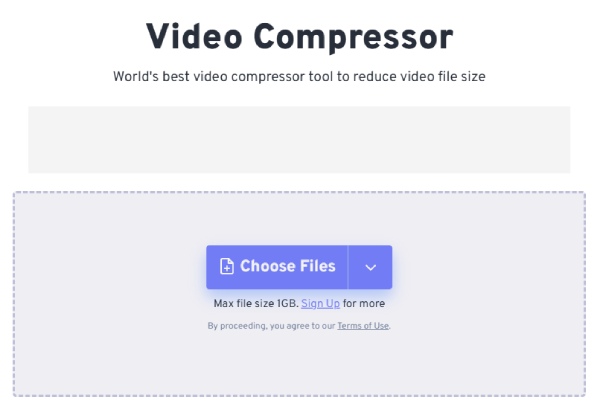
FreeConvert provides more manual control, letting users adjust video codec, resolution, and target file size. Compared with other online MP4 video shrinkers that only support files of 50 to 500 MB in size, FreeConvert can handle video files up to 1 GB in size, making it a solid choice for users who want flexibility without installing software.
- Pros
- Custom compression settings available
- Support relatively large files
- Upload from online platforms
- Cons
- Slower processing during peak hours
- Ads present on free version
- Uploading can be slow for a 1 GB file
4. UniConverter
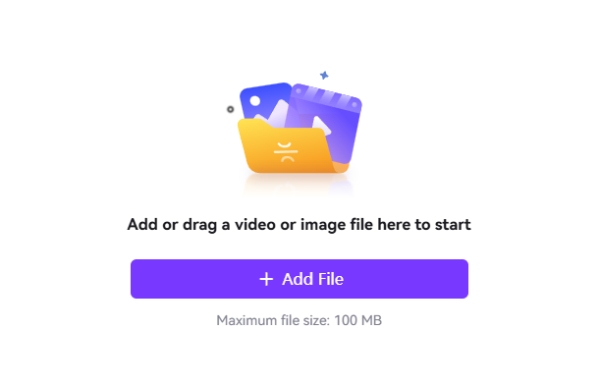
If you want to compress your MP4 files to the greatest extent online, then UniConverter offers you reliable processing capabilities. This online MP4 size reducer can quickly reduce MP4 file size without dealing with technical settings. It works well for short videos and basic compression tasks where speed matters more than fine-tuned quality control.
- Pros
- Reduce the file size considerably
- Fast processing for MP4 compression
- Settings are elementary and clear
- Cons
- Limited customization options
- File size restrictions apply
- Log-in required for more features
5. XConvert MP4 Compressor
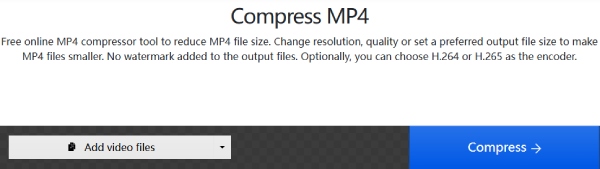
For users who don't want their browsers to consume too much memory, the ideal online MP4 compressor should be lightweight. This video compressor app perfectly meets this requirement. It can meet the basic compression requirements without consuming too much memory, allowing your computer to run smoothly.
- Pros
- Support batch compression
- Multiple resolution presets
- Occupy small amounts of memory
- Cons
- Slower uploads on unstable networks
- Fewer advanced encoding options
- An unstable Internet connection
A More Stable Way to Compress MP4 Than Online Solutions
Although online MP4 compression tools are convenient to use, they often perform poorly when dealing with large files, unstable network connections, and limited output control. For users who require stable quality and higher success rates, professional desktop solutions like AnyRec Video Converter offer a more reliable alternative.
When using this tool to compress MP4 files, you can precisely adjust the bit rate, resolution, frame rate, and encoding format to achieve the result you desire. At the same time, when dealing with large MP4 files, it can also compress them smoothly while maintaining relatively good image quality as much as possible.

Compress the MP4 file without significantly compromising the picture quality.
GPU acceleration is used to ensure that the process is completed quickly.
Support further adjustments of various parameters before the compression.
Preview to view the quality of your video after the compression.
Secure Download
Secure Download
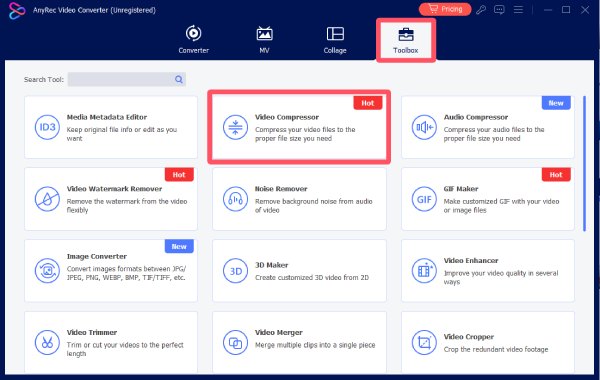
Step 1. Launch AnyRec Video Converter on your device and click the "Video Compressor" button under the "Toolbox" tab to open the tool.
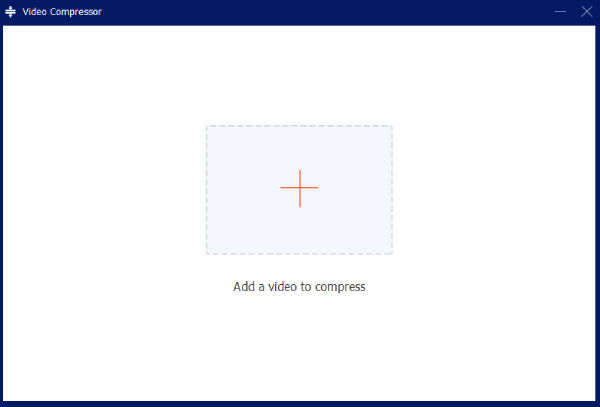
Step 2. A new window will pop up to allow you to upload the video. Click the "Add Files" button to upload your video.
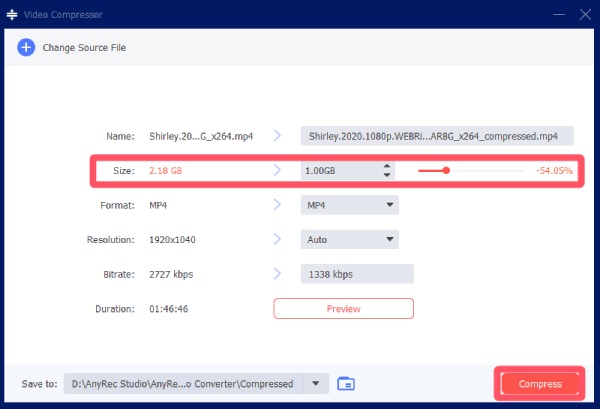
Step 3. You can adjust the file size under the "Size" tab. Finally, click the "Compress" button to run the process of compression.
Conclusion
Compressing MP4 files online is a practical choice for quick tasks, especially when convenience and speed matter most. However, online solutions still come with limits in stability, file size, and control. For larger projects or frequent use, switching to AnyRec Video Converter can ensure the best result with consistency and flexibility.
Secure Download
Secure Download
Related Articles:
About Our Author




