Hot

AnyRec Video Converter
120× faster video conversion and editing. No waiting.
Secure Download
Change Frame Rate Explained: Common FPS, Uses, and Tips

Your video may look smooth or surprisingly choppy. Frame rate is a key part of that. A higher FPS is not always better, and the wrong setting can lead to choppy motion, large file sizes, and playback issues. So, can you change frame rate without hurting the video quality? Below, you will see what changing frame rate does, the most common frame rates and their uses, how to change video FPS, and tips for getting the best frame rate right for your next video.
Guide List
What Does Changing a Video's Frame Rate Actually Do Common Frame Rates and When to Use Them How to Change a Video's Frame Rate Tips for Changing Video FPSWhat Does Changing a Video's Frame Rate Actually Do
Before you change frame rate, do you know what it actually affects? Frame rate controls how many images are shown every second, changing the smoothness of motion, the overall video, and even how it works with your chosen devices or platforms.
Here's what you need to know before you reduce or increase FPS:
What Is FPS?
FPS or frames per second is the number of each frame displayed in one second of video. For instance, 24 FPS shows 24 frames per second, while 60 FPS shows 60 frames per second. If you use lower frame rates, you can achieve a cinematic look, while using high fps makes fast movement look smoother.
Does Changing FPS Improve Video Quality?
Not really. When you switch the frame rate, it affects motion smoothness, but it can't create real detail that wasn't recorded in the first place. Increasing a 24 FPS to 60 FPS, for example, does not add 36 frames per second.
Does Changing FPS Change, Playback Speed?
Usually, changing FPS during export does not affect the actual duration. Instead, the FPS changer will add, remove, duplicate, or insert frames to fit the new frame rate. But if you add the footage at a different frame rate during the process, the playback speed may change.
When Should You Change the Frame Rate?
Make sure you have a specific reason. Change frame rate to match your footage to a project or prepare it for a specific platform, or maybe create smoother motion. Use 24 FPS for a cinematic look, 30 FPS for everyday videos, and 60 FPS for fast-moving scenes.
Common Frame Rates and When to Use Them
Once you know what FPS does, the next step is to choose the right frame rate for your video. There's no single setting that works perfectly for every video, so you should know your footage, your desired look, and where you want to watch or share it.
To know which is best, here's a quick breakdown of common frame rates and where they are best used:
| Frame Rate | Best Use |
| 24 FPS | Movies for a classic cinematic look |
| 25 FPS | Television and video standards in PAL regions |
| 30 FPS | Social media, such as vlogs, online videos, and TV |
| 50 FPS | Fast movements, like sports, for smoother motion and greater clarity |
| 60 FPS | Fast-paced scenes in gaming and action videos where smooth movement matters |
| 120 FPS | Create smooth, slow-motion effects |
How to Change a Video's Frame Rate
Knowing which FPS to use is one thing, but how can you modify frame rate? This is where a tool like AnyRec Video Converter comes in handy. Instead of complicated editing settings, you can adjust frame rate during export with this software, even if you don't have much video editing experience. It offers a simple way to change FPS while giving you control over other necessary output settings as well. Working with its simple interface is its support for a wide range of formats, making it useful to prepare your footage for your different devices and platforms.
Change frame rate of your video to suit different playback and editing needs.
Wide format support for MP4, MOV, MKV, AVI., etc., not limited to a single output type.
Built-in editing tool to trim, crop, rotate, and make other quick edits.
Custom video settings for your desired resolution, encoder, bitrate, and others.
Secure Download
Secure Download
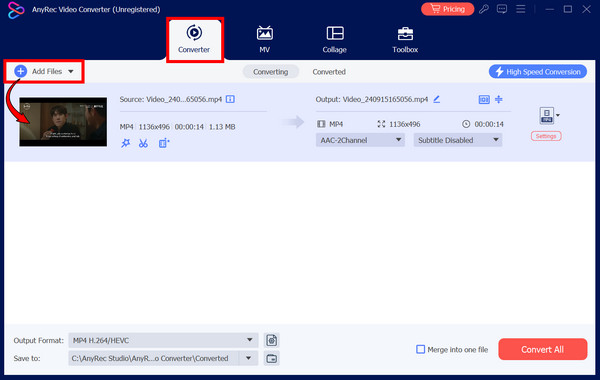
Step 1.Upon starting AnyRec Video Converter on your computer, just stay inside the "Converter" tab. There, click the "Add Files" button to import your video whose frame rate you want to change.
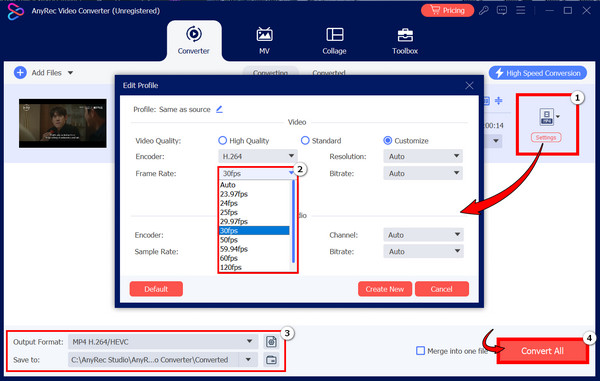
Step 2.Open the output format menu and look for "Custom Profile". If there's a "Settings" button next to the format, you can use that instead. Go to "Frame Rate" and select 24, 30, 60, or 120 FPS, depending on your needs. Adjust other necessary settings, such as resolution or bitrate, if needed, then save all changes.
Step 3.Going back to the main screen, choose an output folder and name for your file. Click the "Convert All" to export your video with the new frame rate.
Tips for Changing Video FPS
Changing the frame rate of a video is simple, but it is not safe from giving you choppy results or unnecessary file sizes. Thus, keep these practical tips in mind to ensure your new frame rate is actually right for your footage.
- Match your FPS to the original footage. When possible, keep your chosen frame rate close to the original video.
- Use a higher FPS for slow motion. If you plan to create a slow-motion video, start with a higher frame rate, such as 60 or 120 fps. This will slow down your footage while keeping the motion smooth.
- Choose FPS based on your content. Think about your content, rather than automatically choosing the highest FPS. Lower rates suit cinematic video while higher ones work better for fast-moving scenes.
- Do not choose high FPS for better quality. If your footage was recorded at a lower FPS, increasing it cannot restore detail that wasn't even there in the first place.
- Check your final video before sharing. Always watch your exported video to make sure the motion looks natural. If you notice frame issues, try a different FPS.
Conclusion
As you see, knowing how to convert video frame rate is more than just picking a higher FPS. You need the right setting for your footage, the look you want, and where you plan to play and use it. For an easier way to change FPS and other video settings, download AnyRec Video Converter today. This lets you increase or decrease the frame rate, format, resolution, and more from its one simple interface. Try it now and have the right frame for your upcoming projects.
Secure Download
Secure Download
Further Reading
About Our Author