
 Make shaky, dark, and blurry videos look brand new.
Fix Shaky Video: 7 Ways to Do It and Practical Tips

When your clips are recorded while walking or are affected by wind, they can result in shaky video, which can turn into a frustrating viewing experience. But you don't have to throw them away. Today's post is here to help you fix shaky video using reliable desktop software, online stabilizers, and mobile apps. Plus, practical tips to reduce those camera shakes and make your footage look smoother. Scroll down to find the best method on any of your devices.
Guide List
Why Are Videos Shaky Fix Shaky Videos with AnyRec Video Enhancer Make a Video Less Shaky with Online Video Stabilizers Repair a Shaky Video with Stabilization Apps Tips to Stabilize a Shaky Video without Losing QualityWhy Are Videos Shaky
Shaky videos can make great footage look distracting. Fortunately, knowing its causes is the first step toward finding an effective way to stabilize shaky video. Several factors can affect its stability, and these include:
- Recording handheld without a tripod. Holding the camera by hand can cause unwanted movements during longer shots.
- Walking while filming. Footsteps and body movement can create shakes when recording on the move.
- Low-quality camera stabilization. Cameras with outdated stabilization systems may have trouble keeping your footage steady.
- Wind or movement during outdoor shooting. Strong wind or unexpected movement can make your outdoor video unstable.
- Older cameras have limited stabilization. Older cameras may have no modern optical or stabilization features, making them more prone to shaky footage.
Fix Shaky Videos with AnyRec Video Enhancer
Best for: Stabilizing shaky footage while also improving its overall quality, especially your phone recordings, travel videos, and old clips.
A desktop video enhancer is a convenient choice for you who wants more than a basic stabilization fix. Combining video stabilization with several tools, AnyRec Video Enhancer improves your shaky footage. Thanks to its stabilization feature, you can fix shaky video by reducing camera shake, jitter, and micro-shaking. At the same time, other enhancement options can adjust brightness, remove video noise, and upscale resolution.

Can reduce video shaking and unwanted camera movement.
Support popular formats such as MP4, MOV, AVI, WMV, and more.
Adjust your output settings, e.g., resolution, before exporting.
Check the enhanced results before saving the final video.
Secure Download
Secure Download
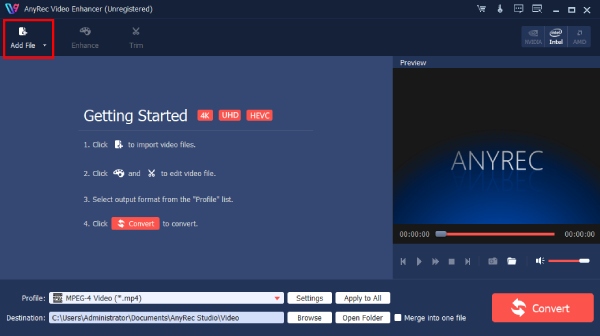
Step 1. Open AnyRec Video Enhancer on your computer and select "Add File" from there. Find your shaky clip and import it into the program.
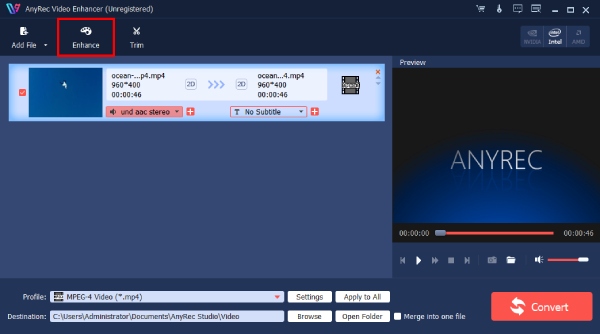
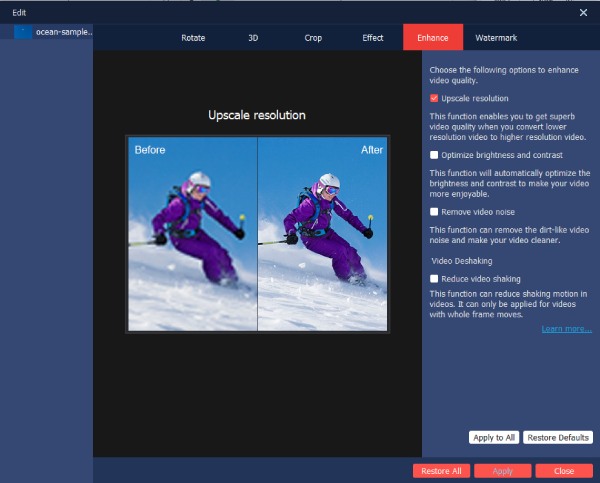
Step 2. Go to "Enhance" from the top menu, then enable "Reduce Video Shaking". If your footage needs more improvement, you can also turn on other enhancement options available there.
Step 3. Click the "Apply" button to save your chosen settings. Pick your output formats and save location, then click the "Convert" button to start processing.
Benefits: Stabilize and enhance a video in the same program; its straightforward interface plus editing tools.
Limitations: Only applies to videos with whole-frame movement.
Make a Video Less Shaky with Online Video Stabilizers
Would you rather not install software? If so, online video stabilizers are easy alternatives! Here are a few options worth trying:
1.Online Video Stabilizer
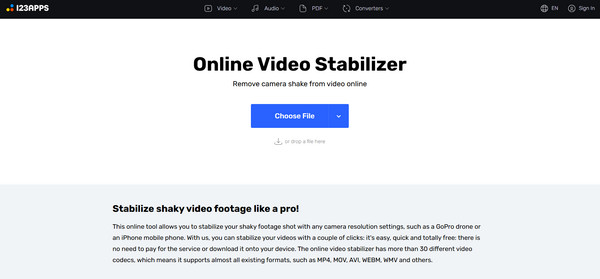
From Online Video Cutter, this video stabilizer is a simple browser-based solution for fixing shaky video. It supports common formats and can handle iPhone, GoPro (get GoPro stabilizers if necessary), and drone footage.
Best For: Beginners who want a quick shaky video fix without downloading anything.
Steps:
- 1. In the Online Video Stabilizer window, upload your shaky video.
- 2. Allow it to process your footage, then preview and download the result.
Benefits: Simple process and a wide range of formats and input sources are supported.
Limitations: Large files can take longer to upload; its main focus is stabilization.
2. Stabilizo
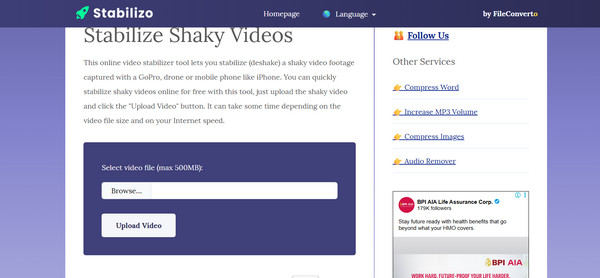
Another simple online option to reduce video shake is Stabilizo. It is designed for clips from your phones, drones, GoPros, and similar cameras, and its workflow takes only about two steps.
Best For: Casual users who want a dedicated stabilizer rather than a full editor.
Steps:
- 1. Once Stabilizo is opened in your browser. Choose your shaky video and click "Upload Video".
- 2. Wait for the stabilization process to complete, then download.
Benefits: Minimal interface; quick corrections without complicated editing.
Limitations: The 500 MB file limit and its processing time for your larger files.
3. Kapwing Video Stabilizer
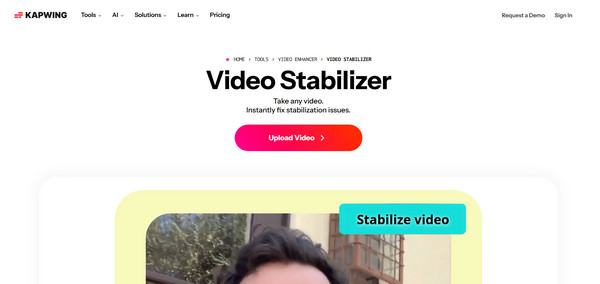
Here’s a more feature-rich online option: Kapwing offers stabilization and a browser editing workspace. You can fix shaky footage and edit videos with its trimming, resizing, adding text, and more.
Best For: Social media users and anyone who needs to stabilize and edit in the same space.
Steps:
- 1.Upload your shaky video or add it via a URL in the Kapwing screen. Select the layer from the canvas.
- 2. Open "AI Tools" and select "Stabilize". Wait for it and make any edits as needed before exporting.
Benefits: Large editing workflow; can clean up your entire footage without another editor.
Limitations: Its uploading and processing depend on your connection.
Repair a Shaky Video with Stabilization Apps
Meanwhile, for your videos recorded on a phone, using a mobile app is the quickest option. The following apps are useful starting points for your mobile editing needs.
1.Photos App
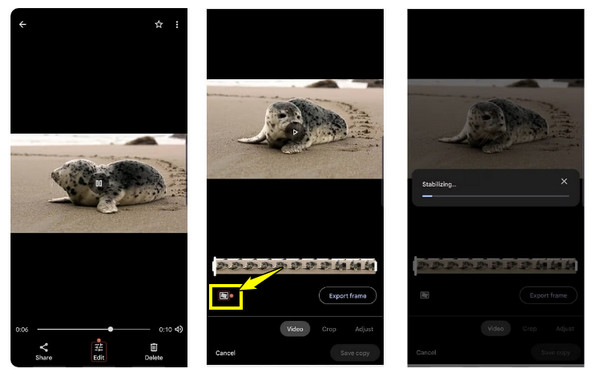
If you already use an Android phone, use the Google Photos app to make a shaky video smoother and less jerky. It includes built-in stabilization that can be accessed from its editor.
Best For: Casual clips and the simplest way to stabilize a video without a separate app.
Steps:
- 1. Inside your video in Google Photos, tap "Auto" and select "Stabilize".
- 2. Preview the enhanced result and tap on "Save" to save the edited copy.
Benefits: Steps take only a few taps; quick shake reduction.
Limitations: Does not have the same control as a dedicated app; its features depend on your Android device.
2.iMovie
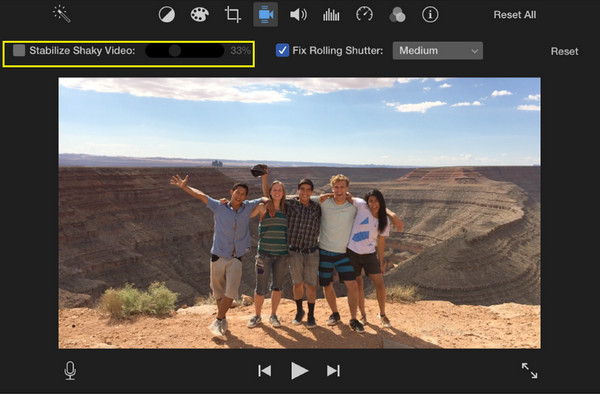
For Apple users, here’s iMovie for you. It provides a convenient way to fix shaky video while also handling the rest of your basic video project.
Best For: Mac and iPhone users who want to stabilize and edit video for free.
Steps:
- 1. Launch iMovie and select your clip in the timeline. Click the "Stabilization" button.
- 2. Make sure to check "Stabilize Shaky Video" and wait for it to analyze your clip. Adjust the slider if needed and check the result.
Benefits: More control and easy to learn; enjoy titles, transitions, effects, and other tools.
Limitations: Its workflow takes some time; not all controls are available in every iMovie version or on every Apple device.
3. CapCut
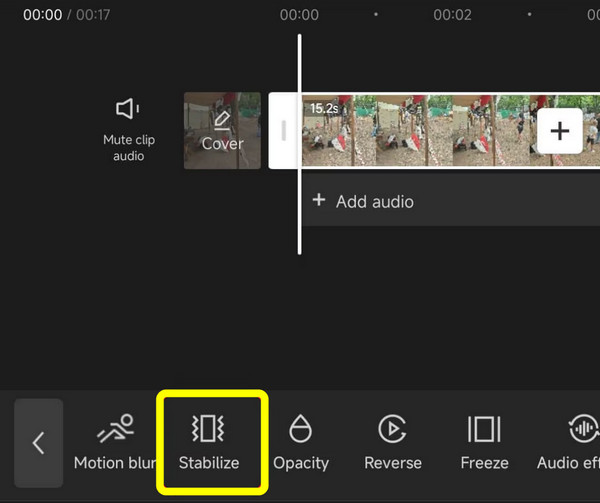
CapCut, on the other hand, is a practical choice for stabilizing shaky video and editing it for social media. Get options for trimming, effects, text, and other creative edits.
Best For: Social media creators who need to stabilize and edit videos in one app.
Steps:
- 1. Open CapCut and create a new project. Import your shaky clip, then tap it to open the controls.
- 2. Find the "Stabilize" button and select the right setting if available. Preview it, make other edits, and save your video.
Benefits: Keeps the process approachable with its automatic stabilization.
Limitations: Some features can vary across versions; automatic stabilizers may still yield imperfect results.
Tips to Stabilize a Shaky Video without Losing Quality
Stabilizing a shaky video can make your footage smoother, but it may also reduce its clarity. One more thing that can help your video maintain that sharp look is following these simple tips:
- Avoid Over-Stabilizing. Apply only enough correction to smooth out the most noticeable shaky parts.
- Choose Right Export Settings. Keep the original settings and select a high-quality format to keep details.
- Use Original Video File. Start with the uncompressed version of your footage and avoid repeatedly editing it.
- Preview Before Saving. Always check the footage first to ensure it looks natural and clean.
- Avoid Too Much Cropping. Pick settings that balance smoothness with keeping as much of the original frame size as possible.
Conclusion
Your shaky footage does not have to end up in the trash. With the above desktop enhancer, online stabilizers, and mobile editing apps, a lot of ways to stabilize shaky video and make it smoother! Just remember to start with your original file and follow those useful tips. To enjoy a simple but all-in-one solution, download AnyRec Video Enhancer today. Reduce camera shake while improving your overall video quality without a sweat.
Secure Download
Secure Download
Related Articles:
About Our Author




