
 Make shaky, dark, and blurry videos look brand new.
How to Sharpen Video? 6 Tools for Clearer, Crisper Footage

Even with the best footage, once it is blurry, it can look soft or out of focus. But you don't always need to reshoot; you can sharpen videos with the right tool and smart adjustments. Sharpening can help you restore the lost clarity. For more details, the following parts have 6 video sharpener tools that clean up your video and cover common problems you may encounter along the way. See how much clarity you can bring back below.
Guide List
Sharpen a Genuinely Blurry Video or Low-Resolution Footage Sharpen with Video Editors (For Slightly Soft Footage) Fix Common Problems When Sharpening a VideoSharpen a Genuinely Blurry Video or Low-Resolution Footage
When your video is genuinely blurry, just increasing its sharpness won't be enough. You need to sharpen video using the enhancement solution from AnyRec Video Enhancer. It is designed specifically for improving your video quality and making soft, low-resolution footage look much clearer. Its enhancement tools can upscale resolution, reduce noise, and improve the overall detail. You will also enjoy how simple its interface is, making it accessible to anyone with no video editing experience at all. So, does your footage need more than a sharpening effect? Clean up your image with this practical option.

AI video enhancement to improve blurry footage and bring out visual details.
Fine-tune your image with brightness and contrast adjustments.
Preview the sharpened video to check whether it’s the result you want.
Choose a resolution that fits your quality and compatibility needs.
Secure Download
Secure Download
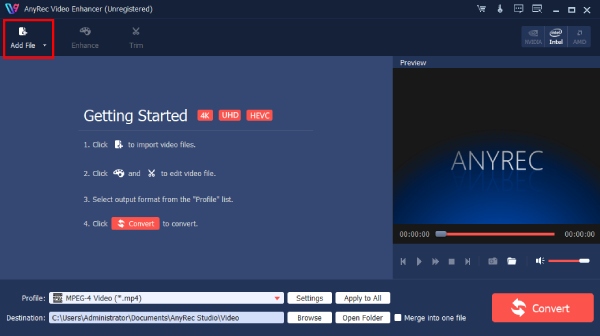
Step 1.Launch AnyRec Video Enhancer on your computer. Click the "Add File" button to add your blurry or low-resolution video.
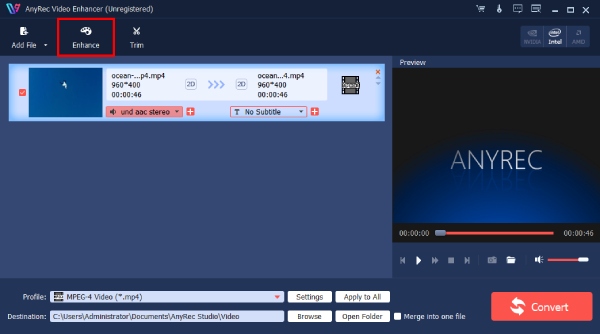
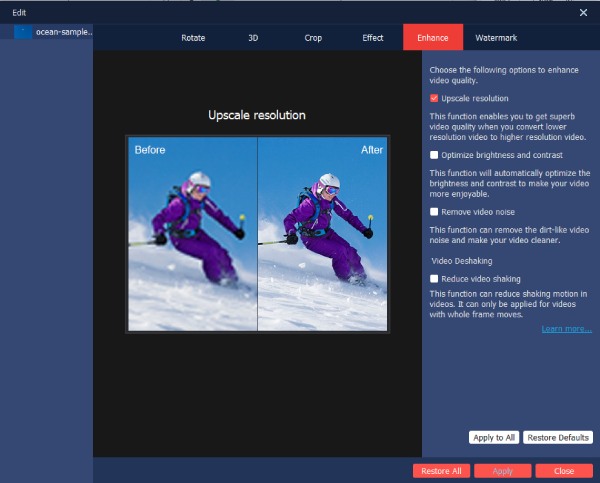
Step 2.At this point, open the "Enhance" menu and choose the enhancement you need, such as Upscale Resolution, Remove Video Noise, Optimize Brightness and Contrast, or Reduce Video Shaking.
Step 3.Adjust settings as needed and preview the result. Pick your desired format and destination folder, and click the "Enhance" button to process and save your sharpened video.
Sharpen with Video Editors (For Slightly Soft Footage)
Not every video needs that heavy enhancement. Improving video quality slightly only if your footage is already fairly clear, but looks a bit soft. The following video sharpener editors focus on slightly soft, light compression, and minor softness in your footage.
Adobe Premiere Pro
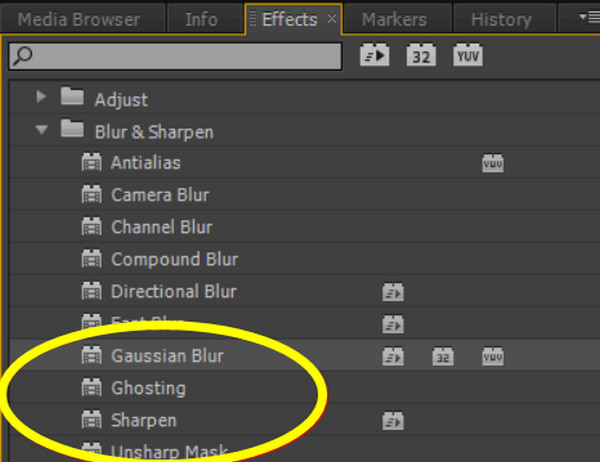
If you already work with professional editing, Adobe Premiere Pro is a simple way to sharpen video that only looks a little soft. It has a dedicated effect that lets you emphasize edges and fine details without altering your original image. The Unsharp Mask will give you more control over the sharpening effect, and you can check your footage at 100% zoom afterward.
Steps:
- 1. Import your video and place it on Adobe’s timeline. Go to "Effects" and select "Blur & Sharpen".
- 2. Apply what you need, either the Sharpen or the Unsharp Mask.
- 3. Adjust the effect gently while checking on your footage. Export it if ready.
DaVinci Resolve
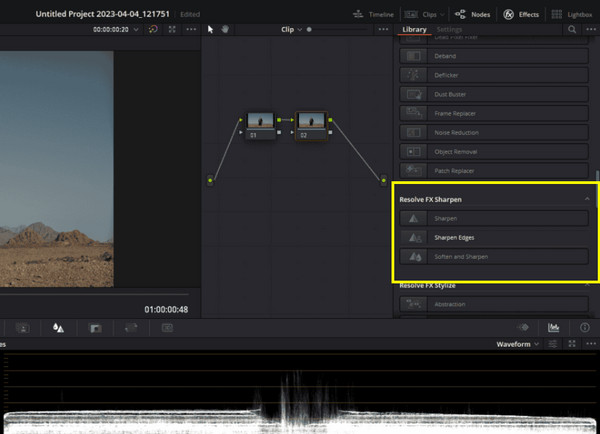
Moving on to more precise controls, DaVinci Resolve is a strong video sharpener contender if you want more flexibility. Its sharpen controls allow you to enhance your details while keeping the rest balanced. It is particularly great for slightly soft footage and minor softness. Since the effect is part of the software’s broader workflow, you can also enjoy other adjustments in the same workspace.
Steps:
- 1. Upload your video to the editor and open the "Color" page. Choose the clip you want to sharpen.
- 2. Look for the "Blur/Sharpen" controls. Then, increase the level gradually while checking the details.
- 3. Preview it and process the video if satisfied. You can export video to MP4 within DaVinci Resolve.
Adobe After Effects
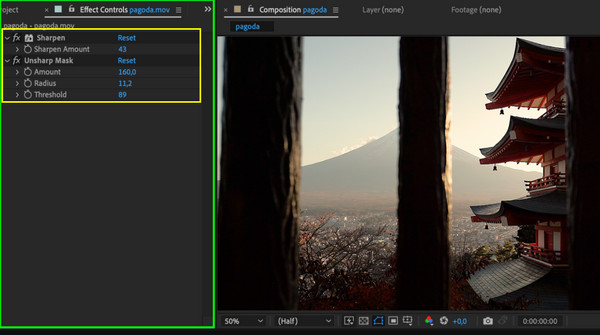
Does your project have effects or motion graphics? After Effects is a convenient way to sharpen video. It fits naturally into these kinds of projects, and the effects are simple to apply. However, using too much can make artificiality more noticeable, so you must keep on checking on it while adjusting to judge the result more accurately.
Steps:
- 1. Once your video is added, create a composition. Select the footage layer, then go to "Effects" and then "Sharpen".
- 2. Next, adjust the amount gradually.
- 3. View your footage at full zoom and export when the result looks natural.
iMovie
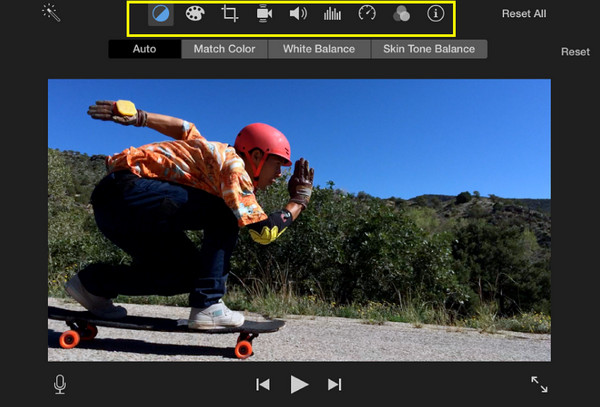
For Mac users, iMovie is great for basic video editing. While it doesn't have a dedicated effect to sharpen video, you can still make adjustments to your footage's color, contrast, and overall appearance. But you must take note that these adjustments do not have the level of sharpening control you might need for your genuinely blurry videos.
Steps:
- 1. Open iMovie on Mac and import your video. Add it to the timeline, click on it, and access the "Color Correction" controls.
- 2. Start making adjustments to improve the appearance.
- 3. Preview and export your video to MP4 using iMovie once done.
VLC Media Player
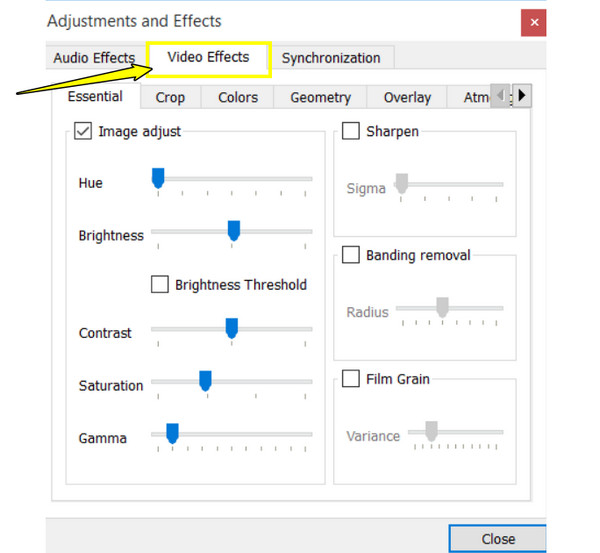
Lastly, if you only want to make your video look sharper while watching, VLC is a quick video sharpener. Besides the playback, it has a built-in sharpening effect that can help your clip look crisper while it plays. But it only works for playback and does not modify or export the sharpened video. For a simple, clearer viewing experience, VLC works best.
Steps:
- 1. Open your video in VLC.
- 2. Navigate to "Tools" and select "Effects and Filters."
- 3. There, select "Video Effects" then "Sharpen".
Fix Common Problems When Sharpening a Video
Video sharpening can bring out lost details, but pushing it too far can create issues of its own. Here are some common sharpening issues you might face and simple ways to keep your video looking natural.
The Video Looks Artificial
Too much sharpening can make edges look harsh and give your video an unnatural look. So, lower the intensity and compare the result with the source. Aim for soft improvements rather than making every detail very crisp.
White Halos Appear Around Objects
A bright outline around objects usually means a strong sharpening effect. Reduce the amount or adjust the intensity. Plus, don’t forget to check your video at full zoom to detect halos more accurately.
Faces Look Unnatural
Heavy sharpening can focus on skin textures. For this, make sure you use a lighter level and avoid applying a strong level across the entire video. Always preview faces closely before finalizing.
Sharpness Creates More Noise
If your footage becomes noisy after, reduce the strength or apply noise reduction first onto it. For your low-quality footage, combine denoising with sharpening for cleaner results.
The File Size Becomes Too Large
Higher settings can affect the final file size. If the output is unnecessarily large, choose a more closely matched resolution and an efficient codec like H.264/H.265. Keep an original backup and adjust the settings based on where you plan to use your sharpened file.
Conclusion
The best sharpened video comes from using the right video sharpener, making delicate adjustments, and knowing when your footage needs more than just basic sharpening. For your quick edits, the five editors can handle your footage, while more challenging clips may need dedicated enhancements. AnyRe Video Enhancer is a perfect choice to convert a low-quality video to high quality, both blurry and low-resolution, while improving the overall quality. Give your footage a clear finish and bring those details back again.
Secure Download
Secure Download
Further Reading
About Our Author




