
 Make shaky, dark, and blurry videos look brand new.
Canva Video Upscaler: An Honest Review and Alternative

Looking for ways to enhance your video without spending hours editing it? That's how Canva Video Upscaler works. It offers a quick, beginner-friendly way to make your video look sharper, but this comes with a few limitations. Before you upload your footage, explore its features, pros, cons, safety concerns, and more here today! If Canva Video Upscaler does not work as you expected, a better alternative awaits you for more flexible video enhancement.
Guide List
The Real Free Tier Limits of Canva Video Upscaler Is Canva Video Upscaler Safe to Use Canva Video Upscaler Pros and Cons How to Actually Use Canva Video Upscaler Better Alternative to Canva Video Upscaler Common Questions About Canva Video UpscalerThe Real Free Tier Limits of Canva Video Upscaler
You're hoping to upscale your video for free with Canva, so here's a little catch you must know. While Canva Video Upscaler is available for free, it comes with restrictions that may affect how you enjoy it. Keep the following limits in mind:
- MP4 format only.
- 10 MB file limit.
- 10-second maximum clip length.
- Up to 1080p on the free tier.
These limits can be fine for your short clips, but they can become very restrictive when you have to work on longer videos.
Is Canva Video Upscaler Safe to Use
Before you upload any important video to upscale video in Canva, it's worth taking time to think about where your file goes. The online upscaling tool may be convenient, but the processing isn't performed entirely on your device. Your video is uploaded to a remote server so Canva can process it.
For your everyday clips, it may not be a major concern, but it may still raise a privacy concern if your videos contain personal information, private conversations, or confidential footage. Beyond safety and privacy, you will also want to know whether Canva Video Upscaler is actually worth using.
Take a closer look now at its pros and cons in the next part.
Canva Video Upscaler Pros and Cons
Canva Video Upscaler is a handy option for a quick way to improve the quality of your short video. But like any other tool, it has strengths and weaknesses. Knowing these will help you decide whether it's the right fit for your needs and workflow.
Pros of Canva Video Upscaler:
- Easy to use. Keeps the entire upscaling process simple; no need for advanced editing skills.
- Quick for short clips. Useful for enhancing your small video.
- Convenient. You can upscale your video directly within Canva without extra software.
- Works within the Canva ecosystem. Keep your workflow in one place if you use Canva for editing or designing.
Cons of Canva Video Upscaler:
- Limited free tier. Free users face limits on format, size, length, and output resolution (You can use a third-party video quality enhancer to increase low-resolution videos manually.).
- Short clip limit. It has a 10-second restriction that is not convenient for longer footage.
- Online processing. Your video is uploaded to a third-party server for processing.
- Not perfect for heavy-duty projects. If you regularly handle long videos, it might not be a better choice.
How to Actually Use Canva Video Upscaler
Have you decided to give Canva Video Upscaler a try? The good news is that the process is very straightforward. Just upload your clip, and let Canva process it. Here are the detailed steps on how to upscale video resolution in Canva:
Step 1. Once you're in Canva and signed into your account, search for "Video Upscaler" to get started. Upload the video you want to enhance.
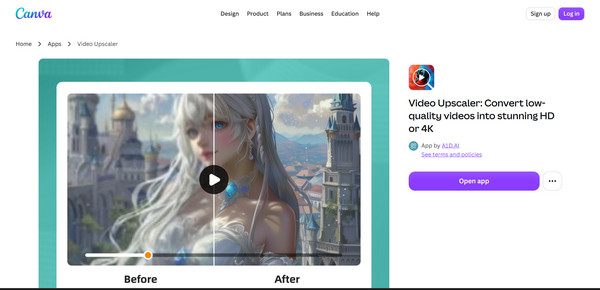
Step 2. After your video is uploaded, Canva will process it automatically and apply its upscaling technology. Preview the result and compare it with the original.
Step 3. You can then continue editing your video in Canva if needed. Once you're happy with how it turns out, click the "Download" button and choose your export settings. Save it, and you're done!
Better Alternative to Canva Video Upscaler
Canva Video Upscaler is a yes for quick enhancements, but a no for larger or longer videos. One option you'd better consider now is AnyRec Video Enhancer, which improves video quality without relying on an online tool. It is desktop video enhancement software that improves the quality of your footage. It sharpens your blurry videos, reduces unwanted noise, and makes low-quality clips look clearer. Here, you can enjoy several enhancements and editing options, all in one place, making it a better choice for you.
Upscale video resolution to effortlessly improve its overall clarity.
Fine-tune your video appearance by adjusting brightness, reducing noise, etc.
Supports a wide range of video formats, giving you more flexibility.
Can trim, crop, rotate, and make other adjustments in one place.
Secure Download
Secure Download
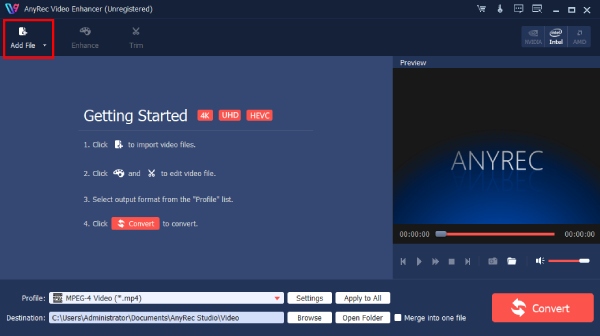
Step 1. Launch AnyRec Video Enhancer to begin. Import the video you want to improve by clicking the "Add File" button, choosing a clip from your computer, and adding it to the program.
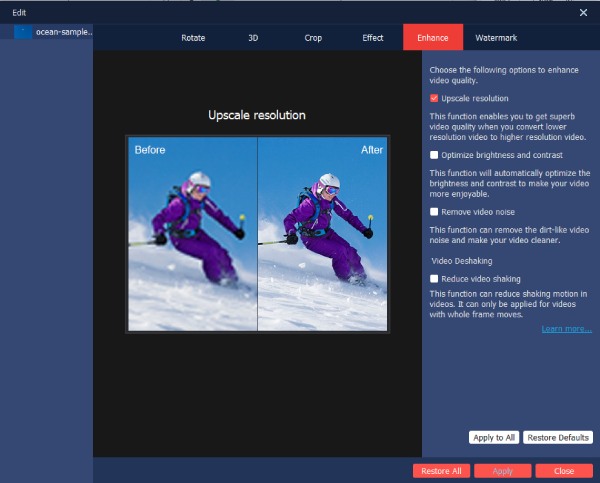
Step 2. Now, select the tools you need from the "Enhance" button above. From there, tick the checkbox that best matches your original footage, such as Upscale Resolution, Remove Video Noise, Optimize brightness and contrast, and Reduce video shaking.
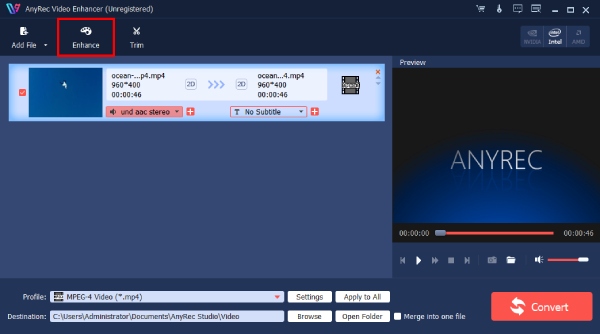
You can check the before-and-after preview window. Then, click the "Apply" button.
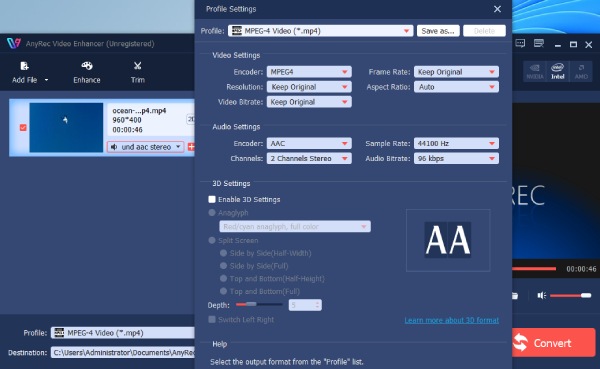
Step 3. Next, if you have added several videos, you can click the "Apply to All" button to apply the changes to all your videos. Click the "Settings" button to select your format, aspect ratio, and other settings.
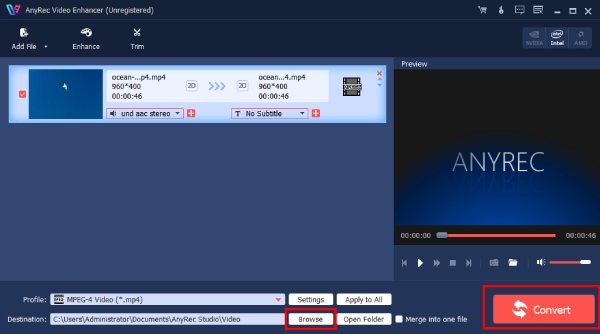
Step 4. Finally, choose where to save your upscaled video using the "Browse" button in the Destination field. Click the "Convert" button, and wait until the upscaling process finishes.
Common Questions About Canva Video Upscaler
Still have questions about Canva Video Upscaler? That's understandable, especially if you're still deciding whether the free tier can be enough for your video projects. Catch some of the most common questions you might ask, along with straightforward answers, before you start.
1. Is Canva Video Upscaler free?
Yes, Canva offers the upscaling tool for free, but it comes with some restrictions. You can expect limits on the supported formats, clip lengths, file sizes, and output resolutions.
2. Can I upscale up to 4K in Canva?
Canva offers higher-resolution options, but 4K depends on the plan you're using. Check the available export options in your account before upscaling.
3. What video formats does Canva Video Upscaler support?
As a free user, you can only export MP4 videos. If your video is saved in a different format, convert it before uploading.
4. Why can't I upload my video to Canva?
Your video may not meet the requirements. It may be in an unsupported format, exceeding the file size limit, or be longer than the 10-second limit.
5. Does Canva improve my blurry videos?
The tool can enhance the resolution and clarity of your MP4 video, but it cannot magically restore details that were never captured in your original footage.
Conclusion
No doubt, Canva AI Video Upscaler is a great choice for quick, short video quality boosting. Its simple interface makes it even more approachable. But not everything goes well with it due to its free tier restrictions. Which one may be the better fit? Download AnyRec Video Enhancer. It provides tools for upscaling, stabilizing your shaky footage, reducing noise, and adjusting your video effects in one place. Get the upgrade and control you need today.
Secure Download
Secure Download
Related Articles:
About Our Author




