
How to Fix Black Screen Recording? Causes and Quick Fixes

You hit the stop recording button, only to see a black screen. The audio is clear, but the visuals are entirely gone. What to do in this black screen recording situation? This happens usually when your software cannot see the window you want to capture, which can be due to various reasons. Therefore, today's guide breaks down exactly why you're facing a black screen in screen recording and provides steps on how to ensure your next session is captured steadily in full detail.
Guide List
What Caused Black Screen During Screen Recording? Resolve Black Screen Recording with a Professional Screen Recorder Clear the System Cache or Restart the Phone [iPhone/Android] Tips to Avoid Black Screen Recording IssuesWhat Caused Black Screen During Screen Recording?
The first step towards resolving the black screen recording issue is to know why it fails. Once the root cause is identified, you can save hours of effort searching for ways, since you will determine exactly what solution you need.
- • DRM Restrictions. Many streaming services, such as Netflix, have Digital Rights Management to stop unauthorized recording, leading to a black screen.
- • Insufficient Permissions. If your system has not granted the app access for recording, it will record a blank feed.
- • Hardware Acceleration. Browsers often use your device's GPU to load video, which can hide content from a recording tool that is not configured to view it.
- • Outdated Graphics Drivers. An old GPU driver can fail to communicate with the recording engine, resulting in a black screen.
Resolve Black Screen Recording with a Professional Screen Recorder
Moving forward, to bypass all these technical hurdles and screen record protected videos without black screen, a dedicated tool is the most reliable solution. When all built-in tools fail, why not use AnyRec Screen Recorder? This screen recording software specifically handles complicated encoding tasks that often cause the standard recorder to display a black screen recording. Using this alternative, you can enjoy various modes for meetings, gaming, and even mobile, ensuring you can have the correct video source every time. Plus, it captures 4K footage at high frame rates without worrying that you're about to face lag or glitches.

Record screen, system audio, and webcam simultaneously without lag.
Integrated preview to instantly watch and trim extras before exporting.
Set up your own keyboard shortcuts to start, pause, and stop your sessions quickly.
Get your desired recording settings by adjusting the format, resolution, etc.
Secure Download
Secure Download
Step 1.Kick things off by launching AnyRec Screen Recorder. There, stay on the "Video Recorder" screen, and select whether to record "Full" or "Custom" screen.
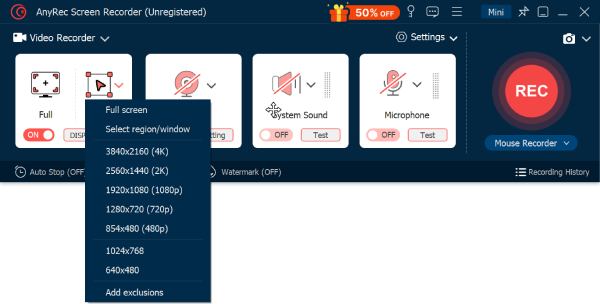
Step 2.Toggle ON the "System Sound" to grab your computer's audio. And if you're doing a voiceover, ensure to toggle ON the "Microphone" too. You can use both at once or select one depending on your needs.
Step 3.When you are ready to go, click the big "REC" button to start. During the session, you are free to take snapshots, add real-time annotations such as text, arrows, and even tweak your volume levels.
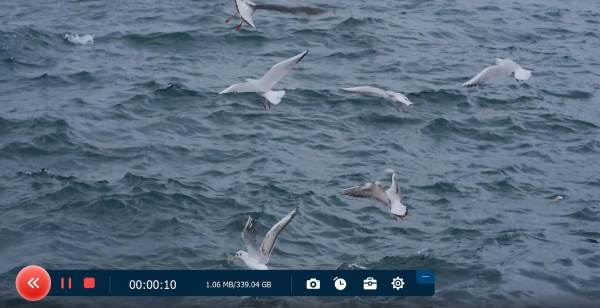
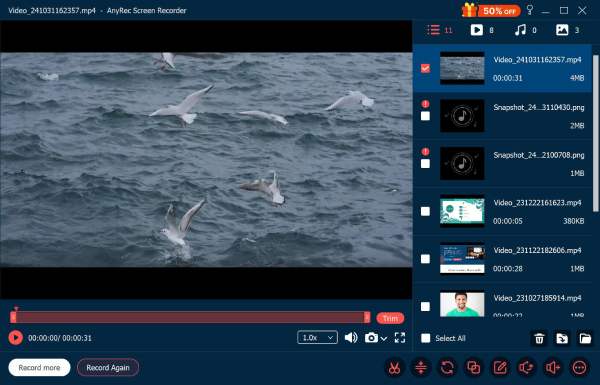
Step 4.Once you have captured what you need, click the "Stop" button to head straight forward to the "Preview" window. Double-check if you got the black screen recording and use the trim tool to cut out any extras. Click the "Save" button to export high-definition video.
Secure Download
Secure Download
Clear the System Cache or Restart the Phone [iPhone/Android]
While desktop software handles deep system-based issues, mobile devices can also have a different approach for simple maintenance. Over time, accumulated cache files can cause the system to focus on other tasks, leaving you with a black screen recording since the recorder has no visual data to process. For this, a simple restart or clearing of the cache can resolve the issue.
Here are the steps for Android and iPhone:
Fix Android Screen Recording Black Screen:
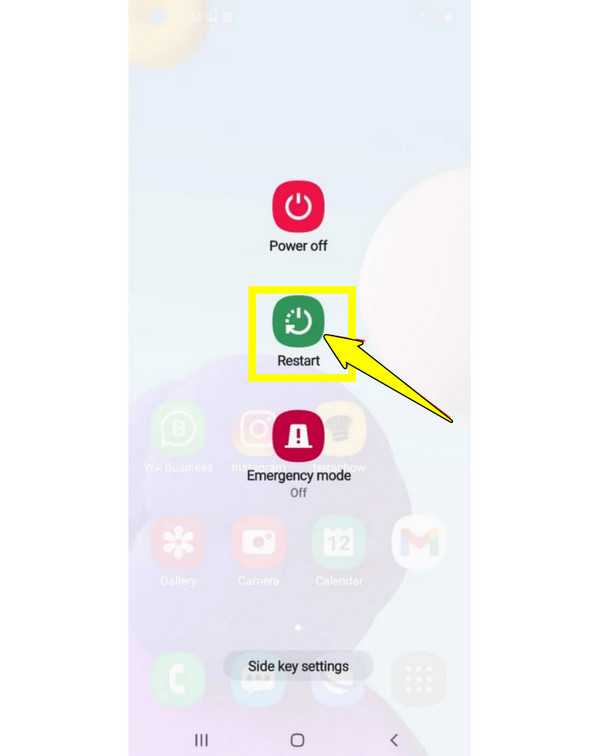
1. Restart: Press and hold the "Power" button and choose "Restart" from the menu options.
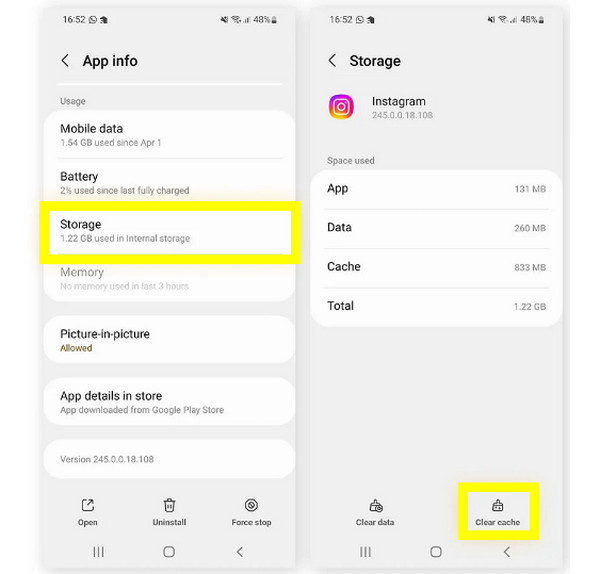
2. Clear App Cache: Head to the "Settings", find "Apps", choose your recording app, then tap "Storage", and tap on "Clear Cache".
Fix iPhone Screen Recording Black Screen:
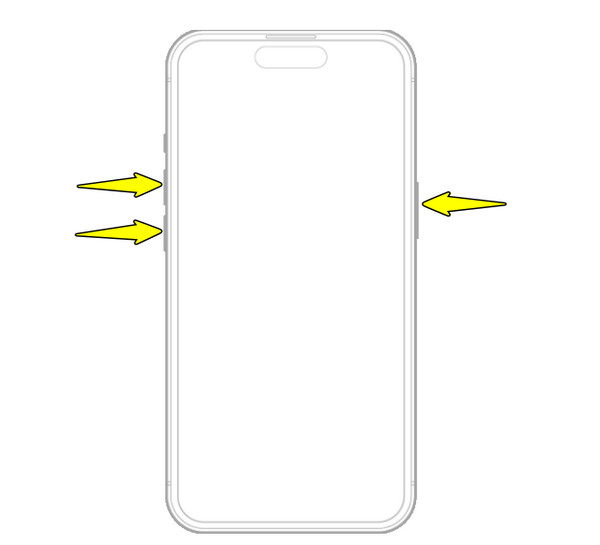
1. Restart: Quickly press the "Volume Up" button, then do the same to the "Volume Down" button, then press and hold the "Power" button until the logo shows up.
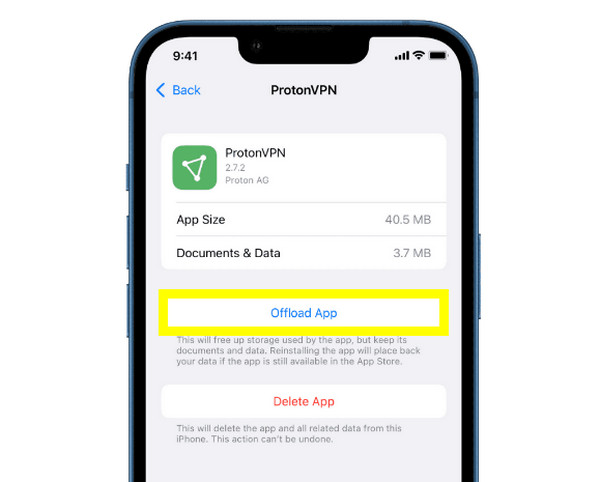
2. Offload App: If the recording app is glitchy, head to "Settings", then "General", and tap "iPhone Storage". There, select the app, and tap the "Offload App" to refresh its data.
Video Guide: Record Without Getting a Black Screen
Watch the video and know how to bypass the black screen issue when recording protected content with AnyRec Screen Recorder.
Watch the video tour
Secure Download
Secure Download
Tips to Avoid Black Screen Recording Issues
Once your system is refreshed and you're ready to record, following a few practices will make sure you never face a screen recording black screen problem again. Here are some proactive tips to keep in mind:
- 1. Run as Administrator. On your computer, right-click on your recording software and select "Run as Administrator" to give it complete system priority.
- 2. Disable Hardware Acceleration. Recording in a browser like Chrome or Edge, ensure to turn off "Use hardware acceleration when available" in settings to record content clearly.
- 3. Check for DRM. Avoid capturing copyrighted apps; if necessary, use the Window Capture mode instead of Display Capture. This is helpful to record restricted apps without root.
- 4. Keep Drivers Updated. Keep your graphics card driver updated from the manufacturer's website to guarantee compatibility with new system updates.
- 5. Lower Output Resolution. Perhaps your hardware is struggling; try to drop the recording resolution from 4K to 1080p, lessening the load on your GPU. After that, you can upscale 1080p to 4K and higher resolution with other tools.
Conclusion
Facing a black screen in recording is a common but avoidable issue that usually points to incorrect settings or restrictions. You've seen here today the causes and a few adjustments you can take to save from this frustration. And to eliminate all the work and just ensure a flawless capture every time, use AnyRec Screen Recorder, a professional-grade tool that has dedicated modes for different recording scenarios. With the intuitive interface and robust features working together, it is all you need for a high-quality recording on both Windows and Mac.
Secure Download
Secure Download



