
[Detailed] How to Compress Videos for Email in Simple Steps

“How do I make a video smaller to email?” Many people may be concerned about the method of video compression for email, as there's always a limitation set. For video files, when you want to share them via email. Compressing videos for email helps ensure smooth delivery without sacrificing too much quality. If you're also dealing with the issue, this guide covers everything you need, from size limits to practical compression methods. After reading the post, it won't be a trouble for you to choose the most efficient way to send videos through email without repeated failures or frustration.
Guide List
Video Size Limit for Common Email Providers The Most Hassle-Free Way to Compress Video for Email How to Shrink Down Video Clips for Email Using VLC A Free Way to Downsize a Video to Email via Handbrake Online Solutions to Compressing Videos for EmailVideo Size Limit for Common Email Providers
Most email platforms impose strict attachment size limits, which directly affect how videos should be compressed for email. Understanding these limits in advance helps determine how much compression is needed and whether a video should be resized, shortened, or converted before sending. To check the video size limit for different email providers, you can check the chart below:
| Email Provider | Attachment Limit | Notes |
| Gmail | 25 MB | Files larger than 25 MB are auto-attached via Google Drive link when sent |
| Outlook/Hotmail | 20 – 25 MB | Outlook.com and Hotmail typically cap attachments around 20 – 25 MB |
| Yahoo Mail | 25 MB | Maximum per email; larger files require cloud or link sharing |
| iCloud Mail | 20 MB | iCloud Mail supports up to 20 MB attachments |
| ProtonMail | 25 MB | Free accounts support ~25 MB; limits vary by plan |
The Most Hassle-Free Way to Compress Video for Email
When it comes to compressing videos for email, the most important thing is to balance compression efficiency with image quality. So, how can one ensure relatively high video quality while minimizing the file size to the maximum extent? AnyRec Video Converter is the professional tool you need. During the process of video compression, AnyRec Video Converter allows you to precisely control detailed parameters, making it easy to reduce the file size to a size that meets the email restrictions.
During the compression process, AnyRec Video Converter has built-in preset settings optimized for sharing, which help maintain visual quality while reducing the file size. Additionally, the real-time preview function allows you to check the results before exporting, thereby reducing the risk of over-compression. For frequent email sharing or professional purposes, AnyRec provides a stable and time-saving way to prepare videos for email sending.

Compress your video to a size that is just right for an email.
Try to maintain your video quality during the compression process.
With GPU acceleration, your video can be compressed quickly.
Preview to view the quality of your video after the compression.
Secure Download
Secure Download
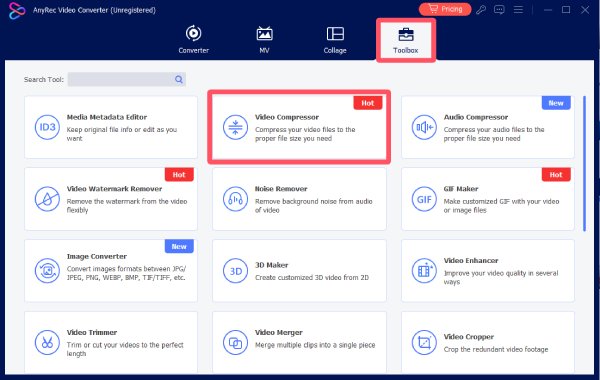
Step 1. Launch AnyRec Video Converter and click the "Video Compressor" button under the "Toolbox" tab.
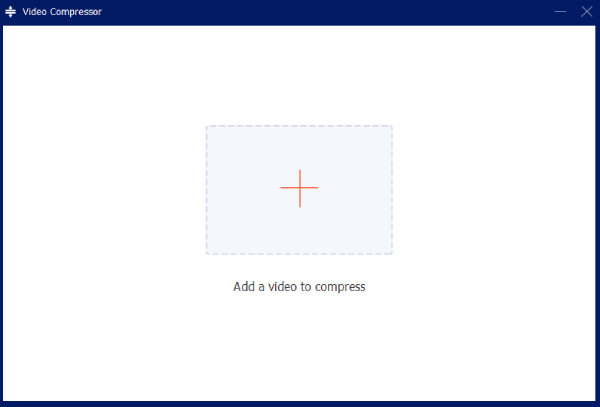
Step 2. When you see a pop-up window, click the "Add Files" button to upload your video.
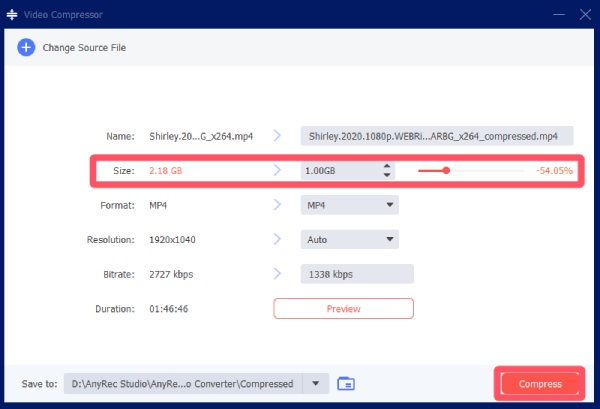
Step 3. You can adjust the file size under the "Size" tab. Finally, click the "Compress" button, and your video will be compressed for email properly.
How to Shrink Down Video Clips for Email Using VLC
VLC Media Player is widely known as a free video player, but it also includes basic conversion and compression features. By adjusting output resolution and bitrate during conversion, users can reduce video file size enough for email attachments. While VLC media player is safe and works well for simple tasks, the settings are manual and may require trial and error for optimal results.
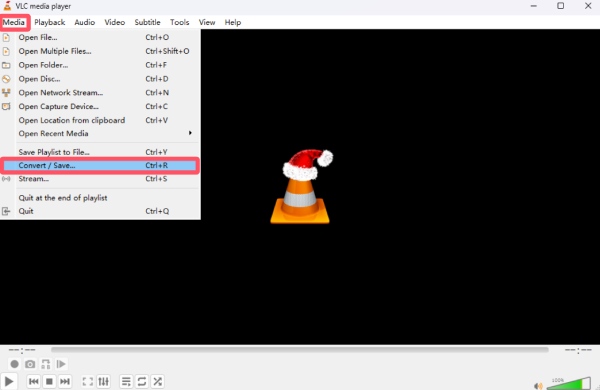
Step 1. Launch VLC media player and click the "Convert/Save" button under the "Media" tab.
Step 2. Click the "Add..." to select the video you want to compress for email from the folder.
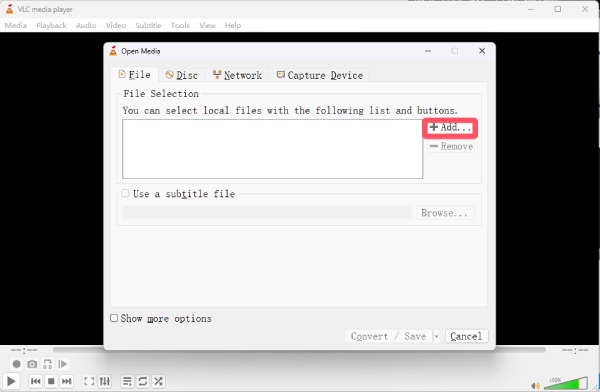
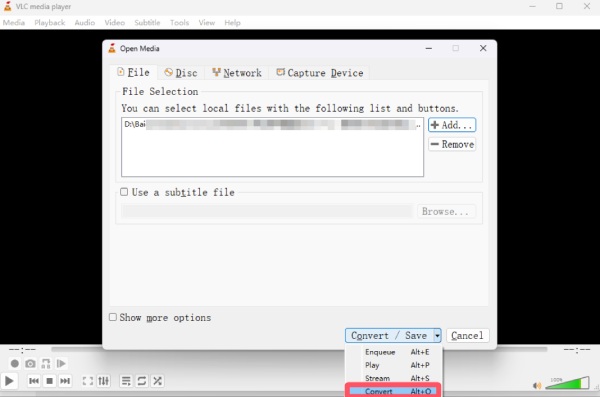
Step 3. Under the "Convert/Save" tab, click the "Convert" button to summon the window for adjusting the parameters.
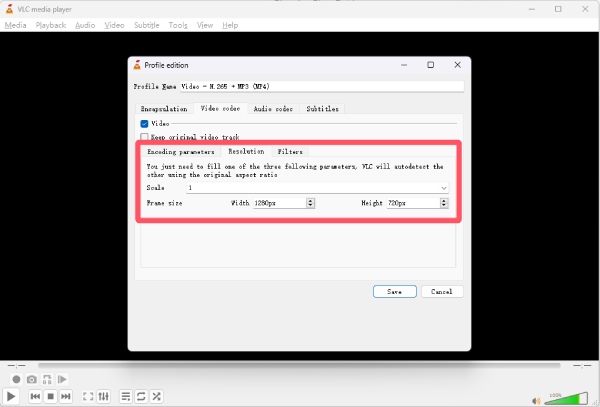
Step 4. Click the "Edit selected profile" button. Here, you can adjust the parameters of your video. Try to lower the picture parameters as much as possible.
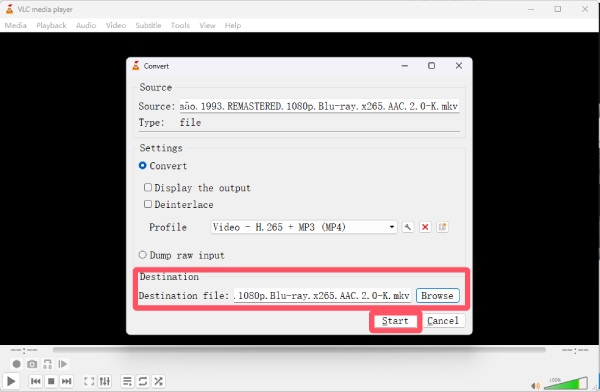
Step 5. Click the "Browse" button to select the folder to save the output file. Click the "Start" button to compress the video.
A Free Way to Downsize a Video to Email via Handbrake
HandBrake is a free, open-source video transcoder that offers detailed control over video compression settings for email. It allows users to lower the resolution, adjust the bitrate, and select efficient codecs to reduce file size. HandBrake is suitable for users who are comfortable with technical options and want more control, though the interface may feel complex for beginners. You can follow the steps below to compress videos using Handbrake:
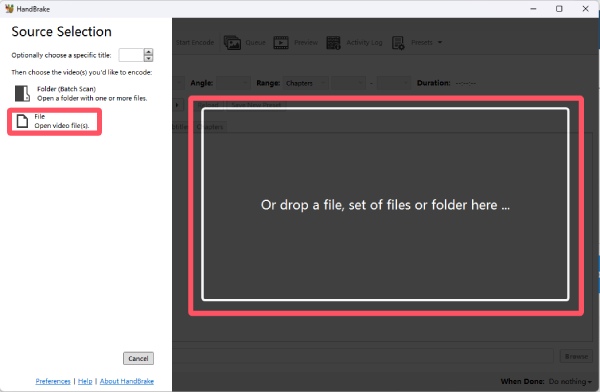
Step 1. Launch Handbrake and click the "File" button to import the video you want to compress for email.
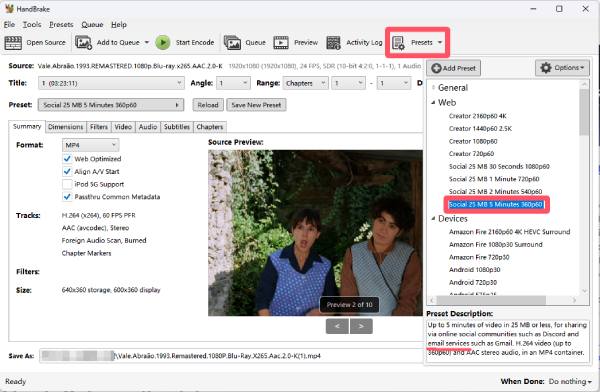
Step 2. Click the "Presets" button to unfold the window. Click the "Social 25 MB 5 Minutes 360p60" button.
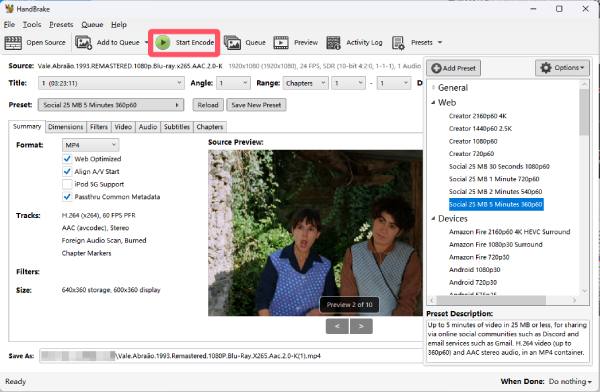
Step 3. Finally, click the "Start Encode" button to compress the video for email.
Online Solutions to Compressing Videos for Email
Online video compressors provide a quick alternative when software installation is not an option. These tools work directly in the browser and automatically reduce file size based on preset quality levels. They are convenient for short clips, but often come with file size limits, slower upload speeds, and fewer customization options compared to desktop solutions. Here is an example of compressing MP4 videos online using Clideo:
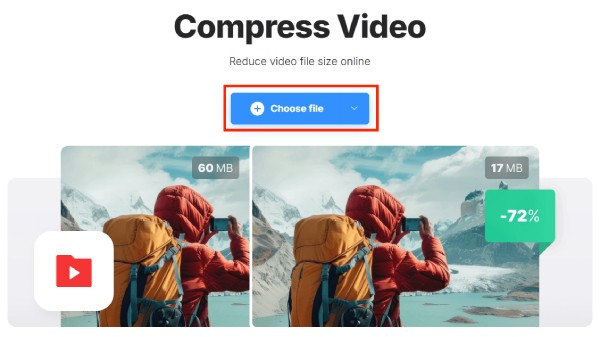
Step 1. Open Clideo on your browser and click the "Choose File" button to upload your video file.
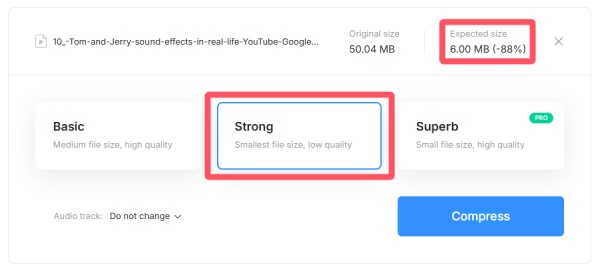
Step 2. To downsize a video to email, click the "Strong" button and then click the "Compress" button.
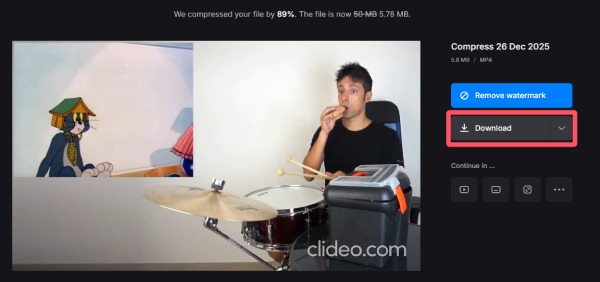
Step 3. After a short time of processing, you can condense a video file to email. Finally, click the "Download" button to save the video file.
Conclusion
Compressing video for email won't be a problem if you know the correct method. By understanding the size restrictions of different providers and choosing an appropriate method, videos can be sent via email smoothly. If you want to balance file size and video quality properly, AnyRec Video Converter is the best solution that suits your workflow, ensuring a better experience for the recipient.
Secure Download
Secure Download



