
How to Add Text to Video Easily: A Step-by-Step Guide

Adding text to videos can significantly help your audience better understand the purpose of your video, whether it's explaining the content of the video or highlighting key points. Many users are not aware of how to complete this task simply and quickly. Don't worry, this post has prepared a variety of practical solutions for you to add text to videos. Start reading right now to master this skill quickly.
Guide List
The Most Powerful Way to Add Text to Videos with Creativity [Windows] How to Add Text to Videos Using Adobe Premiere Pro [Mac] How to Add Text to Videos in iMovie with No Effort [Web-Based] Reliable Online Tools for Adding Text to VideosThe Most Powerful Way to Add Text to Videos with Creativity
Adding text not only means placing the text on the screen, but also involves controlling aspects such as time, style, and visual hierarchy. Therefore, a professional tool is necessary to regulate these elements precisely. For similar situations, AnyRec Video Converter is the most reliable tool.
Unlike basic editors, AnyRec Video Converter provides a dedicated text editing panel that supports custom fonts, colors, transparency, borders, and animation presets. Text can be added to videos as a title, subtitle, or annotation, and can be fully controlled regarding its duration and position on the timeline. The software also maintains excellent output quality during export, ensuring that the text is clear and readable.

Customize and choose the desired font and style you like.
Add different texts to different frames according to the content.
Preview to check the effect of your text added to the video.
The video quality will not be affected while adding text to the video.
Secure Download
Secure Download
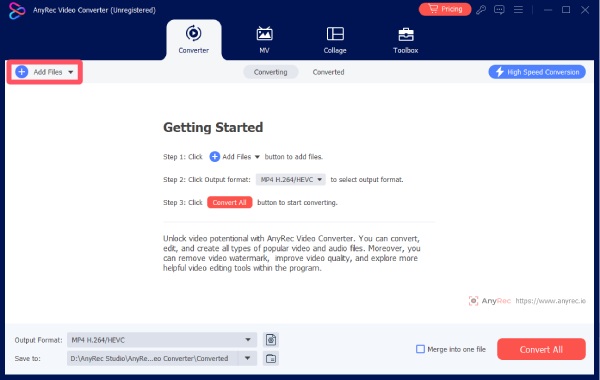
Step 1. Launch AnyRec Video Converter on your device and click the "Add Files" button to import your video.
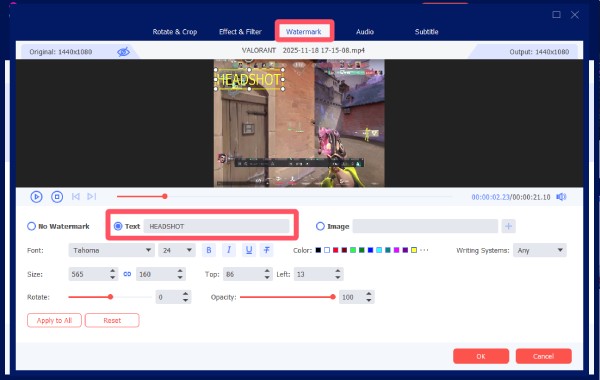
Step 2. Click the "Edit" button. Under the "Watermark" tab, click the "Text" button and type to add text to the video. You can also adjust various parameters.
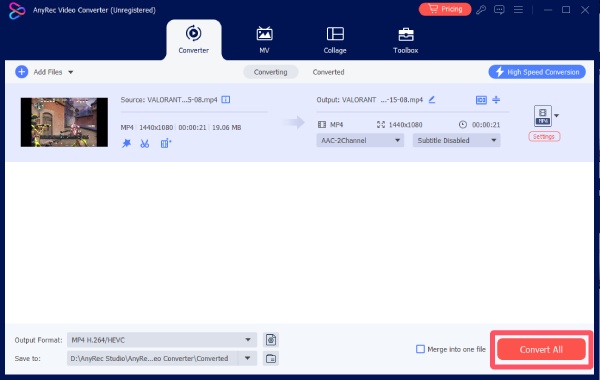
Step 3. Once finished, click the "OK" button to confirm the settings. Finally, click the "Convert All" button to save the video with the added text.
[Windows] How to Add Text to Videos Using Adobe Premiere Pro
Designed especially for users who need precise creative control, Adobe Premiere Pro is regarded as one of the most professional-grade video editors. Its text tools are deeply integrated into the timeline, allowing editors to animate titles, captions, and lower thirds with frame-level accuracy. Although the learning curve is higher, Premiere Pro offers unmatched flexibility for complex text layouts and motion graphics on Windows systems.
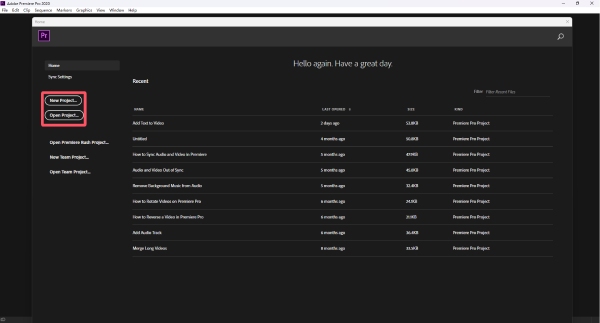
Step 1. Launch Adobe Premiere Pro on your Windows computer. Click the "New Project..." button or the "Open Project..." to select an existing one.
Step 2. Drag your video from the folder to the box to import the video. Then, drag it to the timeline to start editing.
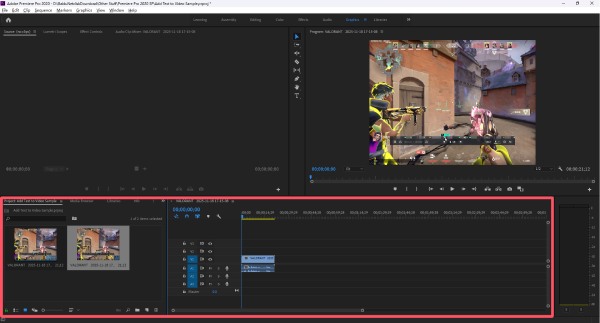
Step 3. Click the "Graphics" button to open a new panel. Under the "Essential Graphics" tab, select the style of text you like.
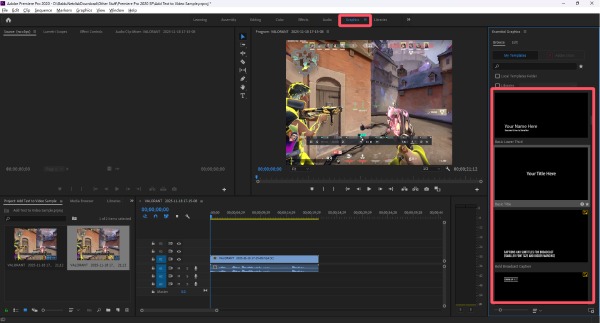
Step 4. Drag the template to the timeline, and now you can start editing the text you want to add to the video or simply use it to add subtitles to the video.
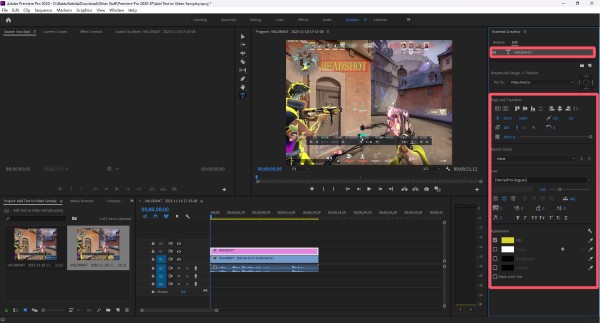
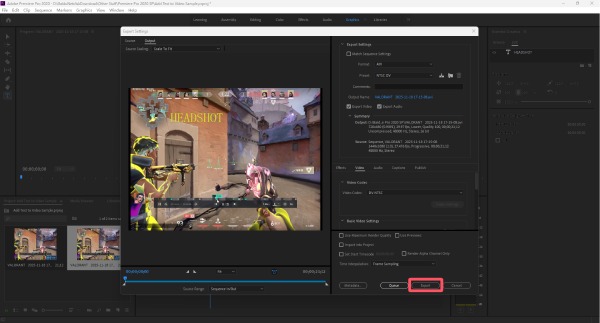
Step 5. Once finished, click the "Export" button under the "File" tab. Click the "Media..." button.
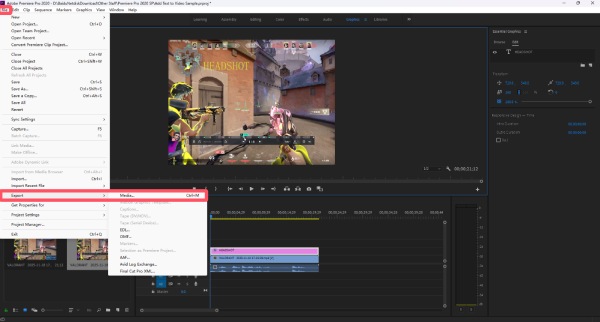
Step 6. In the "Export Settings" window, adjust the export settings as you want. Finally, click the "Export" button to save the video.
[Mac] How to Add Text to Videos in iMovie with No Effort
If you are a Mac user who searches for a method of adding text to videos without dealing with a complicated interface, iMovie remains a popular choice as a built-in solution. The built-in title templates make it easy to insert captions, opening titles, or simple annotations. While customization options are limited, iMovie works well for short videos and basic editing tasks where speed and simplicity matter more than advanced design. Here are the simple steps to add text in iMovie:
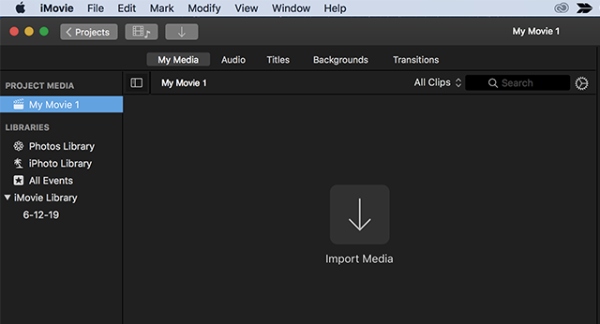
Step 1. To import the video file to your Mac, click the "Import Media" button under the "File" tab after launching iMovie.
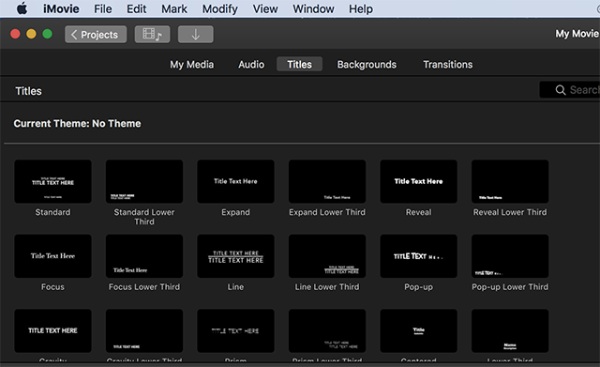
Step 2. Click and drag your video file into the timeline. Then, click the "Titles" button. You can select the text format you like here.
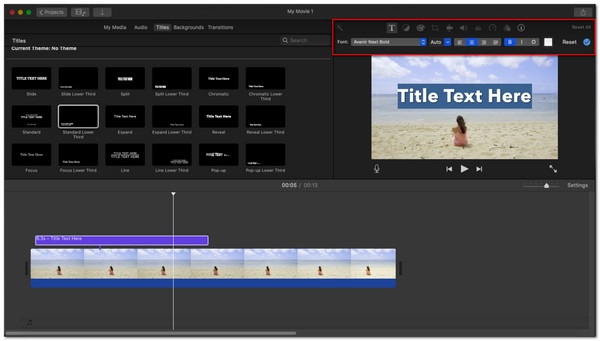
Step 3. Drag the title into the timeline. It will be added as text to the video in iMovie.
[Web-Based] Reliable Online Tools for Adding Text to Videos
Online video editors provide a convenient way to add text to videos online without installing any software. These tools typically run directly in a browser and offer drag-and-drop text boxes, which means you can upload your files easily and start editing them. And Kapwing is one of those reliable video editors designed for quick content creation. You can easily add subtitles, titles, or callouts without prior editing experience. Here are the easy steps:
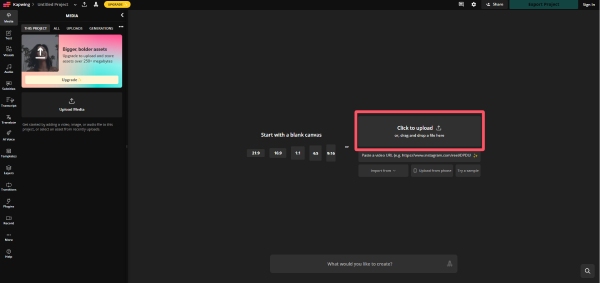
Step 1. Navigate to the official website of Kapwing on your browser. Click the "Click to upload" button to add your video file.
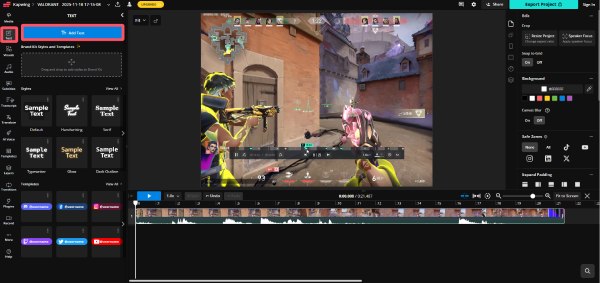
Step 2. In the left panel, click the "Text" button. You can select the styles and templates you like. Then, click the "Add Text" button.
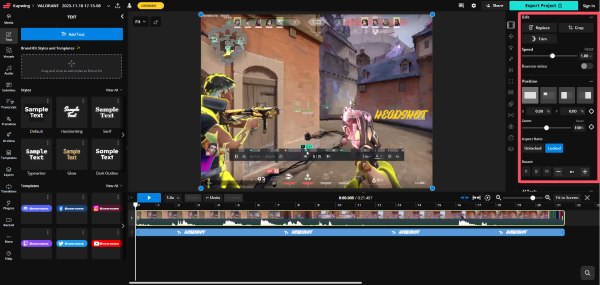
Step 3. In the right panel, you can start customizing the text you want to edit for the video.
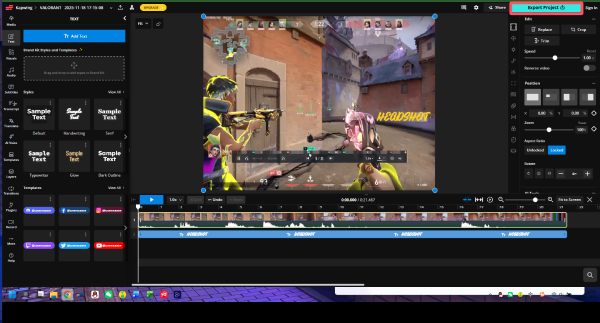
Step 4. Once finished, click the "Export Project" button to save the video with text to your device.
Conclusion
Adding text to a video no longer requires complicated steps. Whether a tool suits you or not depends on the level of creative control and efficiency required. When it comes to the best way to add text to a video, AnyRec Video Converter ensures text remains clear, well-timed, and visually consistent across different viewing devices.
Secure Download
Secure Download



