
How to Trim Videos on iPhone/Android? 3 Ways and More

Nothing ruins a crisp video faster than a shaky start when you hit that export button. Or worse, your phone saved over the video, leaving you with an awkward mess. Here's when you need to trim videos on iPhone or Android, and it should take five seconds. Getting a clean edit does not need complex editing skills. Here are three easy ways to shorten a video on iPhone and Android, along with simple fixes for editing glitches along the way.
Guide List
How to Trim a Video on iPhone How to Trim a Video on Android How to Trim Large iPhone and Android Videos Common Problems of Video TrimmingHow to Trim a Video on iPhone
When you need to trim out a video on iPhone quickly, you don't need to download extra third-party software. iOS includes a capable built-in media editor in its system Photos app, allowing you to fine-tune your videos in just a few quick taps. So, transitioning from capturing footage to make a video shorter on iPhone has never been smoother.
Step 1.Open the Photos app on your iPhone and tap on the video you wish to edit. Tap the "Edit" button in the corner to begin.
Step 2.Locate the frame viewer at the bottom; tap and hold either handle until it becomes yellow, then drag the sliders to set your start and end points. Tap the "Play" button to review your edited clip.
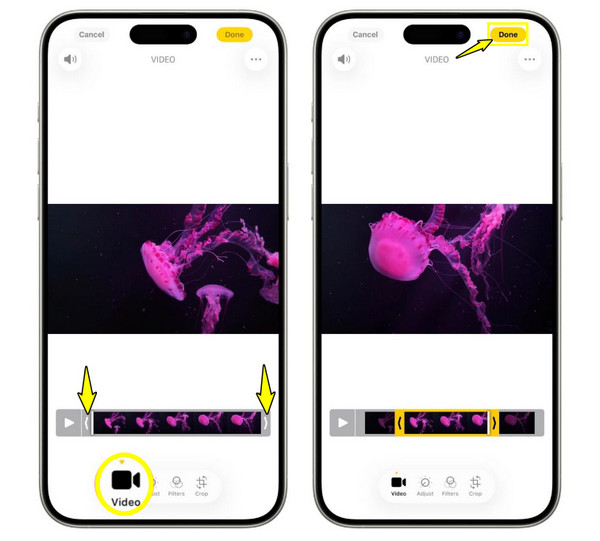
Step 3.If you did not cut off anything important, tap the "Done" button. You will be prompted to select either "Save Video" or "Save Video as New Clip".
Best for: Quick social media clips, trim away accidental recordings, and make minor length cuts without extra free video trimmers.
Limitations: No frame-accurate precision for complicated cuts; cannot split multiple clips, and may freeze when saving high-resolution files.
How to Trim a Video on Android
Next, trimming videos on Android is just as smooth when using your phone's Gallery. Most Android devices provide quick, reliable adjustments directly in their Gallery. You can easily trim a video on Android without burning your mobile data or using a third-party download. Seamlessly stepping through this built-in method keeps your Android editing workflow very effortless.
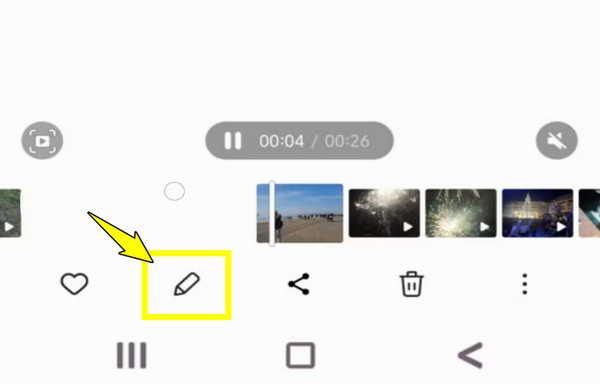
Step 1.Launch the default Gallery app on your Android phone and select the video you want to trim. Tap the "Edit" button (Pencil/Scissors icon) to open the editor.
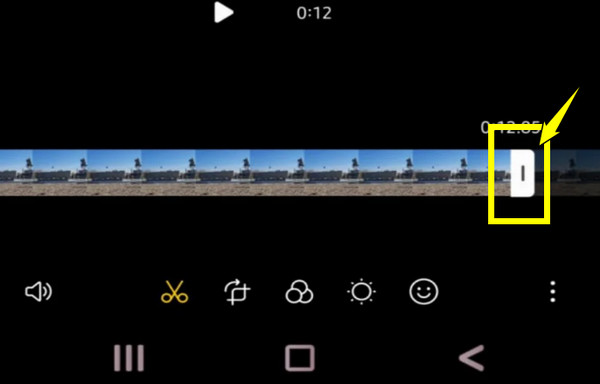
Step 2.Touch and drag the left slider to pick a new start point, and drag the right slider to set your endpoint.
Step 3.Review your edit by tapping the "Play" button to ensure your cut is correctly positioned. After that, tap the "Save" or "Save Copy" button.
Best for: Quick, on-the-go mobile edits; basic file size reduction before sending it via message, and keeping your storage neat.
Limitations: Simply built-in tools and do not have multi-track audio editing or complex multi-segment trimming.
How to Trim Large iPhone and Android Videos
Trimming huge video files straight on your iPhone or Android sounds simple enough, not until your built-in app freezes your 4K video or won't save the file. When this happens, upgrading to a desktop tool like AnyRec Video Converter changes the trimming game. While it is famous for its high-speed conversion, it doubles as a fast, lossless video editor that can effortlessly trim large iPhone and Android videos without lag or compression loss. Do you want to trim, crop, boost audio, or even upscale footage? Whatever you do, this desktop software offers a flawless, lightweight solution to polish your videos and get them back to your phone or upload anywhere in seconds.
Can easily trim awkward pauses, laggy starts, or others from your large videos.
Split massive, lengthy videos into small clips for iPhone/Android sharing.
Crop widescreen phone clips into clear vertical formats, rotate, add effects, etc.
Lossless quality throughout the process of large iPhone and Android trimming.
Secure Download
Secure Download
Step 1.Using your desktop computer, launch AnyRec Video Converter. Import your raw iPhone or Android clips by clicking the "Add Files" button. Or simply drag and drop your large files into the main window.
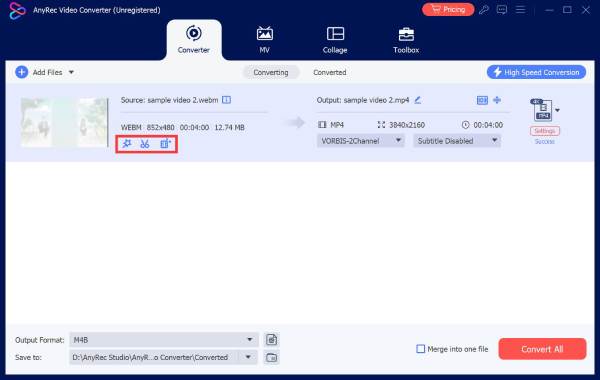
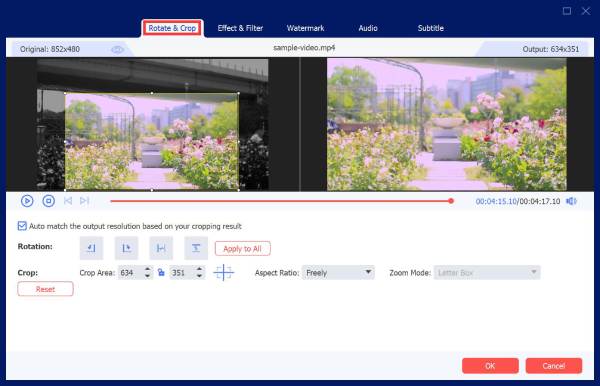
Step 2.Proceed to the editing window by clicking the "Edit" button to crop your clip, adjust rotation, apply filters, watermarks, or tweak video effects.
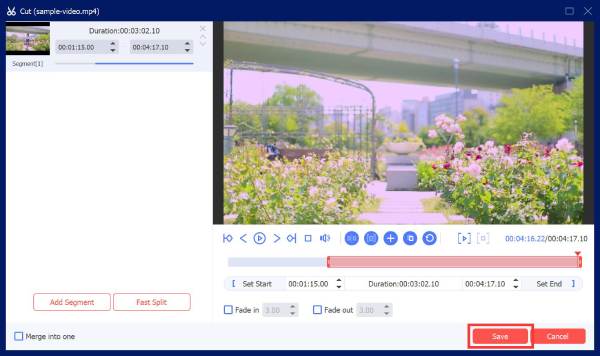
Next, click the "Trim" button to open the cutting window. To isolate the best parts, drag the timeline sliders inward, or apply exact start and end timestamps to trim your huge files with precision.
Step 3.Once you have finalized your edits, go to the "Convert All" dropdown menu and select a profile under the "Video" tab. Finally, set your output folder and click the "Convert All" button to export your perfectly trimmed video and move it back to your phone.
Common Problems of Video Trimming
While reducing video lengths on iPhone and Android should be headache-free, native tools aren't safe from unexpected glitches. Before these stubborn issues mess with your editing flow too much, here are the most common trimming problems and simple fixes to follow.
- 1. Trimmed Video is Lower Quality. Check your phone's camera settings and export preferences to ensure "High Efficiency" or original resolution is enabled. Otherwise, transfer the raw file to a desktop editor to trim without compression.
- 2. Video Takes Too Long to Process. When this happens, exit all background apps, clear your gallery app cache, and restart your phone. If processing large files, trim the video on a computer with a powerful processor.
- 3. Can't Trim a Specific Video Format. Since mobile phones have strict native format support, try converting unsupported formats into a standard MP4 file. Or use a desktop converter to trim and re-encode the file.
- 4. Audio Gets Out of Sync After Trimming. Frame Rate footage captured by modern cameras often causes sync during native trims. Convert the video to a Constant Frame Rate or re-save the original clip.
- 5. Unable to Save Video Error. This bug almost always results from not enough storage space, so free up your storage space and turn off cloud sync before saving your edit temporarily.
Conclusion
Now that you know how to trim video length on iPhone and Android, it won't feel like solving a complex puzzle anymore. Also, you've seen here how to bypass those saving glitches, quality drops, frozen frames, and other common problems; you can edit with complete confidence. Looking for an all-in-one solution for your large iPhone and Android videos? Try AnyRec Video Converter today. It is a fast, reliable desktop tool that trims huge high-res videos, fixes tricky formats, and exports clips without losing a single pixel of quality.
Secure Download
Secure Download
Further Reading
About Our Author




