
 Capture everything. Miss nothing. Crystal Clear.
Telegram Screenshot: Detailed Policies and Quick Methods

Does Telegram notify screenshots? Many users have similar questions. On forums, people have given a variety of answers. This post summarizes everything related to this topic based on actual testing. From "Does Telegram show screenshots?" to quick ways to take screenshots of Telegram images on mobile devices, this post provides all the answers.
Guide List
Does Telegram Screenshot Notify the Other User How to Take a Telegram Screenshot on iOS/Android A Workable Way to Take Any Telegram ScreenshotDoes Telegram Screenshot Notify the Other User
If you're wondering about "does Telegram show screenshots", the simple answer is NO - at least in most cases. In normal one-on-one chats and group chats (including channels), taking a screenshot does not trigger a notification from Telegram or the system. This means you are free to capture the following content: text messages, photos and videos, voice waveforms, links, locations, and other items. You can quickly save information related to them by taking a screenshot, and the other person won't receive a notification.
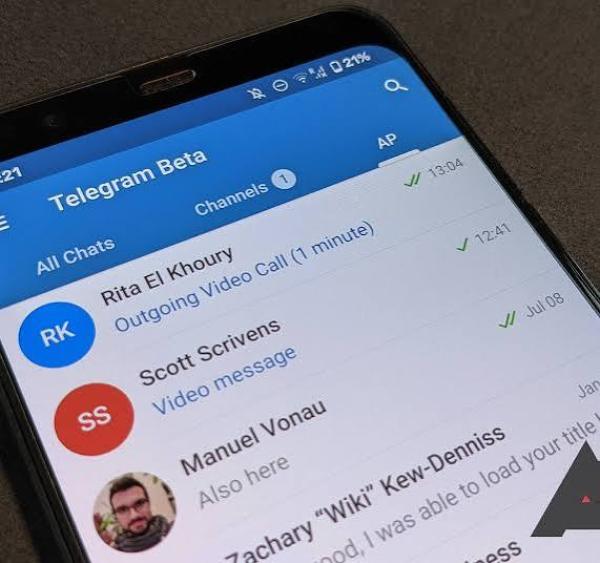
However, there is one exception. When you take a screenshot of a Telegram Secret Chat, the system will notify the other person. Since Secret Chats use end-to-end encrypted conversations, the chat content becomes private. If you take a screenshot, Telegram usually alerts the other person with the message "xxx took a screenshot!" You can't take screenshots due to the security policy, as the system will block this action automatically. Even if you do so, the screenshot will be a black screen.
How to Take a Telegram Screenshot on iOS/Android
If you want to take a Telegram screenshot of normal chats, you can use the default recording method on your mobile device. There might be some minor differences in the recording methods between iOS and Android devices. If you don't know how to take screenshots of Telegram using your mobile device, you can follow the steps provided in this section to do so.
How to Take a Telegram Screenshot on iOS
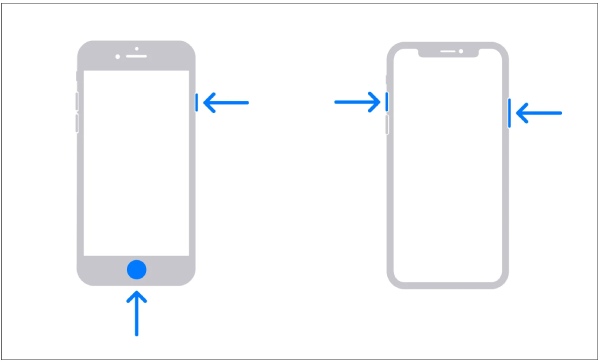
If you want to take a Telegram screenshot on iOS, you can press a combination of buttons to use a shortcut. Depending on the iPhone model, the operation can vary. The key point is whether your iPhone has a Home button. You can follow the steps below to take a quick screenshot.
- For iOS devices without Home buttons: Press the "Power + Volume Up" buttons together.
- For iOS devices with Home buttons: Press the "Power + Home" buttons together.
How to Take a Telegram Screenshot on Android
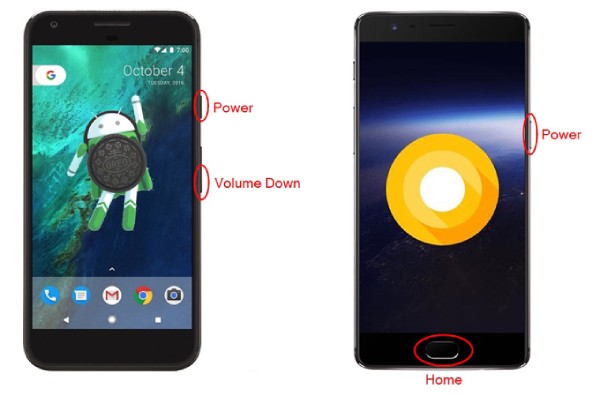
On Android devices, taking a screenshot of Telegram is equally straightforward. You can choose the appropriate method of operation based on whether your Android device has a Home button. Then, follow the steps below to learn how to take a screenshot on Android for Telegram chats.
- For Android devices without Home buttons: Press the "Power + Volume Down" buttons together.
- For Android devices with Home buttons: Press the "Power + Home" buttons together.
A Workable Way to Take Any Telegram Screenshot
Although the shortcuts available on iOS and Android can help you quickly capture screenshots of Telegram chats, they only apply to regular chats. Once you attempt to save the content of Secret Chats, the default method will fail. Therefore, many people are looking for a way to take screenshots of the Telegram screen without notifying the other person while having a Secret Chat. AnyRec Screen Recorder is the tool that can assist you. Through screen mirroring, you can record any content on Telegram in its original quality without any restrictions. And the other person will not receive any notification.

Take Telegram screenshots of any kind without restrictions.
Telegram won't notify others of any screenshot.
You can edit and apply effects to the Telegram screenshot.
The process will consume no resources on your phone.
Secure Download
Secure Download
Step 1.Launch AnyRec Screen Recorder on your computer. Click the "Phone Recorder" button under the "Video Recorder" tab.
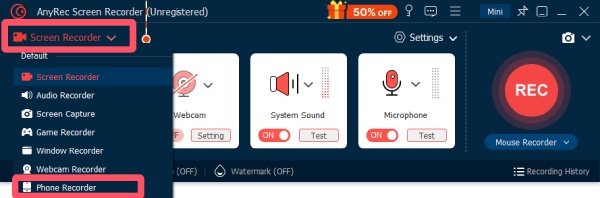
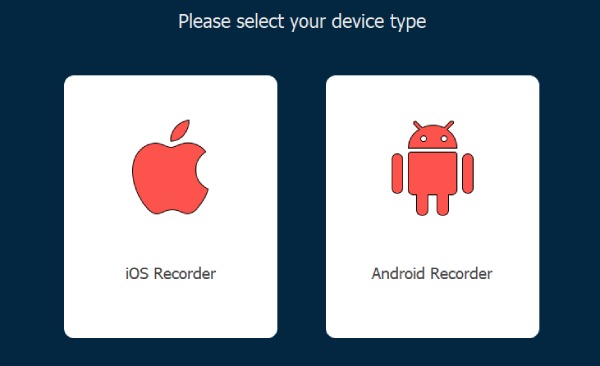
Step 2.In the pop-up window, click to select the device type. Then, connect your device to proceed.
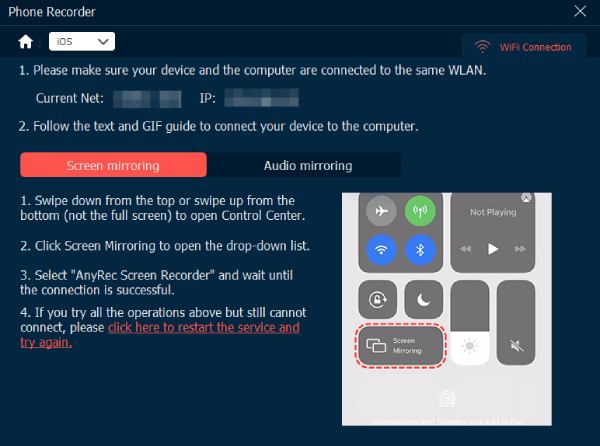
Step 3.Follow the detailed instructions to connect your phone to the computer. You can select the convenient way for yourself.
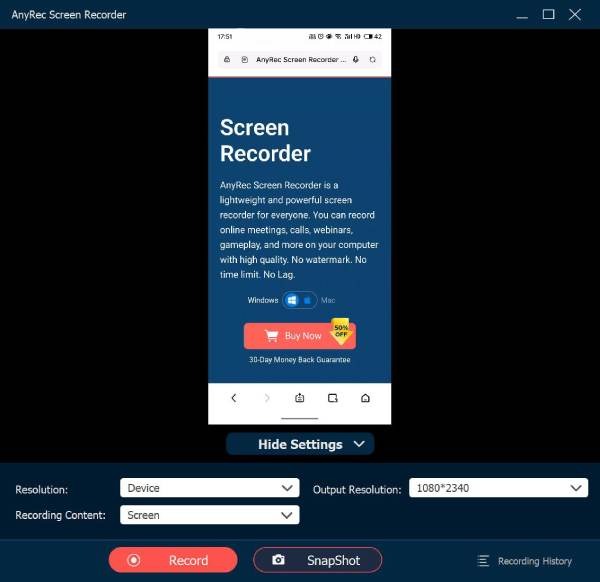
Step 4.Now, you can take Telegram screenshots anytime. There will be no restrictions and notification here.
Conclusion
This post explains everything you need to know about Telegram screenshot alert. In normal chats, you can take a screenshot without notifying the other person. However, Secret Chats prevent you from taking any screenshots. To avoid such limitations, you can use AnyRec Screen Recorder to take any Telegram screenshot without notifying others or getting restricted.
Secure Download
Secure Download
Related Articles
About Our Author




