
Stop QuickTime Screen Recording: 4 Ways for a Smooth Workflow

Thanks to QuickTime Player, macOS users can capture high-quality screen recordings without installing anything. However, ending the session is not always as easy as starting it. How to stop QuickTime screen recording if it becomes unresponsive? Today's guide will explore four ways to stop QuickTime screen recording, from keyboard shortcuts to alternative options for more control over your recording projects.
Guide List
Stop QuickTime Recording with the Stop or Keyboard Shortcuts How to Force Quit Screen Recording in QuickTime Player End QuickTime Screen Recording in Activity Monitor Use an Alternative with Flexible Stop FunctionStop QuickTime Recording with the Stop or Keyboard Shortcuts
When you're capturing footage on your Mac using QuickTime Player, the most standard way to stop it is through the built-in controls. Once a recording is active, a small stop icon shows up in your menu bar. But if you prefer a hands-free approach, there's a keyboard shortcut to end the process. This approach is recommended as it triggers the app to finalize the file correctly, ensuring a clean workflow during your recording tasks. Later, you can export QuickTime to MP4 for better compatibility.
End QuickTime screen recording with keyboard shortcuts in just a few steps!
Step 1.Locate the top menu bar of your Mac closer to the Wi-Fi and clock icons. There, you'll see the "Stop" button, a small circle with a square inside.
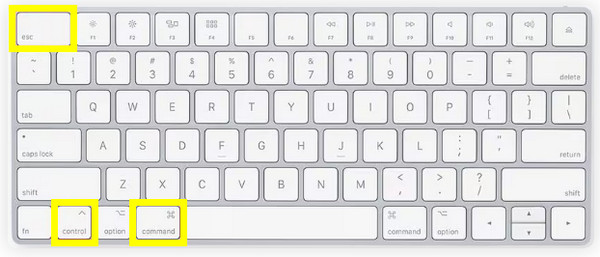
Step 2.Click on it once to stop the recording right away and access the Preview window. Or, press "Command + Control + Esc" keys.
Step 3.In the new window, go to "File" and click on "Save" to store your recording.
How to Force Quit Screen Recording in QuickTime Player
There are instances where QuickTime becomes unresponsive, leaving you with a stuck recording state. If the stop button fails to react, you can use the Force Quit command to stop screen recording in QuickTime, shutting it down entirely. Using this method is useful if your Mac starts to lag or the player interface disappears from view. Although it is a more aggressive approach, it ends the process effectively. It also works when you find QuickTime screen recording not working or responding.
Here's your simple roadmap to stop QuickTime screen recording by force quitting:
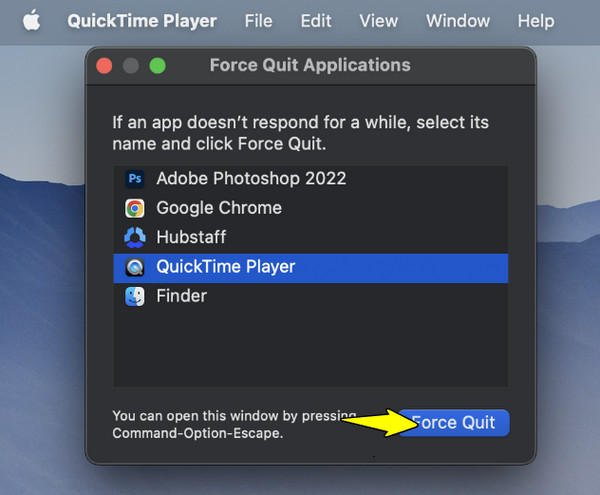
Step 1.From the upper-left corner of your screen, click the "Apple icon". Select "Force Quit…" in the dropdown menu to activate the manager.
Step 2.Find and highlight the player from the list of active apps.
Step 3.There, click the "Force Quit" button; please confirm the action in the prompt to close the recording immediately.
End QuickTime Screen Recording in Activity Monitor
Moving to a deeper, more technical solution to make QuickTime stop screen recording if problems like stuck recordings arise. With the Activity Monitor, you can see every background process that is currently utilizing your CPU. If the player is not appearing in the Force Quit list, in Activity Monitor, you can track down a certain recording process and stop it manually.
Follow these simple steps to use Activity Monitor to stop QuickTime screen recording on Mac:
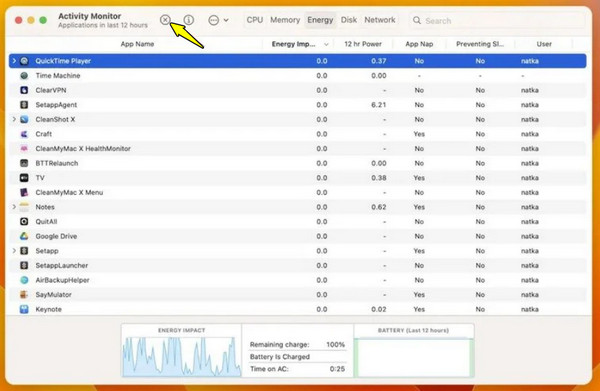
Step 1.Press the "Command + Space" keys to activate Spotlight and type "Activity Monitor", then press the "Enter" key. Make sure you're on the "CPU" tab to see all active software.
Step 2.Navigate to the search bar at the top and type "QuickTime". Select the player process and click the "X" button in the top toolbar.
Step 3.Then, choose "Force Quit" in the dialogue box to stop the recording and exit the player completely.
Use an Alternative with Flexible Stop Function
While the previous tool offers a powerful troubleshooting, you might prefer a dedicated recording solution that offers much more flexible and reliable controls from the start. If you find the built-in methods too limited for stopping QuickTime screen recording, here's AnyRec Screen Recorder serving as a high-performance alternative. This software lets you set custom hotkeys for stopping and pausing, making sure you're never left looking for the stop button. Beyond that, you'll get real-time annotation and high bitrate for a more polished final recording. Thus, if you wish for a no-fail recording experience, this alternative provides the stability you deserve.

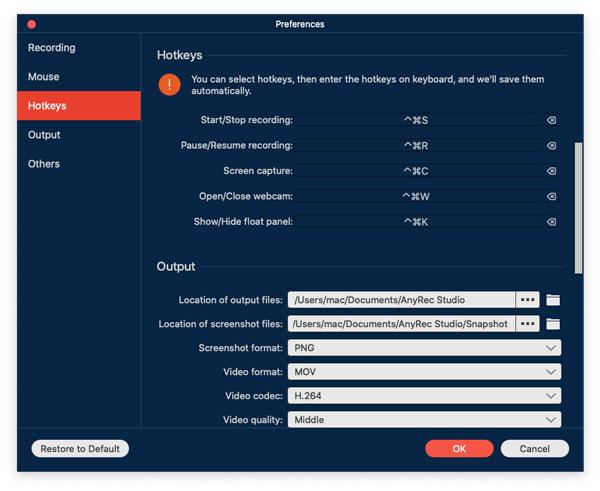
Set your own unique key combinations to stop, start, and pause effortlessly.
Ensures lag-free recording even during heavy gaming with hardware acceleration.
Add real-time drawings to make your recordings more engaging.
Capture screen with system audio or mic in high quality.
Secure Download
Secure Download
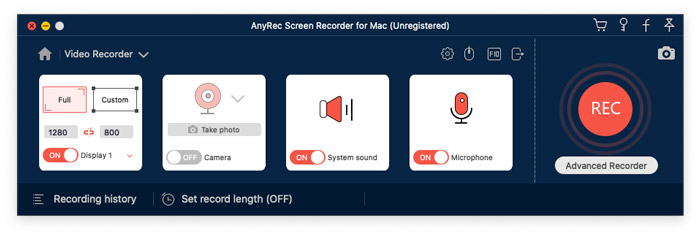
Step 1.Open AnyRec Screen Recorder on your Mac, and aim for the "Video Recorder" mode. You can then choose to capture "Full" or define a region or window with the "Custom" option.
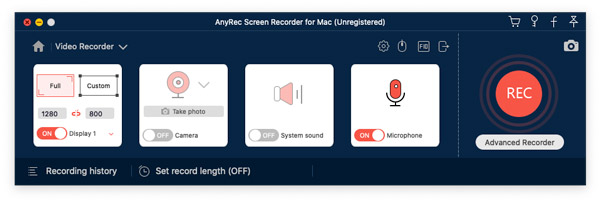
For the best results, click the "Settings" button and navigate to the "Output" tab to fine-tune recording settings. You can also go to the "Hotkeys" tab to see the set keys for recording.
Step 2.Determine which audio is needed for your project. Toggle ON the "System Sound" for internal Mac audio, and enable "Microphone" for voiceover; enable "Camera" for facecam. Find the balance between audio levels.
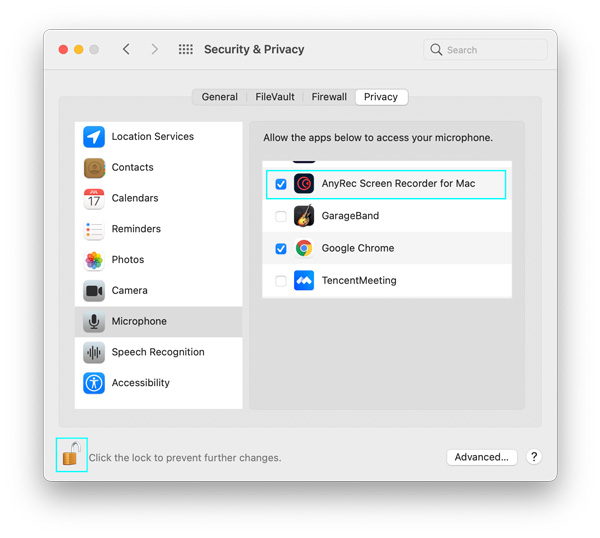
If you wish to turn on "Microphone", enable some permissions first. In the "Security & Privacy" window, locate and click the "Lock" icon in the corner, then enter your device passcode. Next, click the checkbox for the recording software. In the new pop-up, click "Quit & Reopen" to confirm, and make sure the "Lock" icon is locked.
Step 3.Start the session by clicking the "REC" button or using the set hotkeys. While recording, you can use the floating toolbar to pause, take screenshots, or draw on the screen.
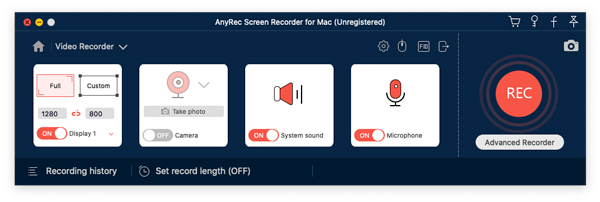
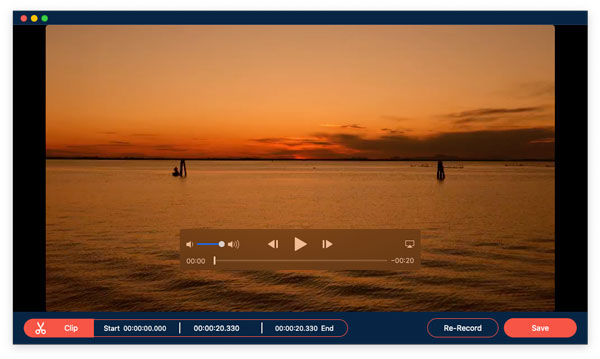
Step 4.Once you have everything you need, click the "Stop" button or use the stop hotkey again. In the preview, watch the footage and cut out any unwanted frames. When you're okay with the result, click the "Save" button to export the final recording to your Mac.
Conclusion
Having the methods in your toolkit helps you end QuickTime screen recording, ensuring you have the total content of your content creation. There are keyboard shortcuts, the menu bar, or the Activity Monitor. Despite the fact that QuickTime Player is a solid built-in recorder, it may lack the flexibility needed for high-level production or may face unresponsiveness. So, for a more robust experience, use the AnyRec Screen Recorder as an excellent alternative. Aside from its dedicated recording mode, it has task scheduled feature and set hotkeys that stop recordings for you. It provides the creative control and reliability you need for recording tasks every time.
Secure Download
Secure Download
About Our Author




