
Hot

AnyRec Screen Recorder
Record and screenshot any video on Windows and Mac.
Secure Download
Why Screen Record Can’t Record Protected Videos? [and How]

Finding a perfect clip or a favorite scene that you wish to share may be easy, but here comes the real challenge: screen recorder can’t record protected videos. It is frustrating that you're presented with a black screen or an error message, isn’t it? Why does that wall happen? Get rid of this issue and discover why you cannot record protected content here today. So, without wasting any time, get started with this digital mystery in the following parts.
Guide List
Why You Can't Screen Record Protected Videos How to Screen Record Protected Videos without Black Screen Use another Phone or Camera to Record Protected Content without Root Disable the Hardware Acceleration in Your BrowserWhy You Can't Screen Record Protected Videos
When recording protected videos, you will definitely encounter difficulties or be prevented from doing so. This protection ensures creators and distributors that they have control over their shared content. Before getting rid of those black screens, breakdown in this section are reasons why you can’t record protected videos:
- ● Digital Rights Management Technology. With DRM, the media content is protected from being copied and shared without authorization. If you try to screen record on Netflix, Disney+, or Amazon Prime, you will only be presented with a black screen.
- ● Software Restrictions. Many platforms have used software-based restrictions that detect and prevent attempts at screen recordings, which is one of the reasons why screen recorders can't record protected videos.
- ● Hardware Restrictions. Not only software but hardware restrictions too, like HDMI connections that support protection standards. Once you try to capture content through an HDMI capture with that feature, the feed is blocked.
- ● Legal and Copyright Protections. Aside from technical aspects, platforms have terms of service that prohibit you from recording their content without permission. Violating this can result in account bans or, worse, legal action.
The video is playing. The DRM does not stop playback. It stops the screen recorder from reading the frame buffer where the video lives. Here are 3 technical protection systems you'll actually encounter.
| System | Used by | Platforms affected |
| Widevine (Google) | Netflix, Disney+, Amazon Prime, Hulu, HBO Max, YouTube Premium, OnlyFans | Chrome, Firefox, Android, Chromecast, most Smart TVs |
| PlayReady (Microsoft) | Netflix, Disney+, Amazon Prime on Edge/Windows | Microsoft Edge, Windows apps, Xbox |
| FairPlay (Apple) | Apple TV+, iTunes, some iOS streaming apps | Safari, iPhone, iPad, macOS |
How to Screen Record Protected Videos without Black Screen
When encountering a ‘screen recorder can’t record protected videos’ issue right now, don’t lose hope. As you have seen above, this issue happened due to implemented restrictions to stop users from capturing content without permission. One such tool that can help you get rid of this black screen is the AnyRec Screen Recorder. It is a powerful recording software that allows you to capture all content on your screen, bypassing these restrictions and offering a smooth recording experience. Whether it is a movie, gameplay, video calls, meetings, or any other, you won’t face a black screen problem. You can quickly select a screen area, customize recording settings, and start recording protected videos. After a while, this 4K video recorder can enhance it further in the preview before saving.
Screen record protected videos in high-definition up to 4K without lag.
Customizable recording area, e.g., full screen, window, selected region.
Annotate and take screenshots of your favorite part while recording.
Select your desired resolution, quality, format, and more to get the ideal result.
Secure Download
Secure Download
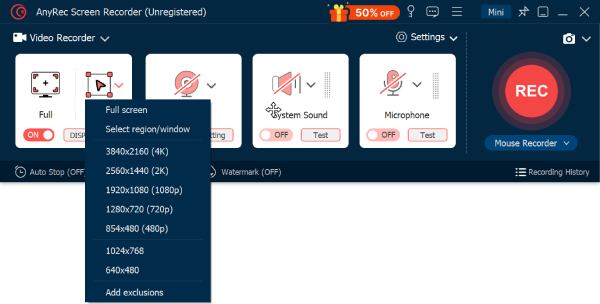
Step 1.After firing up the AnyRec Screen Recorder on your computer screen, if it is not selected automatically, click the "Video Recorder" button to choose the recording mode list and screen record protected videos on any devices.
Pick between "Full" (entire screen capture) and "Custom" (selected area capture) to begin. Regardless of the two, you can adjust the capture area by pulling the frames.
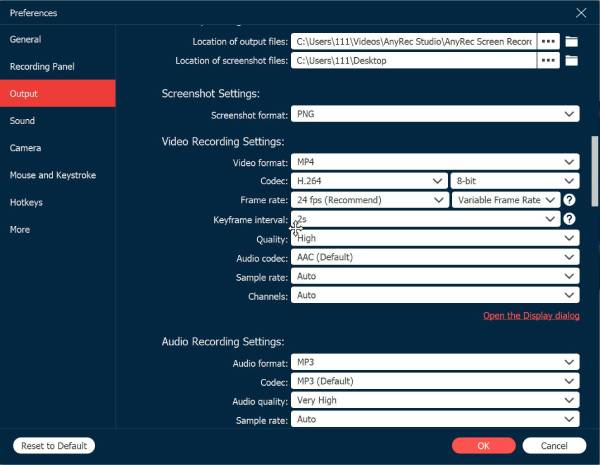
Step 2.To apply your desired settings, like resolution, frame rate, bitrate, and more, click the "Settings" button on the right side and head straight to the "Output" tab.
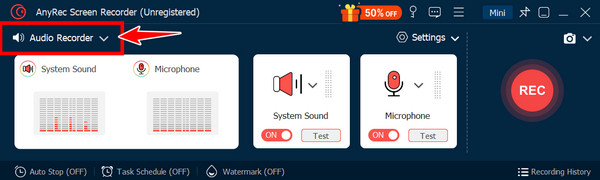
Step 3.For your audio sources, enable the "System Sound" switch button to capture the content’s sound. Meanwhile, if you meant to record your voice, enable the "Microphone" switch button, too. Obtain the perfect volume level by pulling each slider.
Step 4.Once you’re ready, click the "REC" button and start playing the content on your screen. Now, you are free to annotate, such as add text, lines, callouts, etc., and even take screenshots with the "Camera" button from the floating toolbar.
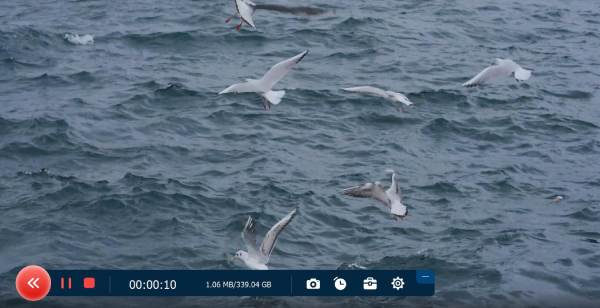
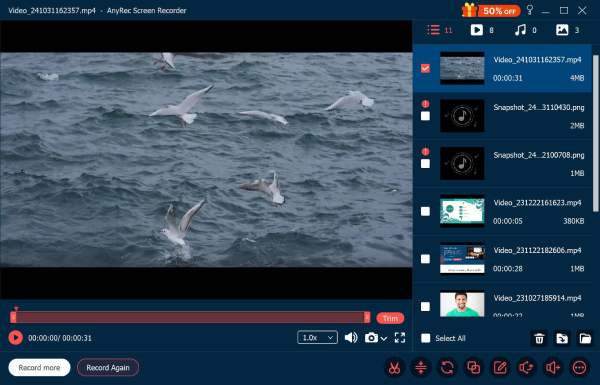
Step 5.At a later point, click the "Stop" button. Here, in the preview window, view your recorded protected video and check if you need to trim some beginning and ending parts. You can make other edits, too, before clicking the "Save" button.
Use another Phone or Camera to Record Protected Content without Root
Want to know another solution to screen record protected videos? Here’s a workaround that won’t require rooting your phone or getting software: using another device to record the protected content. While it may not leave you with the same quality as the direct screen recording, it guarantees you won’t be getting another black screen situation.
Try the following steps to record restricted content without rooting your device:
Step 1.Once you have prepared the video or movie you wish to record on your device, make sure it is in full-screen mode for better viewing and quality.
Step 2.Next, grab your second device, which could be your phone or camera, and position it in front of your screen, ensuring everything is captured within the frame. You can adjust it to ensure no reflection or space that may interrupt the video quality.
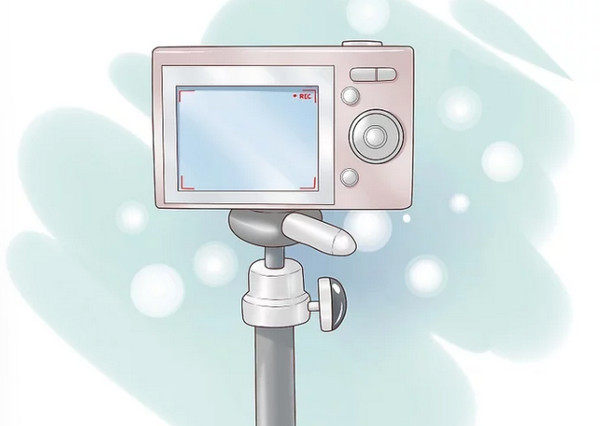
Step 3.After that, begin playing the content on your main device and start recording with the second phone. As the video plays and records, keep checking on the process to make sure there are no issues. Later on, stop the recording once the video is finished.
Filming your screen with a second device as a workaround may cause moire patterns (the wavy flickering interference pattern caused by the interaction between the camera's sensor refresh rate and the display's refresh rate). This is especially bad with OLED screens. To minimize the quality issue, you can match your camera's frame rate to the display's refresh rate. Set the camera to 60 fps for a 60Hz display, or 24 fps for a 24Hz/120Hz display. However, many phones don't offer this control directly.
Disable the Hardware Acceleration in Your Browser
To force the GPU out of the decryption loop, you can turn off the hardware acceleration in your browser. The CPU handles decoding instead, using software-based DRM (Widevine L3 instead of L1). Some screen recorders can capture the output at that stage. Here are quick steps to do so on different browsers.
- Disable hardware acceleration on Chrome: Settings > System > turn off "Use graphics acceleration when available" > relaunch Chrome.
- Disable hardware acceleration on Firefox: Settings > General > Performance > uncheck "Use recommended performance settings" > uncheck "Use hardware acceleration when available".
- Disable hardware acceleration on Edge: Settings > System and performance > turn off "Use graphics acceleration when available".
Why it sometimes works: Widevine L3 (software DRM) is less secure than L1 (hardware). Some screen recorders can access the video output at the software layer.
Why it often doesn't: Platforms respond to this. A Reddit user in r/cordcutters described it: "Disabled hardware acceleration in Chrome, tried to record Netflix. Got audio but black video. Tried Amazon Prime the same way - got a blurry 480p recording but with constant buffer stalls.". The quality drop is significant, and results vary by platform.
Important caveat: Many platforms commonly downgrade the streaming video quality after turning off hardware acceleration. For example, Netflix typically drops from 1080p to 720p or 480p in this mode.
Conclusion
With DRM technologies, software and hardware barriers, etc., it is clear that you’ll eventually face the ‘screen recorder can’t record protected videos’ or screen recording no sound problem. But as frustrating as it is, they are put in to keep the content safe from other unauthorized use. That said, there are still ways to record protected videos; one of the best is offered by AnyRec Screen Recorder. This tool helps you bypass the restrictions of any streaming service game or webinar. It offers a high-quality and smooth recording experience for both video and audio projects. So, if you want something reliable for recording any screen activities, the program could be exactly what you need now.
Secure Download
Secure Download
Related Article
About Our Author




