
Hot

AnyRec Video Enhancer
No editing skills needed. Just better video.
Secure Download
Get Clear Sound - Remove Background Noise from Audio

If you want to improve the quality and expertise of your project, removing background noise from audio can contribute a lot. No matter what kind of work you are dealing with, podcasts, interviews, online courses, or music production, unwanted sounds or noise often reduce clarity and affect the overall listening experience. Fortunately, there are workable solutions to remove background noise from audio effectively. In this guide, you'll learn the detailed methods.
Guide List
Why is There Background Noise from the Audio The Most Effective Way to Remove Background Noise from Audio Audacity for Professional Background Noise Removal from Audio How to Remove Background Noise from Audio in Premiere Pro A Web Tool to Remove Background Noise from Audio Online FreeWhy is There Background Noise from the Audio
Background noise that you want to remove in audio recordings can come from multiple sources. One of the most common causes is environmental interference, such as traffic, wind, air conditioning systems, keyboard typing, or distant conversations. These ambient sounds are often unintentionally captured by microphones during recording. Although you don't notice them back then, they turn out to interfere with your content in the post-production.
Another major factor is equipment limitations. Low-quality microphones, improper gain settings, or a lack of audio interfaces can introduce static, hissing, or humming sounds. Electrical interference from nearby devices may also contribute to unwanted noise.
Additionally, recording conditions play a significant role. For example, when you record in a small room without proper sound treatment or decent audio recording software, echoes and reverberation can appear in your project. Therefore, an appropriate site for recording is also important.
The Most Effective Way to Remove Background Noise from Audio
For users who need a fast yet reliable solution, AnyRec Video Converter offers an efficient way to remove background noise from audio. You don't need to be familiar with the professional skills, as the process requires intuitive presettings and AI-supported technology to help you with the output.

With a simple click, the tool will help minimize all kinds of background noises while preserving vocal clarity. In addition, you can enjoy excellent compatibility thanks to its broad support for various file formats. In short, it provides a balanced solution for both beginners and content creators seeking clean, high-quality sound.

Unrestricted file size for uploading video and audio files to edit.
Remove background noise from audio clips in a straightforward UI.
Provide essential audio tools to trim, cut, crop, and merge files.
Export audio format to be compatible with various devices.
Secure Download
Secure Download
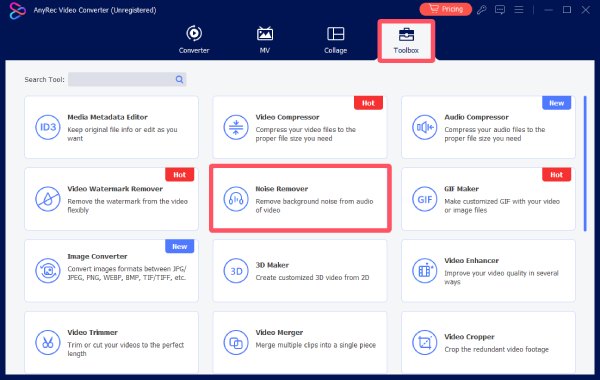
Step 1.Launch AnyRec Video Converter on your computer and click the "Noise Remover" button under the "Toolbox" tab.
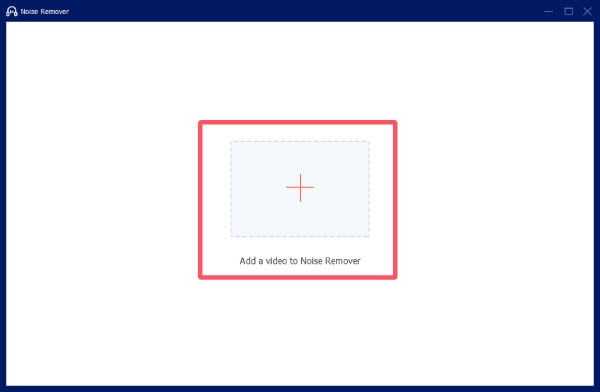
Step 2.Click the "Add Files" button to import your audio file from the destination folder.
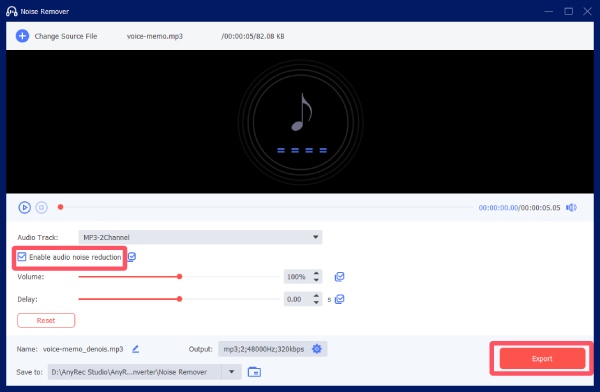
Step 3.Click the "Enable audio noise reduction" button. Finally, click the "Export" button to remove background noise from the audio.
Audacity for Professional Background Noise Removal from Audio
If you happen to know something about professional audio settings, you can use Audacity for advanced manual control. This widely used tool provides a professional-grade noise reduction workflow. As an open-source audio editor, the whole process is totally free. You can capture noise profiles and apply precise reduction parameters, making sure your project, like a recorded MP3 on your Mac, can be adjusted in detail.
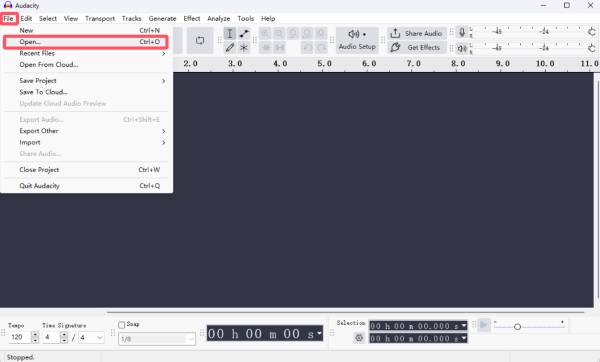
Step 1.Launch Audacity on your device and click the "Open..." button under the "File" tab. Select the audio file from the destination folder.
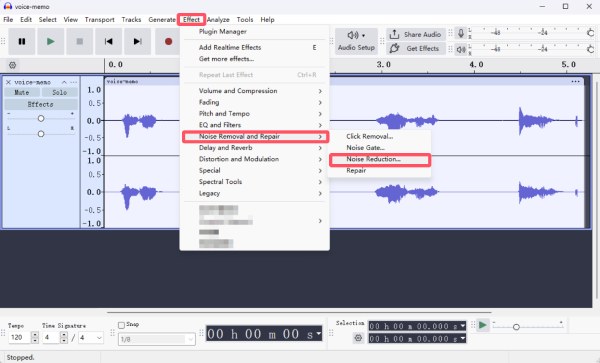
Step 2.Click to select your audio. Under the "Effect" tab, click the "Noise Removal and Repair" and then the "Noise Reduction..." button.
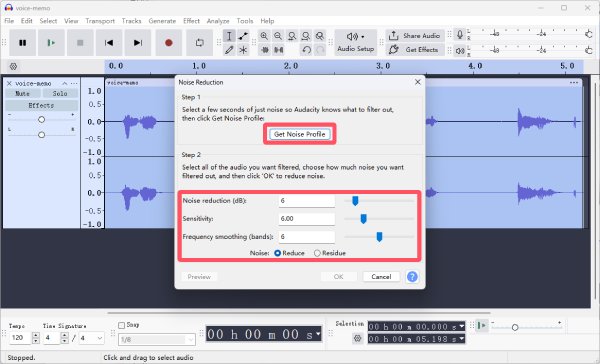
Step 3.Click the "Get Noise Profile" button to select the whole audio. Then, adjust the parameters to remove background noise from the audio.
How to Remove Background Noise from Audio in Premiere Pro
If you wonder how to remove background noise from audio in Adobe Premiere Pro when dealing with a video production workflow, this section has got you. The feature is integrated seamlessly into post-production editing. Advanced audio effects are supported for you to reduce background noise directly, whether it's a video or an audio project. You can follow the detailed steps below to start the process right now:
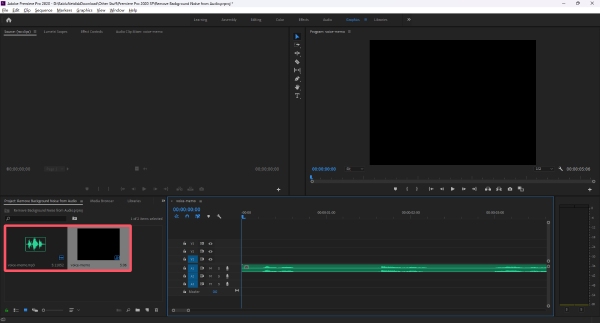
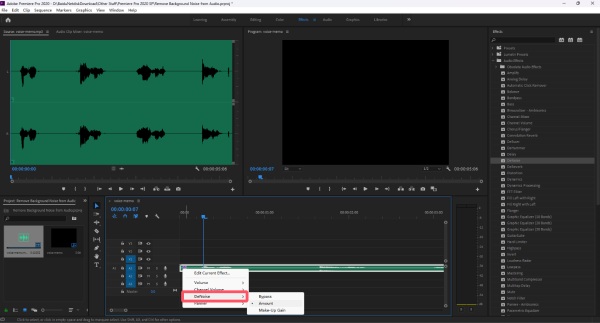
Step 1.Launch Adobe Premiere Pro and drag your audio file into the program once you create one. Then, drag it to the timeline.
Step 2.Click the "Effects" button. Under the "Audio Effects" tab, long-click the "DeNoise" button and drag it to the timeline.
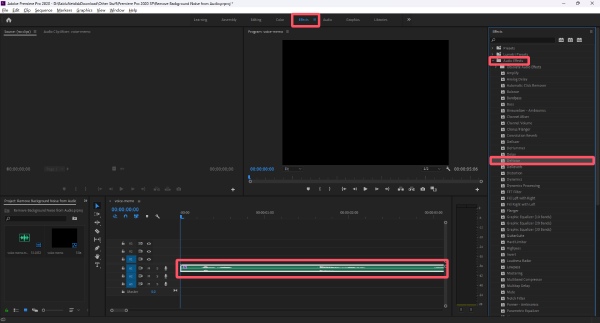
Step 3.Right-click the "fx" button and then click the "DeNoise" button. You can select the effect to remove background noise from the audio.
A Web Tool to Remove Background Noise from Audio Online Free
For users who prefer a browser-based solution, Kapwing provides a convenient way to remove background noise from audio online without installing software. With simple upload-and-edit functionality, you can finish the task within your browser. To remove background noise from audio online for free, you can follow the steps below:
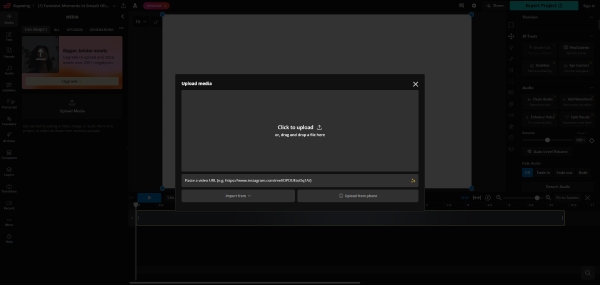
Step 1.Navigate to the official website of Kapwing. Click the "Upload Media" button to upload your audio file.
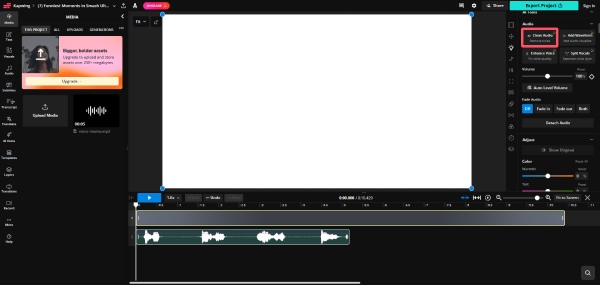
Step 2.Under the "Audio" tab, click the "Clean Audio" button to remove background noise from your audio.
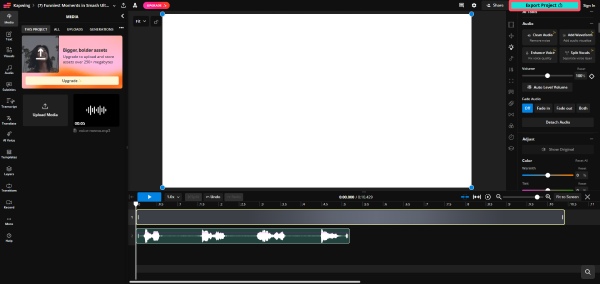
Step 3.Once you're done with the process and further editing your audio, click the "Export Project" button to save the audio file.
Conclusion
Now you surely get the knack of how to remove background noise from audio. Since it is essential for delivering precise and professional sound quality, you can follow the detailed steps provided to make your project a more professional one. Among all these tools, AnyRec Video Converter provides the simplest way to improve audio clarity and enhance the overall listening experience without requiring professional skills.
Secure Download
Secure Download
Related Article
About Our Author




