
How to Record Video in MP4 in 5 Ways on Desktop/Phone/Online

Are you looking for a way to record video in MP4 while capturing your screen? You probably want a video file version of an on-screen moment on your device, whether it is an online meeting, gameplay, or a tutorial. Well, if you do, recording on-screen moments on any device, whether Windows, Mac, smartphones, or browsers, is actually easy. Continue reading this post, and you will see simple guides to capture screen video in the MP4 format on all devices. See them below.
Guide List
How to Record Video in MP4 on Windows How to Record Video in MP4 on Mac How to Record MP4 Video on iPhone How to Record MP4 Video on Android How to Record Video in MP4 Format Online for Free Common Fixes for MP4 Video Recording Not WorkingHow to Record Video in MP4 on Windows
If you wish to record video in MP4 while capturing your Windows screen, one of the best options this post recommends is the professional AnyRec Screen Recorder. This MP4 recorder can capture any on-screen moments on your Windows screen in different ways. You can record in full screen, a specific window, or a selected area, all of which are captured in high quality and saved as MP4 by default. Beyond that, this tool is not just made to capture your screen, but also gives you control over the output.

Record all screen videos on your Windows in MP4, MKV, AVI, and more.
Record screen with audio, including microphone noise cancellation and enhancement.
Let you add text, lines, arrows, rectangles, and more to your screen recordings.
Allow you to trim unwanted parts of your screen recordings before saving them.
Secure Download
Secure Download
Step 1. Access the screen video that you want to record. Then launch the AnyRec Screen Recorder tool, where "Screen Recorder" is already selected by default.
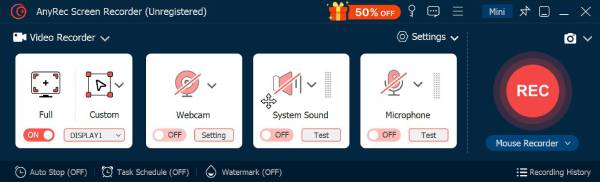
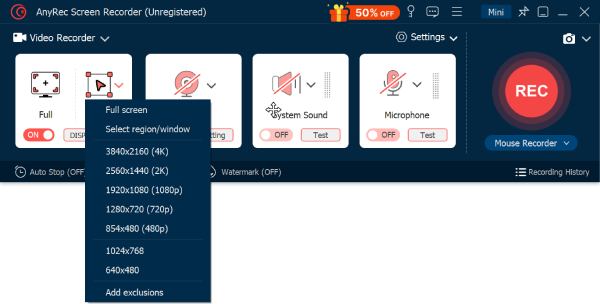
Step 2. Next, select "Full screen" or customize the area from 480P to 4K, and adjust the microphone and system sound settings as you like.
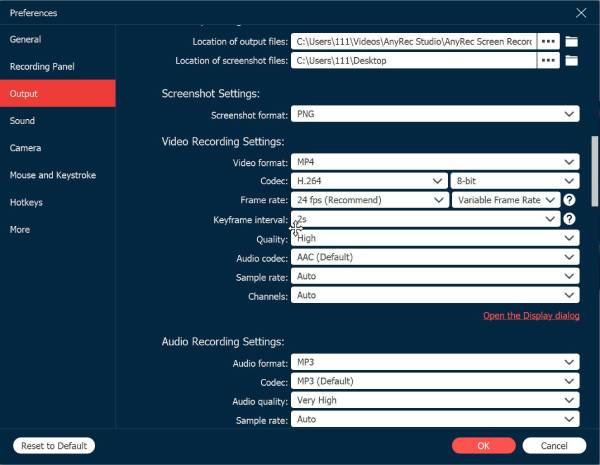
Step 3. Then, go to "Settings", select "Output Setting", choose "MP4" from the "Video format" dropdown, click "OK", and start recording by pressing the "REC" button. And that's how you do MP4 recording.
Secure Download
Secure Download
How to Record Video in MP4 on Mac
For Mac, you can use its built-in multimedia application, QuickTime Player, to record MP4 from the screen. Developed by Apple for macOS, this tool lets you play, record, edit, and stream video and audio files. However, this tool doesn't natively save recordings as MP4; they are saved as MOV by default. In that case, you will need an extra tool to convert MOV to MP4. Keep reading to record MP4 videos on a Mac using QuickTime.
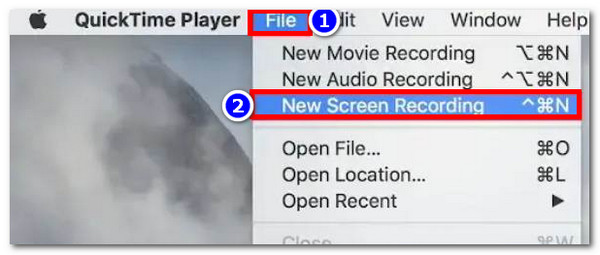
Step 1. Launch QuickTime Player on your Mac. Then click the "File" tab at the top and select "New Screen Recording" to open the screen recorder.
Step 2. After that, adjust the audio settings and click "Record" to start the recording process. Once done, click "Stop" and proceed to export the screen recording as an MOV file.
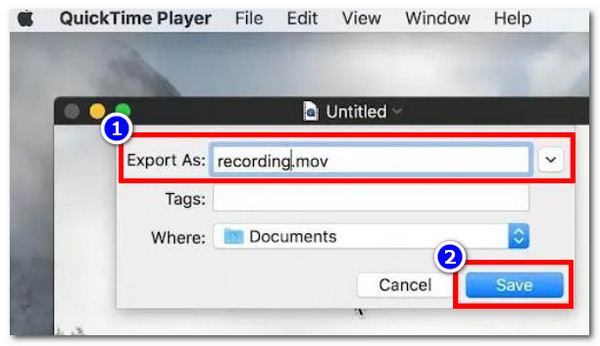
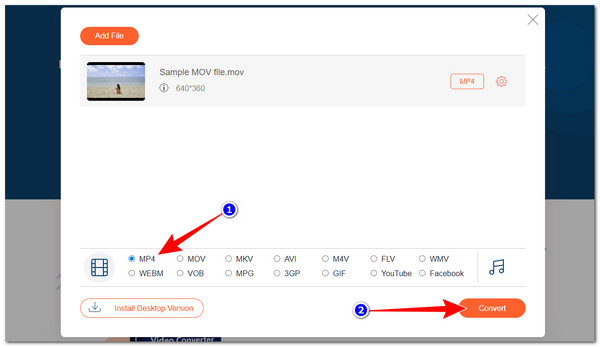
Step 3. Next, visit AnyRec Free Video Converter on your browser, click the "Add Files to Start" button to import the MOV file. Then, select "MP4" and click "Convert" to start converting the MOV file to MP4.
How to Record MP4 Video on iPhone
When recording a video on an iPhone, you usually use its camera app. Now, by default, your phone captures videos using High Efficiency Video Coding (HEVC), which saves the files as MOV videos to save storage space. That means your iPhone won't automatically save recordings as MP4s. Don't worry, simply follow the steps below to adjust your settings so your iPhone records in a more universally compatible format. So, how to screen record video on iPhone in the MP4 format? Follow the steps below:
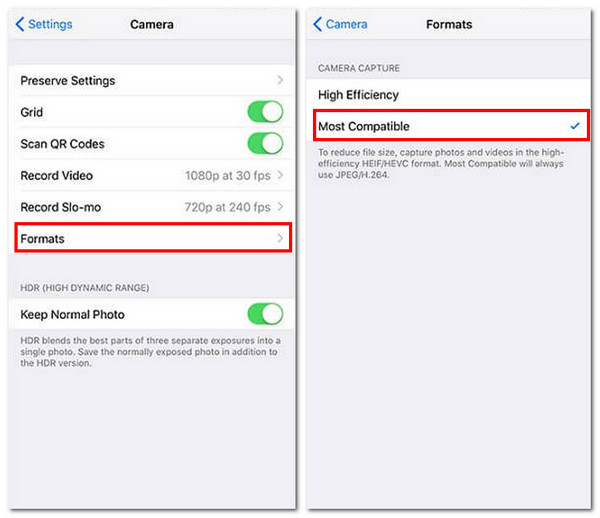
Step 1. Open the Settings app on your iPhone. After that, scroll down and tap the "Camera" option, then select "Formats" to view the recording format settings.
Step 2. Under the CAMERA CAPTURE section, choose "Most Compatible" instead of High Efficiency. This setting allows your iPhone to record videos using a format that is more widely supported across devices and platforms.
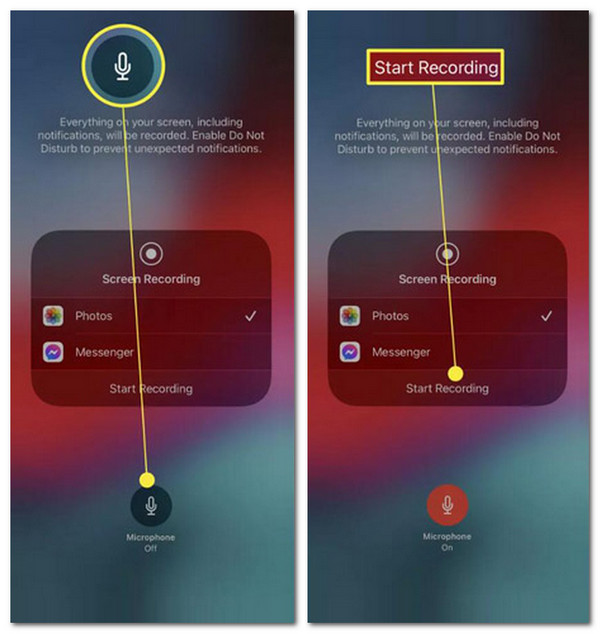
Step 3. After that, swipe down from the top right corner of the screen to access the "Control Center". Then, press and hold the "Screen Recording" button, turn on "Microphone Audio" if needed, and then tap "Screen Recording" to start recording. And that's it!
How to Record MP4 Video on Android
If you are using an Android device and also wish to know how to record a video in MP4, you can use its default feature, just like on an iPhone. The same goes for iPhone; screen recording on Android is easy. The difference is that Android saves recordings in MP4 format by default. So you no longer need to adjust specific settings to save recordings in MP4 format automatically. Here's how you do it:
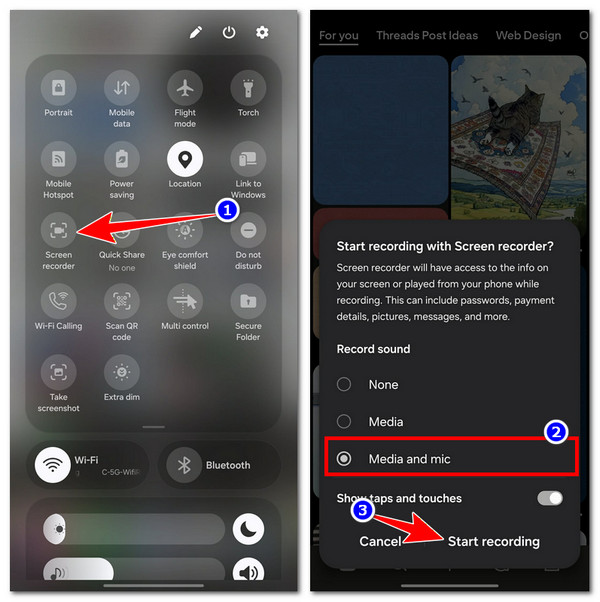
Step 1. Access the "Quick Settings" by swiping down your Android screen. Then, to access more options, tap any button from the grid of settings.
Step 2. After that, locate the "Screen Recorder" feature with the "Camera" icon. Next, select "Record Audio" or "Media and Mic" if prompted to record the screen with audio.
Step 3. Lastly, tap the "Start recording" button to start recording your Android's screen in MP4.
How to Record Video in MP4 Format Online for Free
Aside from desktop and mobile tools that record video in MP4, there is also a web-based option you can use to record on-screen activities on your computer: the professional AnyRec Free Screen Recorder Online. This tool lets you record videos on your computer screen with audio and automatically saves them as MP4 files. You can record screen videos with high quality, no time limit, or restrictions. Additionally, you can adjust the recording output quality and use multiple controls that help you achieve your desired results, all directly from your browser.
- Lets you record your screen in full screen or a custom region.
- Allows you to record internal and system audio on your computer.
- Record the screen and webcam simultaneously and add annotations during recording.
- Enables you to share your recording on Instagram, Facebook, YouTube, and more.
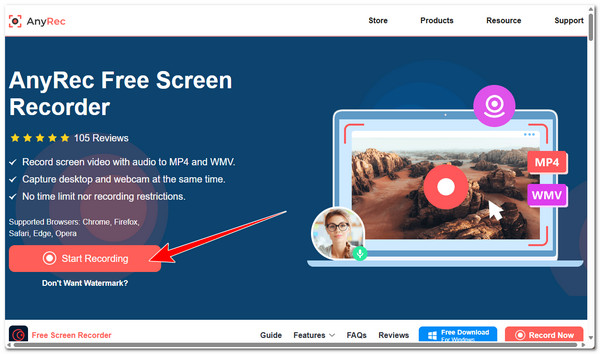
Step 1. Visit AnyRec Free Screen Recorder Online on your browser. After that, click "Start Recording" to install the launcher on your browser.
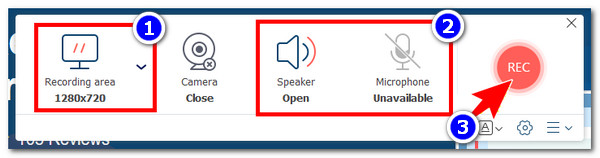
Step 2. Next, select the recording area and the audio source, either "Microphone" or "Speaker". Then click "REC" to start recording.
Step 3. Once you are done recording, click "Stop" with the red square icon. After that, the recording will be saved in the AnyRec Studio file directory as an MP4 file by default.
Common Fixes for MP4 Video Recording Not Working
Now those are the 5 easy ways you can record video in MP4 on Windows, Mac, iPhone, and Android. If you encounter problems while recording, here are some common fixes to get your recordings working properly:
- 1. Check Storage Space - Make sure your device has enough free storage. Low space can prevent recordings from saving.
- 2. Restart Your Device - A simple restart can fix minor glitches, including recording not working. Moreover, you can also close the recording tool and then reopen it after a few seconds to initiate a fresh start.
- 3. Update Your Device or Apps - Keep your iPhone, Android, as well as screen recording apps up to date to avoid compatibility issues.
- 4. Enable Microphone Audio - If you want sound in your recording, ensure Microphone Audio is turned on before starting.
- 5. Convert MOV to MP4 if Needed - Some devices save recordings as MOV by default. Use a video converter to change them to MP4 for better compatibility.
Conclusion
With those 5 featured ways to record videos in MP4, you can easily capture your screen or important moments on Windows, Mac, iPhone, and Android. MP4 recordings are compatible, easy to share, and ready for editing, which are great options for most users. Try these methods today to save your videos in a format that works everywhere. Remember to check your device settings and storage before recording to avoid interruptions. With AnyRec Screen Recorder, recording high-quality MP4 videos has never been easier.
Secure Download
Secure Download
About Our Author




