
Hot

AnyRec Video Enhancer
No editing skills needed. Just better video.
Secure Download
Make Blurry Videos Clear to Have High-quality Visual Experience

Have you tried uploading a video on social media that turns out to be blurry? And then you want to make blurry videos clear. Video blurriness comes from many reasons, such as low resolution, poor lighting, or being encoded differently. It is already given that social platforms will reduce video resolution according to their standards, so you must take steps to edit your video. While you are looking for solutions, this article poses a guide on how to make a blurry video clear and the best tool alternatives.
Guide List
Part 1: Use Powerful Editor to Reduce Video Blur and Make it Clear Part 2: Re-code to Make Blurry Video Clear on VLC Part 3: Change Contrast to Make Video Clear on iMovie Part 4: FAQs about Making Blurry Videos ClearPart 1: Use Powerful Editor to Reduce Video Blur and Make it Clear
AnyRec Video Enhancer is a desktop software with powerful features to remove blur from a video. The program is designed with the latest AI technology to export a video clip with enhanced quality automatically. It also has four primary enhancing tools to remove video noise, reduce blurriness, upscale resolution, and optimize brightness and contrast. Since editing tools are essential, AnyRec Video Enhancer gives the best set of filters, effects, and themes for your liking. You can download the video editor on Windows and Mac.

Remove blur from a video with a large file size without distorting the quality.
Change output settings for the video codec, frame rate, resolution, etc.
Export video in HD, 4K, YouTube, TV, iPhone, and other video formats.
Edit the video and optimize brightness and contrast after removing blurry.
Secure Download
Secure Download
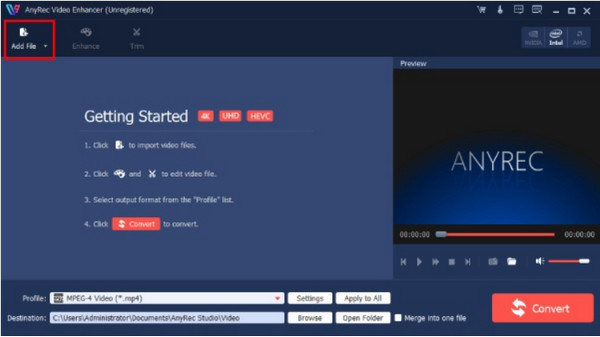
Step 1.Download AnyRec Video Enhancer from the website. After that, launch the software to remove blur from a video file. Click the "Add" File button to add the video.
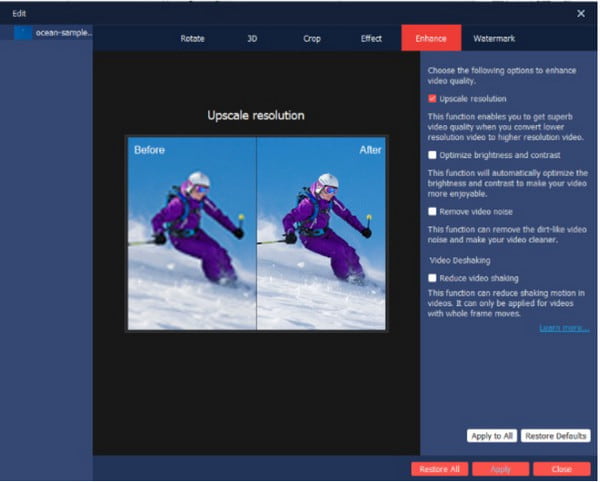
Step 2.Once the file is uploaded, go to the "Enhance" menu to adjust the settings for footage. Go to the "Effect" menu and adjust the effect. Click the "Apply" button to apply changes.
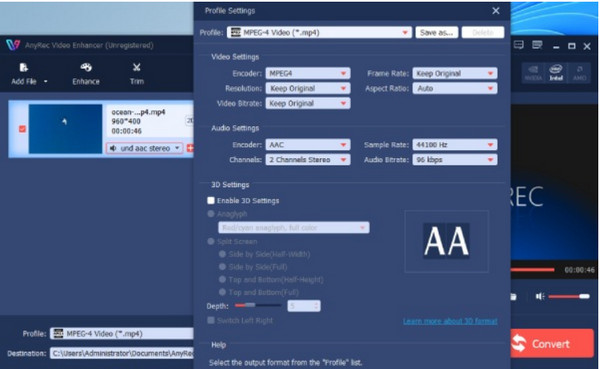
Step 3.Click the "Settings" button to Pull down the list for the video encoder, frame rate, aspect ratio, bitrate, and audio settings. Click the "OK" button to save the edited output.
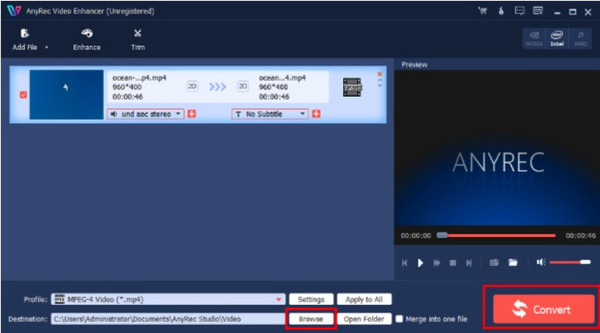
Step 4.Finally, go to the "Destination" menu, where you must select the destination folder to save the video file. Wrap up everything by clicking the Convert button.
Secure Download
Secure Download
Part 2: Re-code to Make Blurry Video Clear on VLC
If you use VLC as your backup media player on Windows or Mac systems, you can also utilize it to reduce video blur. This media player is renowned for its ability to open and play various video and audio files. It supports free playback and editing of videos in MKV, MP4, MOV, and AVI formats. Since VLC Media Player has a built-in editor, you can enhance video quality by modifying relevant video parameters.
Step 1.Download it from the official webpage. Then launch VLC Media Player and head to the "Tools" menu.
Step 2.Select the "Preferences" option from the drop-down list. Go to the "Video" tab for specific settings.
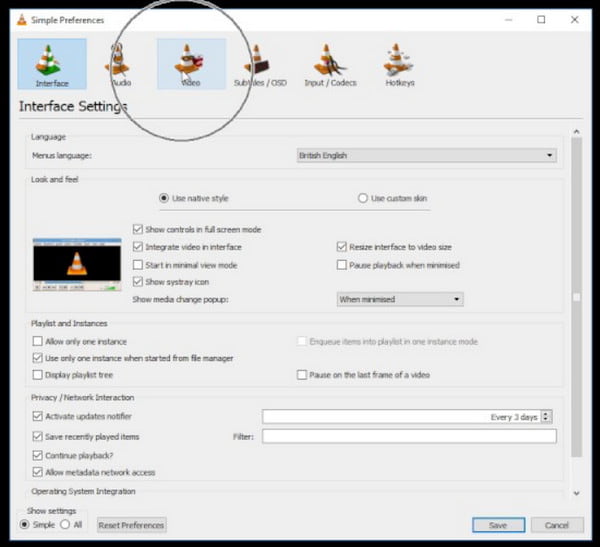
Step 3.Under the Display section, disable the "Accelerated Video Output (Overlay)" option. Save the changes and open the video file with the media player.
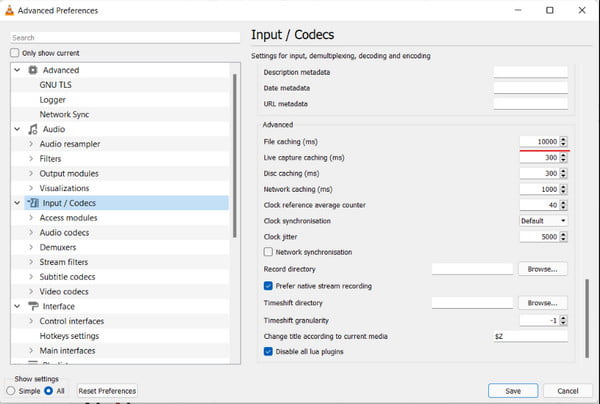
Step 4.You can also reduce blurriness by enhancing the network cache rate. Click the "Preferences" button and head to the "Input/Codecs" menu.
Step 5.Then go to the "Advanced" section. Double-click the "Network Caching (ms)" button to enhance the value.
Part 3: Change Contrast to Make Video Clear on iMovie
As an Apple user, you can leverage its built-in apps, such as iMovie. iMovie is a free yet professional video editing app that provides most of the tools needed for video editing. Beyond its powerful features, iMovie also supports processing blurry videos, allowing you to export videos while maintaining quality and achieving the best possible picture. You can try the following methods to use iMovie on your device:
Step 1.Open iMovie on your computer and create a new project. Import the blurry video from the interface by dragging and dropping the file from the folder.
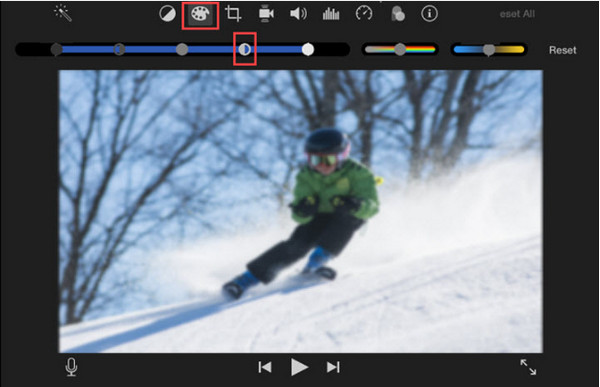
Step 2.From the upper part of the preview window, select the "Color Correction" option and drag the slider to increase the contrast. Then click the "OK" button to save.
Part 4: FAQs about Making Blurry Videos Clear
-
1. How to fix blurry videos online for free?
The recommended online tool for reducing blur from videos is Clideo. Visit the official website and click the Choose File button to open the local folder. Once the file is uploaded, adjust the video settings like brightness, contrast, hue, etc. Click the Export button to save the file.
-
2. How to avoid blurry videos when shooting a film?
To prevent making a blurry video, ensure that you use proper filters when shooting a video. A video stabilizer can also help focus the camera during many movements. Then, set the camera in a high-quality setting and clean the lens before filming.
-
3. Is it possible to blur the background when creating a video?
Yes. If you are using a camera, switch to aperture priority shooting mode. Then, choose the widest aperture from your lens; it can be f/2.8 or f/4. You can also trigger the blurred background if you get closer to the subject while filming.
Conclusion
An unfocused video can be disappointing, but these recommended tools can help you to make blurry videos clear before you post the clip to your social media account. It could be challenging to remove blur from a video and even upscale video to 4K. However, AnyRec Video Enhancer is designed to upscale any video type on Windows and Mac easily. Grab the best solution from the official website and see the outstanding result!
Secure Download
Secure Download
Related Articles:
About Our Author




