
Hot

AnyRec Video Converter
120× faster video conversion and editing. No waiting.
Secure Download
Make a Time Lapse Video on Mobile/Desktop (Plus Tips)

A time lapse video can turn your hours of normal footage into seconds of a surprisingly engaging result. From using just your phone to video editing software, you can make time lapse videos without having any skills! The right time-lapse technique can turn your moment into something more dynamic; thus, here are four practical methods and a few simple tips to help you learn how to create a time-lapse video. Turn your everyday moments into captivating timelapses.
Guide List
Record a Timelapse Video Directly on Phone (Built-in) Making a Timelapse from Scratch (Photos) Speed Up an Existing Video into a Timelapse Tips for Making Better Timelapse VideosRecord a Timelapse Video Directly on Phone (Built-in)
Fortunately, your phone can do most of the work for you to turn an existing video into a time-lapse video. Both iPhone and Android offer built-in time lapse features that can automatically capture frames at set intervals, so no need to adjust the speed manually right after.
After setting up your mobile device, just choose the right camera mode and start recording the scene the way you want it.
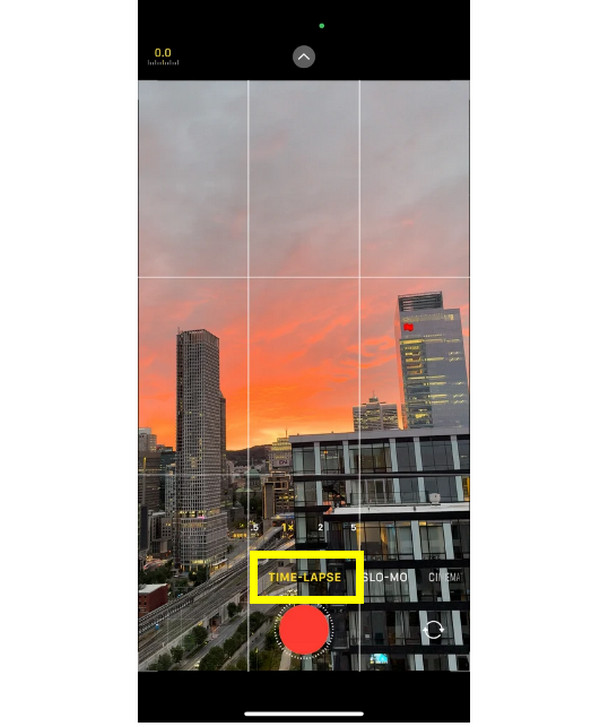
How to Record a Time Lapse Video on iPhone?
The iPhone Camera app has a time lapse mode, making the process quick and easy for you. It automatically handles the interval and creates a time lapse video.
Step 1.Once the Camera app opens, swipe through the modes below until you reach "Time lapse".
Step 2. Set up your shot and keep your iPhone steady.
Step 3. Tap the "Record" button to begin, and tap on it again when you're done.
How to Record a Time Lapse Video on Android?
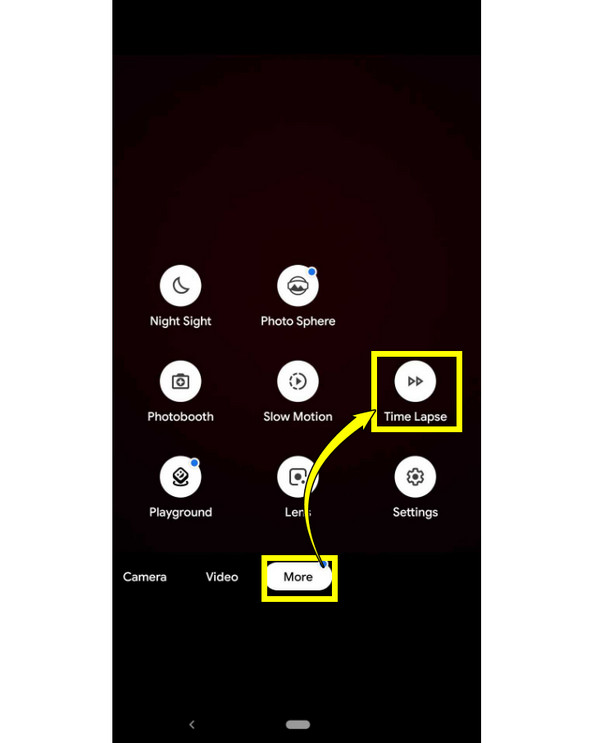
Most Android phones have a built-in time-lapse option, although the location and name can differ depending on your device and camera app. If you don't see the time lapse option, go to your app's More or Settings menu.
Step 1. On the Camera app, select "Video" mode. Look for Time Lapse, or other similar options.
Step 2. Position your phone and keep it steady, then tap the "Record" button to start.
Step 3. Later, stop the recording when you have captured enough.
Making a Timelapse from Scratch (Photos)
You don't always need a dedicated mode to make a time-lapse video. Your series of photos can be turned into a time lapse video as well! This method gives you more control by arranging each in sequence and playing them back quickly, especially when you want to add music, adjust the timing, or fine-tune the overall look.
Step 1.Make sure to capture all photos of the same scene every second or minute, from a consistent, steady camera position.
Step 2.Once you have put all images together in a folder, open your chosen video editing app and import them into your desired sequence. Or you can arrange them later in the timeline.
Step 3.Next, set the frame duration for each photo. A faster one will result in a more dynamic time lapse. Later, play the sequence and check whether it looks smooth.
Step 4.Adjust everything as needed until your video feels natural in time lapse effect.
Step 5.Optionally, add finishing touches like music, text, or color adjustments. Then, select a suitable resolution and format, and export your time lapse video and save it to your device.
Speed Up an Existing Video into a Timelapse
Already have a regular video that you wish you had recorded in a time lapse mode? If so, you can make a time lapse video from it by increasing its playback speed! Instead of recording everything again, use AnyRec Video Converter to adjust the speed without complicated steps. It is your versatile video editing and conversion software that has a Video Speed Controller for speeding up your existing video in just a few clicks. You can then preview the result to make sure the time lapse effect feels natural and smooth.
Video Speed Controller to speed up videos for a time lapse effect.
Multiple speed options to control how fast your footage moves.
Make additional adjustments to your footage before exporting.
Export your video to different formats for easier playback and sharing.
Secure Download
Secure Download
Step 1.Open AnyRec Video Converter on your computer and go to the "Toolbox" widget tab. Find and choose "Video Speed Controller" from the available tools.
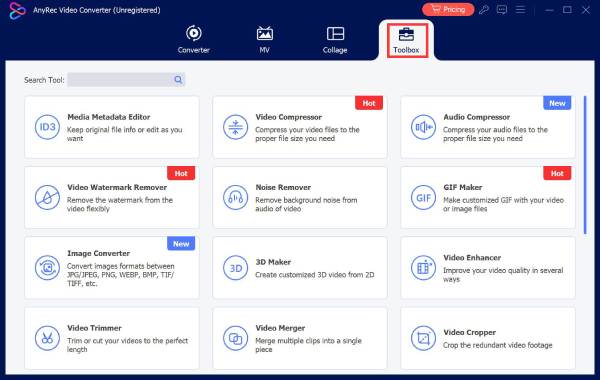
Step 2.Click the "Add" button to import the saved video you want to make a time lapse from. Then select a faster speed, such as 2x, 4x, or 8x, depending on how quickly you want it to play.
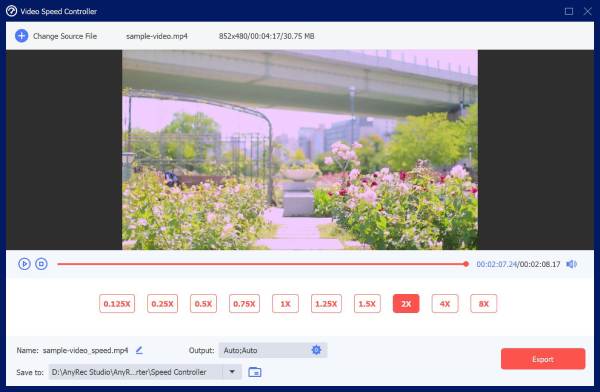
Step 3.Play the video and see how it looks. Adjust it if necessary. Choose your export settings and save location, then click the "Export" button to save the finished video.
Tips for Making Better Timelapse Videos
Making a time lapse video is super easy, but a few small adjustments can make it much more polished. Regardless of where you capture your video or what device you use, keeping the camera steady and the lighting consistent is a huge help for a better time lapse video.
- Use a Tripod. Keep your device firmly in place to prevent unwanted shaking and frame changes throughout the video.
- Lock the Exposure. Lock it in whenever possible so the video brightness does not change suddenly from one frame to the next.
- Lock the White Balance. Keeping this consistent will prevent noticeable color shifts as the lighting changes throughout.
- Stabilize Your Video. If your video still has extra movement, use a video stabilizer to help you smooth it out before saving the final result.
Conclusion
To create a time-lapse video, you don't need any special equipment or complicated techniques. You can record from your iPhone or Android phone, create one from your photos, or turn your video into a fast-paced time lapse. No matter which method you use, make sure to follow the tips so your final result looks much smoother. As for your existing video, ready to be transformed, get AnyRec Video Converter and enjoy its built-in toolkits! Turn your exciting videos into eye-catching timelapses in just three steps!
Secure Download
Secure Download
Further Reading
About Our Author




