
 Make shaky, dark, and blurry videos look brand new.
Practical VLC Upscaling Features You Should Try in 2026

Want to use VLC upscaling to improve your video playback experience? Well, VLC has features that can help you improve video quality. However, there are limitations you should consider before using it as a video upscaler, even though it is primarily designed for video playback. So, to help you with everything you should know about VLC's upscaling features, continue reading this post, which features a practical VLC video upscaling guide. Dive in below now.
Guide List
Can VLC Upscale Videos What VLC Actually Offers for Upscaling Do VLC Upscale with Video Output Module Settings Upscale Low-resolution Video with Scaling Algorithm (Video Output Filter) Upscale Video in VLC with Video Effects Improve Video Quality with NVIDIA RTX VSR (Video Super Resolution) in VLC What VLC Upscaling Cannot Do VLC Upscaling Not Working? Try This AlternativeCan VLC Upscale Videos
Yes, VLC can upscale videos during playback, but it does not permanently increase a video's resolution or create an enhanced version. Instead, it adjusts the video to those higher-resolution screens so it can be fit and improve its appearance using video filters or compatible hardware. In case you have an NVIDIA RTX graphics card, you can also use NVIDIA RTX Video Super Resolution for AI-powered upscaling.
However, if you want to turn a 720p or 1080p video into a new 1080p or 4K file with improved detail, you'll need a dedicated video upscaling tool rather than relying on VLC capabilities.
What VLC Actually Offers for Upscaling
Well, as mentioned earlier, VLC offers several features to improve video quality while playing it. These include video scaling, color adjustments, and hardware-based upscaling on supported systems.
Yes, these features can improve how a video looks on a larger screen, but they do not add detail to the original video or create a new version you can export. In that case, you'll need an alternative to the VLC upscaler.
Do VLC Upscale with Video Output Module Settings
Now that you know VLC can upscale videos and what it offers, you can move on to the upscaling process. You can start by adjusting the Video Output Module settings to control how VLC displays and scales your video using your device's graphics hardware.
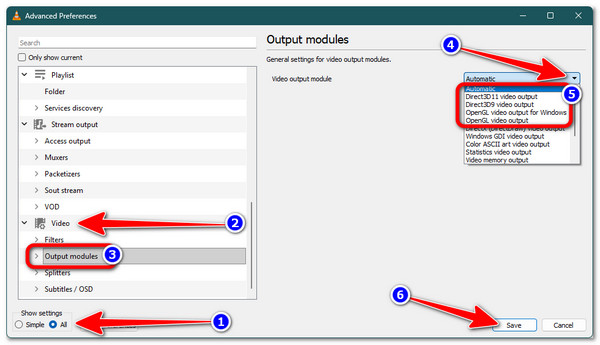
Step 1.Open VLC on your computer, click the "Tools" tab, and select "Preferences". Then, under the "Show settings" section, switch from "Simple" to "All".
Step 2.Next, scroll down the left menu, head to the "Video" section, and access the "Output modules" option. Then try switching between the Automatic, Direct3D11, and OpenGL.
Step 3.After that, click the "Save" button. Then close VLC and reopen it to see if the video playback improves. And that's the entire process to improve video quality with VLC Media Player.
Upscale Low-resolution Video with Scaling Algorithm (Video Output Filter)
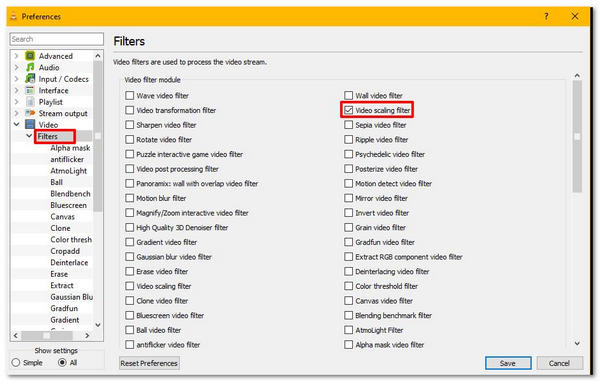
Another VLC Media Player upscaling solution is to use its Video Scaling Filter to improve the playback of low-resolution video. This filter lets you choose a scaling mode that controls how VLC resizes the video during playback, which can help make the image look smoother and clearer on a larger or higher-resolution screen.
Step 1.On VLC's interface, click the "Tools" tab and select the "Preferences" option. After that, select "All" under the "Show settings" section.
Step 2.Next, expand "Video" and go to "Filters". Look for the "Video scaling filter" option and enable it.
Step 3.Finally, open the "Video scaling filter" settings and choose your preferred "Scaling mode", such as "Bicubic" or "Lanczos". Click "Save" and restart VLC to apply the changes.
Upscale Video in VLC with Video Effects
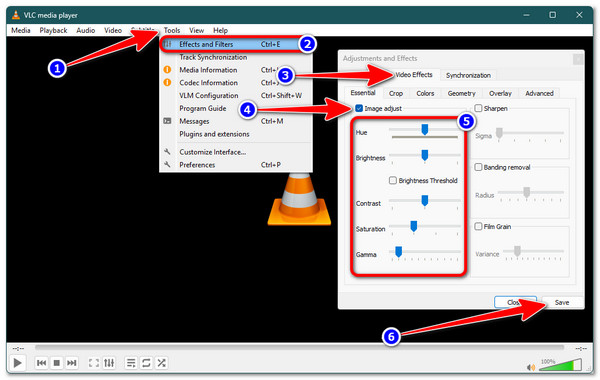
If those two don't work out, another VLC upscaling method is to adjust some options under the Video Effects settings. These options can help make a low-resolution video look sharper and clearer during playback.
Step 1.Open VLC and click "Tools". Choose "Effects and Filters" from the menu.
Step 2.Go to "Video Effects" and open the "Essential" section. Turn on "Image adjust" and use the available settings to improve the video.
Step 3.After that, adjust the available settings to make the video look clearer or sharper. Once done, click "Save" when you're satisfied with the changes.
Improve Video Quality with NVIDIA RTX VSR (Video Super Resolution) in VLC
The last VLC upscaling method you can use to improve your video's quality is NVIDIA RTX Video Super Resolution (VSR). This AI-powered feature can enhance lower-resolution videos during playback. Through it, videos can look sharper and clearer on supported systems.
Step 1.First, update your NVIDIA graphics driver to the latest version via GeForce Experience or by downloading it from the official NVIDIA website.
Step 2.After that, launch "NVIDIA Control Panel" on your computer and go to "Adjust Video Image Settings". Next, enable "Super resolution" and choose your preferred quality level.
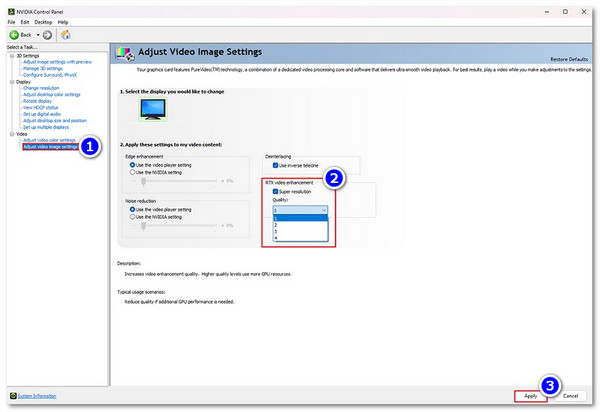
Step 3.Once done, open VLC and go to the "Tools" tab, select the "Preferences" option, and click "Video". Then, under "Output", select the "Direct3D 11" option, then click "Save".
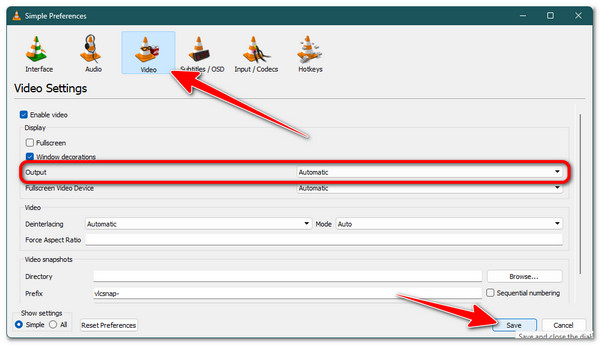
Step 4.Finally, play a 1080p or lower-resolution video in VLC. If your system meets the requirements, RTX VSR will automatically enhance the video during playback.
What VLC Upscaling Cannot Do
These are the main VLC settings you can use to make a video look better. However, VLC does not really upscale the video. It only changes how the video looks during playback. It cannot recover missing details or create a new high-resolution version of the file.
VLC Upscaling Not Working? Try This Alternative
In case none of those VLC upscaler methods help you improve your video, then this post recommends that you use the professional AnyRec Video Enhancer. This tool is a dedicated video enhancer, a desktop-based software that offers various features for enhancing videos. Some of its features include an AI-powered video upscaler that automatically upscales a video's resolution, optimizes brightness and contrast, removes noise, and reduces shakiness, all naturally and appropriately. With that, you no longer need to tweak multiple settings just to upscale video. Also, you can produce an improved version of your video and export it with just a few clicks.
Infused with video effects where you can adjust the video's contrast, hue, saturation, etc.
3D settings, allowing you to add 3D effects to a video and watch it in 3D glasses.
Supports a video trimmer to trim unwanted parts of your video.
Equipped with a preview that lets you see the changes on your video after enhancing it.
Secure Download
Secure Download
Conclusion
So, does VLC have what it takes to upscale a video and improve your playback experience? Yes, and that is through its VLC upscaling capabilities. As you saw earlier, this post featured various methods for upscaling a video with VLC. They are reliable enough to give you a great viewing experience. However, as mentioned earlier, they cannot restore lost details in a video or create a higher-resolution version that you can export. If you don't like that, this post recommends using dedicated upscaling software, such as AnyRec Video Enhancer. Try it today!
Secure Download
Secure Download
Further Reading
About Our Author




