
Hot

AnyRec Screen Recorder
Capture every moment. Record like a pro.
Secure Download
Screen Recording on LG Phones: Useful Guide for Most Models

In reality, LG smartphones differ from some mainstream popular devices in their feature design, such as their built-in screen recording function. Therefore, understanding it before actual use is essential to achieve the best recording results. This article will cover everything for you to learn screen recording on an LG phone, including user-friendly built-in tools and more comprehensive third-party software. Whether you need basic recording or have higher demands for post-editing, keep reading to find the solution that best suits your needs.
Guide List
Enable Built-in Recording Tool to Screen Record on LG Phone The Best Alternative to Record on an LG Phone Conveniently AZ Screen Recorder for LG Phone Screen Recording FAQs about How to Screen Record on LG PhonesEnable Built-in Recording Tool to Screen Record on LG Phone
Not all LG phones come with screen recording capabilities; this feature is primarily available on newer LG models running Android 10 or later. A reliable screen recording tool is built into the Quick Settings panel. This is the quickest way to launch the feature without installing any additional apps. If you can't find the corresponding option, likely that your LG phone doesn't have this functionality built in.
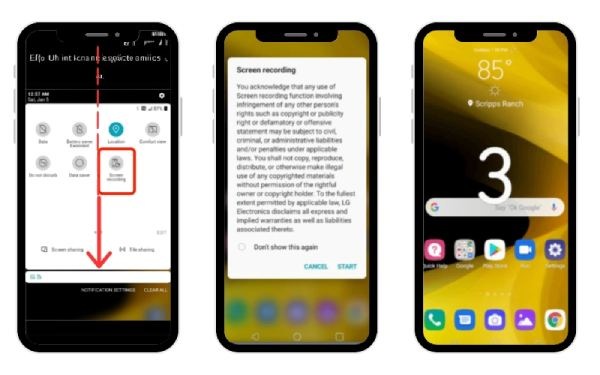
Step 1. Swipe down from the top of the screen to open the "Quick Settings" panel.
Step 2. Tap the pencil button to customize the panel, locate the "Screen Recording" option, and drag it into the panel.
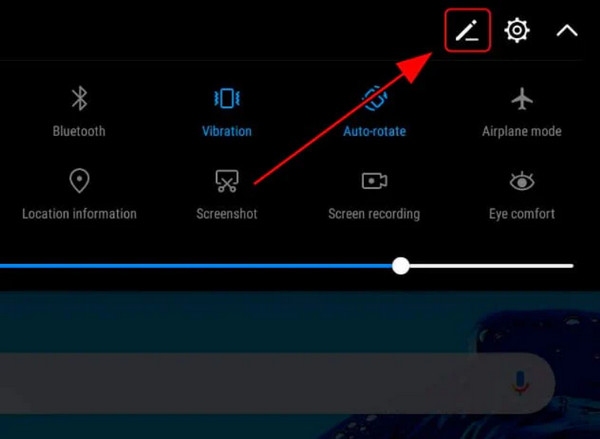
You may be prompted to grant permissions on first use. A pop-up may ask whether to record audio.
Step 3. Tap Start to begin a 3-second countdown. To stop recording, tap the floating "Stop" button on the screen or the red dot in the notification bar.
The Best Alternative to Record on an LG Phone Conveniently
If you're seeking professional-grade recording quality and own an older LG model lacking built-in screen recording capabilities, AnyRec Screen Recorder is the optimal choice for desktop recording. It fully supports recording on various LG phone models in high-definition. Additionally, it allows you to adjust resolution, mirror the screen, rotate the display, and more.

Effortlessly record your screen on LG Stylo 4/5 and all models.
Adjust multiple parameters like resolution and bitrate to ensure high-quality recording.
Record all screen activity without time limits while preserving the original output.
Instantly trim recorded videos and add notes after screen capture.
Secure Download
Secure Download
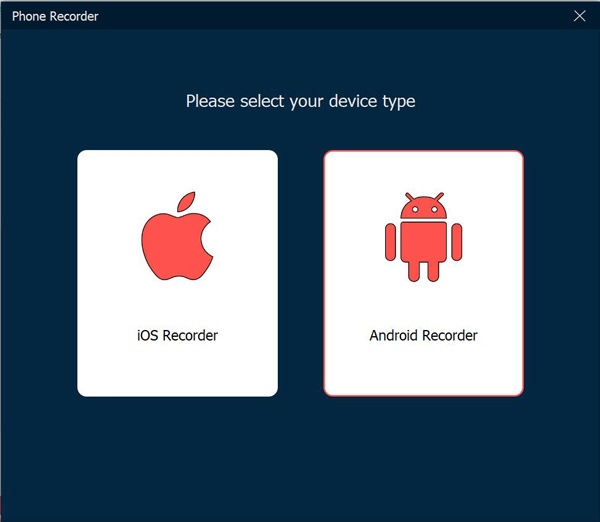
Step 1. Launch AnyRec Screen Recorder and click the "Mobile Recorder" button on the main interface. You will see a prompt to connect both devices. Click the "Android" button.
Step 2. Ensure your LG phone and computer are connected to the same WLAN network. On your phone, tap the "Screen Recording" button and locate AnyRec Screen Recorder.
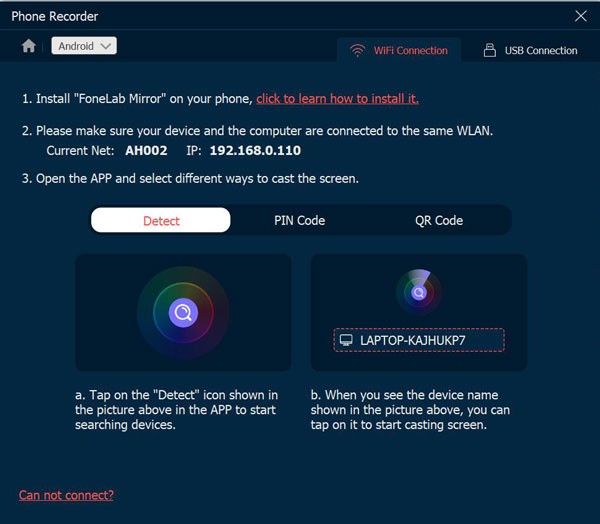
Click "Screen Recording" again. On your computer, you can adjust the screen recording parameters, audio settings, and other configurations now.
Step 3. Click the "Record" button to start screen recording on LG phones. You can also take screenshots on LG phones with a simple click.
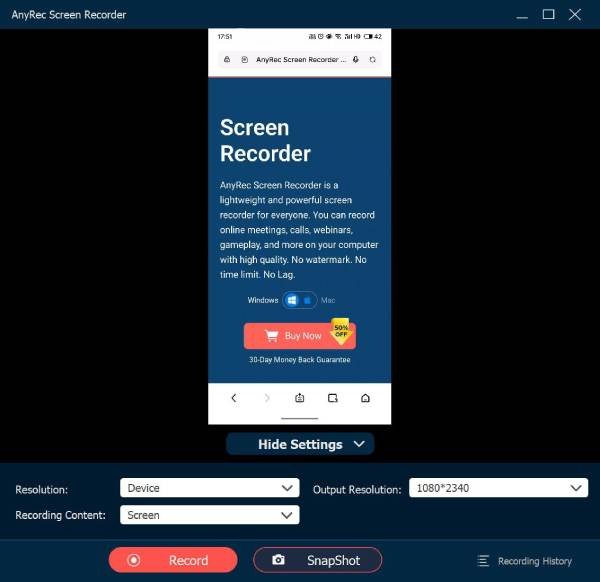
Step 4. During recording, you can tap the "Snapshot" button to capture a screenshot. After the recording is complete, click the "Stop" button to end the recording.
AZ Screen Recorder for LG Phone Screen Recording
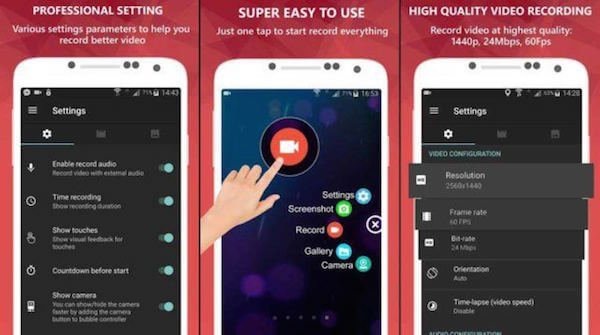
AZ Screen Recorder offers excellent overall compatibility for screen recording on LG phones. It supports adjustable bitrate and frame rate, as well as recording both internal audio and microphone sound. A floating window provides one-tap controls to start, pause, and stop recording. The app demonstrates high adaptability to LG's customized system, with relatively low latency and frame drops.
Step 1. Enable this app and grant the necessary permissions, such as floating window display, storage access, and microphone access, as prompted by the system.
Step 2. Go to "Settings" and adjust settings like resolution, frame rate, bitrate, and audio source according to your needs.
Step 3. Return to your phone's home screen. The AZ Screen Recorder floating control button will appear on the side of your screen. Tap it and select "Record".
Step 4. After the countdown ends, screen recording will start automatically. You can pause or resume recording at any time via the floating window.
FAQs about How to Screen Record on LG Phones
-
Do all LG smartphones have a recording feature?
Yes, the vast majority of LG smartphones come with a built-in recording feature, typically provided as a "Recorder" or "Voice Recorder" app. While you may have heard that only smartphones running Android 11 have built-in screen recording capabilities, this is not the case for LG smartphones. They also feature built-in screen recording functionality on Android 10.
-
Will recording a chat on an LG phone notify the other person?
Generally, the other party will not know that you are screen recording your chat using an LG phone, including when recording Tango video calls or other videos. Screen recording on LG phones is a native system function or third-party app operation and does not send any recording prompts or notifications to your chat partner.
-
How to avoid interruptions when recording on an LG phone?
To avoid interruptions while screen recording on LG phones, it is recommended to enable "Do Not Disturb" or "Focus Mode" before starting the recording to block incoming calls and notification pop-ups. Additionally, ensuring sufficient battery power and disabling auto-lock will help maintain a continuous and stable recording process.
Conclusion
Now that you've learned how to record your screen on an LG phone, you can fully utilize it. However, this feature has limited functionality and isn't sufficient for creating professional-grade videos. Therefore, AnyRec Screen Recorder is the best choice for capturing high-quality videos. Not only does it record in HD, but it also lets you choose recording modes based on different scenarios and edit your recorded videos. Explore its powerful features now.
Secure Download
Secure Download
Related Articles:
About Our Author




