
Hot

AnyRec Video Converter
120× faster video conversion and editing. No waiting.
Secure Download
3 Workable Ways on How to Make a Split Screen [Easy Guide]

Are you looking for easy steps to make a split screen video? If you do, then you are probably wishing to create a reaction, comparison, interview, before-and-after edits, or gaming content for TikTok, YouTube Shorts, and Instagram Reels upload. Well, creating split screen videos is not a complicated task, especially with the right tools, which you can see three of them here! Explore each of them to put two videos side by side.
Guide List
What to Prepare Before Making a Split Screen Video How to Do a Split Screen Video on Windows and Mac How to Make a Split Screen Video on CapCut Mobile (iPhone & Android) How to Put Two Videos Side by Side Online Creative Ideas for Split Screen Videos FAQsWhat to Prepare Before Making a Split Screen Video
Before you jump into the guide to create the split screen effect, there are some things you must prepare first. Preparing them is essential to achieve better results and match your preferences. So, what are they? Explore the list below.
1. Gather all your video clips
Make sure you already have the videos you want to use. Put them in one folder so you don't waste time searching for files while editing.
2. Make sure the videos match
Try to use clips with the same aspect ratio and similar resolution. When videos don't match, you'll often end up with black bars or uneven sizing on the screen.
3. Trim and sync the clips ahead of time
Cut out the parts you don't need and line up the clips before combining them. This will help you make the clips on your split screen video synced and produce a smooth playback.
4. Decide on the layout early
Think about how you want the videos to appear, such as side by side, top and bottom, or in a grid. Planning this keeps the screen from looking crowded or confusing.
5. Choose the editing tool you're comfortable with
Pick a video editor that fits your skill level. Whether it's a simple mobile app or a more advanced desktop program, using familiar software makes the process much smoother.
How to Do a Split Screen Video on Windows and Mac
If you want to create a split screen video on Windows or Mac, you can use AnyRec Video Converter. This split screen video editor supports a collage maker that enables you to create split screen videos easily and effectively. Now, what does this feature offer in the table? Well, this one allows you to put two, three, four, or more videos into one frame! It offers you 44+ different split screen templates and various editing filters. Aside from that, each split-screen layout is adjustable so that you can achieve your preferred look for your video. Want to discover more? See the list below!

Allows you to drag the split line or resize your video freely within the tool.
Offers you options to add split-screen effects and background music.
Lets you adjust the thickness of the borders, change their colors, and add a background.
Support output tweaking options to achieve high-quality split-screen video.
Secure Download
Secure Download
Step 1. Open AnyRec Video Converter. Click the "Collage" tab, and choose your preferred split-screen template in the "Template" section.
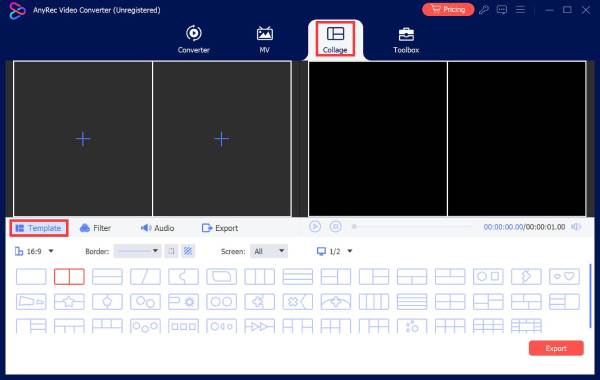
Step 2. Next, click the "Add" button to add video clips. After that, you can drag the border lines to adjust the screen size and position.
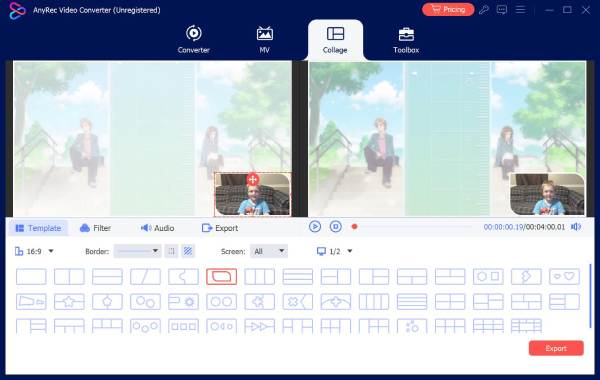
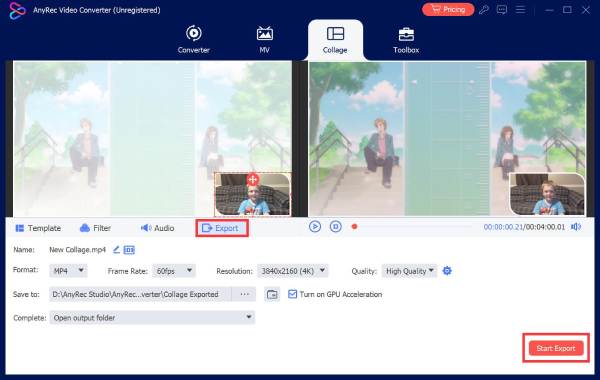
Step 3. Then, you can use the following options to add a filter and background music in the audio section to edit your split-screen video. Once done, click "Export", set the parameters, and click "Start Export".
Secure Download
Secure Download
How to Make a Split Screen Video on CapCut Mobile (iPhone & Android)
Otherwise, if you prefer to make a side-by-side video with just using your mobile phone, CapCut would be an excellent app for you. This iOS and Android-compatible split-screen video editor app is one of those popular applications you can get to edit various types of video content, including split screen. Compared to the first one, this app doesn't support the option to directly create a split-screen video. In that case, you need to go through a few more steps just to achieve that. Now, how to put videos together (split-screen) using CapCut on a mobile phone? Here are the steps you need to follow:
Step 1. Launch the CapCut app on your phone. Then, tap the "New video" button, select the videos you wish to put together, and tap "Add".
Step 2. Next, drag the timeline, tap one from the video, and select "Overlay" from the options below. Once the video is below the other, drag it left to align them, then trim both clips so they share the same duration.
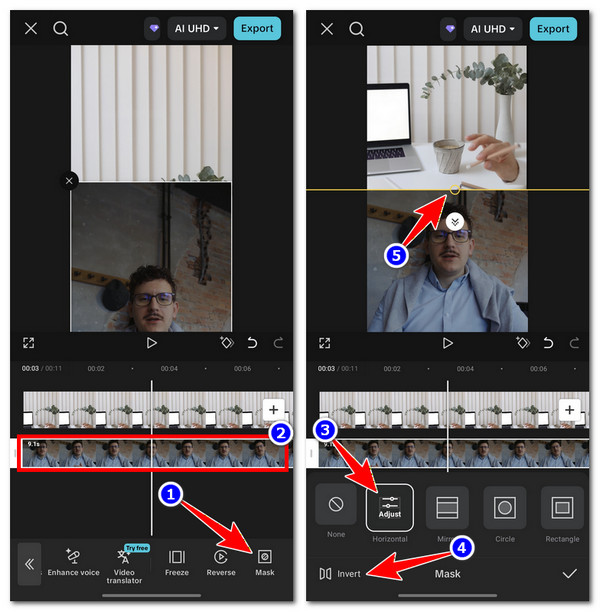
Step 3. Next, select the video below in the timeline and adjust its position in the preview as you like. The idea is to create a split-screen video.
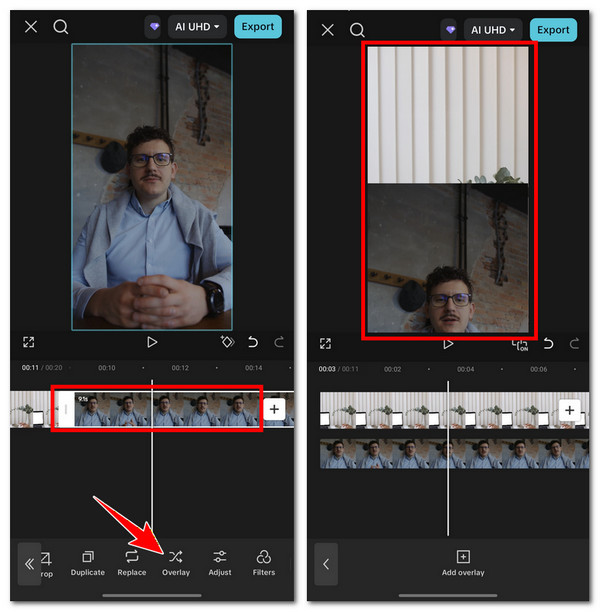
Step 4. After that, tap the same clip, scroll to the options below, and select "Mask". Then choose "Horizontal", tap "Invert", and hold the yellow circle to adjust it until the video looks like a split-screen. Once done, you can export it right away.
How to Put Two Videos Side by Side Online
If you don't want to download an extra split-screen video editor, you can use web-based tools instead. One of the best options is Clideo, an online video editor that lets you manually position multiple video elements. With it, you can create picture-in-picture layouts, split-screen videos, or video collages directly in the editor. How to make a split screen video using this one? Here are the steps you need to follow:
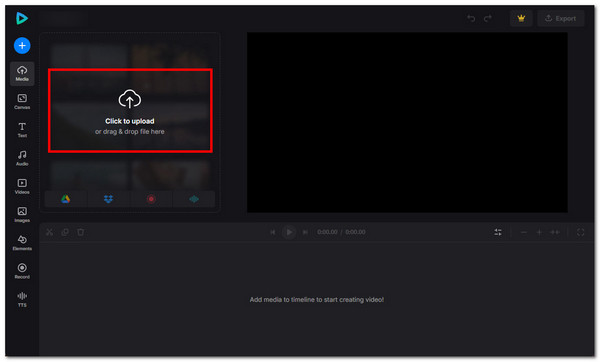
Step 1. Visit Clideo's online video editor on your browser. Then, import the two videos that you want to put together. Once imported, the videos will automatically be added to the timeline.
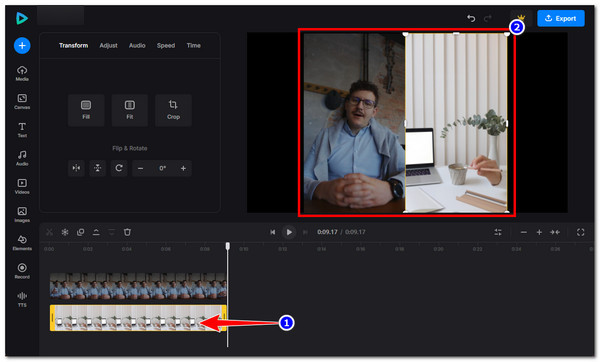
Step 2. Then, select a video from the timeline and drag it below the other clip. Make sure both clips have the same duration. After that, adjust them in the preview so they appear side by side.
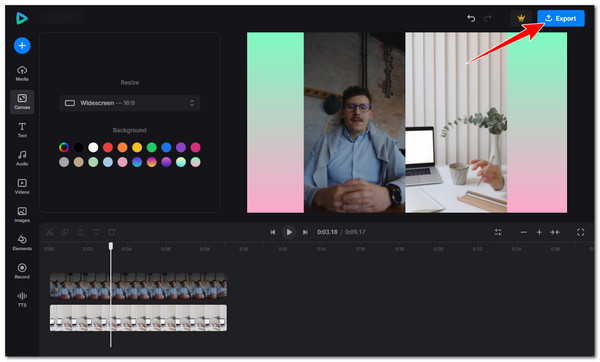
Step 3. Once you are satisfied with the output, click "Export", choose your preferred quality, and click "Continue" to export the video. That's it! Those are the simple steps on how to put two videos side by side using Clideo.
Creative Ideas for Split Screen Videos
There you have it! Those are the three best solutions and their steps on how to add two videos together. Now that you know how to create a split-screen video, here are some of the creative ideas that will surely sound interesting for you to make.
- Reaction videos - Record your reaction while another video plays beside it.
- Before and after edits - Show the original footage following the final or edited result.
- Comparison videos - Place two videos side by side to highlight their differences.
- Storytelling format - Display different scenes at the same time to support the story.
- Vertical split screen videos - Stack videos vertically to better fit mobile viewing.
- Three grid layout - Show three clips on one screen for multiple angles or moments.
- Four grid layout - Divide the screen into four parts to show several clips at once.
- Duet-style TikTok videos - Create a response video by placing your clip next to another creator's content.
FAQs
-
1. How many videos can I add to one split screen video?
This depends on the tool you use. Some editors support only two videos, while others, like AnyRec Video Converter, allow you to add three, four, or even more videos using preset templates.
-
2. Do the videos need to have the same length for split screen?
It is recommended to trim and sync the clips so they have the same duration. This helps avoid empty spaces and ensures smooth playback throughout the split screen video.
-
3. Will making a split screen video reduce video quality?
It can if the export settings are too low. So, you need to select the correct resolution and quality options during export to help you maintain good video quality.
Conclusion
Having those three best tool solutions with their steps, it will now be easier and quicker for you to to put two videos together side by side. Through them, you can easily create reaction, comparison, interview, before-and-after edits, or gaming content for TikTok, YouTube Shorts, and Instagram Reels uploads. If you are looking for the most straightforward way to create split-screen videos, AnyRec Video Converter Collage Maker is a solid option. With this tool's features, you can definitely achieve your desired split-screen content. Try it today.
Secure Download
Secure Download
Related Articles:
About Our Author




