
 Make shaky, dark, and blurry videos look brand new.
How to Change Video Quality on FCP? 3 Quick Methods for 2026

Knowing how to change video quality on FCP or Final Cut Pro is one of the great things you can do. Learning how to do it will help you adjust the video to make it clearer, improve its resolution, and export it in high quality. Now, here's the thing: of course, the learning process will be easier if you have a comprehensive, easy-to-follow guide, and thankfully, you found this post! Here you can explore various methods to change resolution in Final Cut Pro. So, dive in now!
Guide List
The Three Things People Mean by "Video Quality" in FCP How to Get Better Quality Video with FCP Playback Quality Settings (View Menu) How to Change Resolution in FCP Export Quality Settings (Share Menu) Improve Source Footage Quality - When FCP Can't Do It Alone Quick Reference - FCP Settings for Common SituationsThe Three Things People Mean by "Video Quality" in FCP
Before you start making those fingertips of yours busy figuring out how to adjust the video quality in FCP, there are a few things you might need to know. When people say they want to change the video quality in Final Cut Pro, they may mean different things. Most of the time, video quality refers to how your video looks during editing, after export, or overall.
- 1. Playback Quality This one refers to how your video looks in the Final Cut Pro preview during editing. If the video's preview looks blurry or playback is slow, you need to adjust the viewer's quality settings.
- 2. Export Quality On the other hand, export quality deals with how your video looks after you save or share it. Tweaking the video's resolution, codec, and export settings will affect its clarity, file size, and, of course, quality.
- 3. Source Footage Quality
Lastly, this one refers to the quality of the original video you import into Final Cut Pro. If it is already low-quality, changing FCP's playback or export settings will not restore missing details. In that case, you need a video enhancement tool to improve it.
How to Get Better Quality Video with FCP Playback Quality Settings (View Menu)
Now, if you are looking for a way to change the video quality in FCP during playback, editing, or previewing, the easiest way is to set it to a higher quality from the View menu. With this, you can avoid blurry or low-detail videos when editing or previewing them in Final Cut Pro. Here's how to do this:
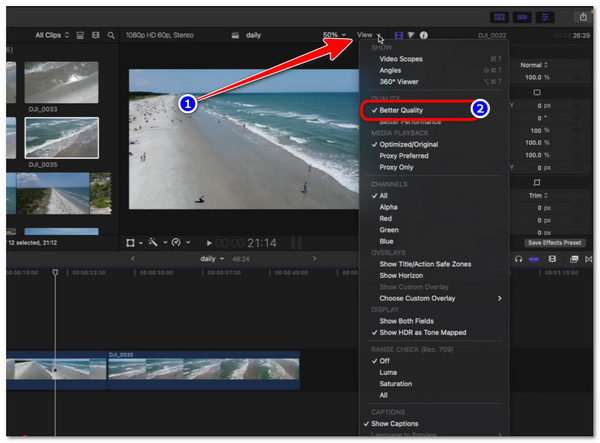
Step 1.On Final Cut Pro, click the "View" tab in the upper right section of the interface. This is supposed to mean that you have already opened the video you want to edit.
Step 2.After that, head to the "QUALITY" section and select the "Better Quality" section. This will help you play the video at a higher quality during playback.
Step 3.Next, check whether the video is in better quality during playback. And that's the steps to enhance video quality on FCP's View menu. You can add text in Final Cut Pro, as well as applying other effects,
How to Change Resolution in FCP Export Quality Settings (Share Menu)
Otherwise, if you aim to make your exported video look sharper or set it to a specific resolution, you can adjust some settings in FCP's export settings, specifically in its Share menu. Here's how you can do this:
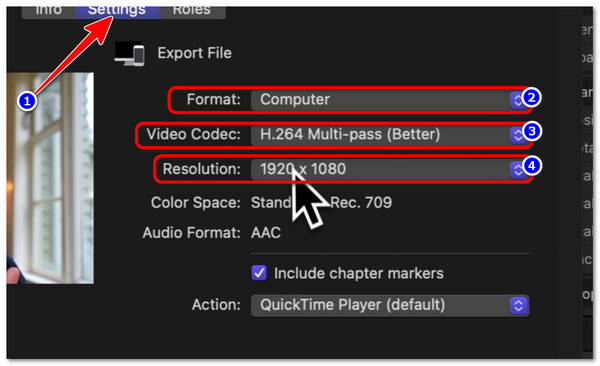
Step 1.Open the video project you want to export in Final Cut Pro. Click "Share" in the upper-right corner and select "Export File".
Step 2.In the export window, open the "Settings" tab, select "Computer" under the "Format" menu, and choose "H.264 Multi-pass (Better)" under the "Video Codec" menu. Then choose your preferred option under the "Resolution", such as 1080p or 4K.
Step 3.Then choose your preferred option under the "Resolution", such as 1080p or 4K. Finally, click "Next", select a location for the exported video, then click "Save" to start the export. And those are the steps to change video quality on FCP via Export settings.
Improve Source Footage Quality - When FCP Can't Do It Alone
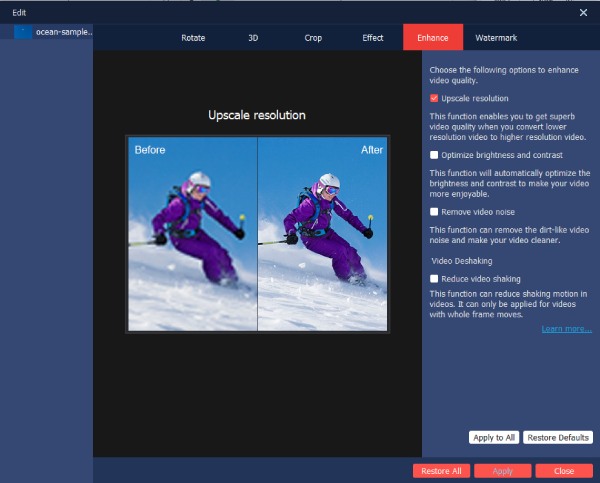
With those FCP methods, you can easily improve your video's quality. Now, if FCP can't help you improve your video's quality during editing or exporting, why not improve it directly with AnyRec Video Enhancer? This desktop-based tool allows you to improve your video's quality with just a few clicks, as it uses AI to adjust your video's settings automatically. These AIs can automatically upscale your video's resolution, optimize its brightness and contrast, remove noise, and reduce shaking. With that, you can easily, quickly, and effectively enhance your video! You can do this instead of the previous steps to change video quality to 4K on FCP.

Supports options that let you manually adjust the video's contrast, hue, brightness, etc.
Infused with 3D settings that you can enable to add 3D effects to your video.
Equipped with an advanced trimmer to cut off those unwanted parts.
Allows you to preview the enhanced video in real time before exporting it.
Secure Download
Secure Download
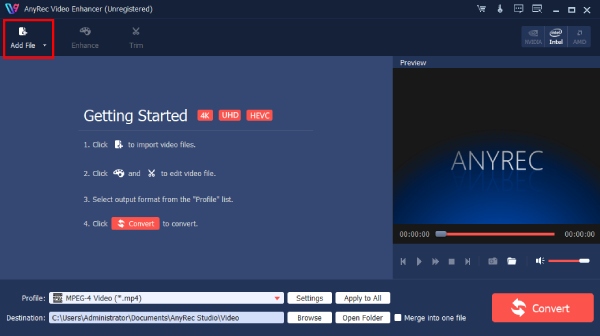
Step 1.Install AnyRec Video Enhancer on your computer, then launch it. Next, click "Add File" to import the video you wish to enhance.
Step 2.After that, click the "Enhance" tab to access all the AI-powered video enhancer features. Then, tick all the checkboxes of all options you wish to use to enhance your video. Once done, click "Apply".
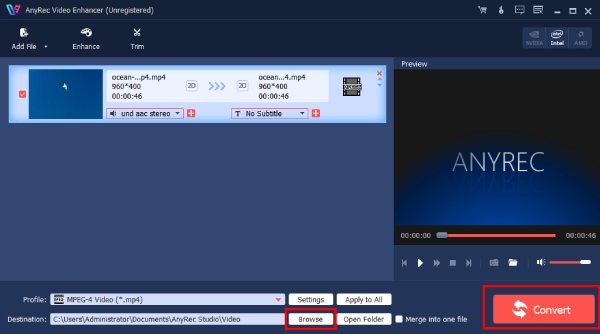
Step 3.Once finished, click the "Convert" button to start enhancing your video's quality. And those are the simple steps for changing video quality using this professional tool.
Quick Reference - FCP Settings for Common Situations
There you have it! Those are the three effective ways to improve video quality on FCP. Now, there are various settings you can use to improve your video for various purposes. Use the quick reference below to find the setting you need.
| Goal | Setting to change | Where |
| Preview looks blurry during editing | View → Better Quality | Viewer top-right |
| Playing on a slower Mac without dropping frames | View → Better Performance | Viewer top-right |
| Export looks lower quality than the preview | Switch to Optimized/Original before exporting | View menu → Media Playback |
| The export file is too large | Change the codec to H.265 or lower resolution | Share → Settings |
| Best quality master file | Export as ProRes 422 or ProRes 4444 | Share → Export File → Codec |
| Source footage is genuinely low quality | Enhance before importing to FCP | AnyRec Video Enhancer |
Conclusion
Improving your video's quality during playback or when exporting is easy; follow the simple methods shown to you to increase video quality in FCP. With them, you can effectively improve your video's quality, making it both satisfying to watch and to work with. However, if FCP didn't meet your satisfaction with your video's quality, you need to use AnyRec Video Enhancer to directly enhance the source footage's quality. Through its AI, you can easily, quickly, and effectively improve your video's quality. Try it today!
Secure Download
Secure Download
Further Reading
About Our Author




