
Convert MP4 to WAV: 5 Proven Tools for Every Platform

Ever need to extract high-quality audio from an MP4 file? Then, converting MP4 to WAV is one of the best ways to do it, as the WAV format is known for its uncompressed, studio-grade quality. How can you ensure a lossless result? This article will share with you the five easy and effective ways to turn MP4 to WAV on different platforms, from desktop to online. Your chosen method will help you extract clear audio from your videos in just a few simple steps.
Guide List
Convert MP4 to WAV without Quality Loss on PC/Mac Convert MP4 to WAV on Mac with iTunes How to Convert MP4 to WAV with Audacity CloudConvert - Online MP4 to WAV Converter with Customizable Settings Online-Convert - Fast MP4 to WAV Converter with Audio EditingConvert MP4 to WAV without Quality Loss on PC/Mac
When changing MP4 to WAV, keeping the original audio quality is the top priority, especially if you're a producer, podcaster, or working with professional-grade sound. For this, one of the best tools you can use is AnyRec Video Converter. It is a professional software for Windows and Mac that has powerful conversion technology that makes sure your WAV files have the same fidelity as the original MP4 video source. Additionally, the recording tool supports a wide range of formats, making it ideal for both simple and advanced users. Whether you want to extract music or sound effects, the tool delivers fast, lossless results with no hassle.

Converts MP4 to WAV and over 1000 formats without loss of audio quality.
Allows batch conversion so you can process several MP4 files at once.
Offers ultra-fast conversion speed with GPU acceleration for smoother processing.
Can customize audio settings, e.g., bitrate, sample rate, and more.
Secure Download
Secure Download
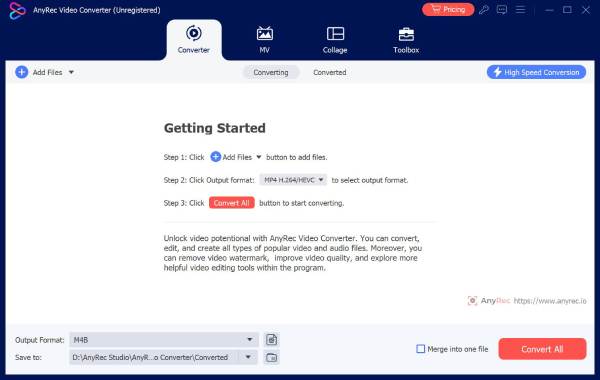
Step 1. Launch AnyRec Video Converter on your computer. Click the "Add Files" button to import your MP4 videos.
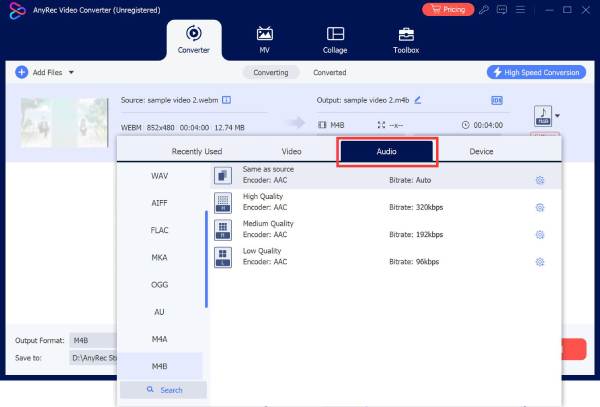
Step 2. Next, access the "Format" dropdown menu located beside your file. Go to the "Audio" section. Choose "WAV" as the output audio format.
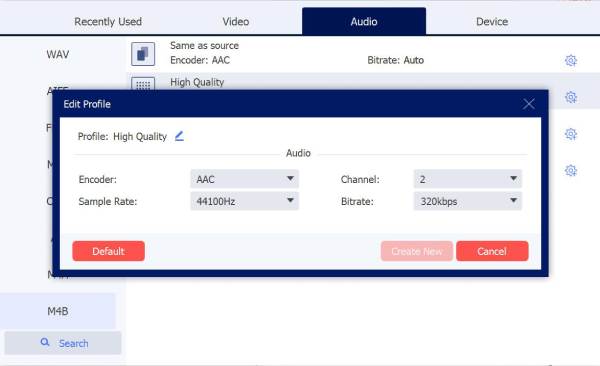
Step 3. If you wish to fine-tune the audio quality, click the "Custom Profile" button to adjust settings like bitrate, sample rate, and channel based on your preference.
Step 4. Return to the main interface. Select your preferred output location by clicking the "Browse" button. Once everything is set, click the "Convert All" button to initiate the MP4 to WAV conversion process.

Secure Download
Secure Download
Convert MP4 to WAV on Mac with iTunes
If you are a Mac user, one of the simplest ways you can transform MP4 to WAV is by using iTunes. This built-in Apple software lets you manage your music, but it also has a conversion feature that converts several audio formats. You extract audio from MP4 video as WAV for free on Mac. Its approach is quick, efficient, and ensures that the output maintains excellent sound quality.
Step 1. On your Mac, launch "iTunes". Navigate to the "menu bar" and click "iTunes", then go to "Preferences". From the "General" tab, click "Import Settings".
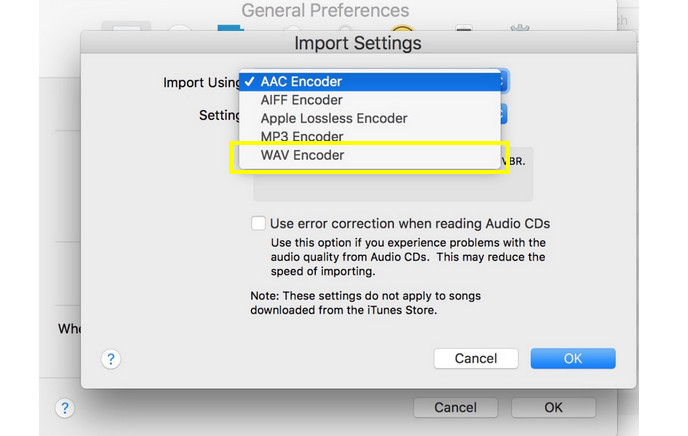
Step 2. Next, using the "Import Using" dropdown menu, choose "WAV Encoder", then click the "OK" button to save MP4 video as WAV audio.
Step 3. After that, drag your MP4 file into the iTunes library window, or you can select "File" then "Add to Library". Highlight the MP4 video and go to "File", choose "Convert", and click "Create WAV Version".
- Pros
- Built-in Apple software.
- Offers a secure process for Mac users.
- Maintain good audio quality.
- Cons
- Limited format support.
- Its interface may feel confusing for starters.
How to Convert MP4 to WAV with Audacity
Audacity is a known free and open-source audio editing software that can also be your MP4 to WAV converter. Unlike the previous method, here you can enjoy full control over your audio output, letting you modify bitrate, volume, and filters before saving. With Audacity, you can extract from an MP4 and export it as a WAV file in just a few clicks.
Step 1. Upload your MP4 video to Audacity on your computer.
Step 2. Once the audio track is loaded, use the editing tools to trim, apply effects, or adjust volume. If ready, go to "File", then "Export" and select "Export as WAV".
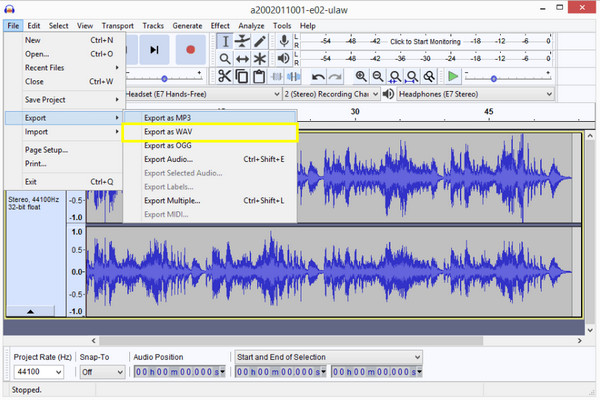
Step 3. Select your desired file name and save destination. Later, click the "Save" button to start the MP4 to WAV audio conversion.
- Pros
- It is totally free to convert video to WAV audio on desktop.
- It has extensive audio editing tools.
- Suitable for professional use.
- Cons
- Its interface can be intimidating for beginners.
- The process may take longer.
- Needs extra plugins for MP4 import.
CloudConvert - Online MP4 to WAV Converter with Customizable Settings
Next is a trusted online conversion tool named CloudConvert. This MP4 to WAV online converter supports 200 file formats and has the ability to let users customize audio settings. It is also famous for preserving the original audio quality, which is especially useful for those working on music, podcasts, or voice recordings.
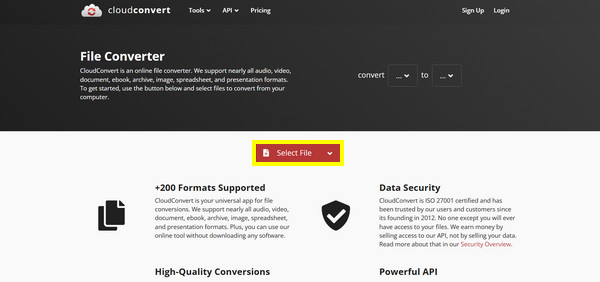
Step 1. Open CloudConvert on your web browser. Click the "Select File" button to upload your MP4 video from local or cloud storage.
Step 2. Set "WAV" as your output audio format from the dropdown menu.
Step 3. Optionally, click the "Settings" button to access advanced audio settings. Click the "Convert" button, then save your converted WAV audio after the conversion.
- Pros
- Simple drag and drop interface.
- Let you customize audio settings.
- Cons
- It may take longer to process large videos.
- File size limits on free plans
Online-Convert - Fast MP4 to WAV Converter with Audio Editing
Another excellent online tool for exporting MP4 to WAV, Online-Convert works ideally for those who want more than just a basic conversion, as this platform lets you modify the sample rate, length, and even normalize sound levels. Its interface is simple and works seamlessly on both desktop and mobile, making it convenient for conversions on the go!
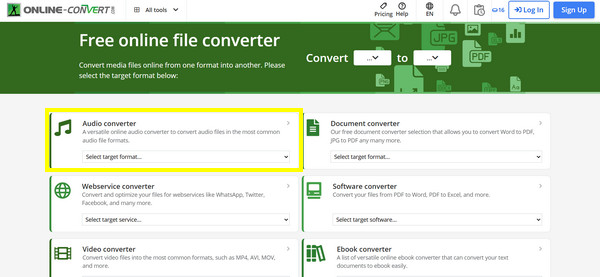
Step 1. Upon visiting the Online-Convert official website, select the "Convert to WAV" option from the "Audio Converter" section. Then, upload your MP4 video from your device.
Step 2. Adjust bitrate, frequency, or the start/end times of your audio file.
Step 3. Click the "Start Conversion" button and then click the "Download" button to save your WAV audio.
- Pros
- Offers advanced audio settings.
- Convert audios from Google Drive, Dropbox and your computer hard drive.
- Works across computers and mobile devices.
- Cons
- Its quality depends on file size and compression.
- Slower performance for large videos.
Conclusion
Converting MP4 to WAV is a practical way if you wish for uncompressed sound for recording, editing, or playback. From built-in iTunes, free open-source Audacity, to quick online converters, there's a method that fits your conversion workflow. Among them, the tool that stands out the most is the AnyRec Video Converter. Not only can it give you lossless MP4 to WAV audio conversion, but it also gives you access to powerful editing features, full customization, and batch processing. With these features and high-speed performance, transforming your videos into any format you like is easier than ever.
Secure Download
Secure Download



