
Hot

AnyRec Video Converter
120× faster video conversion and editing. No waiting.
Secure Download
A Beginner-Friendly Guide: How to Convert MKV to MP4 Effortlessly

Nowadays, converting MKV files to MP4 has become an efficient skill. As MKV files are difficult for many devices and media players to handle, many people may find that they cannot play MKV videos properly, even if the video itself is encoded perfectly. In contrast, MP4 is widely supported and has much better compatibility across different systems.
This guide introduces several reliable methods that can help you quickly convert MKV files to MP4, regardless of your goal being for smooth playback, easier sharing, or long-term storage.
Guide List
Differences Between MKV and MP4 for Conversion The Most Powerful Way to Convert MKV to MP4 How to Convert MKV to MP4 within VLC Media Player A Free Tool to Transform MKV to MP4 Using Handbrake How to Use Codec for Changing MKV to MP4 via FFmpeg Online Solutions to Conversion from MKV to MP4Differences Between MKV and MP4 for Conversion
Before converting MKV to MP4, understanding the significant differences between the two can help you more clearly determine the purpose.
On one hand, MKV (Matroska Video) is a flexible container format that supports various audio tracks, subtitles, and other types of data. Due to its powerful storage capacity, it is often used for high-quality video storage, but many players cannot play it because they cannot handle this complex encoding format.
On the other hand, as one of the most widely used video formats, MP4 places more emphasis on compatibility. The various devices you usually use, such as smartphones, tablets, televisions, browsers, and most editing software, can almost all be perfectly compatible.
Therefore, when converting MKV to MP4, the main goal is usually to keep the video quality from being overly compromised as much as possible and place them in containers that more devices can recognize.
The Most Powerful Way to Convert MKV to MP4
When conversion quality and reliability matter, AnyRec Video Converter stands out as one of the most capable tools for converting MKV to MP4. Instead of relying on generic presets, it allows precise control over output parameters. And beginners don't have to worry about it, as all parameters will be displayed in an approachable way. This is particularly useful when working with high-resolution MKV files that contain multiple audio tracks or embedded subtitles.
During the process of conversion from MKV to MP4, AnyRec Video Converter preserves the original video clarity by supporting modern codecs and hardware acceleration. In this way, smooth playback and accurate color reproduction will be maintained for the results. Batch conversion is also supported, making it practical for handling entire folders of MKV files at once. For users who want MP4 files that remain visually identical to the source while gaining broader device compatibility, this balance of speed, control, and stability makes AnyRec a dependable choice for everyday and professional conversion tasks alike.

Convert MKV to MP4 with a rather high quality.
Support the conversion of handling multiple video files.
High-speed conversion with advanced AI technology.
Upscale videos up to 1080p, 4K, and higher resolutions.
Secure Download
Secure Download
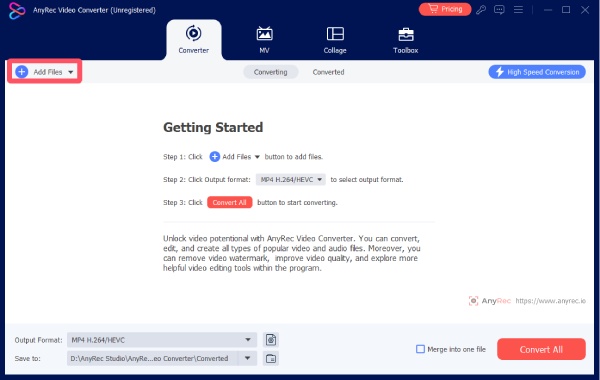
Step 1. Launch AnyRec Video Converter on your computer. Click the "Add Files" button to import your MKV files for conversion.
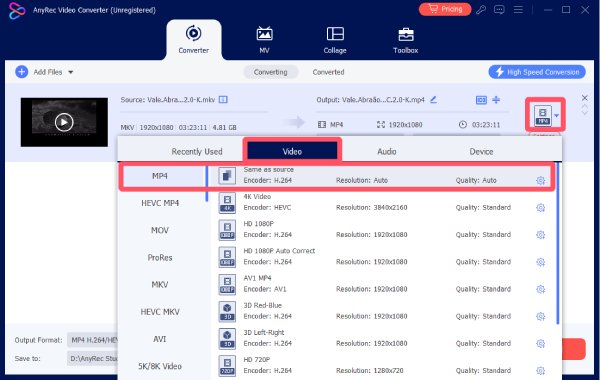
Step 2. Click the "Format" button. Under the "Video" tab, click the "MP4" button to select the desired resolution.
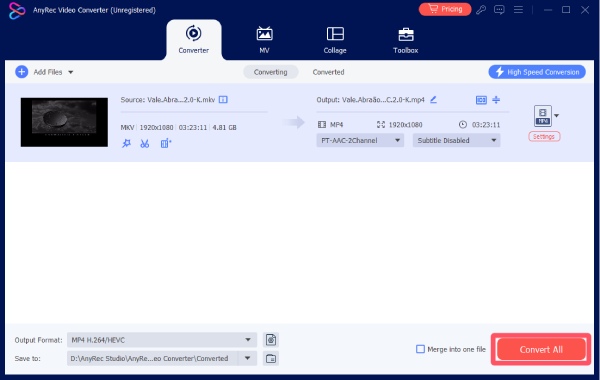
Step 3. Finally, click the "Convert All" button to convert MKV to MP4. The video files will be saved automatically once finished.
How to Convert MKV to MP4 within VLC Media Player
While widely known for its ability to play back, VLC media player can actually deal with conversion, which many users often overlook. Its built-in conversion feature can help you convert MKV to MP4 in a convenient way without downloading additional software. While the options are more limited compared to dedicated converters, VLC works well for straightforward format changes when simplicity and quick results are the main priorities.
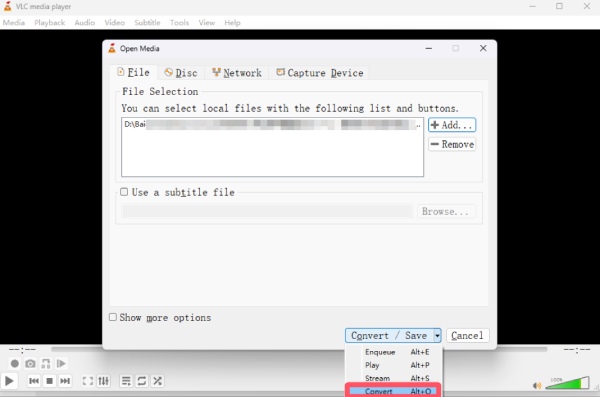
Step 1. Whether you are watching a movie or have just opened VLC media player, click the "Convert/Save" button under the "Media" tab.

Step 2. Click the "Add..." button to import your MKV files. Then, click the "Convert" button under the "Convert/Save" tab.
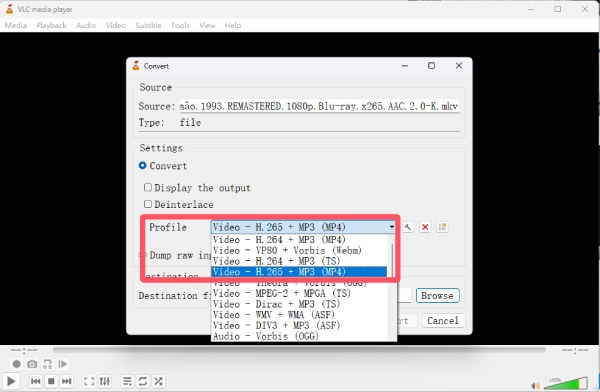
Step 3. After selecting the output format by clicking the "MP4" button under the "Profile" tab, you're ready to convert MKV to MP4.
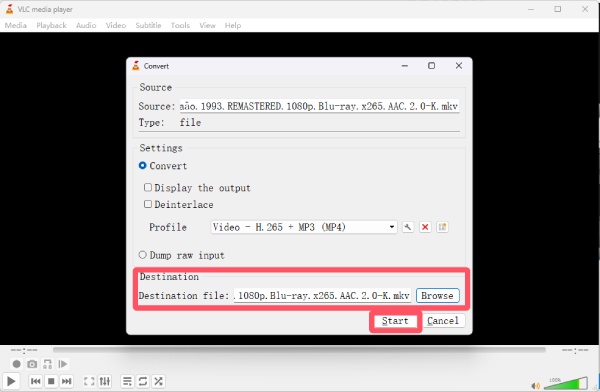
Step 4. Before starting the process, click the "Browse" button to select a destination folder. Finally, click the "Start" button.
A Free Tool to Transform MKV to MP4 Using Handbrake
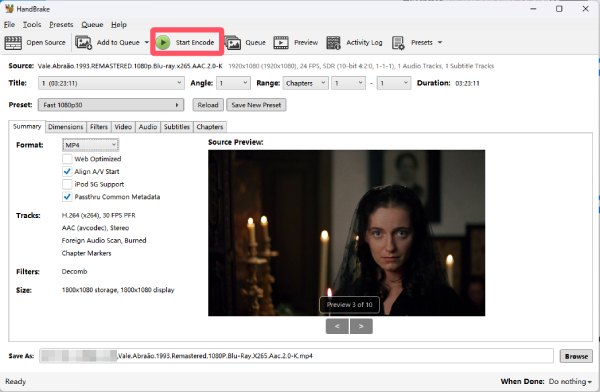
HandBrake is a popular open-source video transcoder that appeals to users who want more control without paying for software. It is beneficial when converting MKV files that require re-encoding for better compatibility or a smaller file size. In short, HandBrake offers reliable presets and encoding options that make it a practical free solution to conversion from MKV to MP4.
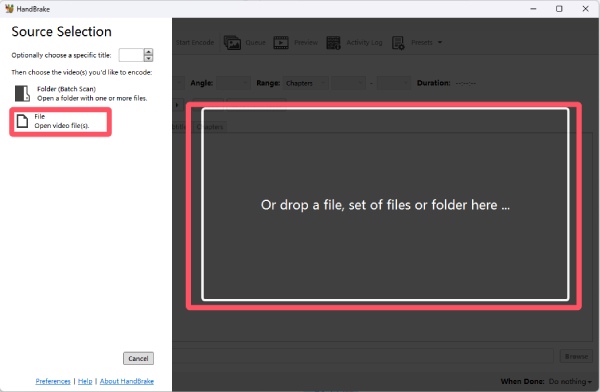
Step 1. Launch Handbrake on your device. You can import your MKV files by clicking the "File" button or simply dropping them.
Step 2. Under the "Format" tab, click the "MP4" button to confirm it as the output format to reduce the file size.
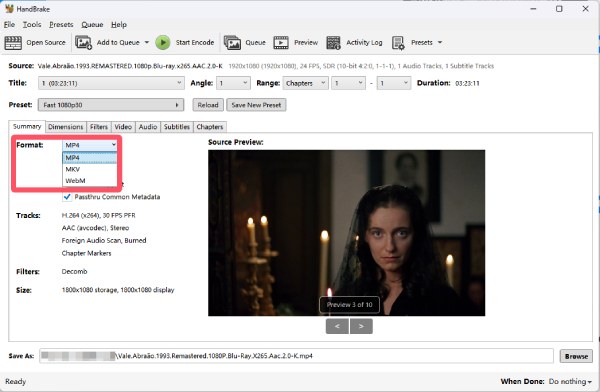
Step 3. When you click the "Start Encode" button, the process of conversion from MKV to MP4 will start automatically.
How to Use Codec for Changing MKV to MP4 via FFmpeg
If you happen to have some knowledge of command lines, then using the professional processing approach similar to that of developers or senior editors can help you convert MKV to MP4 in the most accurate way. FFmpeg is specifically designed for users who want the highest level of control over video processing. By simply using simple command lines, you can customize the conversion process, including the option to directly copy the video and audio streams without re-encoding. Although it requires familiarity with related commands, FFmpeg is highly efficient when used correctly and can maintain the original quality.
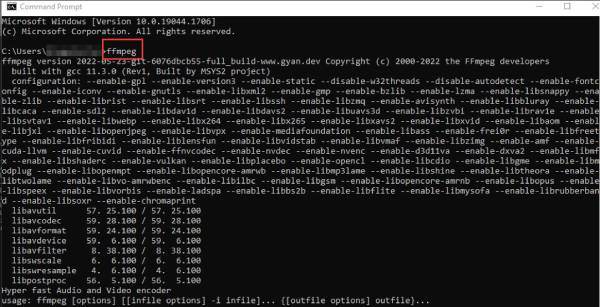
Step 1. Once you have finished installing FFmpeg, press the "Windows" key and type "cmd". Then, type "FFmpeg" to launch the tool.
Step 2. Copy and paste the MKV destination folder in the command, and enter the command below to change the file extension from .mkv to .mp4: ffmpeg -i name.mkv -vcodec copy -acodec copy name.mp4
Step 3. Finally, press the "Enter" key to start the process of converting MKV to MP4. The converted MP4 videos will be saved in the FFmpeg folder.
Online Solutions to Conversion from MKV to MP4
Online MKV to MP4 converters are designed for situations where installing software is not practical. They work directly in a browser and usually require only a few clicks to complete the conversion. These tools are best suited for short videos, quick format changes, or users working on shared or restricted computers. While convenience is their main advantage, upload limits and processing speed should always be considered.
CloudConvert
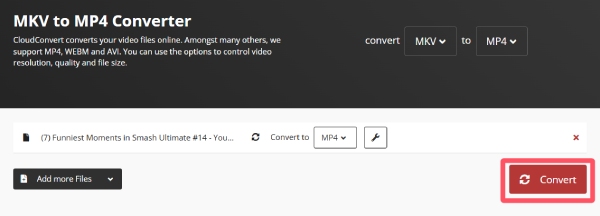
Online tools do not necessarily mean that the functions will be restricted. CloudConvert is a good example of this. As a mature and reliable online file conversion service, CloudConvert supports various file format conversion tasks, including converting MKV to MP4. During this process, custom output settings are allowed, which means you can adjust your output file in a relatively precise way by changing video resolution, encoder, and quality, etc. This feature is relatively rare in browser-based tools. CloudConvert handles files securely and provides stable results, making it very suitable for users who want more control but do not want to install desktop software.
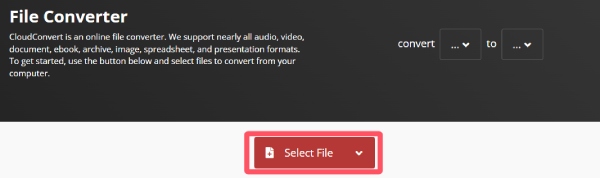
Step 1. Navigate to the official website of CloudConvert. Click the "Select File" button to upload your MKV file.
Step 2. Click the "Convert to" button and then click the "MP4" button under the "Video" tab to select the output format.
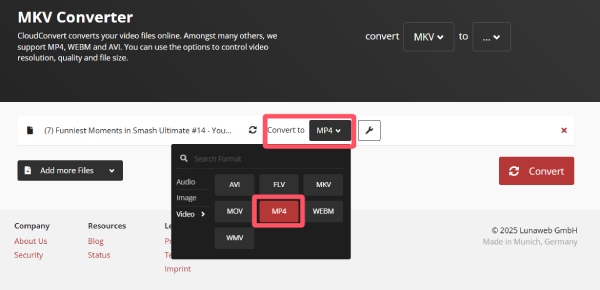
Step 3. Finally, click the "Convert" button to start the conversion from MKV to MP4 online.
FreeConvert
If you are just looking for a simple online video converter, then FreeConvert is reliable. Focusing on simplicity and ease of use, FreeConvert can quickly convert MKV files to MP4 format even if you are a novice who doesn't know much about file formats. Moreover, you can upload videos through local storage, cloud services, or direct links, making it very easy to share videos. Overall, FreeConvert runs reliably for basic conversions and handling smaller files, so it is a practical choice for one-time or occasional format changes between MKV and MP4.
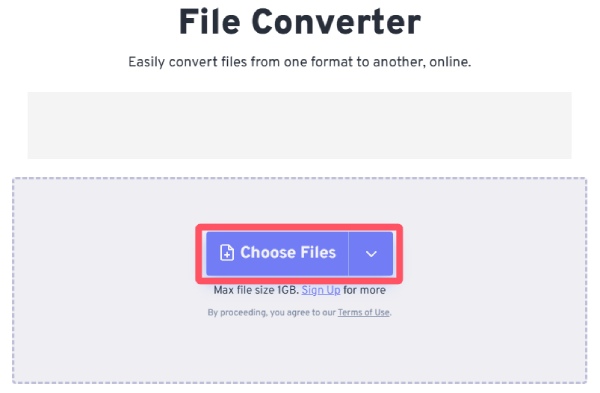
Step 1. Search and enter the official website of FreeConvert. Click the "Choose Files" button to upload the MKV file.
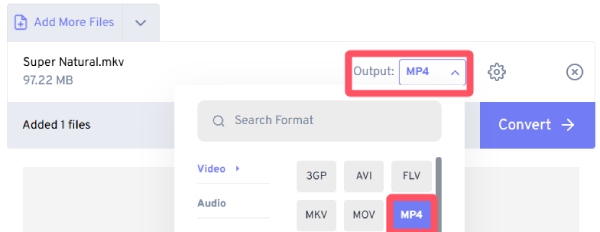
Step 2. After uploading the MKV file, click the "Output" button and click the "MP4" button to select it as the output format.
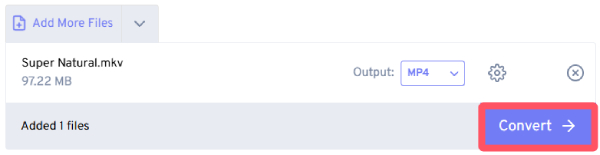
Step 3. Once finished, click the "Convert" button to convert MKV to MP4. The converted video file will be saved automatically.
Conclusion
Converting MKV to MP4 is usually not mainly about changing the quality, but more about improving compatibility. Therefore, balancing quality and compatibility becomes the most critical aspect of this task. This post provides you with various detailed steps from professional tools to free options to help you complete the task, and each method has its specific purpose. For those who want to balance the conversion frequency and quality retention in the best way, you can use AnyRec Video Converter to quickly and reliably convert MKV files to MP4 format without causing unnecessary losses.
Secure Download
Secure Download
Related Articles:
About Our Author




