
How to Convert AVI to MOV Easily: A Step-by-Step Guide

Converting AVI to MOV is not a complicated task if you know the method. The goal is usually simple: make the video play smoothly on any Apple device, maintaining the quality at the same time. Nevertheless, many users are not clear about the specific steps to follow. This guide explains the differences between AVI and MOV, then walks through several reliable ways to convert AVI to MOV, from professional desktop tools to built-in Apple solutions and online converters.
Guide List
Differences Between AVI and MOV for Conversion The Handiest Method to Convert AVI to MOV How to Change AVI to MOV Using QuickTime Online Solutions to Conversion from AVI to MOVDifferences Between AVI and MOV for Conversion
AVI (Audio Video Interleave) is a container format developed by Microsoft. Due to its support for multiple codecs, different video files often use different standards, and this lack of uniformity usually leads to compatibility issues on non-Windows platforms. Therefore, you may encounter a situation where one AVI file plays normally while another does not.
The MOV format developed by Apple is designed explicitly for various video tools on Apple devices, such as QuickTime Player and iMovie, to play seamlessly and smoothly. MOV files can efficiently handle modern codecs and have better optimizations in streaming media and hardware acceleration.
Therefore, after converting AVI to MOV, this playback problem can be effectively resolved.
The Handiest Method to Convert AVI to MOV
In this way, the most important point to pay attention to during the conversion from AVI to MOV becomes quite clear. On one hand, it is necessary to ensure that the playback of the video remains normal; on the other hand, it is also essential to consider the quality of the video. For such a balance, AnyRec Video Converter is the most reliable tool as it supports multiple AVI codecs and converts them into MOV files that are fully compatible with Apple devices and applications.
Whether you need to convert a single or multiple video files, AnyRec Video Converter can efficiently help you complete the task. For those users who want to control the video precisely, you are also allowed to adjust output settings such as resolution, frame rate, and encoder, while also having the default presets optimized for Apple playback. For those who want to obtain predictable results and do not need to deal with encoding errors or export failure issues, AnyRec Video Converter provides a stable and efficient workflow.

Convert AVI to MOV to enable smooth playback on your Apple device.
Complete the conversion from AVI to MOV while maintaining the video quality.
Add additional special effects to the video according to your preferences.
Support batch processing for converting from AVI to MOV to save time.
Secure Download
Secure Download
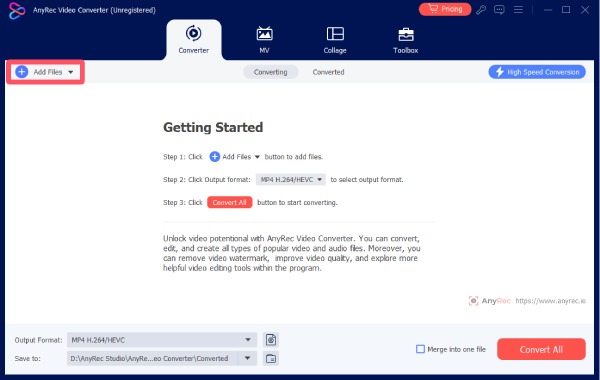
Step 1. Launch AnyRec Video Converter on your computer and click the "Add Files" button to add the AVI video.
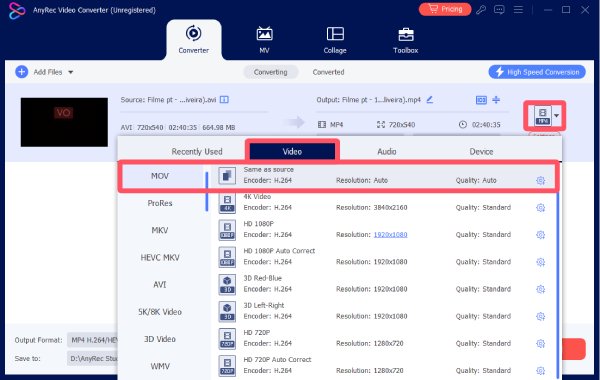
Step 2. A window will pop up when you click the "Format" button. Under the "Video" tab, click the "MOV" button and select the resolution.
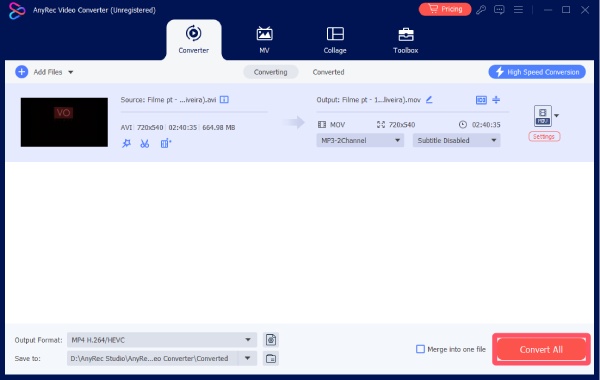
Step 3. Finally, click the "Convert All" button to convert AVI to MOV. The converted video will be saved to the selected path.
How to Change AVI to MOV Using QuickTime
When it comes to converting AVI to MOV using a Mac, QuickTime Player is the most straightforward option as a built-in tool. When an AVI file is already compatible with this AVI player, QuickTime can export it directly to MOV without extra downloads or complicated settings. This method works best for simple videos and quick format changes, though its success largely depends on the codec used inside the original AVI file.
Step 1. Launch QuickTime Player on your Mac. Under the "File" tab, click the "Open File" button to import the video file.
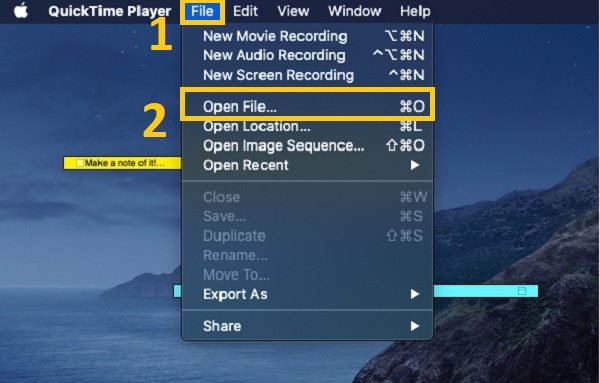
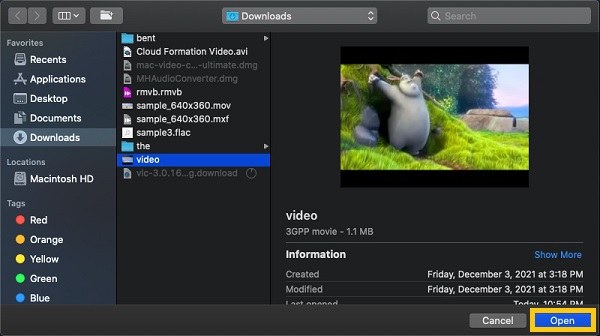
Step 2. You can select the video file for the conversion from AVI to MOV in the pop-up window. Then, click the "Open" button.
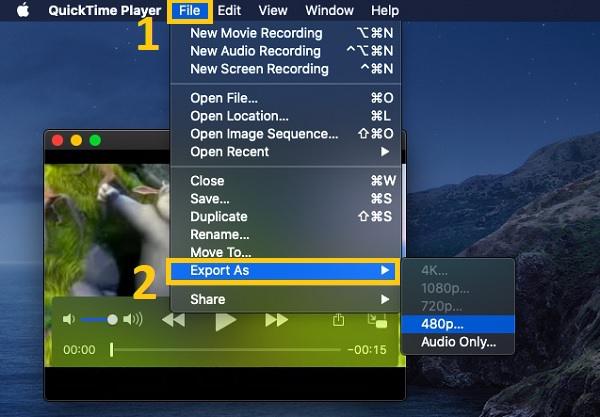
Step 3. Since MOV is the default format of QuickTime player, you can simply click the "Export As" button to select the resolution under the "File" tab.
Online Solutions to Conversion from AVI to MOV
Online AVI to MOV converters are helpful when a quick format change is needed without installing desktop software. As a web-based tool, you can run these tools directly in a browser. With a few clicks, the process of conversion can be completed. This makes them suitable for occasional conversions or users working on shared computers, though file size limits and privacy considerations should always be kept in mind.
CloudConvert
CloudConvert is a well-known online file conversion platform that supports the conversion from AVI to MOV, with more flexibility than most browser-based tools. It allows users to adjust video resolution, codec, and quality before conversion, which helps achieve better results. CloudConvert is suitable for users who want light customization without moving to desktop software.
- Pros
- Offer adjustable output settings for better control
- Stable conversion quality with consistent results
- CloudConvert is safe as it protects your privacy
- Cons
- Daily conversion credits limit free usage
- Uploading large files can take significant time
- The conversion may fail due to the poor Internet connection
FreeConvert
If you care more about simplicity and accessibility, then converting AVI to MOV using FreeConvert can meet your requirements. This online tool makes it easy to change convert AVI files to MOV without technical knowledge. Files can be uploaded from local storage, Google Drive, or Dropbox, which adds convenience. It works best for smaller videos and straightforward conversions where speed matters more than advanced settings.
- Pros
- Clean interface that is easy to navigate
- Support cloud-based file imports
- Totally free to run the process of conversion
- Cons
- Limited control over video encoding settings
- File size restrictions apply to free users
- The process of conversion may take a while
Online-Convert
Online-Convert is a long-standing web-based conversion service that supports a wide range of formats, including AVI to MOV. It offers basic customization options such as resolution and file size targeting. This tool is practical for users who need occasional conversions and want more options than one-click converters.
- Pros
- Support many video and audio formats
- Include basic customization features
- Process fast with those relatively small files
- Cons
- Conversion speed can be inconsistent
- Interface includes ads in the free version
- Lack professional settings of detailed parameters
Conclusion
Converting AVI to MOV solves most compatibility and playback issues. There are multiple ways to achieve smooth results; the best method depends on file complexity, desired quality, and how often conversion is needed. Generally, if you want to convert AVI videos to MOV files that balance the smooth playback and high quality, AnyRec Video Converter can be the best option without unnecessary compromises.
Secure Download
Secure Download



