
How to Combine MP3 Files into One: Step-by-Step Guide

If you download an audiobook split into dozens of chapters, jumping from one audio clip to the next manually every time you listen is incredibly annoying. In such a case, you may want an audio compiler to combine MP3 files into one track and enjoy the uninterrupted playback. In this guide, we've gathered 6 effective methods to merge MP3 files across different platforms.
Guide List
How to Combine Multiple MP3 Files into One in Seconds How to Combine MP3 Files on Windows Using Audacity How to Combine MP3 Files on Mac Using iMovie How to Spice MP3 Files Using Command Line How to Combine MP3 Files with an Online Audio Joiner How to Merge MP3 Files on Mobile Using an MP3 CombinerHow to Combine Multiple MP3 Files into One in Seconds
If you want the fastest MP3 merging experience with lossless output quality, AnyRec Video Converter is worth trying. This professional program lets you combine MP3 files into one with just a few clicks. Unlike other tools with complicated interfaces, it features an intuitive design that makes audio merging easy for anyone. With 120x fast hardware acceleration, batch processing support, and extensive format compatibility, it's perfect for combining MP3 files and any other video and audio tasks.

Combine MP3 files while preserving the original quality.
Merge videos and audios in 1000+ formats seamlessly.
Speed up the processing time with GPU acceleration.
Include 20+ built-in tools for convenient editing.
Secure Download
Secure Download
How to Combine MP3 files with AnyRec:
Step 1.Launch the software and click "Toolbox" from the top menu. Then, scroll down and select "Video Merger."
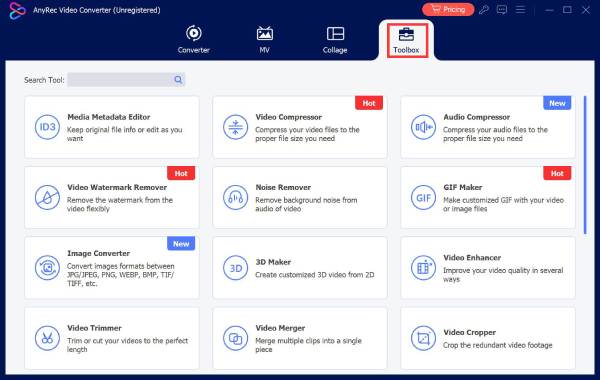
Step 2.Click the "Add" button to upload your audio, or drag and drop your MP3 files into the program. Rearrange the files in the order you like.

Step 3.You can also use the built-in edit tool to trim unwanted parts, adjust volume, or edit audio before merging.
Step 4.Choose an output format and click "Export" to save the merged video.
How to Combine MP3 Files on Windows Using Audacity
Audacity is a completely free and open-source audio recorder and editor. You can combine MP3 files, edit your audio, and split audio tracks with Audacity.
Step 1.Download and install the latest version of Audacity on your computer.
Step 2.Launch Audacity on your computer. Go to "File" > "Import" > "Audio" to load all the MP3 files you want to combine.
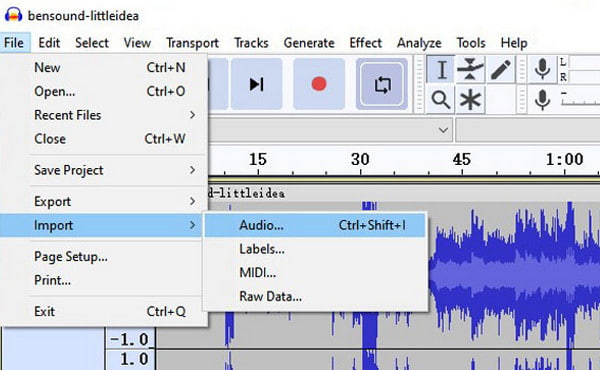
Step 3.Head to "Tracks" > "Mix" > "Mix and Render" to combine all MP3 tracks into one single audio track.
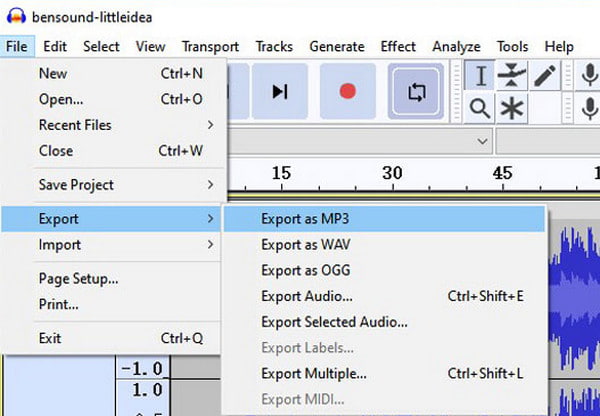
Step 4.Arrange the audio files in your preferred order. Then, go to "File" > "Export" > "Export as MP3" to merge MP3 files. Choose a save path and save the merged MP3 file in the designated location.
How to Combine MP3 Files on Mac Using iMovie
If you are using a Mac, iMovie is your most convenient choice for video editing. You don't need to download extra software, as the built-in video editor works perfectly for merging MP3 files.
Step 1.Launch iMovie on your Mac and click "Create New" > "Movie" to start a new project.
Step 2.Drag and drop all your MP3 files into the project media library. Then pull each audio file down to the timeline in the order you want them to play.
Step 3.Adjust the gaps between tracks, then play the timeline to see if everything goes well.
Step 4.Click "Share" > "File" to export your project. In the export settings, set the format to "Audio Only" and choose MP3 as the output format.
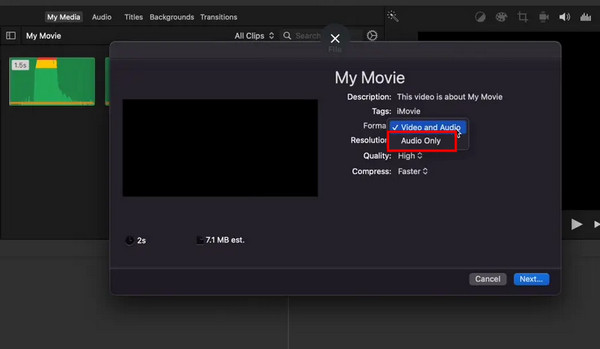
Step 5.Confirm and click "Save" to save the merged audio file.
How to Spice MP3 Files Using Command Line
If all MP3 files have the same parameters, such as bitrate, sample rate, and encoding settings, you can simply spice them using the command line.
Step 1.Place all MP3 files you want to combine in the same folder. Rename them in the order you want them to play, like file1.mp3, file2.mp3, and file3.mp3.
Step 2.Open Windows Explorer and navigate to the folder containing your MP3 files. Hold the Shift key and right-click on an empty area inside the folder, then select "Open PowerShell window here."
Step 3.Type the following command and press "Enter":
cmd /c copy /b file1.mp3 + file2.mp3 + file3.mp3 merged.mp3
Step 4.Windows will consolidate the MP3 files into a new file named merged.mp3.
How to Combine MP3 Files with an Online Audio Joiner
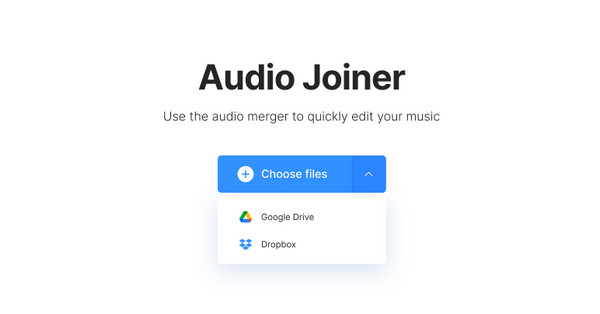
If you do not want to install desktop software, an online audio compiler can be your ultimate solution. Here, we take Clideo Audio Joiner as a sample.
Step 1.Open Clideo Audio Joiner's official page. Click "Choose Files" and upload the MP3 files. You can also upload from Google Drive or Dropbox.
Step 2.Click "Add more files" to pick more audio tracks.
Step 3.Drag and drop the audio files on the timeline to change the order.
Step 4.Choose the format to save, and click "Merge" to combine MP3 files online.
How to Merge MP3 Files on Mobile Using an MP3 Combiner
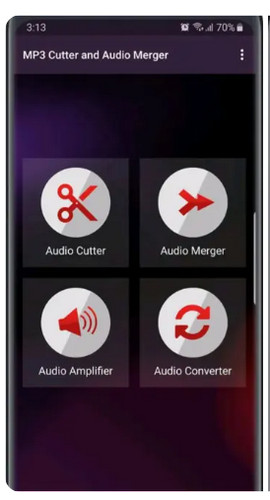
Want to stitch MP3 files directly on your smartphone? You can do it with an MP3 combiner app. MP3 Cutter and Audio Merger is a simple tool. You can put a few songs together, cut out parts you don't want, and merge them into one file. Everything can be done right on your phone.
Step 1.Select the "Audio Merger" option from the interface. Tap "Add Audio" to choose the MP3 files you want to combine.
Step 2.Adjust the playback order of your tracks, trim audio files, and preview the sequence in the app.
Step 3.Tap the "Merge" button. The app will combine the MP3 files quickly and save the merged MP3 directly to your phone.
Conclusion
Honestly, not all MP3 combiners deliver lossless audio quality after merging. Some online tools may compress your files and lower the sound quality. That's why we recommend reliable desktop tools like AnyRec Video Converter for daily use. With it, you'll get a high-quality merged audio file in minutes.
Secure Download
Secure Download
Related Articles
About Our Author




