
7 Ways to Convert WebM to MP3 on Windows/Mac/Online

Converting WebM to MP3 achieves the intent of wanting to extract the audio from a WebM video file and play it on a music player, car stereos, or make it compatible on a phone, or extract the audio from it and repurpose it. Now, if you want to learn how to convert your downloaded WebM files to MP3, consider exploring this post. Here, you get to explore seven different ways to convert WebM video to MP3 audio, all of which are free and offer efficient solutions! So, dive in now.
Guide List
Convert WebM to MP3 with the Best Lossless Method Convert WebM to MP3 Using Command Line by FFmpeg How to Convert WebM to MP3 with VLC Use Audacity to Convert WebM to MP3 Convert WebM to MP3 with 3 Online ToolsConvert WebM to MP3 with the Best Lossless Method
In case you don't know, converting WebM files to MP3 often results in a loss of the original audio quality in a way that is unnoticeable to the average listener. Thankfully, AnyRec Video Converter supports a solution that lets you convert WebM to MP3 in 320 kbps with lossless conversion. So, this desktop-based tool enables you to convert WebM files to MP3 format easily and quickly. It offers 120x faster conversion speeds, even when converting multiple WebM files at once, allowing you to save time without compromising the original audio quality. Aside from that, it also lets you enhance the quality of the MP3 version of the file by adjusting its settings.

Lets you convert WebM to an MP3 format or to a device preset for iPhone, Android, etc.
Supports a basic audio editor that lets you adjust WebM's volume before converting it.
Infused with a trimmer that lets you trim off those unwanted parts of the WebM file.
Tweak the WebM's audio (MP3 output) quality by tweaking its bitrate, rate, and more.
Secure Download
Secure Download
Step 1.Install the AnyRec Video Converter on your desktop and run it afterward. Then, click "Add Files" to import the WebM video file you wish to convert into MP3.
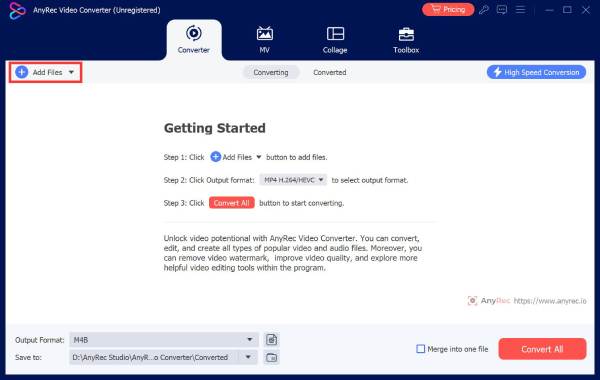
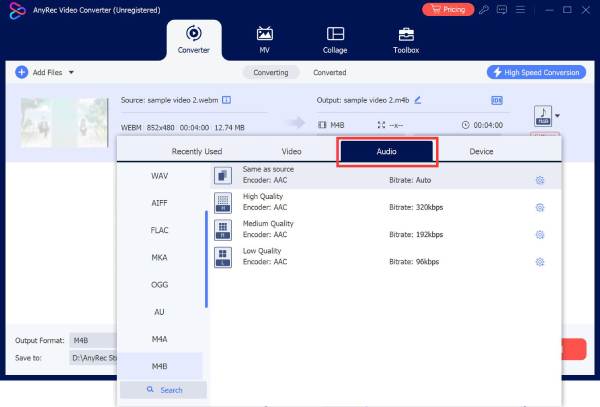
Step 2.Next, click the "Format" dropdown button, click the "Audio" tab, click the "MP3" format, and select the "Same as source" or "High Quality" option.
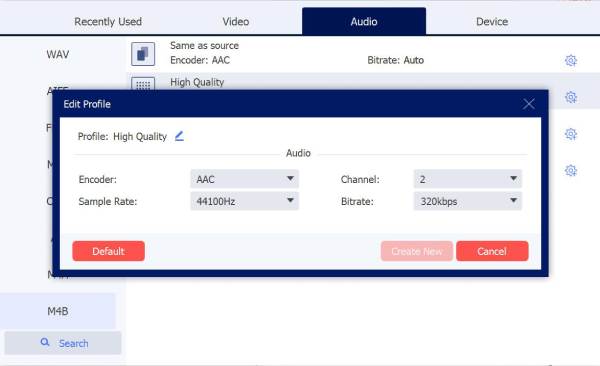
Step 3.After that, click the "Custom Profile" button with the "Gear" icon of the quality option you chose. Then, you can tweak the following settings accordingly to enhance the WebM's audio quality before converting it. Once done, click "Create New".
Step 4.Once satisfied, click the "Convert All" button to initiate the WebM to MP3 conversion process. And that's it! That's how you use this tool as your WebM converter.

Secure Download
Secure Download
Convert WebM to MP3 Using Command Line by FFmpeg
Another free and easy solution to convert WebM format to MP3 is FFmpeg. This one is a free, open-source command-line tool used to encode, decode, transcode, and play almost any audio or video format, which, of course, includes the ability to convert files. Now, compared to the first solution, this one is for tech-savvy users. Why? Since it is a command-line-based tool, it is extremely difficult to use if you are not familiar with command lines. Here's how to use it:
Step 1.Visit the FFmpeg download site on your browser, select the "Windows" option, and click "gyan.dev" or "BtbN". After that, head to a new tab and select the target "FFmpeg build" to start the installation process.
Step 2.Next, use the "7-Zip compressor" to decompress the FFmpeg downloaded file. After that, go to your "OS/C:" folder and create a new folder with the name FFmpeg.
Step 3.Then, copy the decompressed files and paste them into the FFmpeg folder that you created earlier. Next, go to "My computer", access "Properties", and head to "Advanced system settings".
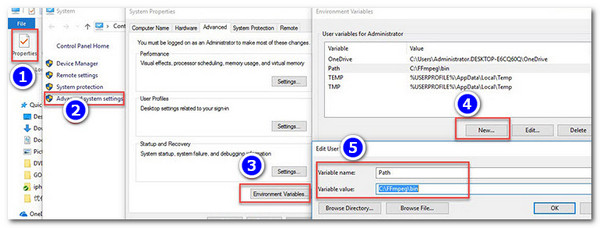
Step 4.After that, choose "Environment Variables", select "New", and replace the variable name with "Path". Next, enter the "C:\FFmpeg\bin" for the "Variable" value and click the "OK" button to apply the alterations.
Step 5.Next, press "Windows and R", input "CMD", and click "OK" to access the Command Prompt panel. After that, press the "Space enter", "enter cd", hit the "space bar", and then enter the file location of the WebM file you wish to convert.
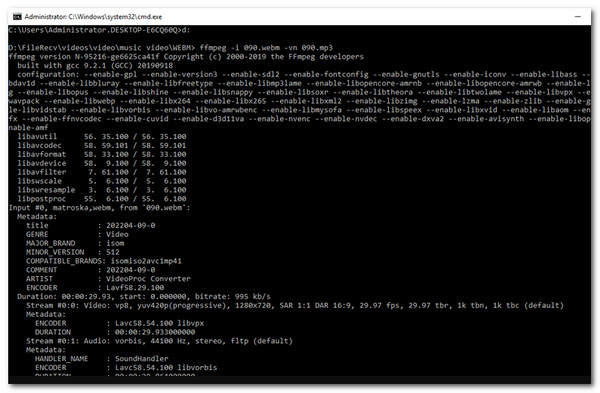
Step 6.Lastly, enter this command "ffmpeg -i source_movie.webm -vn output_movie.mp3" and press "Enter" to enable FFmpeg to start the conversion process. And that's how you use FFmpeg to convert from WebM to MP3.
How to Convert WebM to MP3 with VLC
If you find FFmpeg to be quite complicated and overwhelming WebM to MP3 converter, you can try VLC instead. Similar to FFmpeg, VLC is also a free, open-source solution. The difference is that, unlike FFmpeg, VLC is a powerful media player that can play nearly any video and audio file, and it also has the ability to do file conversion, like WebM format to MP3. However, this is not for beginners as well, and conversion is not a straightforward process, but it is easy to follow. Here's how:
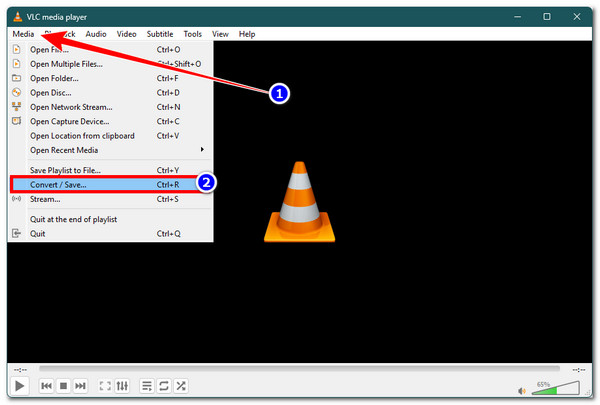
Step 1.Download and install VLC, and launch it afterward. Next, click the "Media" tab, select "Convert / Save", click the "+Add" button, import the WebM file, and click "Convert / Save".
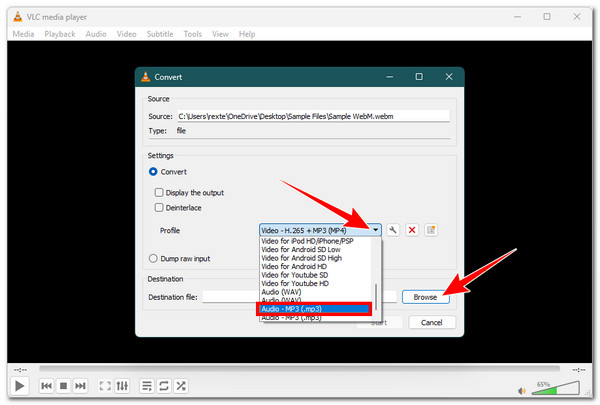
Step 2.Next, click the "Profile" dropdown button, scroll down, and select the "Audio - MP3 (.mp3)" option to convert your WebM file to MP3.
Step 3.Once done, click the "Browse" button and choose your preferred output file location. After that, click "Start" to initiate the conversion process.
Use Audacity to Convert WebM to MP3
The last desktop-based WebM to MP3 audio converter that you can try is Audacity. It is also a free and open-source program that provides a timeline-based audio editing to edit WebM files, including recording tools. Now, the thing with using this one is that it doesn't natively support video imports. Therefore, to make it possible to use as a solution, you need to download and install the FFmpeg library, which makes everything a bit hassle. But it is still worth it. Here's how to use it:
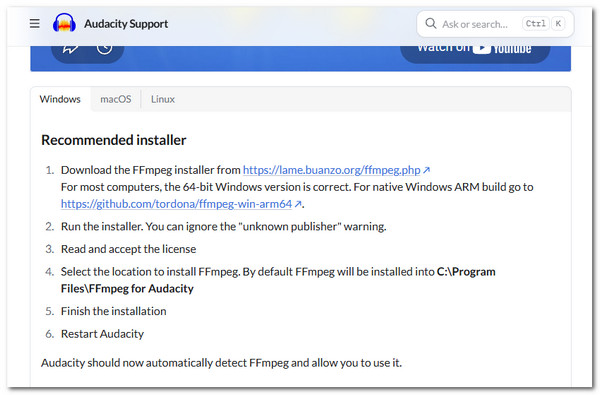
Step 1.First, visit the Audacity Support page and look for a process to install the FFmpeg library in Audacity. Make sure to navigate to the section that is suitable for the operating system that you are running.
Step 2.Next, launch Audacity on your desktop, click the "Edit" tab, and select "Edit". Then, head to "Preference", then on the pop-up panel, select "Libraries", and choose "FFmpeg Library Locate". After that, select the downloaded "FFmpeg library" and click the "OK" button.
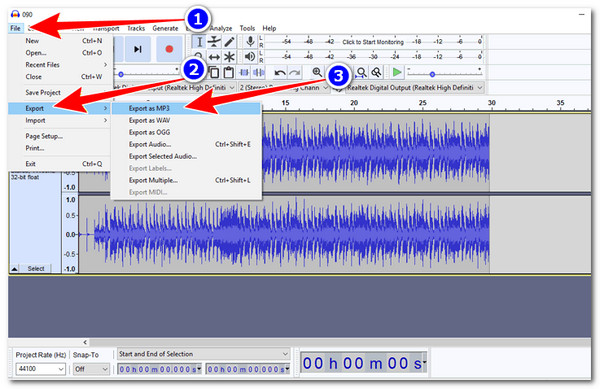
Step 3.After that, click the "File" tab, choose the "Open" option, and select the "WebM" file you wish to convert. Then, click the "File" tab again, click the "Export" button, and select "Export as MP3". Finally, give the output a name and click "Save" to start the WebM to MP3 free conversion process.
Convert WebM to MP3 with 3 Online Tools
Aside from those desktop-based solutions, there are also free online solutions that you can utilize to convert WebM to MP3, and you can find three of them in this section. Explore them below.
1. CloudConvert
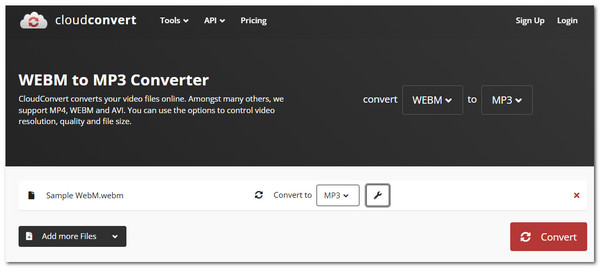
The first online WebM to MP3 converter you can use is CloudConvert's WEBM to MP3 Converter. Unlike most of the desktop-based solutions mentioned earlier, online tools like CloudConvert offer a straightforward conversion, making it easier for you to turn your WebM files into MP3. Visit this solution's WebM to MP3 converter page, import the WebM file, start the conversion process, and that's it. What makes this a great option is that it lets you enhance the audio quality of the WebM file and trim unwanted parts. However, this tool only allows up to 25 conversions per day.
2. FreeConvert
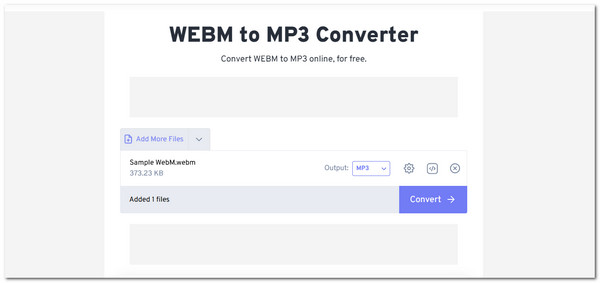
Another free online WebM to MP3 converter you can use is FreeConvert. The same goes with CloudConvert; this one also offers you a straightforward conversion process. You access the WEBM to MP3 Converter website, import the WebM video, and start the conversion. And that's it! Aside from that, it also provides you control over the quality and sound of the WebM's audio before converting it, and also lets you trim unwanted parts. Unfortunately, this one can only support a WebM video with a maximum of 1GB, and to go beyond that, you need to sign up.
3. Convertio
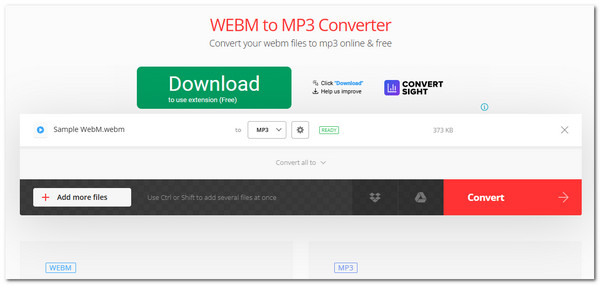
The last online WebM to MP3 converter suggestion that this post would like to share is Convertio. This one is actually the same as those first two featured solutions. It also provides you with a quick and easy conversion process with additional control over the output's codec, bitrate, frequency, volume, and more. What makes this one different is that it allows you to import a WebM file with a maximum of 100MB, which you can go beyond that after signing up for an account.
Conclusion
That's it! Those are the seven best ways you can convert WebM video to MP3 audio. With these solutions, achieving your intent of converting WebM to MP3, whether to extract audio from a WebM video file and play it on a music player, car stereo, or phone, or to repurpose the audio, will be easily attainable. However, if you want to convert your WebM files to MP3 without compromising their audio quality, then AnyRec Video Converter is your solid choice! It doesn't provide you with a quick conversion, but also a high-quality MP3 output! Try it yourself today.
Secure Download
Secure Download
About Our Author




