
A Comprehensive Tutorial - Why Are Videos Not Playing

No video playback can be frustrating when you try to play a video on your computer. Whether it's a downloaded file or an online video, playback issues can interrupt your experience and waste valuable time. Fortunately, most video playback problems have clear causes and effective solutions. In this guide, you will learn why videos are not playing on your computer and how to fix the issue quickly.
Guide List
Possible Reasons Why Videos Are Not Playing on Your Computer A Practical Solution to Fix Videos Not Working Issue Quickly FAQs About Why Videos Are Not PlayingPossible Reasons Why Videos Are Not Playing on Your Computer
Before fixing the issue, it is important to understand what might be causing videos not to play properly. Identifying the root cause can help you choose the most effective solution.
Unsupported Video Format: Some media players do not support certain video formats or codecs. If your player cannot recognize the file format, the video may fail to open or play correctly.
Corrupted Video File: Videos can become corrupted during downloading, transferring, or editing. It's a normal error, and you can hardly avoid it since it also happens with no signs. A damaged file may result in playback errors, freezing, or no video playback at all.
Outdated Media Player or System: Using an outdated media player or operating system can lead to compatibility issues. Newer video formats or codecs may not be supported by older software versions.
Missing or Broken Codecs: Codecs, commonly used in VLC media player, etc., are essential for decoding video files. If the required codec is missing or not functioning properly, your computer may not be able to play the video.
Graphics Driver Issues: Sometimes, the issue of videos not working may stem from your graphics driver. Outdated or faulty graphics drivers can affect video playback performance and even lead to videos not playing. A regular check on your
Insufficient System Resources: If your computer is running too many programs or lacks sufficient RAM or CPU power, it may struggle to play high-resolution videos smoothly.
A Practical Solution to Fix Videos Not Working Issue Quickly
If your videos are not playing due to corruption or file damage, then you have to use a professional tool to repair them. Designed to fix damaged or unplayable video files, AnyRec Video Repair can help you finish the job quickly and effectively without reaching out to experts. It supports a wide range of video formats and can repair issues such as broken frames, missing audio, or playback errors.
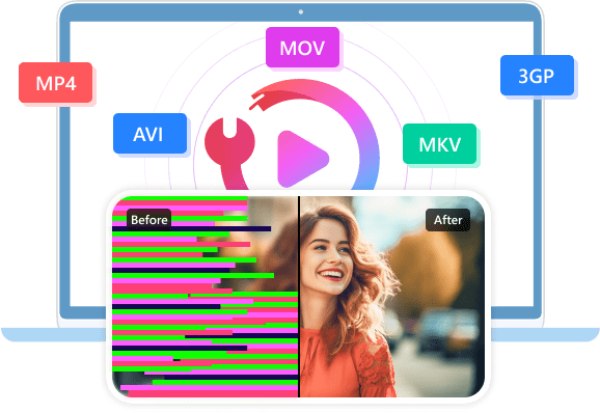
With its simple interface, you only need to upload the corrupted video along with a sample file, and the tool will automatically analyze and repair it: no professional skills or related knowledge required. Even a beginner can restore their videos in no time. You can do so following the detailed steps below:
Fix corrupted, damaged, unplayable, flickering, blurry videos.
Support SD, HD, Full HD, 4K, 8K, 12K, and 16K video repairs.
Repair videos from cameras, drones, GoPros, phones, SD cards, etc.
Local repair ensures your videos stay safe and private.
Secure Download
Secure Download
Step 1.Launch AnyRec Video Repair, click both the "Add" buttons to import your corrupted video and the sample video for preparation.
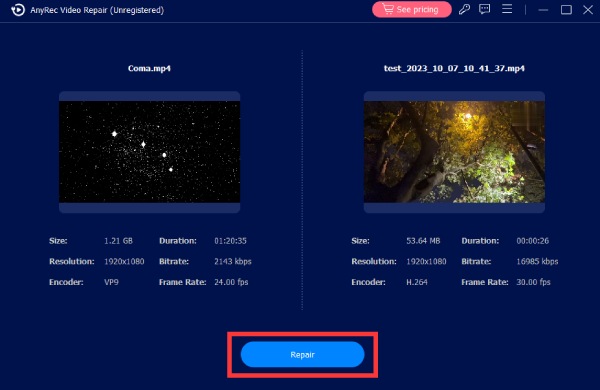
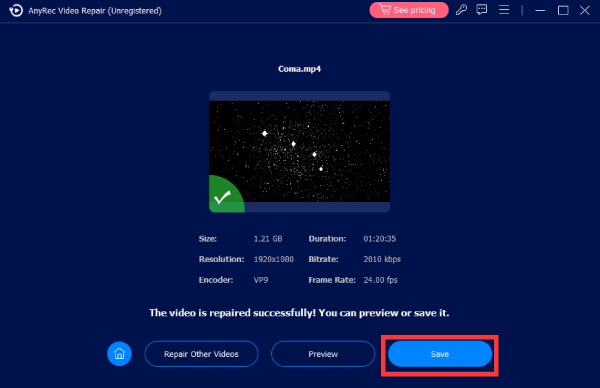
Step 2.To initiate the repair procedure, click the "Repair" button. Once done, click the "Preview" button to verify if the video is well-repaired.

Step 3.If the output meets your requirement, click the "Save" button to check whether your video's not playing problem is fixed.
FAQs About Why Videos Are Not Playing
-
Why do videos play audio but no picture appears?
If you encounter problems like this, it often indicates that the video codecs are not appropriate. The media player can decode the audio track but fails to process the video stream. Updating codecs or switching to a different media player can resolve the problem of no video playback.
-
Can a corrupted video file be fixed?
Yes. In many cases, corrupted video files, if not severely damaged, can be repaired using professional video repair tools. The process is easy, even for beginners, if you have a proper tool.
-
Why are online videos not playing in my browser?
This may be due to browser issues, outdated plugins, or network problems. All these factors can lead to videos not playing in your browser. To fix video not playing on Safari and similar browsers, the most common solution is to clear the cache.
Conclusion
In conclusion, videos not playing on your computer can be caused by various factors. While it takes a bit of time to apply possible fixes one by one manually, AnyRec Video Repair can help you resolve playback problems in one click without effort.
Secure Download
Secure Download
About Our Author




