How to Upscale an Image in Photoshop without Losing Quality

"Can I upscale an image in Photoshop?" Many people have similar questions. As one of the best image editing software programs in the world, Adobe Photoshop offers a wide range of editing tools, and upscaling an image is one of them. Although the operation method is somewhat complicated, especially for beginners, as long as there is appropriate guidance, it is not that difficult. If you also want to learn the specific operation methods to increase the resolution of images in Photoshop, then start reading this post right now.
Guide List
Can You Upscale an Image in Adobe Photoshop How to Enhance Image Quality in Photoshop Easily An Alternative to Photoshop for Increasing Image Resolution Tips for Upscaling an Image in Adobe PhotoshopCan You Upscale an Image in Adobe Photoshop
Yes. You can upscale an image in Adobe Photoshop. Not only that, but it also offers a great deal of flexibility, allowing for more detailed settings by adjusting specific parameters. And this is achieved through a variety of tools, which respectively control different image parameters to affect the overall quality of the output image.
However, it is not simply a matter of increasing the resolution of images in Photoshop. As mentioned earlier, it features rather complex operations, which might pose a challenge for beginners or users who are not very familiar with Photoshop's operations. However, learning this skill is highly effective because it almost provides the most comprehensive results to perfectly meet your needs. If you want to know the specific operation method, you can read the next section to learn about it.
How to Enhance Image Quality in Photoshop Easily
Then, how can one improve image quality in Photoshop? This mainly requires the use of some functions in the Effects section. However, the operations involved are relatively complex. Therefore, you can follow the steps below to upscale images to 4K.
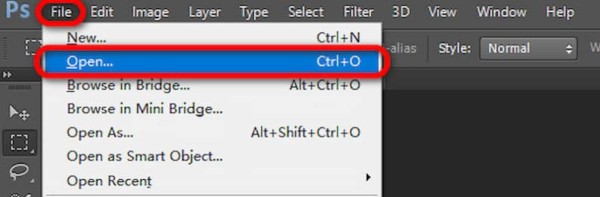
Step 1.Launch Adobe Photoshop on your device and click the "Open..." button under the "File" tab to import the image.
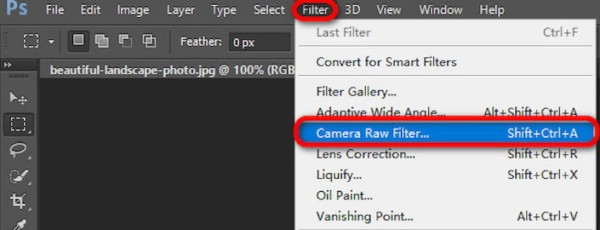
Step 2.Under the "Filter" tab, click the "Camera Raw Filter..." button to proceed with the process of upscaling an image in Adobe Photoshop.
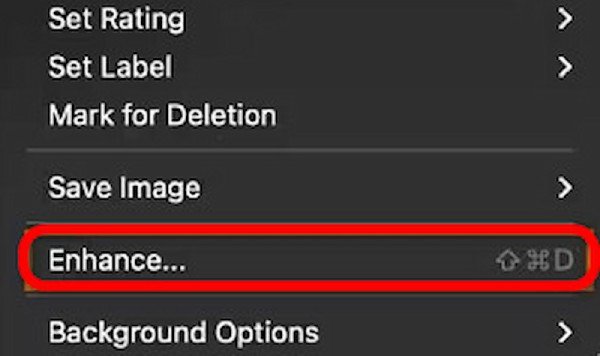
Step 3.Right-click the "Preview" button and then click the "Enhance..." button to summon a new window. Then, click the "Enhance" button.
An Alternative to Photoshop for Increasing Image Resolution
Upscaling an image is not suitable for everyone in Photoshop, especially considering that you need to purchase a license and learn the basic operation steps. In addition, the final effect of the picture may not necessarily meet your requirements if your adjustments are not precise enough. Therefore, a suitable alternative is needed, taking into account both efficiency and quality. AnyRec AI Image Upscaler can help you:
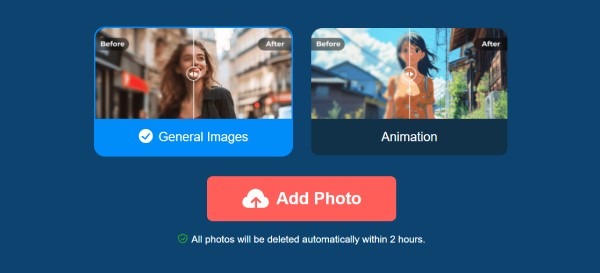
Step 1.Navigate to the official website of AnyRec AI Image Upscaler and click the "Add Photo" button to upload your image.
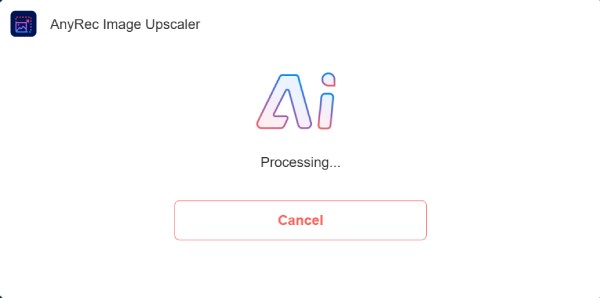
Step 2.After a short time of AI processing, your image will be upscaled like in Adobe Photoshop.
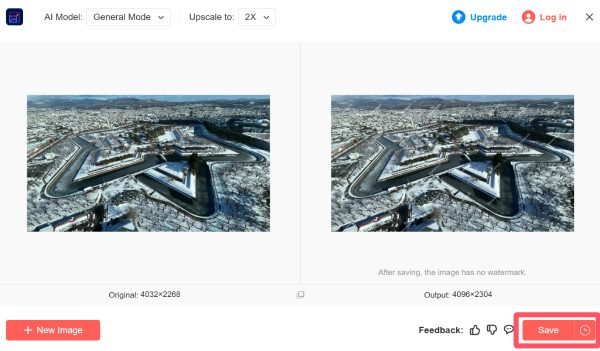
Step 3.If you are satisfied with the output quality, click the "Save" button to save the upscaled image.
Tips for Upscaling an Image in Adobe Photoshop
When you increase the resolution of an image, the specific operation will naturally affect the final quality. However, there are still other factors that can affect the effectiveness of the image enhancement. This section offers you some tips to help you obtain higher-quality pictures.
1. Choose the Right Resampling Method
When you upscale an image in Photoshop, you may notice that there are many resampling options available for you to choose from. "Preserve Details" can restore the texture of the image as closely as possible, while "Bicubic Smoother" can offer more post-processing options for your image. To achieve the best results, you'd better try out different options separately.
2. Avoid Excessive Enlargement
After mastering how to upscale an image in Photoshop without losing quality, some users tend to apply as many filters as possible, believing that this can optimize more details to the greatest extent. However, excessive enlargement, while it may optimize the details, can also have a negative effect that makes the image look unnatural. Sometimes, a 4K image upscaler is a more direct way, as it applies proper effects to your images.
3. Apply Sharpening After Upscaling
When you increase the resolution of an image in Photoshop, you can choose to apply the sharpening effect to your picture after the upscaling process. Options like "Unsharp Mask" or "Smart Sharpen" can enhance the details of the optimized image by eliminating some potential blurriness.
Conclusion
This post provides you with detailed steps to help you learn how to enhance image quality in Photoshop. Even if you are a beginner, you can follow the detailed steps to improve the quality of your pictures quickly. However, if you are looking for a free and easy-to-use method without any complicated procedures, you can give AnyRec AI Image Upscaler a try. It can help you achieve the desired results quickly online.
About Our Author