
How to Screen Record on Dell? Use Game Bar, VLC, and More

Creating a tutorial for a friend using your Dell laptop? Or do you want to capture a gaming moment? With Dell, you already have powerful tools sitting in your system and more options with no expensive subscriptions needed. How to screen record on Dell? Dive into the following four most effective ways to get the task done. From gaming to a perfect video clip, you can record video on a Dell laptop or PC with the perfect matched tool!
Guide List
Screen Record on a Dell Laptop with Game Bar Professional Recorder to Record on Dell with High Quality Use VLC Screen Recorder to Record on Dell How to Screen Record on a Dell Laptop with OBSScreen Record on a Dell Laptop with Game Bar
If you're looking for the quickest way of Dell screen recording without downloading anything, the built-in Windows Game Bar can be your friend. It is primarily made for gamers to share their best gaming moments, but this tool can record almost any app on your Dell laptop. It works very stable as it is built into the Windows operating system. Here's how Game Bar works to screen record on Dell with audio:
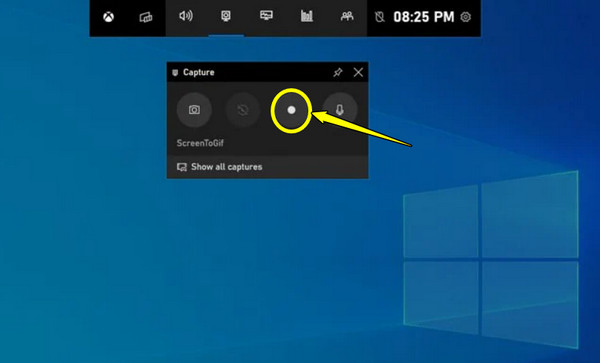
Step 1.Prepare your desired app to record on the Dell screen. Then, press the "Windows + G" keys to bring up the Game Bar overlay.
Step 2.There, click the "Start Recording" button from the Capture widget, or simply press the "Windows + Alt + R" shortcut keys.
Step 3.Once done, click the "Stop" button, and your video is saved in the "Videos" then "Captures" folder.
Professional Recorder to Record on Dell with High Quality
While the built-in recording tool is ideal for a quick Dell screen recording, you might need more for your professional projects. Whether you need to record a meeting, a streaming video, or a tutorial, AnyRec Screen Recorder is a standout choice. It is helpful for Dell users who want to record specific regions of their screen aside from the full-window recording. Its interface is clean and intuitive, making it easy for you to navigate even if you are not a tech expert. Plus, it records the screen together with system audio, mic, and even webcam, without sacrificing the quality. Using this tool will truly feel like having a professional setup compressed into a lightweight app.

Crystal clear visuals of your Dell display, up to 4K resolution.
Record system sound and mic input without sacrificing the quality.
Shortcuts provided by settings hotkeys to start, pause, resume, etc.
Enjoy a clean video by trimming unnecessary parts before exporting.
Secure Download
Secure Download
Step 1.Open AnyRec Screen Recorder on your desktop now and choose "Video Recorder". Here, decide whether to capture the entire Dell screen with "Full" or define an area with "Custom".
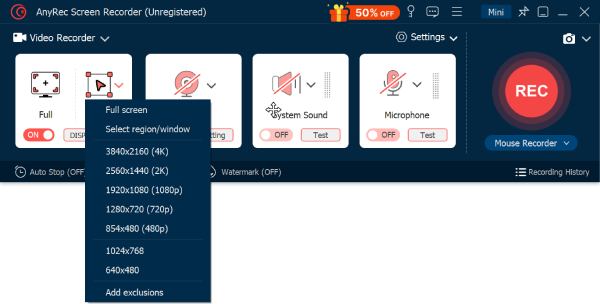
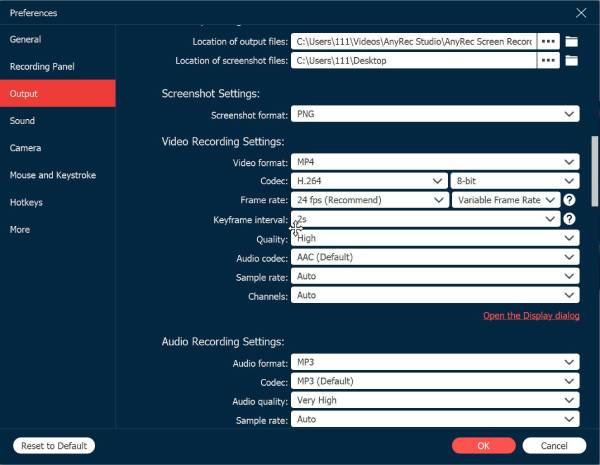
To fine-tune your format or quality, simply click on the "Settings" button and navigate to the "Output" tab.
Step 2.To ensure your recording captures sounds, toggle ON the "System Sound"; if you're planning to add narrations, ensure the "Microphone" toggle is ON. Find the perfect balance between the two audios.
Step 3.Once it is perfect, click the "REC" button or use the "Ctrl + Alt + R" keys. Feel free to use the drawing tools to annotate areas or click the "Camera" button to snap a quick image.
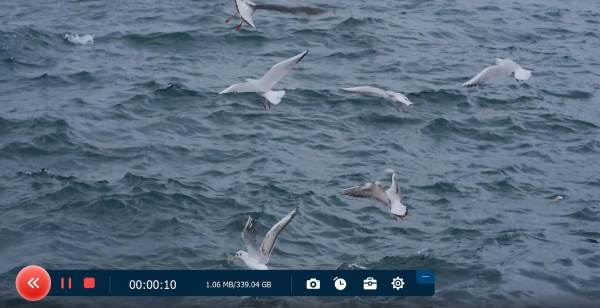
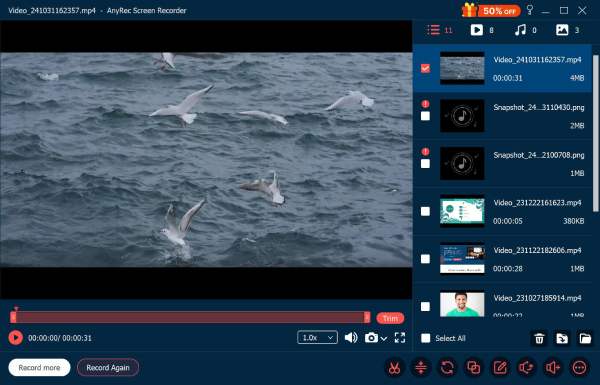
Step 4.When you've captured everything, click the "Stop" button. In the preview window, watch your video and use the trimming tools to remove unwanted frames. Later, click the "Save" button to store the final file on your Dell laptop.
Secure Download
Secure Download
Use VLC Screen Recorder to Record on Dell
VLC is known as a media player that plays almost any video file, but one of its hidden gems is its recording capabilities. Using this media player to screen records on Dell is an ideal choice if you value privacy and a free, open-source solution. While the setup is more manual than other alternatives, its reliability is on top once you know where the settings are located. To put VLC into practice, simply follow the steps to record Dell laptop screen with VLC:
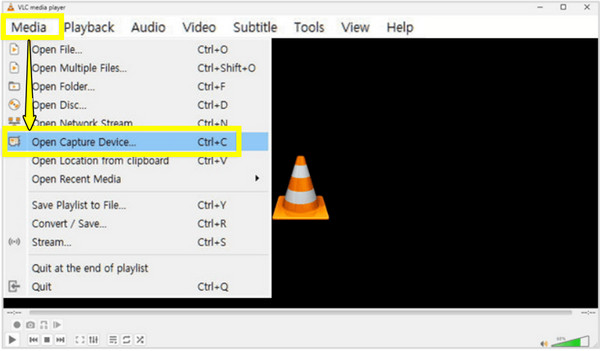
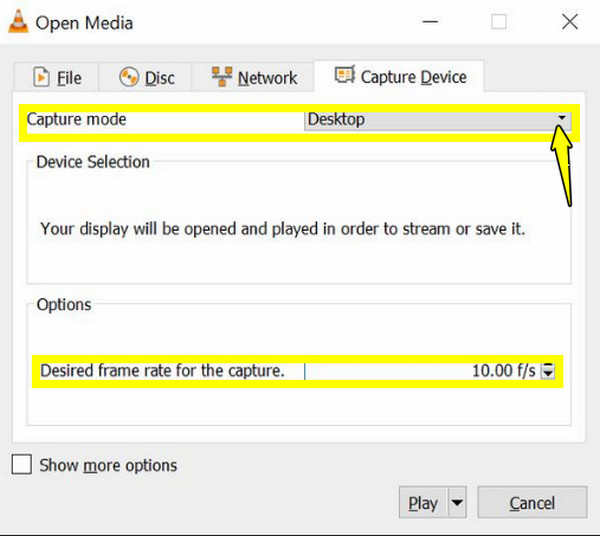
Step 1.Open VLC, click on the "Media" menu, choose "Open Capture Device". Next, set the Capture mode dropdown to "Desktop"
Step 2.From the options below, set your desired frame rate to "30.00 f/s" for a smooth video. Then, click the arrow next to "Play" and choose "Convert".
Step 3.Afterward, set the Profile to "Video - H.264 + MP3 (MP4)". Browse for a location folder, name your file, then click the "Start" button. Once done recording, click the "Stop" button.
How to Screen Record on a Dell Laptop with OBS
For the ultimate control over layout and streaming, move towards OBS Studio for screen recording on Dell laptop. This program is the standard for producing high-tier content or multiple source recordings. Here, you can layer your webcam, screen, and even custom graphics into a single layout. Despite having a steep learning curve, it has unmatched customization for your Dell hardware. Refer to the steps below to record video on Dell with OBS:
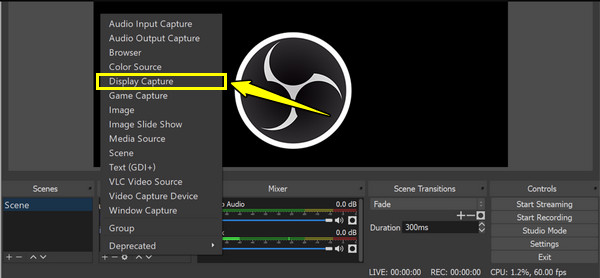
Step 1.After launching OBS, start with the "Add" button under the Scenes box, then select "Display Capture". Name it, and it will then select the entire Dell screen to get captured.
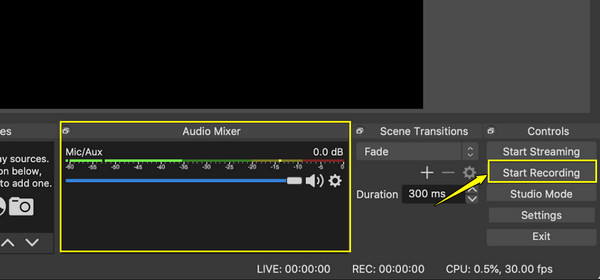
Step 2.Next, locate the "Audio Mixer" to make sure your desktop audio and mic levels are moving. You can also go to "Settings" to adjust OBS recording settings, then click "Output" and set the format to "MP4".
Step 3.Once ready, click the "Start Recording" button on the right-hand panel. Later, click the "Stop Recording", and your video file will be sitting in the selected videos folder.
Conclusion
You've seen here the several options you may choose for Dell screen recording. Regardless of the tool, whether the built-in Game Bar or a tool like VLC, the key is to select one that has both the ease of use and offers the best output quality. If you wish to skip the trial and error of each Windows option, go straight to AnyRec Screen Recorder for a professional result. The tools can capture 4K footage, annotate in real-time, trim recordings, and do more with just a few clicks.
Secure Download
Secure Download
About Our Author




