
Remove Background Noise from Video - 5 Clear Audio Guide

Imagine having the perfect take only to realize the hums, winds, and traffic noises in your audio. This background noise is a silent killer in your video content, but why does this happen? And how can you remove background noise from video? Thankfully, five effective ways are shared here, from desktop to mobile solutions, to reduce background noise in video. Reclaim your audio clarity and keep your audience engaged today!
Guide List
Why Video Background Noise Happens How to Remove Background Noise from Video on Windows and Mac How to Reduce Background Noise from Video with AI How to Remove Background Noise from Video on iPhone How to Remove Background Noise from Video on Android How to Remove Background Noise During Video RecordingWhy Video Background Noise Happens
Why does background noise in video occur in the first place? This issue is not just a random annoyance; it is the result of how the sound waves interact with your environment. Knowing the reasons behind the distorted audio is the first step to remove unwanted background noise from video.
- Poor microphone placement. If your microphone is placed too far from you, it will be hard for it to pick up your voice.
- Low-quality mic hardware. Entry-level mics often have a self-noise floor, delivering a constant electronic hiss in every recording.
- Environmental noise. Sounds like traffic, air conditioners, or echoes create a layer of room tone that clashes with your main audio.
- Automatic gain control (AGC). Many cameras automatically adjust volume during silence, which turns the quieter background static into a loud hiss.
- Compression and recording settings. Low-bitrate settings can deliver digital artifacts, making background noise sound distorted, reducing overall audio clarity.
How to Remove Background Noise from Video on Windows and Mac
When talking about desktop editing for removing background noise from video, you need a solution that has both power and precision to work with large video files without crashing. For this, AnyRec Video Converter is a top-tier choice due to its Noise Remover tool that identifies and subtracts constant background hums, including fans and air conditioners, while maintaining a human voice intact. Beyond simple noise reduction, this tool is your all-in-one media solution for converting, editing, and enhancing your visual content.

An AI-powered Noise Remover to eliminate background noise from video.
Supports more than a thousand formats, such as MP4, MOV, AVI, MKV, etc.
Fully covers high-resolution video processing, letting you export in 4K or HD.
Utilizes hardware acceleration, providing 50x faster conversion speeds.
Secure Download
Secure Download
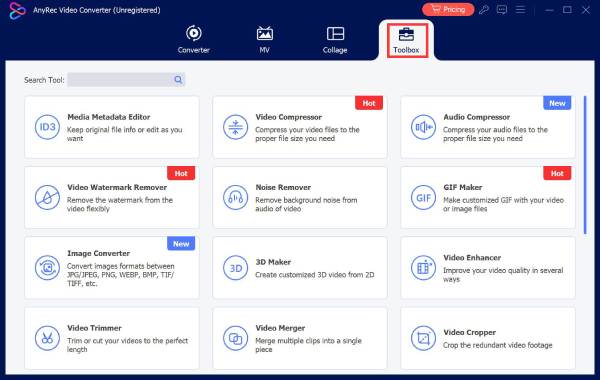
Step 1. Open AnyRec Video Converter. Go to the "Toolbox" tab to see helpful toolkits, scroll through to find the "Noise Remover" option, and click it.
Step 2. Upload the video. Next, tick the checkmark next to "Enable audio noise reduction" option. Also, move the sliders to balance the "Volume" or fix any audio "Delay" to match the visual perfectly.
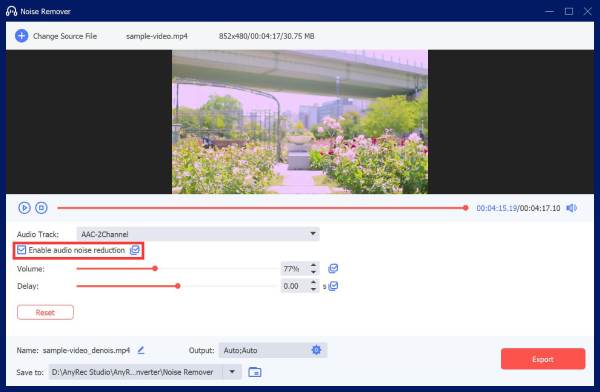
Step 3. If you have specific preferences, go to the "Output" settings to customize format or quality. Then, you can click on the "Preview" to hear the result. If it sounds exactly how you want it, click the "Export" button to clean background noise from your video.
How to Reduce Background Noise from Video with AI
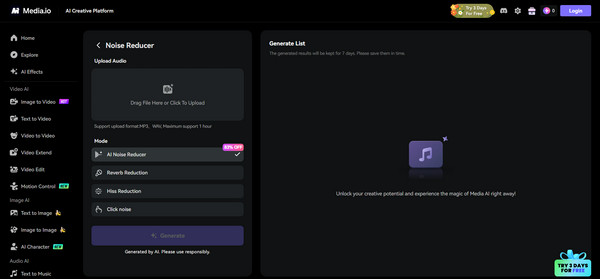
Moving from a desktop tool to an AI solution like Media.io, this online solution uses deep learning models to clean audio from video successfully. It uses a one-click noise reduction that identifies and strips away noise without you needing to manually adjust the settings.
Step 1. Go to the Media.io Noise Reducer page on your chosen browser. There, click the "Upload" button to select the video from your computer or drive.
Step 2. Next, on the right-hand panel, select the type of noise you want to get rid of, like Wind, Hiss, Traffic, or Hum. Click the "Reduce Noise Now" button.
Step 3. After all that, you can use the player to listen to the cleaned video. If it sounds good, click the "Download" button to save your new video file.
How to Remove Background Noise from Video on iPhone
While AI tools work excellently for heavy removal online, you can perform quick edits on your iPhone! Here, you can use iMovie to manage audio levels. While it is usually seen as a basic editor, it has essential noise removers to clean up wind noise, echo, hiss, and other distracting sounds effectively.
Step 1. Open the iMovie app, tap "Start New Project", and choose "Movie" to import your video clip. Tap on the clip in your timeline, then tap the "Scissors" button and select "Detach".
Step 2. After the audio appears as a separate bar below, tap on it, then tap the "Volume" icon. Lower it slightly or tap the "Reduce Background Noise" toggle. You can add audio filters, too, as needed.

Step 3. Once done, tap on "Done" in the left corner, then tap the "Share" button to save the cleaned video to your library.
How to Remove Background Noise from Video on Android
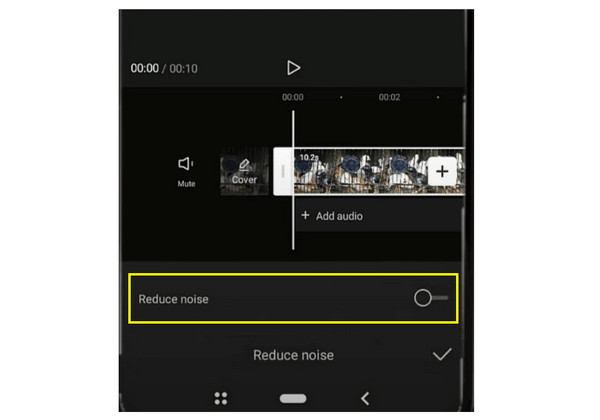
Similarly, Android users can rely on many versatile noise reducer apps, such as CapCut, to remove background noise from video, achieving professional sound on the go. This video editing app features a Reduce Noise toggle that works very well for social media clips and other video projects.
Step 1. Once you have launched CapCut on your Android phone, create a new project, then import your desired video to remove background noise from.
Step 2. From the video track below, tap it, then slide to the right and find the "Reduce noise" feature. Please tap it, then ensure to turn on the toggle, then tap the "Check" button.
Step 3. Later, tap the "Export" button to get your cleaned video saved to your gallery.
How to Remove Background Noise During Video Recording
Suppose you wish to save a lot of time in post-production. The most efficient thing to do here is to remove background noise from the video during the recording. For this, you can use AnyRec Screen Recorder, a recording program that has built-in noise cancellation and mic enhancement features that clean your audio in real-time. Whether it is hums, static, or other distortions, this tool ensures your recordings are cleaner than ever.

Built-in noise cleanup to remove distracting background sounds.
Export your video in popular formats like MP4, MOV, MKV, AVI, and more.
Delivers professional, crystal-clear sound and is free from any noise.
Easily trim out the mistakes at the start or end before exporting.
Secure Download
Secure Download
Step 1. Launch AnyRec Screen Recorder, and stay on the "Video Recorder" screen. From there, select either to record the "Full" or "Custom" screen.
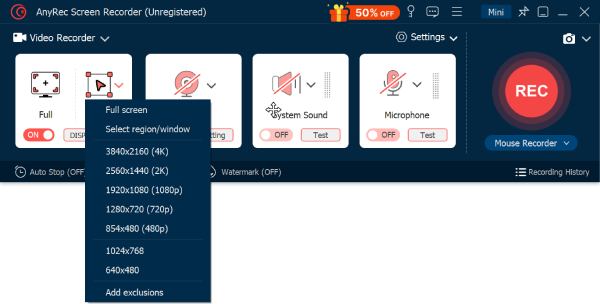
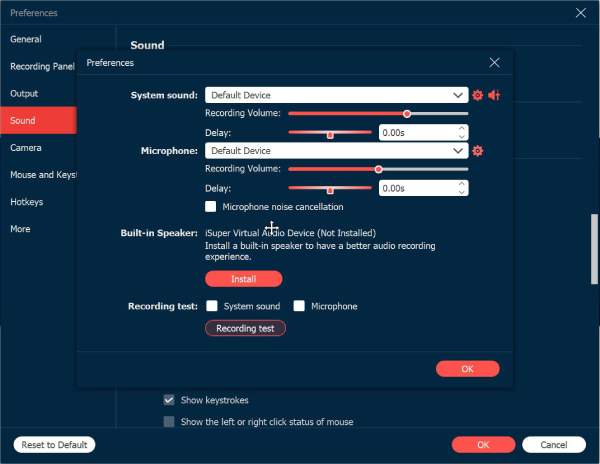
Step 2. Next, decide what you wish to hear: toggle on "System Sound" for capturing computer audio or "Microphone" for capturing your voice. Then, click the arrow on the Microphone button and head to "Settings".
Ensure to check the boxes for "Microphone noise cancellation" and "Microphone enhancement", then click the "OK" button. This option can reduce background noise while recording effectively.
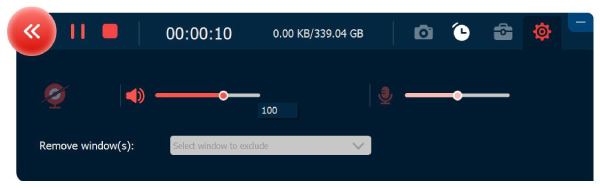
Step 3. When you are ready to go, click the "REC" button. Use the floating toolbar to annotate during recording and even take a screenshot as needed.
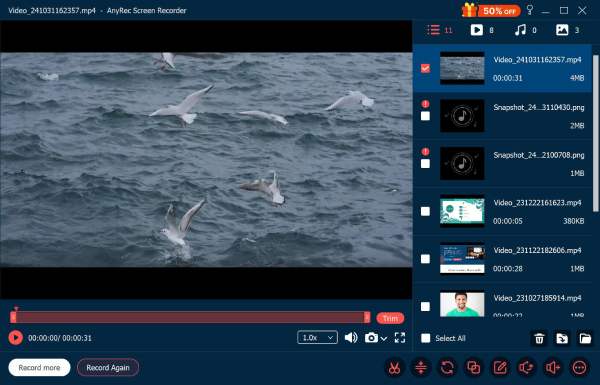
Step 4. Once you're done, just click the "Stop" button. Listen to your recording right away and trim off any unwanted sections, then finally pick your format and save your polished video file.
Secure Download
Secure Download
Conclusion
Now, background noise won't ruin your hard work anymore. Whether it comes from poor microphone placement, noisy environment, or other issues, you can do video background noise removal. To ensure your video always sounds its best, use AnyRec Video Converter to clean up background noise without quality loss. Moreover, you can record audio with background noise reduction using AnyRec Screen Recorder. Start creating high-quality video today without audio issues!
Secure Download
Secure Download



