Podcast Editing: The 6-Step Workflow That Works (with Tips)

You just finished your best episode yet. But great podcasts are not made behind the mic; they're made in how you treat them during podcast editing. If your current process involves randomly cutting out or guessing at settings, make it much better with a more robust workflow. Read on and follow the complete podcast audio editing workflow below with some tips on how to upgrade your podcast. See how to make your podcast show like it has a dedicated gear behind it.
Guide List
What Podcast Editing Actually Involves The Podcast Editing Workflow (Step by Step) How to Improve Podcast Audio QualityWhat Podcast Editing Actually Involves
Just before you even start to edit a podcast, not treating the steps like an overwhelming chore would help. The process just involves two different jobs mashed together, and splitting them up is the first step to get an efficient workflow.
- 1. Content Editing. Your story shapes the conversation, so it must flow naturally and hold the listener's attention. Cut all filler words like hms, uhs, and likes, repeated phrases, off-topic tangents, awkward silences, and other distracting breaths.
- 2. Technical Audio Editing. This is where polishing happens. Make your episode clean and easy to listen to. Use audio noise reduction, equalization, compression, balance volume, add music, and do final loudness normalization.
The Podcast Editing Workflow (Step by Step)
Knowing what goes into your podcast edit and when to do each task will save you time. To avoid wasting effort on steps, use a clean, reliable workflow with AnyRec Video Converter for your podcast editing.
It is an all-in-one desktop tool for converting, compressing, and editing video and audio files. It includes built-in tools with features such as volume boosting, AI noise removal, audio trimming, and more. For podcasters and content creators, it is your lightweight, time-saving companion that simplifies the overall podcast editing preparation and final delivery without the complexity of studio software.
1000+ formats supported with presets to make podcast-ready files.
Fine-tune the exact encoder, channels, sample rate, and other settings.
GPU-accelerated batch processing to save multiple episodes.
Built-in quick editing Toolbox without reopening your main project.
Secure Download
Secure Download
Step 1: Listen to the Entire Recording First
Before making a single cut, preview your raw recording and note the timestamps of any unnecessary parts.
Step 2: Remove Long Silences
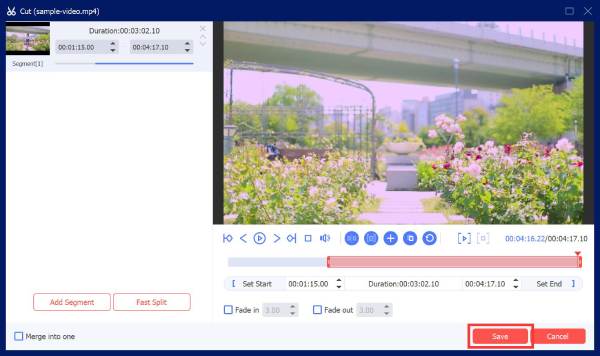
Once your file is in, trim out the long pauses. So the conversation flows without feeling hurried. Click the "Trim" button, then move the two handles so they sit around the part you want. Whatever is between them stays, and the rest is removed.
Step 3: Cut Filler Words
Next, go through filler words like ums, uhs, you know, and other repetitive words. Only cut the ones that distract the listener from your content.
Step 4: Remove Off-Topic Discussions
Cut the three-minute banters about off-topic discussions. If the part does not inform, entertain, or move the podcast episode forward, let it go.
Step 5: Improve the Episode Flow
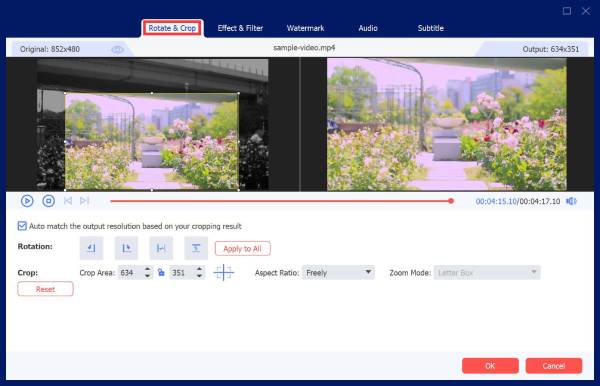
Now that the only important material remains, smooth out the transitions by trimming unnecessary parts. Drop in your intro, outro, and transition music, and balance all speaker volumes so the entire video will feel smooth from start to finish. You can do everything in the "Edit" button of AnyRec Video Converter, where you can see tabs for rotating, applying effects, adding music, etc.
Step 6: Export the Final Episode
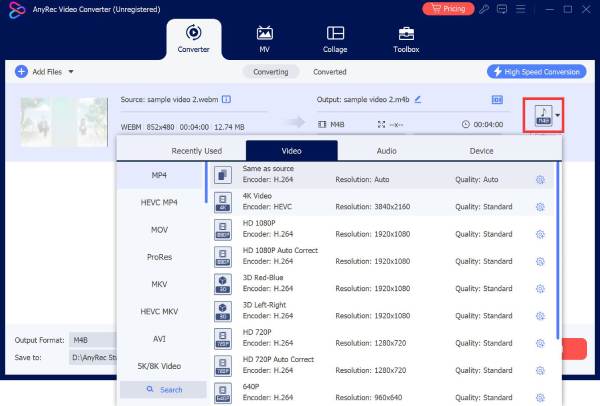
Finally, finalize your file to match the perfect podcast editing standards. From the main screen of AnyRec Video Converter, select a format from the "Format" dropdown menu and, if you want, customize settings such as bitrate, sample rate, resolution, etc., by clicking the "Custom Profile" button. Once done, name your file, set the final destination, and click the "Convert All" button.
How to Improve Podcast Audio Quality
Once you have a well-paced podcast production, the final step is to make sure your episode actually sounds good in your listeners' ears. Luckily, you don't need an expensive setup to get clean, ready audio, and just a few targeted adjustments can be done in AnyRec Video Converter.
Remove Background Noise
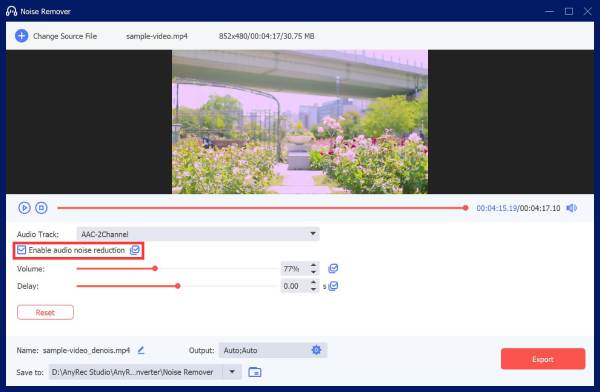
Even in a quiet room, your mic will pick up air sounds, fans, and hums. So, head to the "Toolbox" tab and select "Noise Remover". Import your audio file, and make sure to check the "Enable Audio Noise Reduction" box, listen to your track, and export.
Normalize Audio Levels
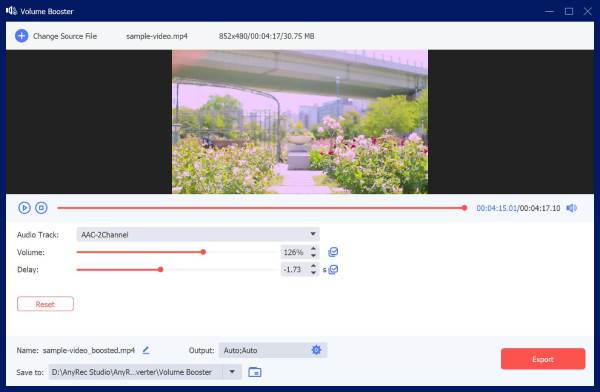
If your guest is quiet, or your raw background music sounds too quiet or uneven, use the "Volume Booster" in the program's Toolbox. Drag the volume slider to balance all output levels, and get a steady, consistent audio track.
Use EQ to Improve Voice Clarity
Equalization allows you to carve out the frequencies that make a voice sound harsh while boosting the ones that add presence. Use around 200-400 Hz to remove room muddiness, while around 3-5 kHz helps spoken words cut clearly through headphones and speakers.
Apply Compression
People naturally laugh louder and quieter when they lean back from the mic. A MP3 audio compressor will help to gently tame those loud peaks and bring up softer syllables so the conversation will feel balanced and smooth to listen to.
Conclusion
When you separate story edits from technical polish and follow a clear set of steps in the process, your podcast audio editing steps become so easy. You get to keep the natural energy that made the conversation engaging in the first place. And to get even more that routine even easier, add AnyRec Video Converter to your toolkit. You can extract crisp audio from a video, clean up background hiss, or batch-export final files, handling and delivering work quickly so you can share your podcast on your social channels.
Secure Download
Secure Download
Related Article
About Our Author