How to Access Photoshop’s Super Resolution Feature [Beginner-Friendly]

What is Photoshop's super resolution? As a trusted image editing tool, many professionals use Adobe Photoshop for tasks related to image processing, and improving image quality is one of them. With the continuous improvement of image upscaling technology, Adobe Photoshop has also released significant updates to introduce new features in order to meet users' demands for image enhancement. This post will introduce you to Photoshop's super resolution feature and the specific methods for using it.
Guide List
Basic Information About Photoshop’s Super Resolution How to Use Super Resolution in Adobe Photoshop How to Get Photos of Super Resolution with an AI ModelBasic Information About Photoshop’s Super Resolution
If you are trying to find where the super-resolution function is in Photoshop, you will probably find that you cannot locate this feature. In fact, this feature is provided by Lightroom, which is also a professional image processing tool under the Adobe brand. Super resolution can enhance the resolution of your images to twice the original size. When both the height and width of the image are doubled, the number of integrated pixels in the image will increase fourfold, which means your picture will become much clearer to a large extent.
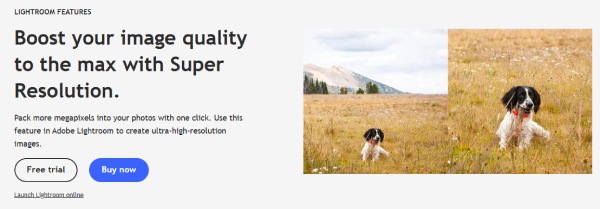
Super-resolution processing of images is carried out based on the learning of AI models. By training an algorithmic machine learning model through the analysis of millions of images, this function is capable of intelligently analyzing the content of your pictures and enhancing them rapidly. Whether it's portraits, landscapes, or text, any type of image can be made clear quickly. According to the introduction on Adobe's official website, if you usually use Adobe Photoshop, super resolution is a feature built into it. You can use it to improve picture quality in Photoshop.
How to Use Super Resolution in Adobe Photoshop
If you want to know how to use super resolution in Photoshop, the answer is actually hidden within Camera Raw (ACR). Although you can't directly find the function named "super resolution", in fact, this method for enhancing images is the same as the "super resolution" technique. In this way, you can efficiently enlarge a picture, allowing it to have more details. You can follow the specific steps below to learn how to apply super resolution in Photoshop.
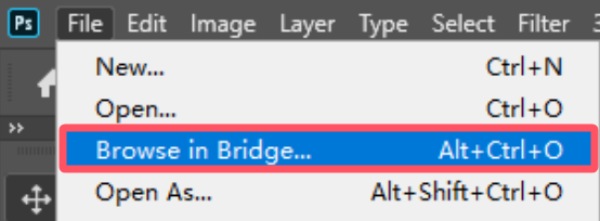
Step 1.Launch Adobe Photoshop on your device and click the "Browse in Bridge..." button under the "File" tab to select your photo for upscaling.
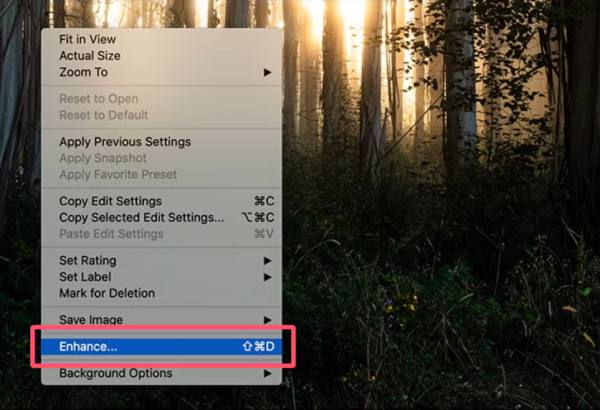
Step 2.In the pop-up window, right-click the image and then click the "Enhance..." button to proceed.
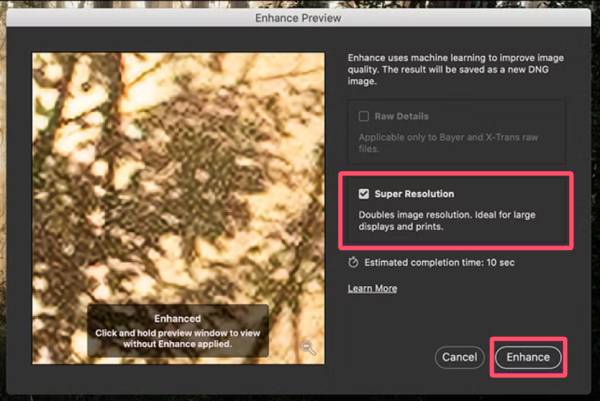
Step 3.Click the "Super Resolution" button to apply super resolution in Photoshop. Finally, click the "Enhance" button.
Tips
Although using Photoshop's super resolution feature can effectively enhance the overall quality of your images, it also has several drawbacks that are worth considering. Firstly, you can only use Adobe Photoshop if you purchase its license. Secondly, its operation is rather complex, both for beginners and professionals. These drawbacks make many users search for an alternative.
How to Get Photos of Super Resolution with an AI Model
If you are looking for a qualified alternative to Photoshop's super-resolution tool, then the free and straightforward AnyRec AI Image Upscaler is the best choice. This tool allows you to upscale photos online up to 4K without a watermark. No matter what kinds of images you are dealing with, the output files can always work well for faces, text, e-commerce, and print quality. Just visit this online tool, and you can directly use AI technology to enhance your images automatically.
Why AnyRec AI Image Upscaler is recommended
- • Improve the quality of the image to the super-resolution level of Photoshop.
- • The operation is extremely simple. Even beginners can complete it quickly.
- • Utilize multiple AI models to assist you in intelligently enhancing the details of the images.
- • Preview to check if the image enhancement meets your requirements.
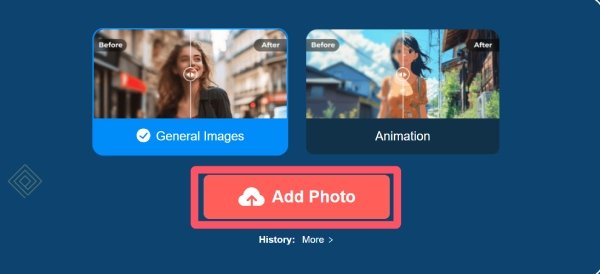
Step 1.Navigate to the official website of AnyRec AI Image Upscaler and click the "Add Photo" button to start.
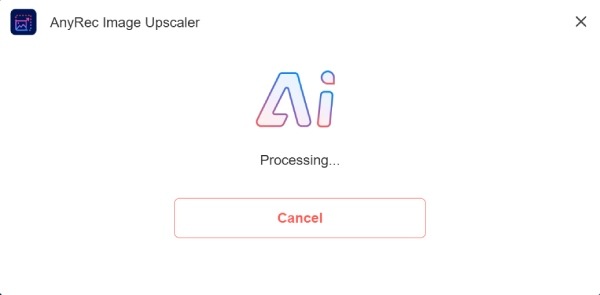
Step 2.After the image is uploaded, it will be scanned and upscaled automatically with the support of an AI model.
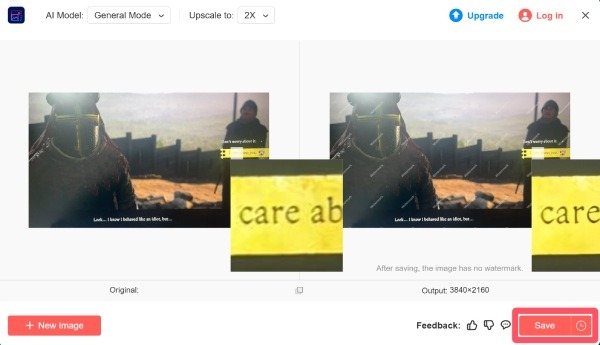
Step 3.You can click the "Upscale to" button to apply super resolution like Photoshop. Finally, click the "Save" button.
Conclusion
This post teaches you how to use super resolution in Photoshop. After reading this post, it should no longer be a problem for you. Although using this function involves payment and relatively complex procedures, it is still very effective. However, for those users who need a free and simple way to obtain images of the same quality as Photoshop's super resolution, you can now give AnyRec AI Image Upscaler a try.
Related Articles
About Our Author